
1. Introduction
The Lapcare WiFi 4G & 5G Router W111 is designed to provide high-speed internet access by utilizing 4G and 5G SIM cards. This device allows multiple users and devices to connect to the internet wirelessly, making it suitable for home, office, or portable use. It supports various SIM cards, including JIO, Airtel, and Vodafone, and offers stable internet speeds up to 300Mbps. This manual provides essential information for setting up, operating, and maintaining your router.
2. Package Contents
Please verify that all items are present in your package:
- Lapcare WiFi 4G & 5G Router W111
- Power Adapter
- LAN Cable
3. Product Overview
The Lapcare W111 router features a compact design with three external antennas for enhanced signal reception. It includes LED indicators for status monitoring and a SIM card slot for mobile network connectivity.

Figure 3.1: Lapcare W111 Router with its retail packaging. The packaging highlights the brand, model number (W-III), and key features like 3 antennas, 1 LAN port, and power input.

Figure 3.2: Front view of the Lapcare W111 router, showing the three external antennas and LED indicators for signal strength and network status. The "4G" label is visible at the bottom right.
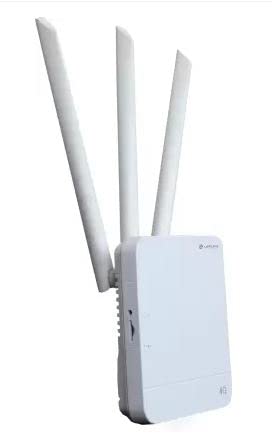
Figure 3.3: Side view of the Lapcare W111 router, illustrating the compact form factor and the arrangement of the three antennas. This view also shows a port, likely for power or LAN connection.
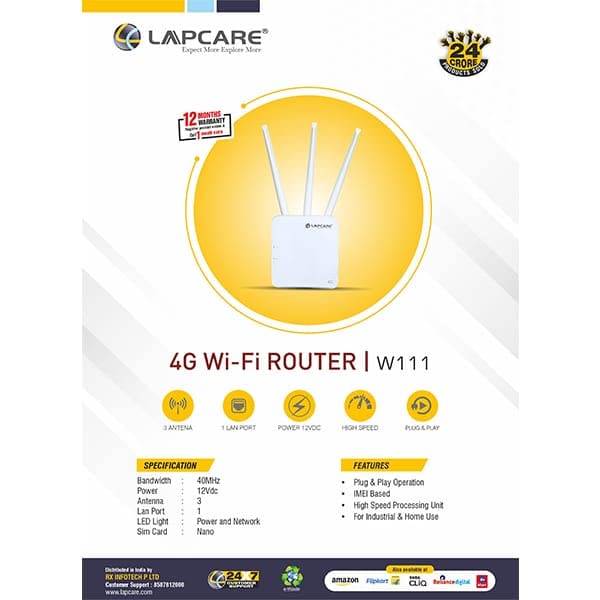
Figure 3.4: An informational graphic detailing the Lapcare W111 router's features and specifications. It highlights 3 antennas, 1 LAN port, 12VDC power, high speed, and plug & play operation. Key specifications like Bandwidth (40MHz), Power (12Vdc), Antennas (3), LAN Port (1), LED Light (Power and Network), and SIM Card type (Nano) are listed. Features include Plug & Play, IMEI Based, High Speed Processing Unit, and suitability for Industrial & Home Use.

Figure 3.5: A graphic illustrating the compatibility of the Lapcare W111 router with various devices, including Android phones, iOS phones, tablets, and laptops. This indicates its versatility for different user environments.
4. Setup Instructions
Follow these steps to set up your Lapcare W111 router:
- Insert SIM Card: Locate the SIM card slot on the router. Gently insert your Nano SIM card into the slot until it clicks into place. Ensure the SIM card is correctly oriented.
- Connect Power: Connect the provided power adapter to the router's power input port and then plug the adapter into a standard electrical outlet. The router will power on automatically.
- Observe LED Indicators: Once powered on, observe the LED indicators. The power LED should be solid, and the network/signal LEDs should indicate a successful connection to the mobile network. This may take a few moments.
- Connect Devices:
- Wireless Connection: On your computer, smartphone, or tablet, search for available Wi-Fi networks. Select the network name (SSID) broadcast by your Lapcare W111 router. The default SSID and password are usually printed on a label on the router itself. Enter the password to connect.
- Wired Connection: For a wired connection, use the provided LAN cable to connect your computer or other network device to the LAN port on the router.
- Access Internet: Once connected, your devices should have internet access. The router is designed for plug-and-play operation, requiring no complex configuration for basic internet access.
5. Operating Instructions
The Lapcare W111 router is designed for straightforward operation. Here are some key aspects:
- LED Indicators:
- Power LED: Indicates the power status of the device. Solid light means the device is on.
- Signal/Network LEDs: Indicate the strength of the 4G/5G signal and network activity. More lights typically mean a stronger signal.
- Connecting Multiple Devices: The router supports multiple simultaneous connections, allowing various devices like smartphones, tablets, laptops, and smart home devices to share the internet connection.
- Optimal Placement: For the best Wi-Fi coverage and signal strength, place the router in a central location, away from obstructions and sources of interference (e.g., microwaves, cordless phones).
6. Maintenance
Proper maintenance ensures the longevity and optimal performance of your router:
- Cleaning: Regularly clean the router's exterior with a soft, dry cloth. Avoid using liquid cleaners or abrasive materials.
- Ventilation: Ensure the router is placed in a well-ventilated area to prevent overheating. Do not cover ventilation openings.
- Firmware Updates: While this model is described as "No Configuration required," some routers may offer firmware updates for improved performance and security. Check the manufacturer's website for any available updates if you encounter issues.
- Power Cycle: If the router experiences issues, try power cycling it by unplugging the power adapter, waiting 10-15 seconds, and then plugging it back in.
7. Troubleshooting
If you encounter problems with your Lapcare W111 router, refer to the following troubleshooting tips:
- No Internet Access:
- Ensure the SIM card is correctly inserted and active with a data plan.
- Check the signal strength LEDs on the router. If they are low or off, try relocating the router to an area with better mobile network coverage.
- Power cycle the router (unplug and replug).
- Verify that your connected device's Wi-Fi is enabled and connected to the correct network.
- Unstable Wi-Fi Connection / Frequent Disconnections:
- Move the router closer to your devices or away from potential interference sources.
- Ensure the router is not obstructed by walls or large objects.
- Reduce the number of connected devices if the network is overloaded.
- Power cycle the router.
- Slow Internet Speed:
- Check your mobile network provider's coverage and speed in your area.
- Ensure the router is placed in an optimal location for signal reception.
- Limit bandwidth-intensive activities on other connected devices.
- Cannot Connect to Wi-Fi Network:
- Double-check the Wi-Fi password.
- Restart your device and try connecting again.
- Ensure the router is powered on and broadcasting its Wi-Fi network.
8. Specifications
Below are the technical specifications for the Lapcare WiFi 4G & 5G Router W111:
| Feature | Specification |
|---|---|
| Brand | Lapcare (Generic) |
| Model | W111 (W-III) |
| Data Transfer Rate | Up to 300 Mbps |
| Wireless Type | 802.11g (Wi-Fi) |
| Connector Type | Wi-Fi |
| Antennas | 3 External Antennas |
| LAN Ports | 1 |
| SIM Card Support | All 4G & 5G SIM Cards (Nano SIM) |
| Operating System Compatibility | Windows (for connected devices) |
| Special Features | Access Point Mode, Plug & Play Operation, IMEI Based |
| Power Input | 12Vdc |
| Compatible Devices | Personal Computer, Android Phones, iOS Phones, Tablets, Laptops |
9. Warranty Information
The Lapcare WiFi 4G & 5G Router W111 comes with a 1-year warranty from the date of purchase. This warranty covers manufacturing defects and malfunctions under normal use. Please retain your purchase receipt as proof of purchase for warranty claims. For specific terms and conditions, refer to the warranty card included in your package or contact Lapcare customer support.
10. Support
For further assistance, technical support, or warranty claims, please contact Lapcare customer service. Refer to the contact information provided on the product packaging or the official Lapcare website.
Manufacturer: Shree Shyam Enterprises