
1. Product Overview
The Phomemo M220 is a portable thermal label maker designed for various labeling needs, from office organization to small business applications. It utilizes advanced thermal printing technology, eliminating the need for ink, toner, or ribbons. Its compact design, long-lasting battery, and strong compatibility with multiple operating systems make it a versatile tool.

Image: Phomemo M220 Label Maker and included label rolls.

Image: Key features of the M220 Label Maker.
Key Features:
- Inkless Thermal Printing: No need for ink, toner, or ribbon.
- Strong Compatibility: Connects via Bluetooth to iOS and Android mobile devices, and via USB to Windows, macOS, and ChromeOS.
- Industry Leading App: The 'Print Master' app (for mobile) and 'Labelife' app (for PC) offer various built-in functions and templates.
- Long-Lasting Battery: 2200 mAh battery supports up to 36 continuous rolls of printing.
- Versatile Labeling: Suitable for address, barcode, shipping, price, date, ingredients, and logo labels.
2. What's in the Box
Upon unboxing your Phomemo M220 Label Maker, please ensure all the following components are present:
- 1 x M220 Label Printer (Pink)
- 1 x Roll of 1.96"x1.18" Labels (230pcs)
- 1 x Roll of 1.96"x3.14" Labels (100pcs)
- 1 x Roll of 2.75"x3.14" Labels (100pcs)
- 1 x USB-C Cable
- 1 x User Manual

Image: Included label paper sizes.
3. Setup Guide
3.1. Initial Charging
Before first use, fully charge your Phomemo M220 Label Maker using the provided USB-C cable. The device features a powerful 2200 mAh battery for extended use.

Image: M220 battery capacity.
3.2. Loading Labels
The M220 supports label widths from 0.78'' to 3.14''. To load labels:
- Open the label compartment cover.
- Insert the label roll with the printing surface facing up.
- Close the cover, ensuring the label feeds smoothly through the output slot.
3.3. Connecting to Your Device
For Phones and Tablets (Bluetooth Connection):
- Download the 'Print Master' app from your device's app store.
- Turn on the M220 label maker and ensure your phone's or tablet's Bluetooth is enabled.
- Open the 'Print Master' app, click the 'Printer' icon, and search for the M220. Connect via Bluetooth within the app.
For Laptops and PCs (USB Connection):
- Visit the official Phomemo website to download and install the correct M220 driver and the 'Labelife' app for your operating system (Windows, macOS, ChromeOS, Linux).
- Use the provided USB-C cable to connect the M220 label maker to your computer.
- Open the 'Labelife' app.

Image: M220 compatibility with various operating systems via USB.
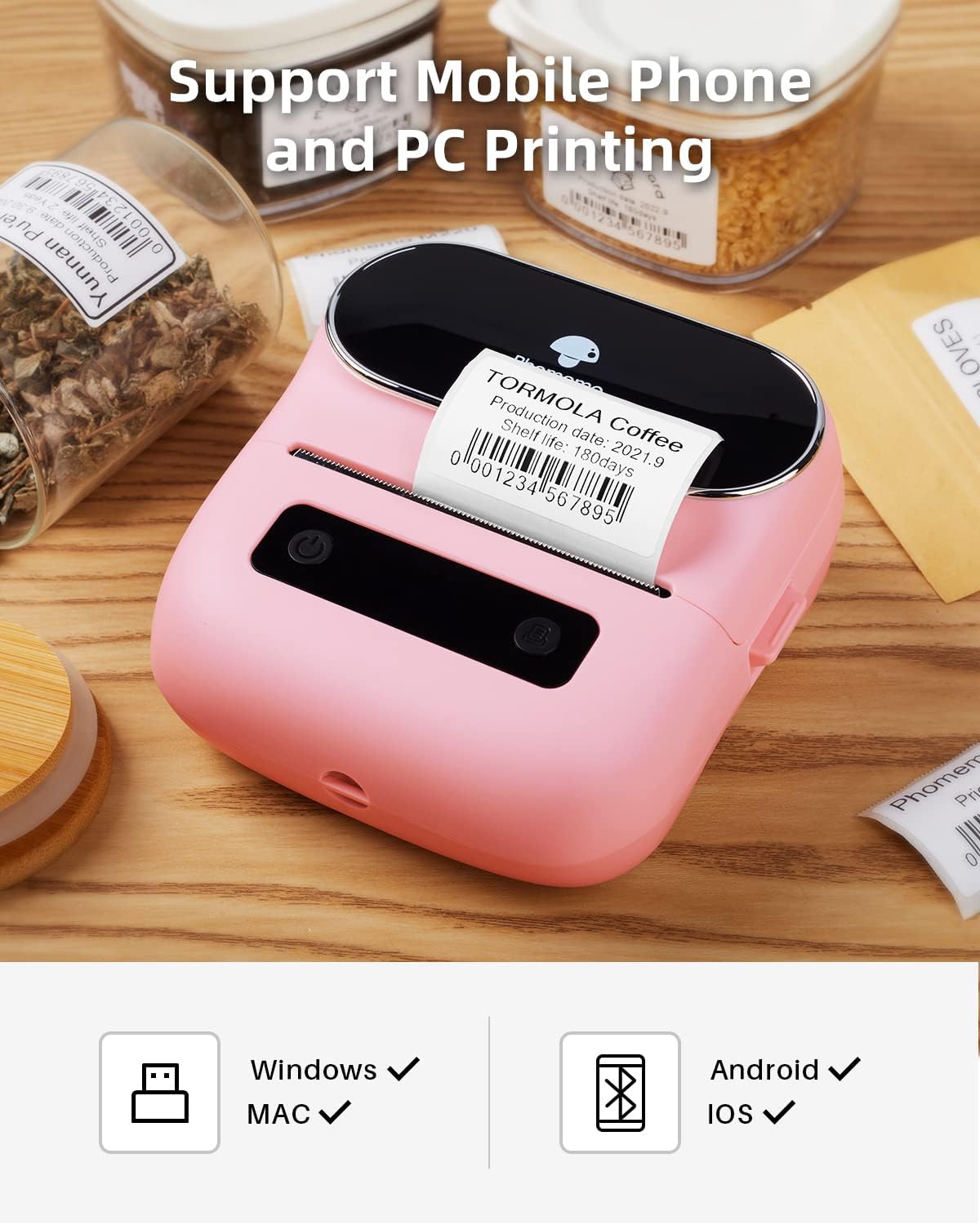
Image: M220 supports mobile phone and PC printing.
4. Operating Instructions
4.1. Creating and Printing Labels
Once connected, you can begin creating and printing labels using the respective applications.
Using 'Print Master' (Mobile App):
- Select the desired label size within the app.
- Utilize the app's built-in functions to add text, pictures, barcodes, QR codes, OCR, forms, icons, or use pre-made templates.
- Edit your content as needed.
- Tap the print button to send the label to your M220.
Using 'Labelife' (PC App):
- Select the label size from the options.
- Edit your content using the available tools.
- Choose M220 from the printer list and initiate printing.

Image: Rich built-in functions in the app.
4.2. Label Applications
The M220 is highly versatile for various labeling tasks:
- Address Labels: Ideal for mailing and shipping.
- Barcode/Logo Labels: Perfect for product identification and branding.
- Food Labels: For organizing pantry items with dates and ingredients.
- File Folder Labels: For efficient document organization.

Image: Example of Address Label application.

Image: Example of Barcode/Logo Label application.

Image: Example of Food Label application.

Image: Example of File Folder Label application.
5. Maintenance
5.1. Cleaning the Print Head
To ensure optimal print quality, regularly clean the print head. Use a soft, lint-free cloth lightly dampened with rubbing alcohol. Gently wipe the print head surface. Ensure the device is powered off before cleaning.
5.2. Battery Care
The M220 features an auto-sleep mode to conserve power. To maximize battery life:
- Avoid fully discharging the battery frequently.
- Store the device in a cool, dry place when not in use for extended periods.
- Charge the device regularly, even if not in constant use, to maintain battery health.
6. Troubleshooting
If you encounter issues with your Phomemo M220, refer to the common problems and solutions below:
| Problem | Possible Cause | Solution |
|---|---|---|
| Printer not connecting via Bluetooth | Bluetooth not enabled on device; App not recognizing printer; Printer not powered on. | Ensure printer is on and charged. Enable Bluetooth on your phone/tablet. Connect through the 'Print Master' app, not directly via phone settings. Restart both devices. |
| Printer not connecting via USB | Incorrect driver installed; Loose USB connection; 'Labelife' app not open. | Verify correct driver installation from Phomemo website. Ensure USB cable is securely connected. Open the 'Labelife' app and select M220 from printer list. |
| Poor print quality / Faded labels | Print head dirty; Low battery; Incorrect label type. | Clean the print head (refer to Maintenance section). Charge the printer fully. Ensure you are using thermal labels compatible with the M220. |
| Printer freezes / Unresponsive | Software glitch; Temporary error. | Perform a soft reset by holding the power button until it turns off, then restart. If issue persists, contact Phomemo support. |
7. Specifications
Detailed technical specifications for the Phomemo M220 Label Maker:
| Specification | Detail |
|---|---|
| Model Name | M220-PK |
| Product Dimensions | 7.99"D x 5.9"W x 2.91"H |
| Item Weight | 5 ounces |
| Printing Technology | Thermal |
| Printer Output | Monochrome |
| Maximum Media Size | 3.14 inches |
| Sheet Size | 0.74-3.14 Inches |
| Maximum Black and White Print Resolution | 203x203DPI |
| Connectivity Technology | Bluetooth, USB-Type-C |
| Hardware Interface | USB Type C |
| Control Method | App (Android, iOS) |
| Batteries | 1 Lithium Polymer battery (included) |
8. Warranty and Support
8.1. Protection Plans
Optional protection plans are available for your Phomemo M220 Label Maker:
- 4-Year Protection Plan: Available for $11.99 (one-time payment).
- Complete Protect: A monthly plan covering eligible past and future purchases for $16.99/month.
For details on these plans, please refer to the product listing or contact the seller.
8.2. Additional Resources and Support
For further assistance, you can refer to the official user manual PDF or contact Phomemo customer support.
- Official User Manual (PDF): Download Here
- Phomemo Store: Visit the Official Phomemo Store on Amazon


