
Introduction
Thank you for choosing the NGS EVO RUST ICE Wireless Mouse. This manual provides essential information for setting up, operating, maintaining, and troubleshooting your device. Please read it carefully to ensure optimal performance and longevity of your mouse.

Front view of the NGS EVO RUST ICE wireless mouse in blue, showcasing its ergonomic design and the included USB receiver.

The NGS EVO RUST ICE mouse is available in various colors, including blue, gold, and black.
Setup Guide
Follow these steps to set up your NGS EVO RUST ICE wireless mouse:
- Unpack the Mouse: Carefully remove the mouse and the USB receiver from the packaging.
- Locate the USB Receiver: The compact USB receiver is typically stored within the mouse itself, often in a compartment on the underside.
- Insert the USB Receiver: Plug the USB receiver into an available USB port on your computer (PC, Mac, MacBook, iPad, or Tablet). The mouse is designed for "Plug and Play" functionality, meaning it should be recognized automatically by your operating system.
- Power On the Mouse: Locate the On/Off switch on the underside of the mouse and slide it to the "On" position.
- Initial Charging (if needed): Although the mouse comes with some charge, it is recommended to fully charge it before first use. Connect the supplied micro USB cable to the mouse's charging port and the other end to a USB power source (e.g., computer USB port, USB wall adapter).

The NGS EVO RUST ICE mouse shown with its micro USB charging cable and the 2.4 GHz USB receiver, demonstrating its connectivity and charging method.
Operating Instructions
Your NGS EVO RUST ICE mouse is designed for intuitive use. Here's how to operate its key features:
- Basic Movement: Move the mouse across a flat surface. The optical sensor provides precise tracking.
- Silent Buttons: The left and right click buttons are designed to be silent, reducing click noise by over 90%.
- Scroll Wheel: Use the anti-sweat rubber scroll wheel for vertical scrolling through documents and web pages. The scroll wheel also functions as a clickable middle button.
- DPI Adjustment: The mouse features a dedicated DPI button, typically located behind the scroll wheel. Press this button to cycle through the available resolution settings: 800 DPI (for precise control), 1200 DPI (standard use), and 1600 DPI (for faster cursor movement). Choose the DPI setting that best suits your task and preference.
- Side Buttons: The mouse includes additional buttons on the side, designed for right-handed users. These can often be configured for forward/back navigation in web browsers or other custom functions depending on your operating system and software.
- Energy Saving: Utilize the On/Off switch on the underside of the mouse to conserve battery life when not in use or when transporting the mouse.

The NGS EVO RUST ICE mouse in use with a laptop, demonstrating its ergonomic fit for right-handed users.
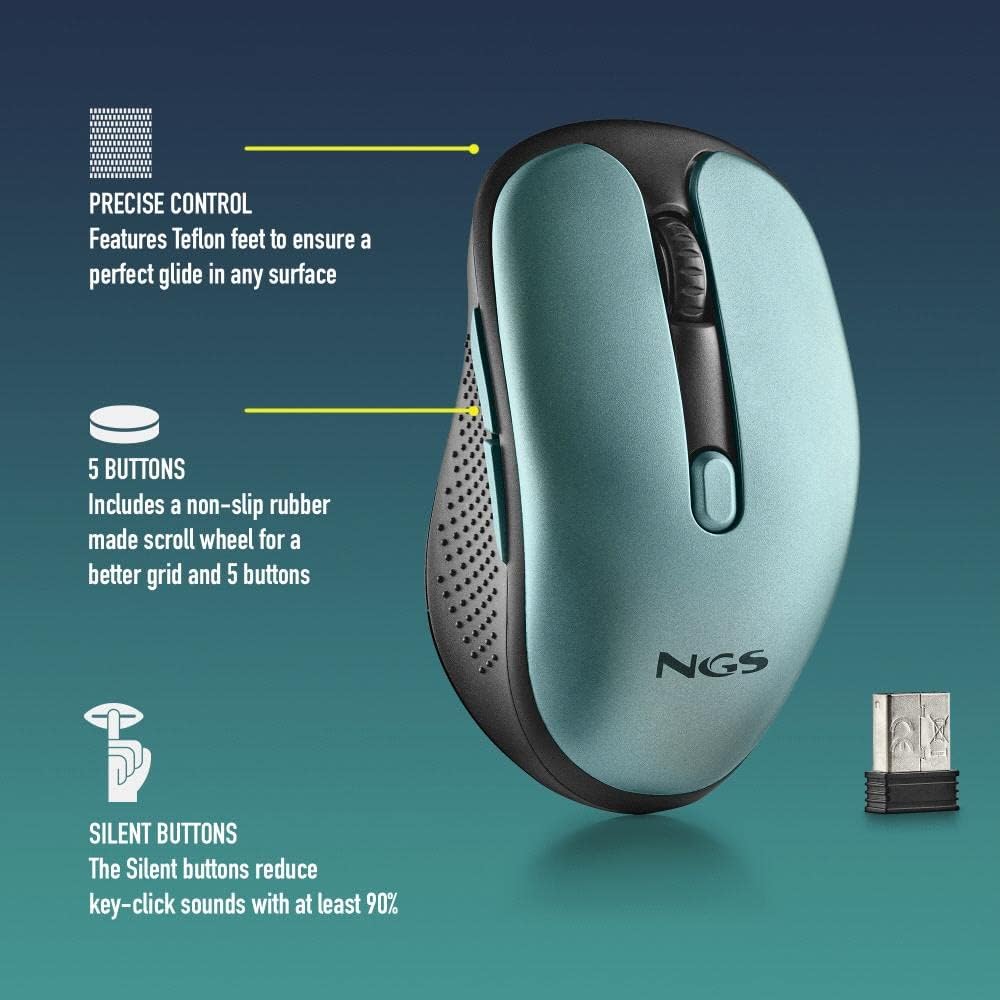
A detailed view of the NGS EVO RUST ICE mouse highlighting its features: Teflon feet for smooth gliding, five responsive buttons, and silent click technology that reduces noise by over 90%.
Maintenance
Proper maintenance ensures the longevity and optimal performance of your mouse:
- Cleaning: Use a soft, dry cloth to wipe the surface of the mouse. For stubborn dirt, slightly dampen the cloth with water or a mild, non-abrasive cleaner. Avoid using harsh chemicals or abrasive materials.
- Optical Sensor: Keep the optical sensor on the underside of the mouse clean and free from dust or debris to ensure accurate tracking. Use a cotton swab or compressed air if necessary.
- Charging: Recharge the mouse when the battery indicator (if present) shows low power, or when you notice a delay in response. Use the provided micro USB cable for charging. A full charge can provide up to 50 hours of use.
- Storage: When not in use for extended periods, turn off the mouse using the On/Off switch to conserve battery life. Store it in a clean, dry place.

An illustrative image showing key features of the NGS EVO RUST ICE mouse, including its micro USB charging port and impressive battery life.
Troubleshooting
If you encounter issues with your NGS EVO RUST ICE mouse, try the following solutions:
| Problem | Possible Cause | Solution |
|---|---|---|
| Mouse not responding |
|
|
| Erratic cursor movement |
|
|
| Short battery life |
|
|
Technical Specifications
- Model Name: NGS EVO RUST ICE
- Connectivity: 2.4 GHz Wireless (USB Receiver)
- Sensor Technology: Optical
- DPI Resolution: 800 / 1200 / 1600 DPI (Adjustable)
- Number of Buttons: 5 (Left, Right, Scroll Wheel Click, 2 Side Buttons)
- Special Features: Silent Buttons, Rechargeable Lithium Battery, Teflon Feet, On/Off Energy Saving Button, Plug & Play
- Battery Type: Rechargeable Lithium Battery (600 mAh, based on image)
- Battery Life: Up to 50 hours on a single charge
- Charging Port: Micro USB
- Operating Distance: 8-10 meters
- Hand Orientation: Right-Handed Design
- Dimensions (L x W x H): Approximately 105 x 62 x 38 mm
- Weight: 66 Grams
- Compatibility: PC, Mac, MacBook, iPad, Tablet (macOS, Windows compatible)

A graphic illustrating key features of the NGS EVO RUST ICE mouse: wireless operation, rechargeable battery, 800/1200/1600 DPI settings, silent buttons, and compatibility with PC and Mac systems.
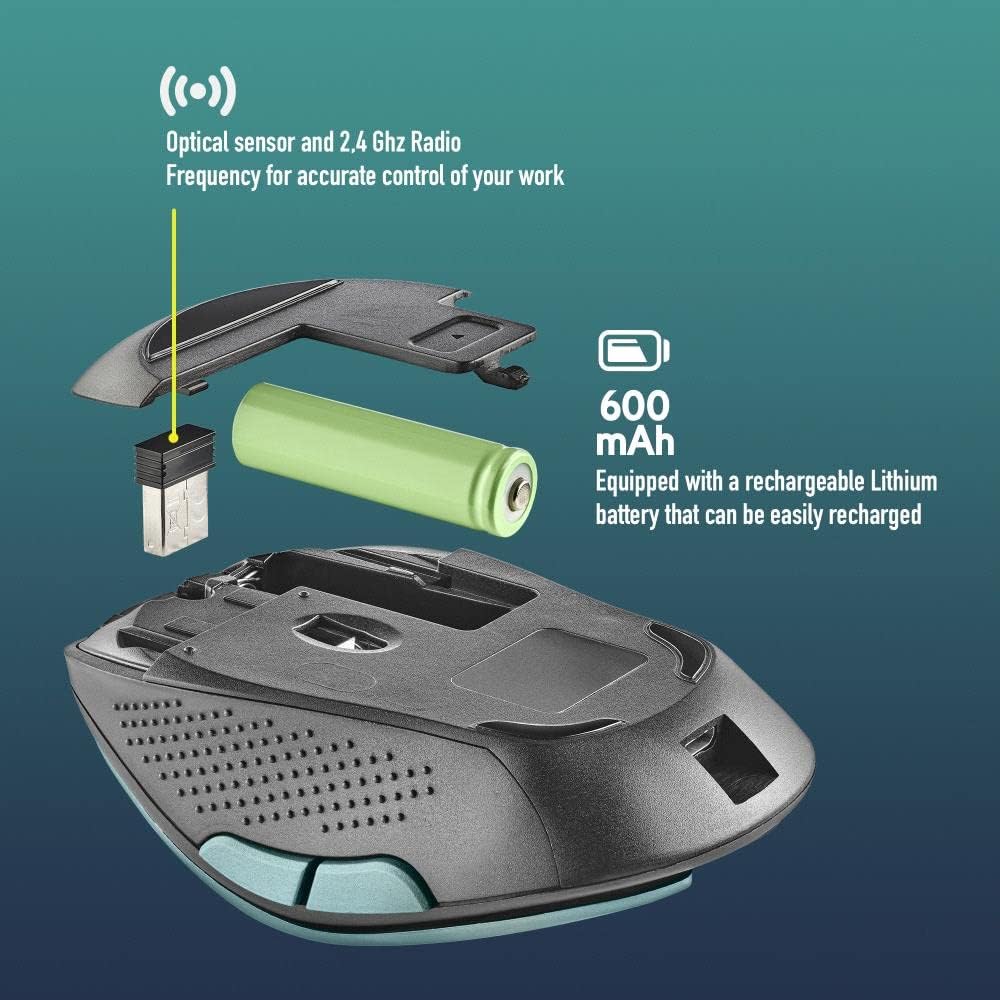
An exploded view of the NGS EVO RUST ICE mouse, illustrating its internal components including the optical sensor, 2.4 GHz radio frequency module, and the 600 mAh rechargeable Lithium battery.
Warranty and Support
The NGS EVO RUST ICE mouse comes with a manufacturer's warranty. For specific details regarding warranty coverage, duration, and terms, please refer to the documentation included with your purchase or visit the official NGS website.
For technical support, product registration, or further inquiries, please contact NGS customer service through their official channels. Contact information can typically be found on the product packaging or the manufacturer's website.
Manufacturer: Lurbe Grup, S.A. (NGS)


