
Introduction
Thank you for choosing the Redragon H848 Wireless Gaming Headset. This manual provides essential information for setting up, operating, maintaining, and troubleshooting your headset. Please read it carefully to ensure optimal performance and longevity of your device.
The Redragon H848 is an ultra-lightweight gaming headset designed for multi-platform compatibility, offering three connection modes: 2.4Ghz wireless, Bluetooth, and wired via USB-C. It features 7.1 Surround Sound technology, 40mm audio drivers, a detachable noise-cancellation microphone, and a long-lasting battery.

Image: The Redragon H848 Wireless Gaming Headset, highlighting its ultra-light design.
Package Contents:
- Redragon H848 Wireless Gaming Headset
- Detachable Microphone
- 2.4Ghz USB-C Wireless Receiver
- USB-C Charging Cable
- 3.5mm Audio Cable
- User Manual
Setup
The Redragon H848 offers versatile connectivity options for various devices. Choose the appropriate method for your platform.
Charging the Headset:
Before first use, fully charge the headset. Connect the supplied USB-C charging cable to the headset's USB-C port and the other end to a powered USB port (e.g., computer, wall adapter). The charging indicator light will show charging status. A full charge takes approximately 2.5 hours and provides up to 25 hours of battery life.

Image: Visual representation of the headset's long battery life and quick charging.
Connecting the Headset:
The H848 supports three connection modes: 2.4Ghz wireless, Bluetooth, and wired.

Image: The three available connection modes for the Redragon H848 headset.
- 2.4Ghz Wireless Connection (for PC, PS5/4/3, Switch, Mobile):
- Plug the 2.4Ghz USB-C wireless receiver into an available USB-C port on your device. If your device only has USB-A, use a USB-C to USB-A adapter (not included).
- Power on the headset. The headset will automatically attempt to connect to the receiver. A voice prompt will confirm successful connection.
- Ensure the headset is selected as the audio input and output device in your system settings.
- Bluetooth Connection (for PC, Smartphones, Tablets, Switch):
- Power on the headset and switch it to Bluetooth mode. The indicator light will flash, indicating pairing mode.
- On your device, enable Bluetooth and search for available devices. Select "Redragon H848" from the list.
- Once paired, a voice prompt will confirm the connection.
- Wired Connection (via USB-C or 3.5mm Audio Cable):
- USB-C Wired Mode: Connect the USB-C charging cable from the headset to your device. Ensure the headset is switched to 2.4G mode first, then plug in the Type-C cable. The headset indicator will show red and blue.
- 3.5mm Audio Cable: Connect the 3.5mm audio cable to the headset's 3.5mm port and to your device's audio jack. This mode does not require battery power.
Image: The 3.5mm audio jack for wired connection.
Compatibility Overview:

Image: Wide platform compatibility of the Redragon H848 headset.
Operating Instructions
Familiarize yourself with the headset controls for an optimal user experience.
Controls:

Image: Side view of the headset controls.
- Power Button: Press and hold to power on/off. Short press to switch between 2.4G and Bluetooth modes (when not connected via Type-C cable).
- Volume Up/Down: Adjusts the audio output volume.
- Microphone Mute Button: Toggles the microphone on/off.
Microphone Usage:
The headset features a detachable, noise-cancellation microphone for clear communication. Insert the microphone into the designated port on the left earcup until it clicks into place. Ensure it is positioned correctly for optimal voice pickup.
7.1 Surround Sound:
Experience immersive audio with 7.1 Surround Sound technology, enhancing directional awareness in games and providing a rich audio experience for music and movies. The 40mm drivers deliver a wide frequency range and high-fidelity sound.

Image: Illustration of the 40mm sound units and 7.1 Surround Sound capability.
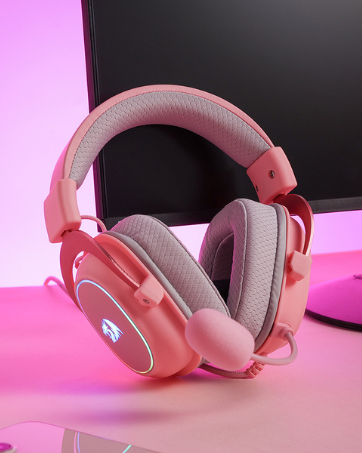
Image: Interior view of the earcup, designed for comfort and sound absorption.
Maintenance
Proper care will extend the life and performance of your Redragon H848 headset.
- Cleaning: Use a soft, dry cloth to clean the headset. For earcups, a slightly damp cloth can be used, but ensure no moisture enters the speaker grilles. Do not use harsh chemicals or abrasive cleaners.
- Storage: Store the headset in a cool, dry place away from direct sunlight and extreme temperatures.
- Battery Care: To maintain battery health, avoid fully discharging the headset frequently. Recharge it when the battery is low. If storing for an extended period, charge the headset to about 50% every few months.
- Handling: Avoid dropping the headset or subjecting it to strong impacts. Do not pull on the cables forcefully.
Troubleshooting
If you encounter issues with your Redragon H848 headset, refer to the following common solutions:
General Tips:
- The headset cannot switch between Bluetooth and 2.4G modes when connected to a PC/PS4/device via a Type-C cable. The cable must be unplugged before switching modes.
- For USB wired mode, ensure the headset is switched to 2.4G mode (indicated by "Gaming mode, power ON" voice prompt) before plugging in the Type-C cable. The headset indicator will then show red and blue.
- The H848 will automatically turn off after 10 minutes if it is not connected to the transmitter or if it is connected but there is no audio source.
Common Issues and Solutions:
| Issue | Possible Cause | Solution |
|---|---|---|
| No sound or low volume | Headset not powered on, volume too low, incorrect audio output selected, connection issue. | Ensure headset is powered on and charged. Increase headset and device volume. Check device's audio settings to ensure H848 is selected as output. Re-establish connection (2.4G, BT, or wired). |
| Microphone not working or distorted | Microphone muted, not properly attached, incorrect input device selected, software settings. | Ensure microphone is not muted (check headset button and software). Re-attach microphone firmly. Check device's audio settings to ensure H848 is selected as input. Adjust microphone sensitivity in software (e.g., Discord, game settings). |
| Cannot connect wirelessly (2.4G or Bluetooth) | Out of range, interference, pairing mode not active, incorrect mode selected. | Ensure headset is within range of the receiver/device. Minimize interference from other wireless devices. Put headset into pairing mode (Bluetooth) or ensure 2.4G mode is active. Try restarting both headset and device. |
| Headset turns off unexpectedly | Low battery, auto-off feature. | Recharge the headset. Note that the headset will turn off after 10 minutes if no connection or audio is detected. |
Specifications
| Feature | Detail |
|---|---|
| Model Name | H848 |
| Connectivity Technology | BT (Bluetooth), 2.4Ghz Wireless, USB-C Wired |
| Wireless Communication | Bluetooth 5.0 |
| Audio Driver Type | Dynamic Driver (40mm) |
| Sound Features | 7.1 Surround Sound |
| Microphone | Detachable, Noise-Cancellation |
| Noise Control | Active Noise Cancellation |
| Impedance | 17 Ohms |
| Battery Life | Up to 25 Hours |
| Charging Time | Approximately 2.5 Hours |
| Item Weight | 178 Grams (6.3 ounces) |
| Compatible Devices | PC, PS5/4/3, Switch, Mobile, Tablet, Smartphone |
| Material | Plastic |
| Ear Placement | Over Ear |
Warranty and Support
Redragon products are designed for reliability and performance. For warranty information, please refer to the documentation included with your purchase or visit the official Redragon website. If you require technical support or have questions not covered in this manual, please contact Redragon customer service or the authorized seller from whom you purchased the product.
For further assistance, you may visit the Redragon Store on Amazon.


