
1. Introduction
Thank you for choosing the OCOOPA D77 USB Desk Fan. This portable and rechargeable fan is designed to provide efficient cooling with its powerful airflow and oscillating feature. Please read this manual carefully before use to ensure proper operation and maintenance.

Image 1.1: OCOOPA D77 USB Desk Fan. This image shows the fan from the front, highlighting its compact design and the OCOOPA logo on the grille.
2. Safety Instructions
To prevent injury or damage to the product, always follow these basic safety precautions:
- Do not insert fingers or any objects into the fan grille when the fan is operating.
- Keep the fan away from water or other liquids. Do not use in wet environments.
- Ensure the power source used for charging is compatible with the fan's specifications (5V).
- Do not disassemble, repair, or modify the fan yourself. Contact qualified service personnel if needed.
- Keep out of reach of children and pets.
- Avoid dropping or subjecting the fan to strong impacts.
3. Package Contents
Upon opening the package, verify that all items are present:
- OCOOPA D77 USB Desk Fan
- USB Charging Cable (USB-A to USB-C)
- User Manual
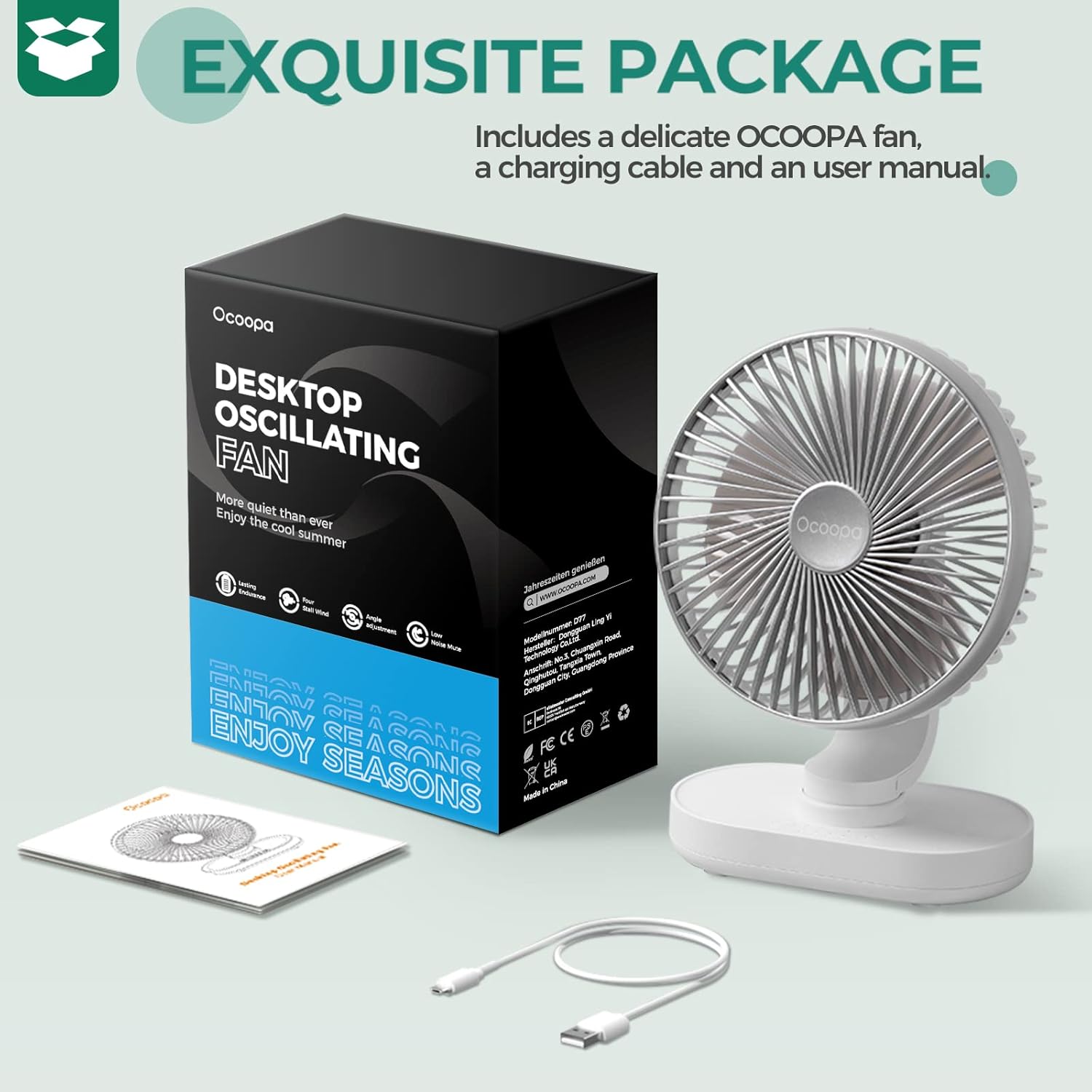
Image 3.1: Package Contents. This image displays the fan, its packaging box, a USB charging cable, and the user manual.
4. Setup
4.1 Initial Charging
Before first use, fully charge the fan. The fan is equipped with a 4000 mAh rechargeable battery.
- Connect the provided USB charging cable to the fan's USB-C charging port.
- Connect the other end of the USB cable to a compatible USB power adapter (not included) or a computer's USB port.
- The battery indicator lights will illuminate to show charging status. Charging typically takes approximately 5.5 hours for a full charge.
4.2 Placement
Place the fan on a stable, flat surface. The fan's compact and portable design allows for versatile placement on desks, bedside tables, or other suitable locations.

Image 4.1: Fan Design and Controls. This image illustrates the fan's dimensions, the Micro-USB and USB-C charging ports, the auto oscillation button, power switch, battery indicators, and speed indicators.
5. Operating Instructions
5.1 Power On/Off and Speed Adjustment
The fan features 4 adjustable speed settings.
- Press the Power Switch button once to turn on the fan at speed 1 (Natural Breeze).
- Press the Power Switch button repeatedly to cycle through speed 2 (Gentle Breeze), speed 3 (Fresh Wind), and speed 4 (Strong Wind).
- Press the Power Switch button a fifth time to turn off the fan.

Image 5.1: Powerful Airflow with 4 Speed Settings. This graphic illustrates the four distinct speed settings: Natural Breeze, Gentle Breeze, Fresh Wind, and Strong Wind, with corresponding indicator lights.
5.2 Auto Oscillation
The fan offers an auto-oscillation feature for wider air distribution.
- Press the Auto Oscillation Button (marked with an 'S' or oscillation icon) once to activate the 120-degree oscillation function.
- Press the Auto Oscillation Button again to stop the oscillation.

Image 5.2: Auto Oscillation Feature. This image shows the fan oscillating, creating a wide airflow pattern across a desk area.
5.3 Quiet Operation
The OCOOPA D77 fan is designed for quiet operation, especially at lower speeds, making it suitable for office or bedroom use.
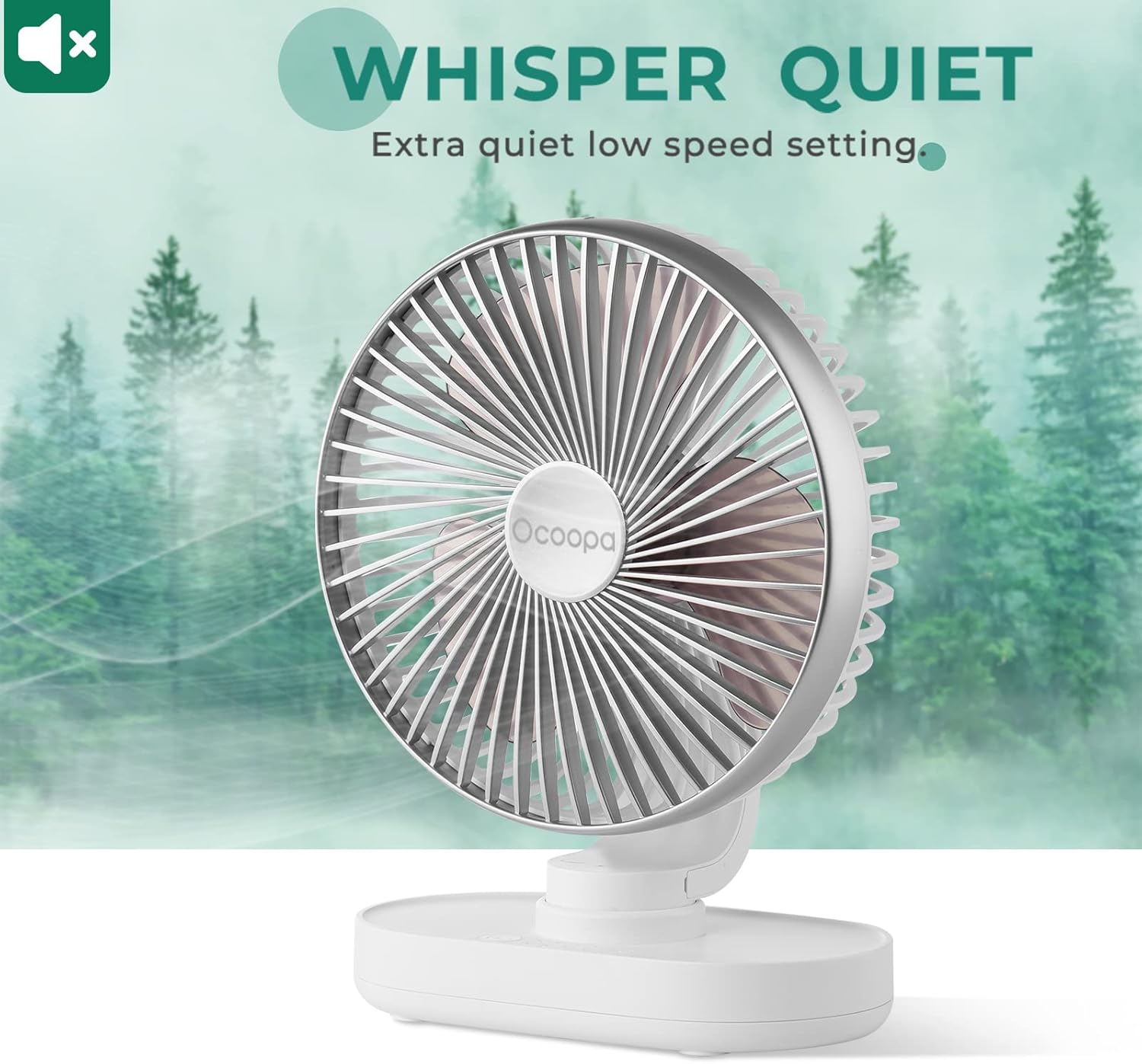
Image 5.3: Whisper Quiet Operation. This image highlights the fan's quiet performance, ideal for environments requiring minimal noise.
5.4 Battery Life
The fan's 4000 mAh battery provides extended use:
- Approximately 8 hours on Speed 1 with oscillation.
- Approximately 5 hours on Speed 3 with oscillation.
The fan can also be used while charging, ensuring continuous cooling.
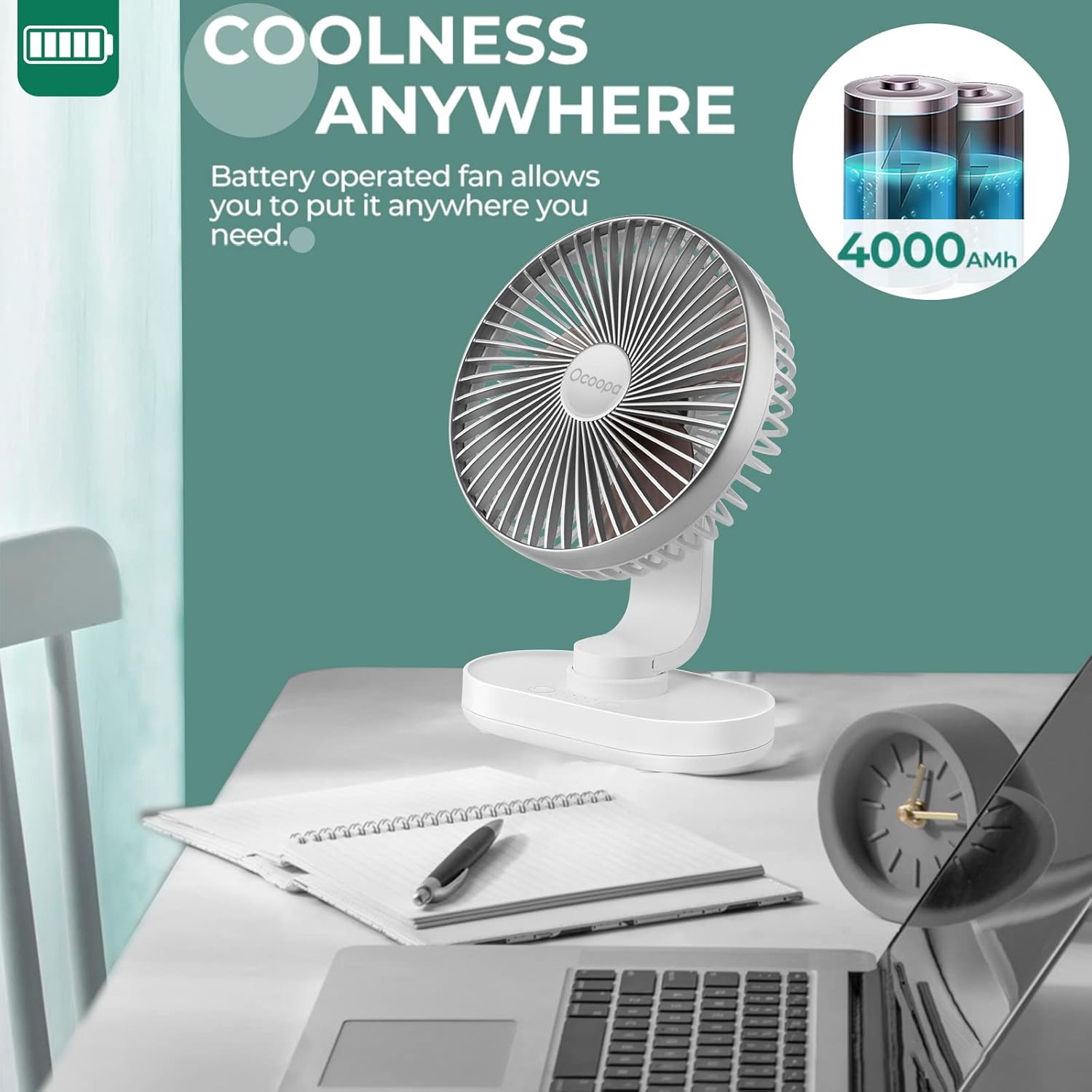
Image 5.4: Coolness Anywhere with Battery Power. This image shows the fan operating wirelessly on a desk, emphasizing its portability and 4000mAh battery capacity.
6. Maintenance
6.1 Cleaning the Fan
Regular cleaning helps maintain optimal performance and airflow.
- Ensure the fan is turned off and unplugged from any power source before cleaning.
- To remove the front grille, gently turn it counter-clockwise until it detaches.
- Wipe the front grille and fan blades with a soft, damp cloth. Do not use abrasive cleaners or immerse the fan in water.
- Once clean and dry, align the front grille and turn it clockwise to secure it back in place.
7. Troubleshooting
If you encounter issues with your OCOOPA D77 fan, refer to the following common problems and solutions:
- Fan does not turn on:
- Ensure the fan is charged. Connect it to a power source using the USB cable.
- Verify the power switch is pressed correctly.
- Fan does not oscillate:
- Press the auto oscillation button to activate the feature.
- Weak airflow:
- Increase the fan speed using the power switch.
- Clean the fan blades and grille as described in the Maintenance section.
- Unusual noise during operation:
- Ensure the fan is placed on a stable, flat surface.
- Check for any obstructions around the fan blades or grille.
- Clean the fan blades and grille.
If the problem persists, please contact OCOOPA customer support.
8. Specifications
| Model Number | D77 |
| Brand | OCOOPA |
| Dimensions (L x W x H) | 9.7 x 17.3 x 22.7 cm (approximately 3.8 x 6.8 x 8.9 inches) |
| Weight | 453.59 grams (approximately 1 pound) |
| Color | Silver |
| Material | Metal |
| Power Source | USB Powered |
| Special Feature | Oscillating |
| Number of Speeds | 4 |
| Noise Level | 30 Decibels |
| Power | 5 Watts |
| Voltage | 5 Volts |
| Motor Type | Brushless Motor |
| Battery Capacity | 4000 mAh |
9. Warranty and Support
9.1 Warranty Information
The OCOOPA D77 USB Desk Fan comes with a 2-year warranty from the date of purchase. This warranty covers manufacturing defects and issues arising from normal use. It does not cover damage caused by misuse, accidents, unauthorized modifications, or improper maintenance.
9.2 Customer Support
For warranty claims, technical assistance, or any questions regarding your OCOOPA D77 USB Desk Fan, please contact OCOOPA customer support through the retailer where you purchased the product or visit the official OCOOPA website for contact information.

