
Lightinginside LYS-018
Lightinginside E12 Smart Light Bulbs User Manual
Model: LYS-018 | Brand: Lightinginside
1. Introduction
Thank you for choosing Lightinginside E12 Smart Light Bulbs. These bulbs offer advanced features including RGBCW color control, tunable white light, voice control compatibility with Alexa and Google Home, and convenient app control via the Smart Life app. This manual provides detailed instructions to help you set up, operate, and maintain your smart bulbs for an optimal lighting experience.
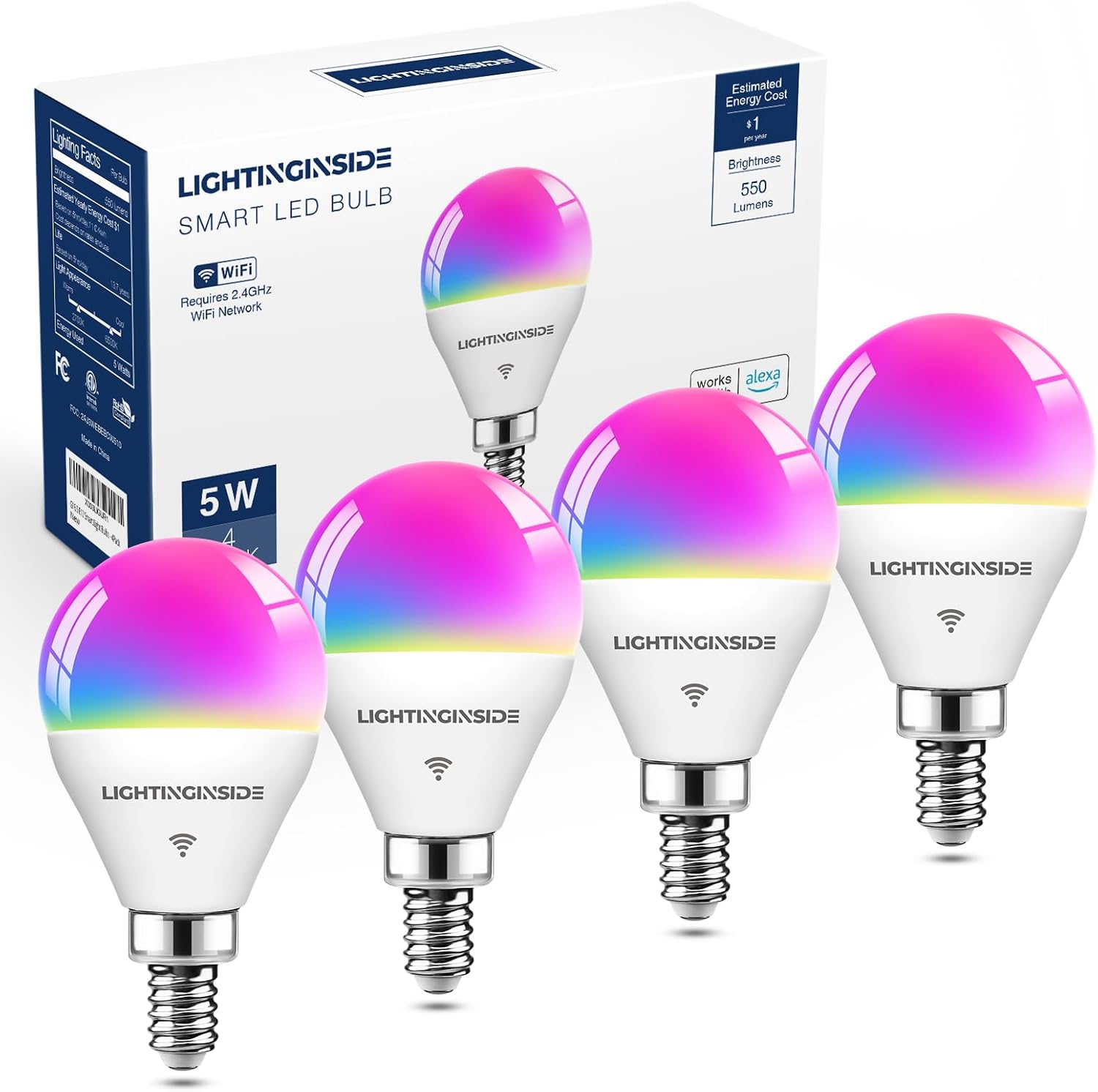
Image: Packaging of Lightinginside E12 Smart Light Bulbs.
2. What's in the Box
- 4 x Lightinginside E12 Smart Light Bulbs
- 1 x User Manual
3. Specifications
| Feature | Detail |
|---|---|
| Model Name | LYS-018 |
| Bulb Base | E12 |
| Bulb Shape Size | G16.5 |
| Wattage | 5W (50W Equivalent) |
| Brightness | 550 Lumens |
| Color Temperature | 2700K-6500K (Tunable White) + 16 Million RGB Colors |
| Connectivity | 2.4GHz Wi-Fi & Bluetooth |
| Control Method | App (Smart Life), Voice (Alexa, Google Assistant) |
| Voltage | 120 Volts (AC) |
| Average Life | 25,000 Hours |
| Certifications | ETL, FCC, RoHS |
4. Setup Guide
4.1. Physical Installation
- Ensure the power to the light fixture is turned off at the switch before installation.
- Carefully screw the E12 Smart Light Bulb into a standard E12 socket. Do not overtighten.
- Turn on the power to the light fixture. The bulb should begin to blink, indicating it is in pairing mode.

Image: Easy installation of the smart bulb.
4.2. App Download and Pairing (Smart Life App)
The Lightinginside E12 Smart Light Bulbs utilize an upgraded 2nd-generation Bluetooth + Wi-Fi dual-channel chip for faster and more reliable setup. No separate hub is required.
- Download the 'Smart Life' app from the App Store (iOS) or Google Play Store (Android).
- Register or log in to your Smart Life account.
- Open the Smart Life app and tap the '+' icon in the top right corner to add a device.
- The app should automatically discover the blinking smart bulb. If not, select 'Lighting' > 'Light Source (Wi-Fi)' or 'Smart Bulb (BLE+Wi-Fi)'.
- Follow the in-app instructions to connect the bulb to your 2.4GHz Wi-Fi network. (Note: Wi-Fi setup requires both 2.4GHz Wi-Fi and Bluetooth for initial pairing. Bluetooth-only setup requires just Bluetooth for local control.)
- Once connected, you can rename the bulb for easier identification.
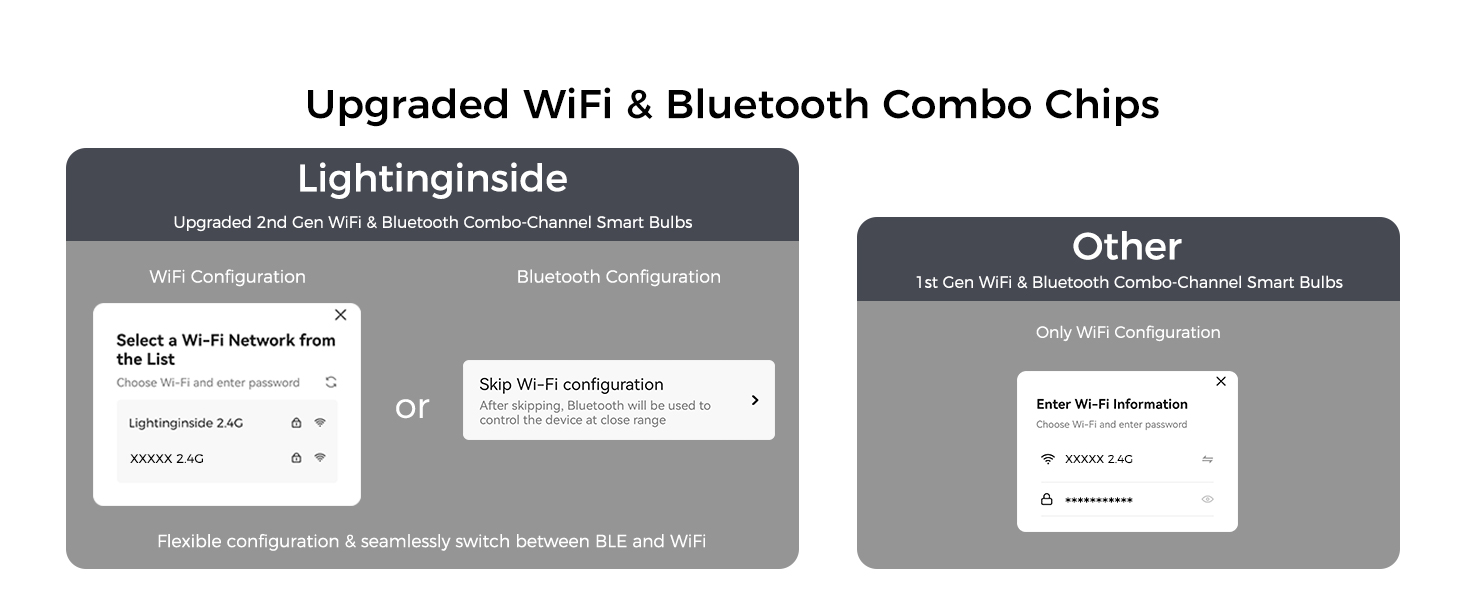
Image: Upgraded Wi-Fi & Bluetooth Combo Chips for flexible configuration.

Image: Step-by-step guide for app setup.
4.3. Voice Assistant Integration (Alexa/Google Home)
After pairing with the Smart Life app, you can link your bulbs to Amazon Alexa or Google Home for voice control.
- Open the Amazon Alexa app or Google Home app.
- Navigate to 'Skills & Games' (Alexa) or 'Works with Google' (Google Home).
- Search for 'Smart Life' and enable the skill/service.
- Link your Smart Life account when prompted.
- Discover devices. Your smart bulbs should now appear and be controllable via voice commands.

Image: Easy control with your voice, compatible with Alexa and Google Assistant.
5. Operating Instructions
5.1. Voice Control
Once integrated with Alexa or Google Assistant, you can use simple voice commands to control your smart bulbs. Examples:
- "Alexa, turn on the living room light."
- "Hey Google, dim the bedroom light to 30%."
- "Alexa, set the kitchen light to blue."
Video: Demonstration of voice control with Alexa, showing the light turning off and dimming.

Image: Voice control in action, turning on lights with a command.
5.2. App Control (Smart Life App)
The Smart Life app provides comprehensive control over your smart bulbs.
Color and Tunable White
Choose from over 16 million RGB colors or adjust the white light from 2700K (warm white) to 6500K (cool white) to set the perfect mood.

Image: Control 16 million colors via the app.

Image: Adjust tunable white from 2700K to 6500K.
Brightness (Dimmable)
Adjust the brightness from 1% to 100% to suit your needs. Note: Not compatible with external dimmer switches, which may cause flickering or buzzing.

Image: Dimmable feature with brightness control from 1% to 100%.
Scenes (Preset & DIY)
Utilize default scenes or create your own custom scenes for various occasions and moods.

Image: Preset and DIY scenes for creating the perfect ambiance.

Image: Set the mood for any occasion with custom scenes.
Music Sync
Activate music mode in the Smart Life app to make your lights change color to the beat of your music.

Image: Music Sync feature, allowing lights to dance to the beat.

Image: Enjoy the mood of colors shifting to the music's beat.
Group Control
Control multiple E12 LED bulbs simultaneously by grouping them in the Smart Life App. This allows for synchronized lighting effects across a room or area.

Image: Group control for managing multiple bulbs together.
Schedules & Automation
Automate your lighting with schedules, timers, plans, and biorhythm functions within the Smart Life App. For example, set lights to turn on at sunset or dim gradually for bedtime.

Image: Biorhythm feature, allowing lights to work in harmony with your circadian rhythm.

Image: Schedule and automation for personalized lighting routines.
6. Maintenance
To ensure the longevity and optimal performance of your Lightinginside E12 Smart Light Bulbs, follow these simple maintenance guidelines:
- Cleaning: Ensure the bulb is off and cool before cleaning. Wipe the bulb with a soft, dry cloth. Do not use liquid cleaners or abrasive materials.
- Storage: If storing the bulbs for an extended period, keep them in a cool, dry place away from direct sunlight and extreme temperatures.
- Handling: Handle the bulbs by their base, not the glass or plastic globe, to avoid damage.
7. Troubleshooting
- Bulb not pairing/connecting to Wi-Fi:
- Ensure your Wi-Fi network is 2.4GHz. These bulbs do not support 5GHz networks.
- Check your Wi-Fi password for accuracy.
- Make sure the bulb is blinking rapidly (pairing mode). If not, turn the bulb off and on 3-5 times until it blinks.
- Ensure your phone's Bluetooth is enabled during the initial pairing process.
- Move the bulb closer to your Wi-Fi router during setup.
- Voice control not working:
- Verify that the Smart Life skill/service is enabled and linked correctly in your Alexa or Google Home app.
- Ensure the bulb is online in the Smart Life app.
- Try re-discovering devices in your voice assistant app.
- Bulb flickering or buzzing:
- These smart bulbs are not compatible with external dimmer switches. Ensure they are connected to a standard on/off switch.
- Check for loose connections in the light fixture.
- Remote control not working:
- Ensure your home Wi-Fi network is active and the bulb is connected.
- Verify your phone has an active internet connection (Wi-Fi or cellular data).
- The bulb intelligently switches between Bluetooth and Wi-Fi. If Wi-Fi is down, local Bluetooth control should still function.
8. Warranty and Support
Lightinginside products come with a 2-Year Warranty from the date of purchase, covering manufacturing defects. For warranty claims or technical assistance, please contact our customer service team.
Customer Service: 877-522-8599
Hours: Weekdays 8 AM - 5 PM PDT
Lightinginside is committed to providing smart lighting solutions and aims to help customers enjoy a smarter life. For more information, visit the Lightinginside Store on Amazon.
Ask a question about this manual
Ask about setup, troubleshooting, compatibility, parts, safety, or missing instructions. Manuals+ will review the question and use this page’s manual context to help answer it.