
Introduction
This manual provides detailed instructions for the installation, use, and maintenance of your BoxWave ClearTouch Anti-Glare Screen Protector for the Emdoor EM-I16K. This screen protector is designed to reduce glare, resist fingerprints, and provide a smooth, paper-like surface for your device screen.
Package Contents
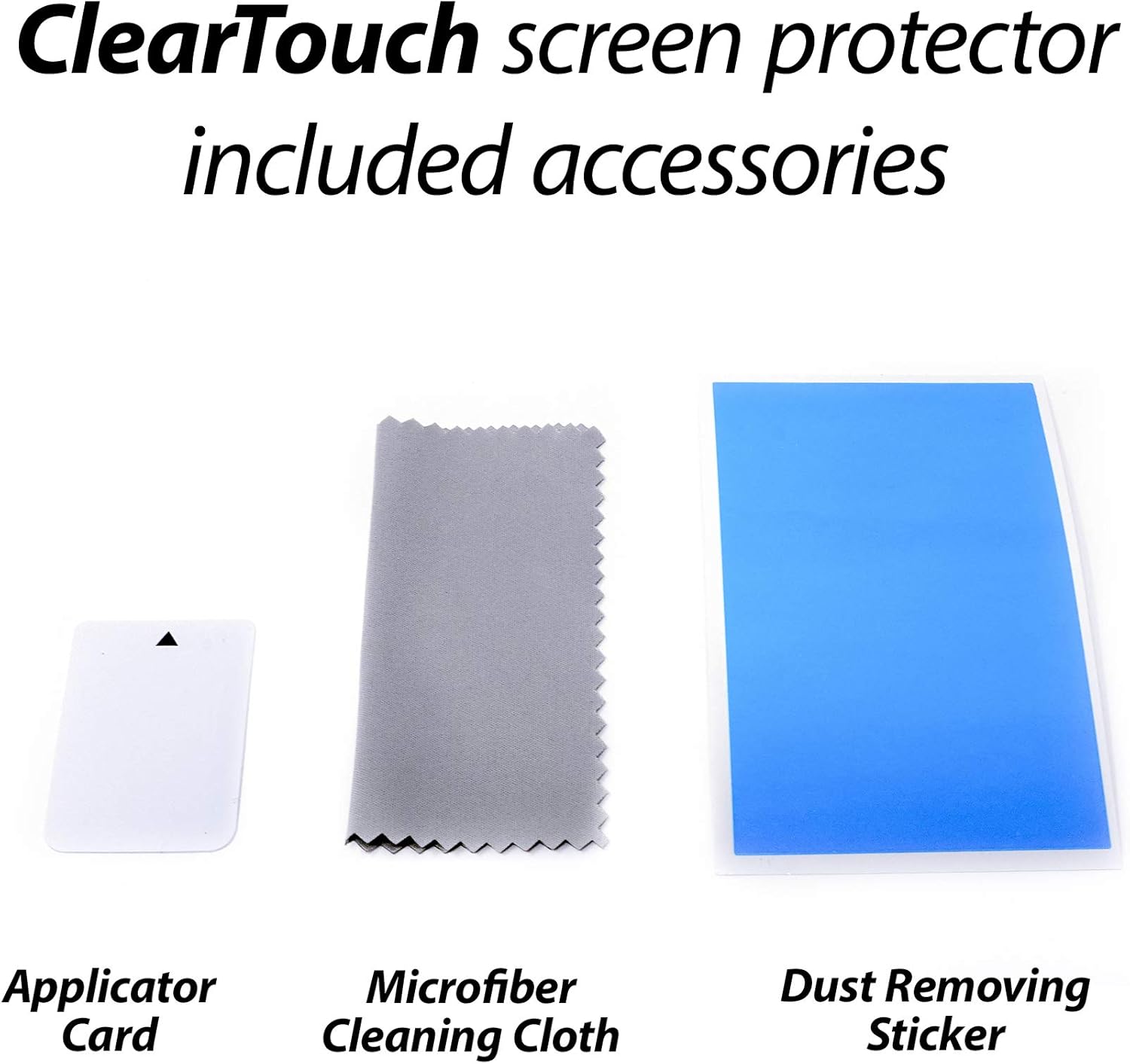
Your BoxWave ClearTouch Anti-Glare Screen Protector package includes the following items:
- Two (2) ClearTouch Anti-Glare Screen Protectors
- One (1) Applicator Card
- One (1) Microfiber Cleaning Cloth
- One (1) Dust Removing Sticker

Setup (Installation)
Follow these steps for optimal installation of your screen protector:
- Prepare Your Workspace: Choose a clean, dust-free environment. Wash your hands thoroughly to avoid transferring oils or dirt to the screen or protector.
- Clean the Device Screen: Use the provided microfiber cleaning cloth to thoroughly wipe down your Emdoor EM-I16K screen. Ensure all smudges, fingerprints, and dirt are removed. For stubborn marks, a small amount of screen cleaner (not included) can be used, followed by drying with the microfiber cloth.
- Remove Dust: Use the dust removing sticker to lift any remaining dust particles from the screen. Gently dab the sticker across the entire screen surface. Inspect the screen carefully under good lighting to ensure it is completely free of dust.
- Peel Back Layer 1: Carefully peel back a small portion of the protective film labeled 'Layer 1' (or similar indicator) from one corner of the screen protector. Avoid touching the adhesive side.
- Align the Protector: Align the exposed adhesive edge of the screen protector with one edge of your device screen. Ensure precise alignment with the device's cutouts (e.g., camera, sensors) if applicable.
- Apply the Protector: Slowly and steadily lower the screen protector onto the device screen, gradually peeling off more of 'Layer 1' as you go. Use the applicator card to gently smooth out the protector from the aligned edge towards the opposite side, pushing out any air bubbles as you proceed.
- Remove Air Bubbles: If air bubbles remain, use the applicator card to push them towards the nearest edge of the screen. For persistent bubbles, you may gently lift a corner of the protector and reapply, smoothing it down again.
- Remove Layer 2: Once the protector is fully applied and free of bubbles, carefully peel off the top protective film labeled 'Layer 2' (or similar indicator).
- Final Wipe: Give the newly installed screen protector a final gentle wipe with the microfiber cloth to remove any smudges from handling.
Operating (Usage)
The BoxWave ClearTouch Anti-Glare Screen Protector enhances your Emdoor EM-I16K experience in several ways:
- Anti-Glare Functionality: The matte surface disperses light, significantly reducing glare from ambient light sources and direct sunlight. This improves screen readability in various lighting conditions and reduces eye strain.
- Anti-Fingerprint Surface: The specialized matte finish repels smudges and fingerprints, keeping your screen cleaner for longer.
- Smooth Touch Response: Despite the matte finish, the screen protector maintains the original touch sensitivity of your device, ensuring smooth navigation and interaction.
- Paper-like Feel: The unique texture provides a tactile experience similar to writing or drawing on paper, which can be beneficial for stylus users.


Maintenance
To ensure the longevity and optimal performance of your screen protector, follow these maintenance guidelines:
- Regular Cleaning: Use the provided microfiber cleaning cloth to gently wipe the screen protector daily or as needed to remove dust and light smudges.
- Deep Cleaning: For more persistent marks, lightly dampen the microfiber cloth with water or a screen-safe cleaning solution. Avoid spraying liquids directly onto the screen protector.
- Avoid Harsh Chemicals: Do not use abrasive cleaners, alcohol, or ammonia-based solutions, as these can damage the screen protector's anti-glare and anti-fingerprint coatings.
- Handle with Care: While durable, avoid sharp objects or excessive force that could scratch or indent the protector.
Troubleshooting
Here are solutions to common issues you might encounter:
- Air Bubbles:
- Small Bubbles: Use the applicator card to gently push them towards the nearest edge.
- Large Bubbles: These often indicate trapped dust. Carefully lift the nearest corner of the screen protector, use the dust removing sticker to lift the dust particle, then reapply the protector, smoothing it down with the applicator card.
- Dust Under Protector: If dust is visible after installation, carefully lift the nearest corner of the protector and use the dust removing sticker to remove the particle. Reapply slowly.
- Misalignment: If the protector is significantly misaligned, carefully peel it off completely, clean the screen again, and attempt reinstallation following the setup steps precisely. The glueless adhesive allows for reusability.
- Reduced Touch Sensitivity: Ensure the screen protector is applied smoothly without large air gaps. If issues persist, ensure your device's touch settings are calibrated correctly.
Specifications
| Feature | Detail |
|---|---|
| Brand | BoxWave |
| Model Compatibility | Emdoor EM-I16K |
| Material | Polyethylene Terephthalate (PET) |
| Special Feature | Anti-Glare, Anti-Fingerprint |
| Screen Surface Description | Matte |
| Number of Items | 2 (Two-Pack) |
| Item Weight | 2.5 ounces |
Warranty and Support
For any questions, concerns, or support regarding your BoxWave ClearTouch Anti-Glare Screen Protector, please contact BoxWave customer service. Refer to the product packaging or the official BoxWave website for contact information and details regarding any applicable warranty.