
Introduction
Thank you for choosing the Voistek USB Headset Model 682-Dual. This wired business headset is designed for clear communication and comfort, featuring a noise-canceling microphone and versatile connectivity options. This manual provides essential information for setup, operation, maintenance, and troubleshooting to ensure optimal performance.
What's in the Box
- Voistek USB Headset (Model 682-Dual)
- USB-A Adapter
- USB-C Adapter
- User Manual
Product Features
- Clear & Balanced Sound: Equipped with 30mm audio drivers for natural sound in calls, music, webinars, and online learning.
- 330° Rotatable Noise-Canceling Mic: Flexible microphone rotates 330° for left or right wearing, with noise reduction for crisp voice clarity on platforms like Zoom, Skype, and Teams.
- Lightweight All-Day Comfort: Soft ear cushions and an adjustable headband ensure comfort during extended use.
- 3-in-1 Universal Connectivity: Includes USB-C, USB-A, and 3.5mm jack for plug-and-play compatibility with laptops, desktops, tablets, and phones on Windows, macOS, and Android. The cable length is 200cm.
- Work-Ready Versatility: Ideal for online meetings, virtual classes, customer support, and teleconferencing.
Setup Instructions
The Voistek USB Headset offers versatile connectivity. Follow these steps to connect your headset to your device:
- 3.5mm Jack Connection: Plug the 3.5mm jack directly into your smartphone, tablet, or PC's 3.5mm headset port. This is ideal for devices with a combined audio/microphone jack.
- USB-A Connection: For devices with a standard USB-A port (e.g., most desktop computers, older laptops), connect the 3.5mm jack to the provided USB-A adapter, then plug the USB-A adapter into your device's USB-A port.
- USB-C Connection: For devices with a USB-C port (e.g., newer laptops, some tablets and smartphones), connect the 3.5mm jack to the provided USB-C adapter, then plug the USB-C adapter into your device's USB-C port.

Image: The Voistek USB Headset demonstrating its plug-and-play compatibility with various operating systems via USB connection.

Image: Multiple connection options (3.5mm, USB, Type-C) for the Voistek Headset, compatible with various devices.
Operating Instructions
Once connected, your Voistek USB Headset is ready for use. Here's how to operate its key features:
Microphone Adjustment
- The microphone boom can rotate 330 degrees, allowing you to wear the headset with the microphone on either your left or right side.
- Adjust the microphone's position so it is approximately 2-3 cm (3/4 inch) from your mouth for optimal voice pickup and noise cancellation.
In-Line Controls
The in-line control unit provides easy access to essential functions:
- Volume Up (+): Press to increase the listening volume.
- Volume Down (-): Press to decrease the listening volume.
- Speaker Mute: Press the speaker icon to mute/unmute the headset speakers.
- Microphone Mute: Press the microphone icon to mute/unmute the microphone. An indicator light will show the microphone's status.
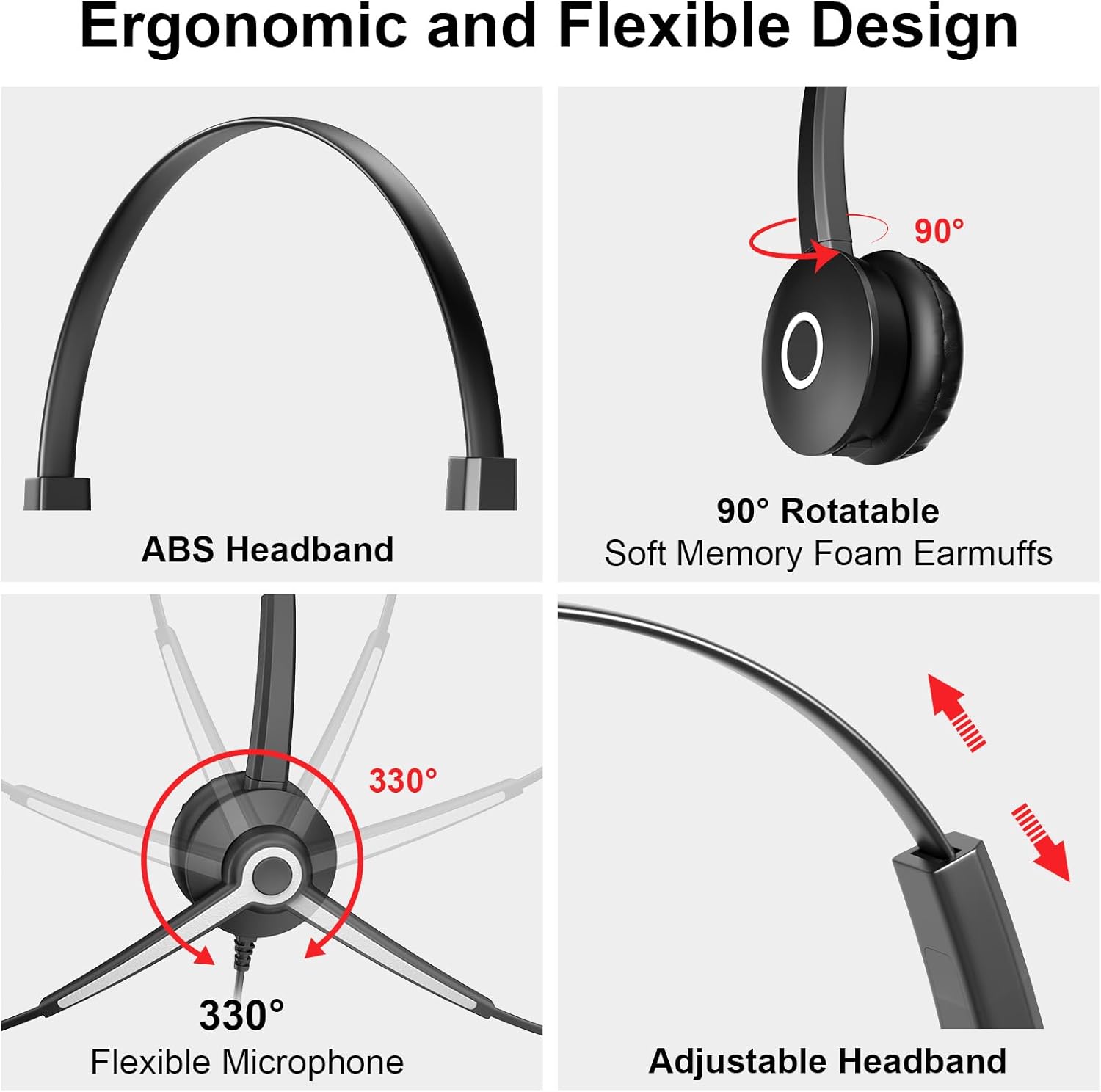
Image: Detailed view of the easy-to-use in-line control buttons for managing audio and microphone settings.

Image: Visual guide to the headset's ergonomic features, including microphone rotation and headband adjustment.
Video: A demonstration of the Voistek USB Headset's features and connectivity options for PC and laptop use.
Maintenance
To ensure the longevity and optimal performance of your Voistek USB Headset, follow these maintenance guidelines:
- Cleaning: Use a soft, dry cloth to clean the headset. Avoid using harsh chemicals or abrasive materials.
- Storage: Store the headset in a cool, dry place away from direct sunlight and extreme temperatures. Avoid tangling the cable.
- Ear Cushions: Periodically check the ear cushions for wear and tear. Replace if necessary to maintain comfort and sound quality.
- Cable Care: Do not pull on the cable to disconnect the headset. Always grasp the plug firmly.
Troubleshooting
If you encounter any issues with your Voistek USB Headset, refer to the following troubleshooting tips:
- No Sound/Low Volume:
- Ensure the headset is securely plugged into the correct port (3.5mm, USB-A, or USB-C).
- Check the in-line volume controls and your device's volume settings.
- Verify that the speaker mute button on the in-line control is not activated.
- Test the headset on another device to rule out device-specific issues.
- Microphone Not Working:
- Ensure the microphone mute button on the in-line control is not activated (check indicator light).
- Check your device's audio settings to ensure the Voistek headset microphone is selected as the input device.
- Adjust the microphone boom closer to your mouth.
- Test the microphone on another application or device.
- Sound Quality Issues (Tinny/Distorted):
- Ensure all connections are secure.
- Adjust the volume levels on both the in-line control and your device.
- Update your device's audio drivers if connecting via USB.
Specifications
| Feature | Specification |
|---|---|
| Model Name | Dual Ear |
| Connectivity Technology | Wired |
| Headphones Jack | 3.5 mm; USB; USB-C |
| Noise Control | Passive Noise Cancellation |
| Frequency Response | 20 KHz |
| Sensitivity | 117 dB |
| Impedance | 32 Ohms |
| Audio Driver Size | 30 Millimeters |
| Control Type | Media Control (Volume, Mute, Call Control) |
| Microphone Rotation | 330° |
| Adjustable Headband | Yes |
| Material | ABS, Aluminum, Faux Leather |
| Product Dimensions | 5.12 x 1.97 x 6.3 inches |
| Item Weight | 6.7 ounces |
Warranty and Support
For warranty information or technical support, please refer to the documentation included with your purchase or contact Voistek customer service directly. Contact details can typically be found on the product packaging or the official Voistek website.