
1Mii B310Pro
1Mii B310Pro Bluetooth 5.2 Audio Adapter Instruction Manual
Model: B310Pro | Brand: 1Mii
1. Introduction
The 1Mii B310Pro is a versatile Bluetooth 5.2 audio adapter designed to enhance your audio experience. It functions as a transmitter (TX), receiver (RX), and offers a bypass mode, providing flexible connectivity for various audio setups. This device supports aptX Low Latency and aptX HD codecs for high-quality, synchronized audio, and features a long-range transmission capability.
2. Package Contents
Verify that all items are present in the package:
- 1Mii B310Pro Bluetooth Transmitter Receiver
- USB Power Cable
- 3.5mm Male to RCA Male Cable
- 3.5mm Audio Cable
- Optical Cable
- DC Adapter
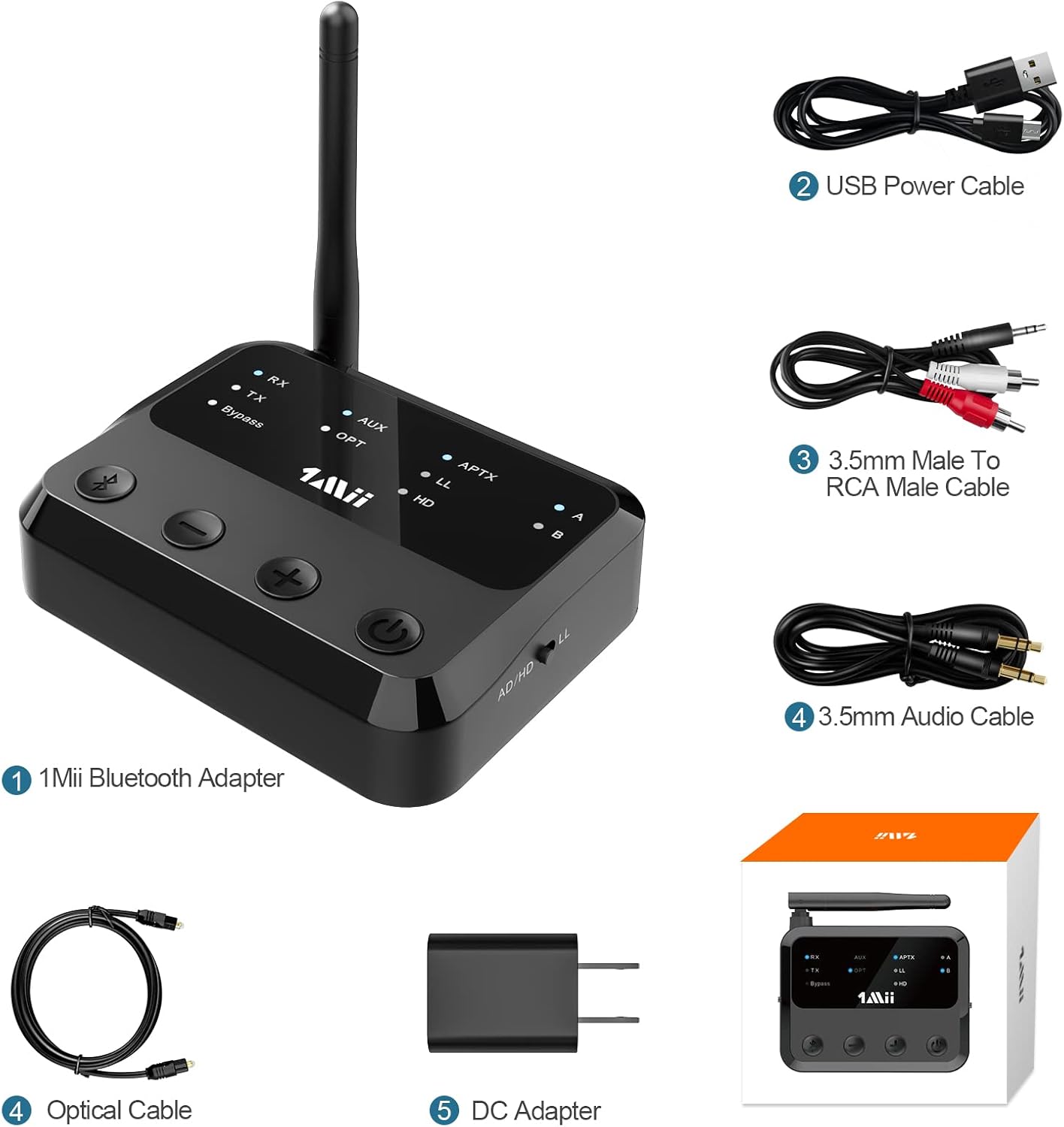
Figure 2.1: 1Mii B310Pro Bluetooth adapter and its included accessories, showing the device, USB power cable, 3.5mm to RCA cable, 3.5mm audio cable, optical cable, and DC adapter.
3. Product Overview and Features
The 1Mii B310Pro offers multiple modes and advanced features for a seamless audio experience.
3.1. Modes of Operation
- Transmitter (TX) Mode: Transmits audio from non-Bluetooth devices (e.g., TV, PC) to Bluetooth headphones or speakers.
- Receiver (RX) Mode: Receives audio from Bluetooth-enabled devices (e.g., smartphone) and outputs to wired speakers or home stereo systems.
- Bypass Mode: Acts as a digital-to-analog converter (DAC), allowing direct audio pass-through without Bluetooth functionality.

Figure 3.1: Overview of the 1Mii B310Pro's three operational modes: Transmitter (TX), Receiver (RX), and Bypass.
3.2. Key Features
- Bluetooth 5.2: Ensures stable and fast wireless connections.
- Long Range: Up to 164 feet (50 meters) barrier-free transmission.
- aptX Support: Includes aptX Adaptive, aptX Low Latency, and aptX HD for high-quality, synchronized audio. Note: Your receiving device must also support aptX LL for low-latency audio.
- Wide Compatibility: Supports Optical, RCA, and 3.5mm AUX input/output. Compatible with TVs, home stereo systems, Bluetooth headphones, and speakers.
- Dual Link Function: Connects to two Bluetooth headphones or speakers simultaneously with independent volume control.
- Memory Connection: Automatically reconnects to the last paired device.

Figure 3.2: The 1Mii B310Pro features an advanced Bluetooth 5.2 chip for enhanced connectivity.

Figure 3.3: The 1Mii B310Pro offers an extended Bluetooth range of up to 164 feet (50m).
4. Setup Instructions
4.1. Powering On the Device
- Connect the B310Pro to a power supply using the included USB charging cable and DC adapter.
- The device will power on automatically.
Video 4.1: This video demonstrates how to connect the 1Mii B310Pro to a power source and initiate pairing with AirPods. It shows the process of plugging in the USB cable and then pairing the device with Apple AirPods.
4.2. Connecting in Transmitter (TX) Mode
- Slide the mode switch on the B310Pro to the "TX" side.
- The B310Pro will enter pairing mode with the LED flashing blue and red. If not, press the Bluetooth button for about 2 seconds to enter pairing mode.
- Connect the B310Pro to your audio source (e.g., TV, PC) using the appropriate cable (Optical, RCA, or 3.5mm AUX).
- Put your Bluetooth headphones or speakers into pairing mode.
- Once paired, the "TX" LED will stop flashing, and the "A" or "B" LED will stay blue, indicating a successful connection.

Figure 4.1: The 1Mii B310Pro supports dual link, allowing two Bluetooth headphones to connect simultaneously in TX mode.
Video 4.2: This video illustrates the process of pairing a second Bluetooth headphone to the 1Mii B310Pro. It shows pressing the Bluetooth button to re-enter pairing mode and connecting the second device.
4.3. Connecting in Receiver (RX) Mode
- Slide the mode switch on the B310Pro to the "RX" side.
- The B310Pro will enter pairing mode with the LED flashing blue and red.
- Connect the B310Pro to your wired speakers or home stereo system using the appropriate cable (RCA or 3.5mm AUX).
- Enable Bluetooth on your smartphone or other audio device and select "1Mii B310Pro" from the list of available devices to pair.
- Once paired, the "RX" LED will stop flashing, and the "A" LED will stay blue.
4.4. Using Bypass Mode
- Slide the mode switch on the B310Pro to the "Bypass" position.
- Connect your audio source (e.g., TV) to the B310Pro's input and your wired speakers/stereo to the B310Pro's output using the appropriate cables.
- In this mode, audio passes directly through the device without Bluetooth processing.
5. Operating the Device
5.1. Controls and Indicators
The B310Pro features intuitive controls and LED indicators for easy operation.

Figure 5.1: Front panel controls and LED indicators of the 1Mii B310Pro.
- Bluetooth Button: Press and hold for 2 seconds to enter pairing mode.
- Volume - / Previous Track: Decreases volume or skips to the previous track.
- Volume + / Next Track: Increases volume or skips to the next track.
- Power On/Off Button: Turns the device on or off.
- Mode Switch (RX/TX/Bypass): Selects the desired operating mode.
- LED Indicators: Show current mode (RX/TX/Bypass), input/output type (AUX/OPT), audio codec (APTX/LL/HD/AD), and paired devices (A/B).
5.2. Optical Audio Settings for TV
When using the optical connection with your TV, ensure the TV's audio settings are configured correctly.
- Navigate to your TV's audio settings.
- Set the sound output to "OPTICAL".
- Set the audio output format to "PCM".

Figure 5.2: Optical fiber connection between TV and 1Mii B310Pro.
Video 5.1: This video demonstrates how to adjust the optical audio settings on a television to ensure proper sound output to the 1Mii B310Pro. The relevant segment shows navigating through the TV's sound menu to select 'Optical' output and 'PCM' format (from 0:39 to 0:49 in the video).
6. Troubleshooting
- No Sound: If there is no sound, ensure your TV's audio output is set to "OPTICAL" and the audio format is "PCM" when using an optical connection. Check all cable connections.
- Pairing Issues: If the device does not pair, ensure both the B310Pro and your receiving device are in pairing mode. Try resetting the B310Pro.
- High Latency: For aptX Low Latency to function, both the B310Pro and your Bluetooth headphones/speakers must support aptX LL.
- Interference: Keep the B310Pro away from other wireless devices that might cause interference.
6.1. Resetting the B310Pro
To reset the device to factory settings:
- Press and hold the Bluetooth button for approximately 10 seconds.
- All indicator lights will flash once, confirming the reset.
Video 6.1: This video demonstrates how to perform a factory reset on the 1Mii B310Pro by pressing and holding the Bluetooth button until all indicators flash (from 0:49 to 0:59 in the video).
7. Specifications
| Feature | Detail |
|---|---|
| Model Number | B310Pro |
| Bluetooth Version | 5.2 |
| Operating Modes | TX (Transmitter), RX (Receiver), Bypass |
| Audio Codecs Supported | aptX Adaptive, aptX HD, aptX Low Latency, SBC, AAC |
| Connectivity Technology | Optical, RCA, 3.5mm AUX |
| Wireless Range | Up to 164 feet (50 meters) barrier-free |
| Product Dimensions | 3.11 x 3.94 x 0.98 inches |
| Item Weight | 9.6 ounces |
| Power Source | DC Adapter |
| Special Feature | Volume Control |
8. Safety Information
- Handle the device carefully to avoid damage.
- Keep away from water and extreme temperatures.
- Ensure proper ventilation to prevent overheating.
- Avoid interference with other wireless devices.
- Handle the battery with care (if applicable).
9. Warranty and Support
For warranty information and technical support, please refer to the official 1Mii website or contact their customer service directly. Keep your purchase receipt for warranty claims.
Website: www.1mii.com
Related documentsB310Pro


Ask a question about this manual
Ask about setup, troubleshooting, compatibility, parts, safety, or missing instructions. Manuals+ will review the question and use this page’s manual context to help answer it.