
Beelink SER5
Beelink SER5 Mini PC W11 Pro User Manual
Model: SER5/5500U/16G/480G
1. Introduction
The Beelink SER5 Mini PC is a compact and powerful desktop computer designed for various applications, from home entertainment to office productivity and light gaming. Equipped with an AMD Ryzen 5 5500U processor, 16GB DDR4 RAM, and a 480GB NVME SSD, it offers efficient performance in a small form factor. This manual provides essential information for setting up, operating, maintaining, and troubleshooting your Beelink SER5 Mini PC.

Image 1.1: Front view of the Beelink SER5 Mini PC, showcasing its compact design and front ports.
2. What's in the Box
Verify that all items are present in the package before proceeding with the setup.
- Beelink SER5 Mini PC
- User Manual
- HDMI Cable
- Power Adapter (Optional: US/EU/UK/JP)
- Wall-mounted bracket (VESA Mount)
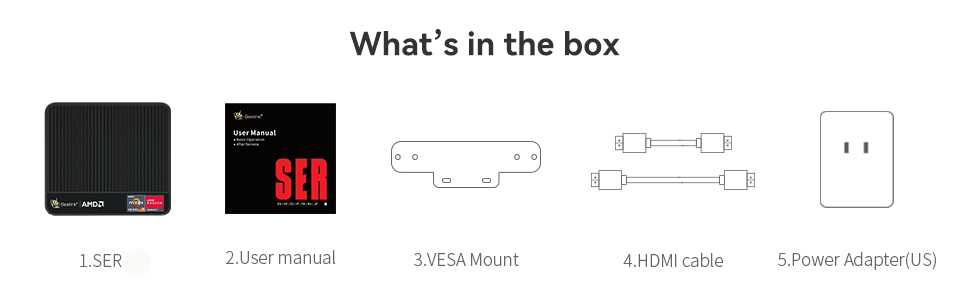
Image 2.1: Diagram showing the Beelink SER5 Mini PC and its included accessories.
3. Product Overview
The Beelink SER5 Mini PC is engineered for performance and versatility. Key features include:
- Processor: AMD Ryzen 5 5500U (6 Cores/12 Threads, 2.1GHz up to 4.0GHz)
- Graphics: AMD Radeon Graphics (7 Cores, 1800 MHz)
- Memory: 16GB DDR4 RAM (expandable up to 64GB)
- Storage: 480GB M.2 PCIe 2280 SSD (expandable up to 4TB)
- Connectivity: 2.5G Ethernet LAN, WiFi 6 (802.11ax), Bluetooth 5.2
- Display Output: Triple 4K@60Hz display support via HDMI, DisplayPort, and Type-C
- Operating System: Pre-installed Windows 11 Pro
3.1. Ports and Interfaces

Image 3.1: Front panel ports including USB 3.2 Gen2, Type-C (Data & Video), Earphone Jack, and Power button.

Image 3.2: Rear panel ports including LAN (2.5Gbps), USB 3.2 Gen2, DisplayPort 1.4, HDMI (4K HD), and Power adapter input.
The device features a comprehensive set of ports for connectivity, including multiple USB ports, HDMI, DisplayPort, and a Type-C port that supports both data transfer and video output. The 2.5G LAN port ensures high-speed wired network access.
3.2. Cooling System
The Beelink SER5 Mini PC incorporates an efficient cooling system with a quiet fan and dual heat conduction tubes to ensure stable performance and effective heat dissipation, even under heavy loads.
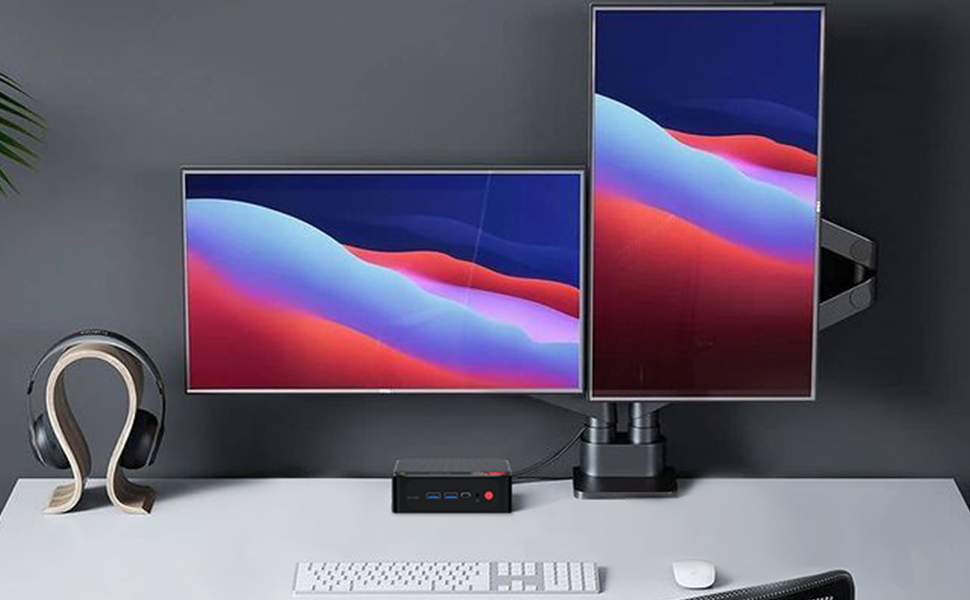
Image 3.3: Illustration of the internal cooling fan and heat sink design for stable heat dissipation.
4. Setup
4.1. Initial Connection
- Connect your monitor(s) to the HDMI, DisplayPort, or Type-C video output ports on the Mini PC.
- Connect your keyboard and mouse to the available USB ports.
- Connect the power adapter to the DC input port on the Mini PC, then plug the adapter into a power outlet.
- Press the power button located on the front panel to turn on the Mini PC.

Image 4.1: Example setup of the Beelink SER5 Mini PC with a monitor, keyboard, and mouse.
4.2. Dual Screen Display Setup
The Beelink SER5 supports triple display output. To set up a dual or triple monitor configuration:
- Connect your monitors to the available HDMI, DisplayPort, and/or Type-C ports.
- Once connected, turn on your Mini PC and monitors.
- In Windows, navigate to Start > Settings > System > Display.
- Your PC should automatically detect the connected monitors. If a monitor is not detected, click the Detect button.
- Adjust display settings such as resolution, orientation, and multiple display modes (Extend, Duplicate, Show only on 1/2/3) as needed.
5. Operating Instructions
5.1. Power On/Off
- To Power On: Press the power button on the front of the Mini PC. The power LED will illuminate.
- To Power Off: In Windows, go to Start > Power > Shut down. Alternatively, you can press and hold the power button for 5 seconds to force a shutdown (not recommended for regular use).
5.2. Accessing BIOS Settings
To enter the BIOS setup utility:
- Turn on or restart the Mini PC.
- Immediately and repeatedly press the Delete key on your keyboard.
- To access the boot options menu, repeatedly press the F7 key immediately after booting.
5.3. General Usage
The Beelink SER5 Mini PC is suitable for a wide range of tasks, including:
- Web browsing and email
- Microsoft Office applications (Word, Excel, PowerPoint)
- 4K video playback and streaming
- Light photo and video editing (e.g., Adobe PR, PS)
- Multi-tasking across various applications
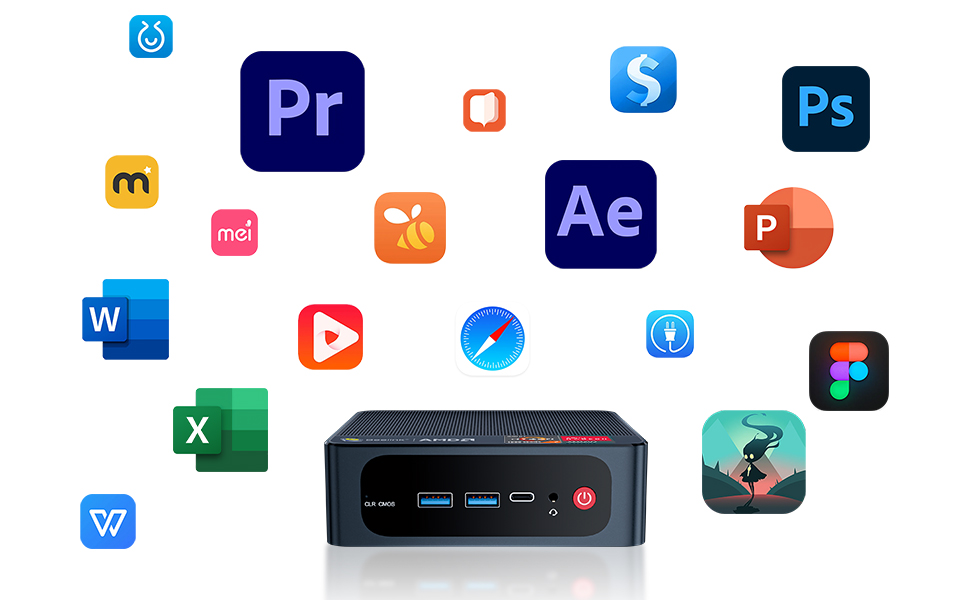
Image 5.1: The Mini PC supports a variety of software applications for productivity and entertainment.
6. Maintenance
To ensure the longevity and optimal performance of your Beelink SER5 Mini PC, follow these maintenance guidelines:
- Cleaning: Regularly clean the exterior of the Mini PC with a soft, dry cloth. Use compressed air to gently clear dust from ventilation openings to prevent overheating. Ensure the device is powered off and unplugged before cleaning.
- Software Updates: Keep your operating system and drivers updated to the latest versions to ensure security and performance.
- Ventilation: Ensure the Mini PC is placed in a well-ventilated area, away from direct sunlight or heat sources, to allow for proper airflow.
- Storage: Avoid placing heavy objects on the Mini PC. When not in use for extended periods, store it in a cool, dry place.
7. Troubleshooting
If you encounter issues with your Beelink SER5 Mini PC, refer to the following common solutions:
- No Power:
- Ensure the power adapter is securely connected to both the Mini PC and a working power outlet.
- Test the power outlet with another device to confirm it is functional.
- Verify the power adapter is the correct one supplied with the device.
- No Display Output:
- Check that the monitor is powered on and the correct input source is selected.
- Ensure the HDMI/DisplayPort/Type-C cable is securely connected to both the Mini PC and the monitor.
- Try a different display cable or monitor if available.
- If using multiple displays, ensure they are properly configured in Windows Display Settings (see Section 4.2).
- System Freezes or Slow Performance:
- Close unnecessary applications running in the background.
- Check for sufficient free space on the SSD.
- Ensure the Mini PC has adequate ventilation and is not overheating.
- Run a system scan for malware or viruses.
- Cannot Enter BIOS:
- Ensure you are pressing the Delete key repeatedly immediately after powering on the device.
- For boot options, use the F7 key.
8. Specifications
| Feature | Detail |
|---|---|
| Brand | Beelink |
| Model Name | SER5 |
| Operating System | Windows 11 Pro |
| CPU Model | AMD Ryzen 5 5500U |
| CPU Speed | 2.1 GHz (up to 4.0 GHz Boost) |
| Graphics Coprocessor | AMD Radeon Graphics (7 Cores, 1800 MHz) |
| RAM Memory Installed | 16 GB DDR4 |
| RAM Memory Maximum Size | 64 GB |
| Memory Storage Capacity | 480 GB NVME SSD (M.2 PCIe 2280) |
| Hard Disk Interface | Solid State |
| Wireless Connectivity | WiFi 6 (802.11ax), Bluetooth 5.2 |
| Wired Connectivity | 2.5G Ethernet LAN (RJ45) |
| Video Output Interface | HDMI, DisplayPort, Type-C (4K@60Hz Triple Display) |
| USB Ports | 3x USB 3.2 Gen2, 1x USB 2.0, 1x Type-C (Data & Video) |
| Audio Jack | HP&MIC |
| Dimensions | 126 x 113 x 42 mm |
| Power Consumption | 22.5 watts |
9. Warranty and Support
Beelink provides comprehensive support for your SER5 Mini PC:
- Warranty: A 3-year warranty is provided for the Beelink SER5 Mini PC.
- Technical Support: Lifetime technical support is available.
- After-Sales Service: 24/7 after-sales service is offered.
- Certifications: All products have obtained FCC, CE, and RoHS certifications.
For any questions or assistance, please do not hesitate to contact Beelink customer support through the official channels provided at the point of purchase or on the Beelink website.
Related documentsSER5


Ask a question about this manual
Ask about setup, troubleshooting, compatibility, parts, safety, or missing instructions. Manuals+ will review the question and use this page’s manual context to help answer it.