
1. Introduction
Thank you for choosing the DELTACO Gaming PM80 Wireless Optical Gaming Mouse. This manual provides essential information for setting up, operating, and maintaining your new gaming mouse. Please read these instructions carefully before use to ensure optimal performance and longevity of your device.
2. Package Contents
- DELTACO Gaming PM80 Wireless Optical Gaming Mouse
- USB Wireless Receiver
- USB Charging Cable
- User Manual
3. Product Overview
The DELTACO Gaming PM80 is a high-performance wireless optical gaming mouse designed for precision and comfort. It features 7 programmable buttons, adjustable DPI up to 4800, and customizable illumination. The mouse is rechargeable, ensuring uninterrupted gaming sessions.
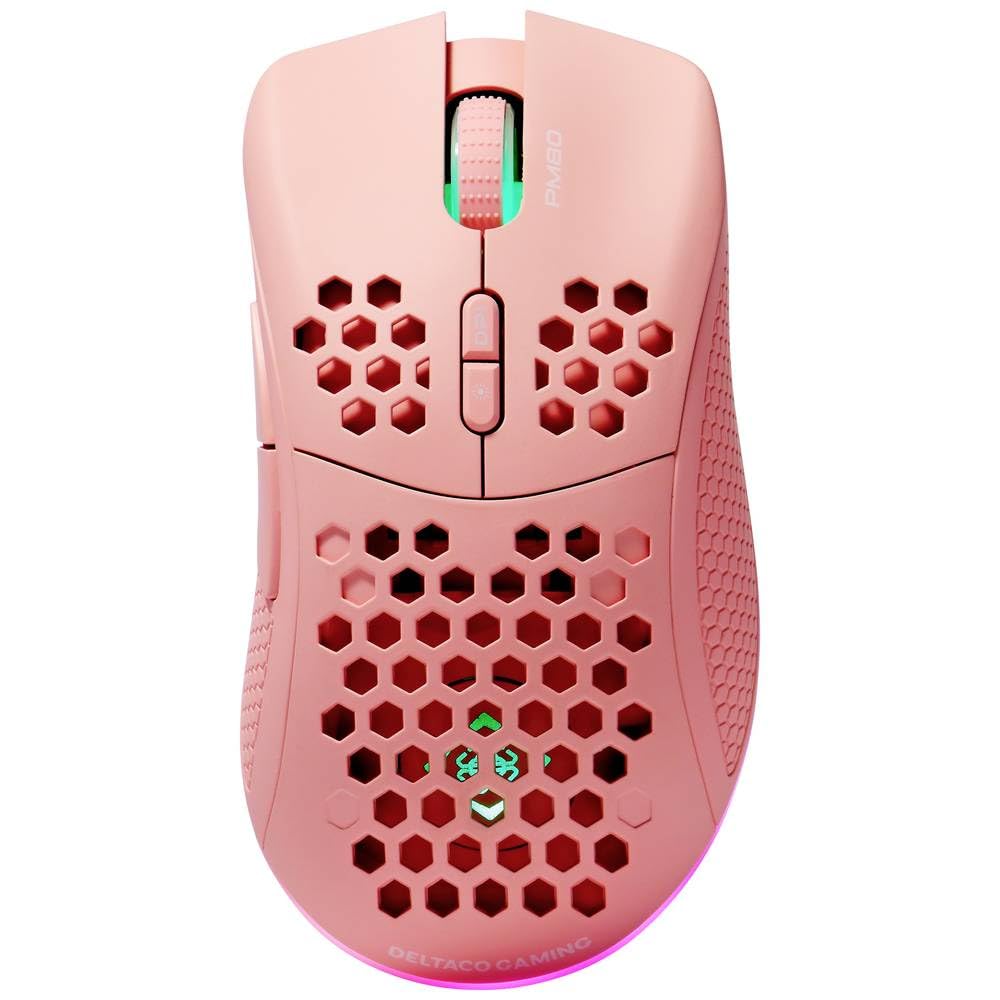
Image: DELTACO Gaming PM80 Wireless Optical Gaming Mouse. This image displays the mouse from a top-down perspective, highlighting its ergonomic design, the central scroll wheel, and the arrangement of its seven buttons.
Button Functions:
- Left Click Button: Standard primary click function.
- Right Click Button: Standard secondary click function.
- Scroll Wheel: Scrolls up/down, and acts as a middle click button.
- DPI Cycle Button: Changes the mouse's sensitivity (DPI).
- Forward Button: Navigates forward in web browsers or file explorers.
- Backward Button: Navigates backward in web browsers or file explorers.
- Illumination Mode Button: Cycles through different lighting effects or turns illumination on/off.
4. Setup
4.1. Charging the Mouse
- Connect the small end of the USB charging cable to the charging port on the front of the mouse.
- Connect the larger end of the USB charging cable to an available USB port on your computer or a USB wall adapter.
- The mouse's illumination will indicate charging status (e.g., breathing effect, specific color). A full charge typically takes 2-3 hours.
- Once fully charged, the illumination may change or turn off. Disconnect the charging cable.
4.2. Connecting the USB Wireless Receiver
- Locate the USB wireless receiver, usually stored in a compartment on the underside of the mouse.
- Remove the receiver from its storage slot.
- Plug the USB wireless receiver into an available USB port on your computer.
- Your computer should automatically detect and install the necessary drivers. This may take a few moments.
4.3. Powering On/Off
- Locate the power switch on the underside of the mouse.
- Slide the switch to the 'ON' position to power on the mouse. The illumination will light up.
- To conserve battery life, slide the switch to the 'OFF' position when the mouse is not in use for extended periods.
5. Operating Instructions
5.1. Basic Usage
Once connected and powered on, the mouse is ready for use. Move the mouse on a flat surface to control the cursor on your screen. Use the left and right click buttons for primary and secondary actions, and the scroll wheel for navigation.
5.2. DPI Adjustment
The DPI (Dots Per Inch) setting determines the sensitivity of your mouse. The DELTACO Gaming PM80 offers multiple DPI levels up to 4800 DPI. To adjust the DPI:
- Press the DPI Cycle Button (typically located behind the scroll wheel).
- Each press will cycle through the available DPI settings. The mouse's illumination may change color or flash to indicate the current DPI level.
- Select the DPI setting that best suits your preference for gaming or general use.
5.3. Illumination Control
The DELTACO Gaming PM80 features customizable illumination. To change the lighting effects:
- Press the Illumination Mode Button (refer to Product Overview for location).
- Each press will cycle through different lighting modes, such as static colors, breathing effects, or off.
6. Maintenance
6.1. Cleaning
- Ensure the mouse is powered off before cleaning.
- Use a soft, dry, lint-free cloth to wipe the surface of the mouse.
- For stubborn dirt, slightly dampen the cloth with water or a mild, non-abrasive cleaner. Avoid excessive moisture.
- Do not use harsh chemicals, solvents, or abrasive materials, as these can damage the mouse's finish.
- Use a cotton swab or compressed air to clean around the scroll wheel and button crevices.
6.2. Storage
When not in use for extended periods, store the mouse in a cool, dry place away from direct sunlight and extreme temperatures. Ensure the power switch is in the 'OFF' position to preserve battery life.
7. Troubleshooting
- Mouse not responding:
- Ensure the mouse is powered on.
- Check if the USB wireless receiver is securely plugged into a working USB port.
- Verify the mouse battery is charged. Connect the charging cable and try again.
- Try plugging the receiver into a different USB port.
- Restart your computer.
- Lag or intermittent connection:
- Ensure the mouse is within close proximity to the USB receiver (ideally within 10 meters).
- Avoid placing the receiver near other wireless devices or sources of interference (e.g., Wi-Fi routers, cordless phones).
- Ensure the mouse is fully charged.
- Cursor movement is erratic or imprecise:
- Clean the optical sensor on the underside of the mouse with a soft, dry cloth.
- Ensure you are using the mouse on a suitable surface (e.g., a mouse pad). Avoid highly reflective or transparent surfaces.
- Adjust the DPI setting to a lower sensitivity if the cursor is too fast.
- Illumination not working:
- Ensure the mouse is powered on.
- Press the Illumination Mode Button to cycle through modes, ensuring it's not set to 'off'.
- Check battery level; low battery might disable illumination.
8. Specifications
| Feature | Detail |
|---|---|
| Brand | DELTACO GAMING |
| Model Number | GAM-120-P |
| Connectivity | Wireless (USB Receiver) |
| Sensor Type | Optical |
| DPI | Up to 4800 DPI (Adjustable) |
| Number of Buttons | 7 |
| Hand Orientation | Right |
| Illumination | Yes |
| Rechargeable | Yes |
| Batteries Required | No (Internal Rechargeable) |
9. Warranty and Support
For warranty information and technical support, please refer to the warranty card included with your product or visit the official DELTACO Gaming website. Keep your proof of purchase for any warranty claims.


