
BUFFBEE BK11
BUFFBEE Sound Machine & Alarm Clock
Model: BK11 - User Manual
Introduction
Thank you for choosing the BUFFBEE Sound Machine & Alarm Clock. This versatile 2-in-1 device combines a high-quality sound machine with a fully functional alarm clock, designed to help you achieve restful sleep and wake up refreshed. Its intuitive controls and customizable features make it an essential addition to any bedroom.

Image: The Buffbee Sound Machine and Alarm Clock highlighting its dual functionality as both a sound machine and an alarm clock.
Safety Information
- Do not expose the device to water or excessive humidity.
- Keep away from heat sources and direct sunlight.
- Use only the provided power adapter.
- Do not attempt to disassemble or repair the device yourself. Contact customer support for assistance.
- Ensure the device is placed on a stable, flat surface.
Package Contents
- BUFFBEE Sound Machine & Alarm Clock (Model: BK11)
- Power Adapter
- User Manual
Product Overview
Familiarize yourself with the device's components and controls:

Image: A detailed diagram illustrating the top panel controls (Alarm, Volume Control, Sound Machine, Night Light) and the rear panel (Display Dimmer, Adapter port).
- Top Panel Controls: Alarm button, Timer button, Volume Up/Down, Previous/Next Sound, Sound Machine button, Night Light button.
- Front Display: Digital clock display.
- Bottom Light: Integrated colored light.
- Rear Panel: DC 5V Adapter port, 0-100% Display Dimmer knob.
Setup
- Placement: Place the device on a stable surface, such as a nightstand or desk.
- Power Connection: Insert the power adapter into the DC 5V port on the rear of the device, then plug it into a standard electrical outlet.
- Initial Power On: The clock display will illuminate.
- Set Time: Refer to the 'Operating Instructions' section for setting the current time.
Operating Instructions
Setting the Time
- Press and hold the Time button (clock icon) on the top panel until the hour digits flash.
- Use the Previous (◀︎) or Next (▶︎) buttons to adjust the hour.
- Press the Time button again to confirm the hour and move to minute setting.
- Use the Previous (◀︎) or Next (▶︎) buttons to adjust the minutes.
- Press the Time button one more time to confirm the minutes and exit time setting.
Setting the Alarm
- Press and hold the Alarm button (bell icon) on the top panel until the alarm hour digits flash.
- Use the Previous (◀︎) or Next (▶︎) buttons to adjust the alarm hour.
- Press the Alarm button again to confirm the hour and move to alarm minute setting.
- Use the Previous (◀︎) or Next (▶︎) buttons to adjust the alarm minutes.
- Press the Alarm button one more time to confirm the minutes. The alarm icon will appear on the display, indicating the alarm is set.
- To turn off the alarm, press the Alarm button once. The alarm icon will disappear.
Using the Sound Machine
The device offers 18 soothing sounds, including 5 white noises, 3 fan sounds, and 10 nature sounds (ocean, lullaby, waves, rain, thunderstorm, brook, croaking, bird chirping, summer night, and campfire).
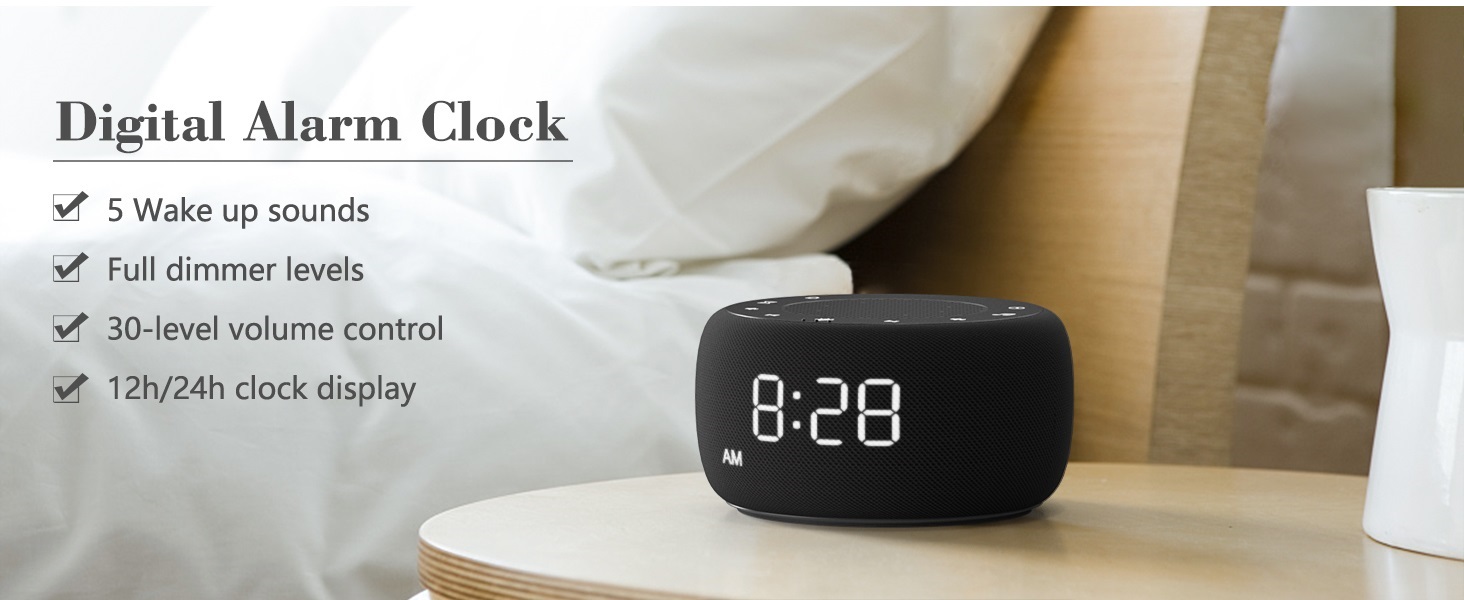
Image: An infographic displaying the 18 soothing sounds categorized into 3 fan sounds, 5 white noises, and 10 nature sounds, including ocean, lullaby, waves, rain, thunderstorm, brook, croaking, bird chirping, summer night, and campfire.
- Press the Sound Machine button (music note icon) to cycle through the available sounds.
- Use the Volume Up (▲) and Volume Down (▼) buttons to adjust the volume (30 levels).
- To turn off the sound, press the Sound Machine button until no sound is playing.
Sleep Timer
Set a timer for the sound machine to automatically turn off.

Image: The top panel of the Buffbee Sound Machine, highlighting the Auto-Off Timer button and the Volume Control buttons.
- Press the Timer button (hourglass icon) to cycle through timer options: 15, 30, 60, 90, 120 minutes, or continuous play.
- The selected timer duration will be displayed on the screen.
Adjusting Clock Face Brightness
The clock display brightness can be adjusted from 0% (completely dark) to 100%.

Image: The Buffbee Sound Machine demonstrating its 0-100% display dimmer feature, showing the clock face at 0%, partial, and 100% brightness.
- Locate the Display Dimmer knob on the rear of the device.
- Rotate the knob to increase or decrease the brightness of the clock display to your preference.
Using the Bottom Colored Light
The device features a bottom light with 7 color options to create a relaxing ambiance.

Image: The Buffbee Sound Machine displaying its bottom colored light feature, showing various color options and the ability to turn it on or off.
- Press the Night Light button (light bulb icon) to cycle through the 7 color options.
- Continue pressing the button to turn the light off.
Maintenance
- Cleaning: Wipe the device with a soft, dry cloth. Do not use abrasive cleaners or solvents.
- Storage: When not in use for extended periods, store the device in a cool, dry place.
Troubleshooting
| Problem | Possible Cause | Solution |
|---|---|---|
| Device does not power on. | Power adapter not connected properly or power outlet issue. | Ensure the power adapter is securely plugged into the device and a working electrical outlet. Try a different outlet. |
| Clock display is too bright/dim. | Display dimmer setting needs adjustment. | Adjust the 0-100% Display Dimmer knob on the rear of the device. |
| Sound is not loud enough. | Volume is set too low. | Press the Volume Up (▲) button to increase the volume. The device has 30 volume levels. |
| Alarm does not sound. | Alarm is not set or is turned off. | Ensure the alarm is set correctly and the alarm icon is visible on the display. |
Specifications
| Feature | Detail |
|---|---|
| Model Number | BK11 |
| Dimensions | 5.63 x 4.57 x 3.03 inches |
| Weight | 11.64 ounces |
| Power Source | Battery Powered (for backup) / AC Adapter |
| Speaker Output | 5W |
| Sound Options | 18 (5 white noises, 3 fan sounds, 10 nature sounds) |
| Volume Levels | 30 |
| Sleep Timer | 15, 30, 60, 90, 120 minutes, or continuous |
| Clock Display Brightness | 0-100% adjustable |
| Bottom Light Colors | 7 options |
| Material | Plastic, Acrylonitrile Butadiene Styrene (ABS) |
Warranty and Support
For warranty information and customer support, please refer to the contact details provided on the product packaging or visit the official BUFFBEE website. Keep your purchase receipt for warranty claims.
Ask a question about this manual
Ask about setup, troubleshooting, compatibility, parts, safety, or missing instructions. Manuals+ will review the question and use this page’s manual context to help answer it.