
ORIVISION UCH703
ORIVISION UCH703 4K HDMI Video Capture Card User Manual
Model: UCH703 USB 3.0 4K HDMI Capture Card With Loopout
Product Overview
The ORIVISION UCH703 is a high-performance 4K HDMI video capture card designed for streaming, recording, and live broadcasting. It features a USB 3.0 interface for high-speed data transmission, HDMI loop-out for real-time preview, and support for microphone input and audio output. This device is compatible with various operating systems and popular acquisition software, making it ideal for gaming, teaching, medical imaging, and online meetings.
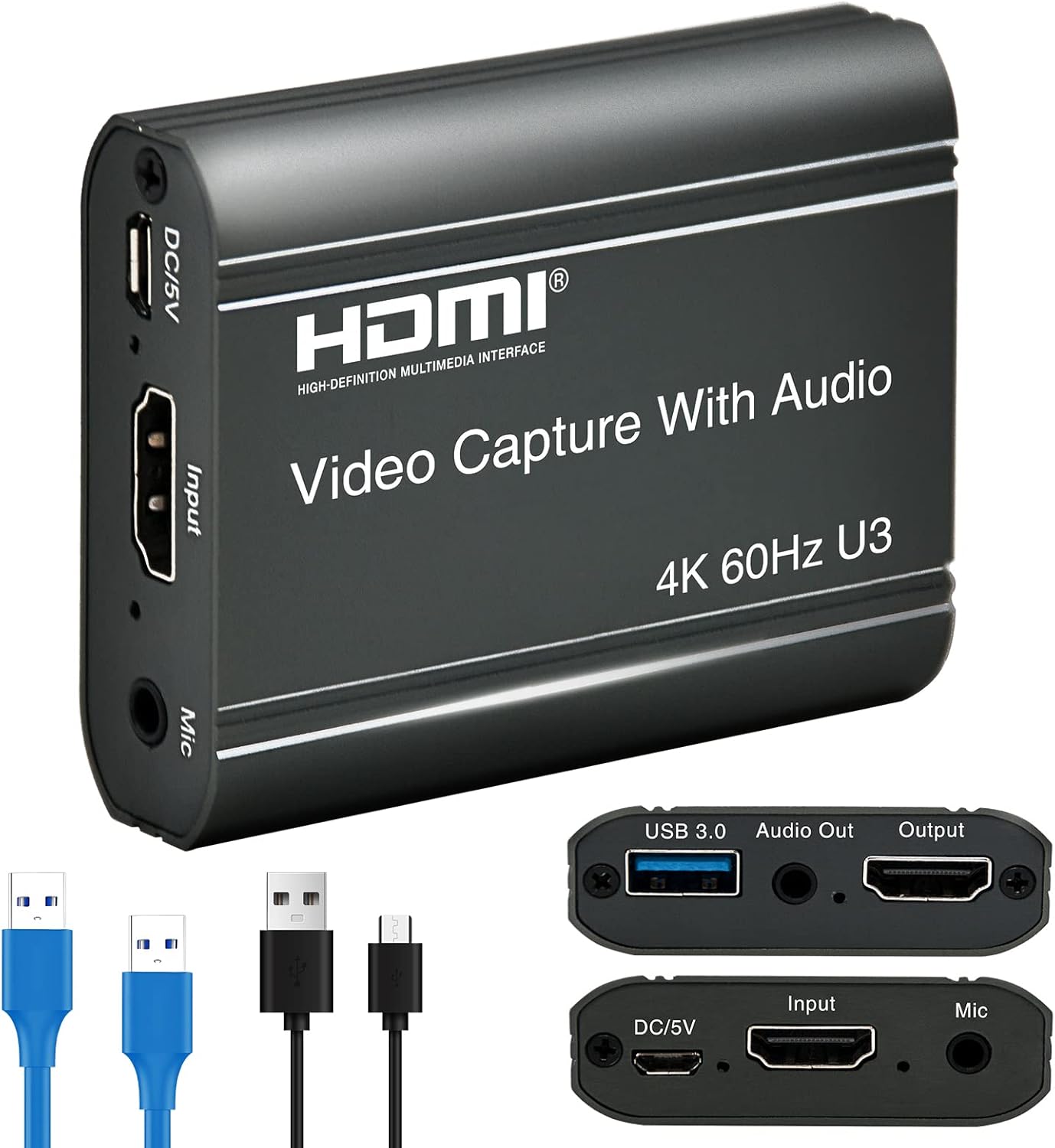
Image: Front view of the ORIVISION UCH703 4K HDMI Video Capture Card, showing its compact design and HDMI input, DC/5V, and Mic ports. It also highlights the USB 3.0, Audio Out, and Output ports on the opposite side.
Key Features
- Max 4K@60fps Input & 1080P@60fps FHD Output: Supports input resolutions up to 4K at 60 frames per second and outputs up to 1080P at 60 frames per second.
- USB 3.0 High-Speed Transmission: Provides faster data transfer speeds with low latency compared to USB 2.0.
- Real-time Preview with HDMI Loop-Out: Allows simultaneous capture and display of HD video and audio signals to a monitor or projector.
- Wide Compatibility: Compatible with Windows, Android, and Mac OS systems, and supports popular software like OBS, VLC, and Amcap.
- Mic Input and Audio Output: Features a microphone audio input and 3.5mm stereo audio output, enabling voice streaming and recording alongside video.

Image: Visual representation of the capture card's key features, including USB 3.0 for faster transmission, max output resolution of 1080P, max input of 4K, and compatibility with OBS, VLC, and Amcap software.
Setup Guide
Follow these steps to set up your ORIVISION UCH703 4K HDMI Video Capture Card:
- Connect HDMI Input: Connect your HDMI source device (e.g., game console, camera, TV box, DSLR) to the "Input" port of the capture card using an HDMI cable.
- Connect HDMI Loop-Out (Optional): If you wish to preview your content on a separate display, connect an HDMI cable from the "Output" port of the capture card to your monitor or TV.
- Connect USB 3.0: Connect the USB 3.0 cable from the capture card's "USB 3.0" port to a USB 3.0 port on your computer (laptop or desktop).
- Connect Microphone (Optional): For audio input, plug a 3.5mm microphone into the "Mic" port on the capture card.
- Connect Audio Output (Optional): For audio monitoring, connect headphones or speakers to the "Audio Out" port.
- Power Connection (Optional): If the device requires additional power or for stable operation, connect a Micro USB cable to the "DC/5V" port and a power source.
- Software Setup:
- Open your preferred acquisition software (e.g., OBS Studio, VLC, Amcap).
- Add a new "Video Capture Device" source.
- Select "USB Capture Video" or a similar option from the device list.
- Configure the resolution and FPS settings (e.g., 1920x1080 at 60 FPS).
- Adjust audio settings to include microphone input if desired.
- Start streaming or recording.

Image: Detailed diagram showing the various ports on the capture card and how to connect them to different devices like laptops, computers, headsets, monitors, TV boxes, video cameras, game consoles, projectors, and microphones.

Image: Step-by-step guide on setting up the capture card with OBS Studio, illustrating how to add a video capture device, select the USB capture video, set resolution/FPS, and start recording.
Operating Instructions
Once the setup is complete, you can begin using your ORIVISION UCH703 capture card for various applications:
- Game Streaming: Connect your game console (PS4, Xbox, Nintendo Switch) to the capture card's HDMI input. Use the HDMI loop-out to play on your TV while streaming to your computer via OBS or similar software.
- Live Broadcasting: Utilize the capture card with a DSLR or video camera to enhance the quality of your live streams for platforms like Twitch, YouTube, Facebook, and Twitter.
- Video Recording: Record high-quality video content directly to your computer for later editing or sharing.
- Online Meetings/Conferences: Improve your webcam quality by connecting a professional camera through the capture card for clearer video during Zoom, Skype, or other virtual meetings.
- Educational Content Creation: Record lectures, demonstrations, or presentations with high-definition video and synchronized audio.

Image: A setup demonstrating game live capture using the ORIVISION UCH703, showing a Nintendo Switch connected to the capture card, which is then connected to a laptop and a monitor for simultaneous gameplay and streaming.

Image: A family using the ORIVISION UCH703 for live streaming, with a camera connected to the capture card and then to a laptop, enabling them to share moments via online streaming.
Maintenance
To ensure the longevity and optimal performance of your ORIVISION UCH703 capture card, follow these maintenance guidelines:
- Cleaning: Use a soft, dry cloth to clean the exterior of the device. Avoid using liquid cleaners or aerosols, as they may damage the internal components.
- Storage: Store the capture card in a cool, dry place away from direct sunlight and extreme temperatures when not in use.
- Handling: Handle the device with care. Avoid dropping it or subjecting it to strong impacts, which can damage the internal circuitry.
- Cable Management: Ensure all cables are connected securely and are not bent or kinked excessively to prevent damage to the connectors and cables themselves.
- Firmware Updates: Periodically check the ORIVISION official website for any available firmware updates to ensure compatibility and improved performance.
Troubleshooting
If you encounter issues with your ORIVISION UCH703, refer to the following common troubleshooting steps:
| Problem | Possible Cause | Solution |
|---|---|---|
| No video signal / Black screen |
|
|
| No audio captured |
|
|
| Lag or stuttering video |
|
|
| Software does not detect device |
|
|
Specifications
| Feature | Detail |
|---|---|
| Brand | ORIVISION |
| Model Number | U923 (UCH703 USB 3.0 4K HDMI Capture Card With Loopout) |
| Hardware Interface | USB 3.0 |
| Max HDMI Input Resolution | 4K@60fps |
| Max Output Resolution | 1080P@60fps |
| Audio Input | 3.5mm Microphone |
| Audio Output | 3.5mm Stereo |
| Operating System Compatibility | Windows, Android, Mac OS |
| Product Dimensions | 2.76 x 2.2 x 0.75 inches |
| Item Weight | 6.4 ounces |
| Recommended Uses | Video Recording, Live Streaming, Gaming, Online Meetings |

Image: Diagram illustrating the compact dimensions of the capture card (70mm length, 56mm width, 19mm height) and its compatibility with Windows, Android, macOS, 4K UHD, and various streaming platforms like YouTube, Facebook, Twitch, Livestream, and Ustream.
Warranty and Support
For detailed warranty information and technical support, please refer to the official user manual provided with your product or visit the ORIVISION official website. Extended protection plans may also be available for purchase.
You can access the PDF user manual here.
Related documentsUCH703


Ask a question about this manual
Ask about setup, troubleshooting, compatibility, parts, safety, or missing instructions. Manuals+ will review the question and use this page’s manual context to help answer it.