
1. Product Overview
The Grandstream GXV3450 is an advanced IP Video Phone designed for modern business communication. It integrates a 16-line IP video phone with a multi-platform video collaboration solution and the extensive functionality of an Android tablet. This device offers a comprehensive all-in-one communication experience.
Key features include a 5-inch 1280x720 capacitive touch screen, a tiltable 2MP CMOS camera, dual microphones, and support for 720p HD video. Connectivity is robust with dual Gigabit ports (supporting PoE/PoE+), integrated Wi-Fi 5 (dual-band 2.4GHz & 5GHz), and Bluetooth 5.0. Running on Android 11, the GXV3450 provides access to a vast array of Android applications, enhancing productivity and collaboration.

Figure 1.1: Front view of the Grandstream GXV3450 IP Video Phone, showcasing its 5-inch color touch screen, physical keypad, and handset.
2. Setup and Installation
2.1 Package Contents
Before beginning installation, verify all items are present in the package:
- Phone Unit
- Power Adapter
- Phone Back Stand
- Phone Handset with Phone Cord
- Network Cable
2.2 Physical Connections
- Attach the Phone Stand: Align the tabs on the phone stand with the slots on the back of the phone unit and slide it into place until it clicks securely.
- Connect the Handset: Plug one end of the coiled phone cord into the handset and the other end into the handset port on the phone unit (marked with a handset icon).
- Connect the Network Cable:
- For Power over Ethernet (PoE): Connect one end of the Ethernet cable to the LAN port on the phone (marked with a network icon) and the other end to a PoE-enabled switch or injector.
- For Non-PoE Setup: Connect one end of the Ethernet cable to the LAN port on the phone and the other end to your network switch or router. Then, connect the power adapter to the DC12V power port on the phone and plug it into a power outlet.
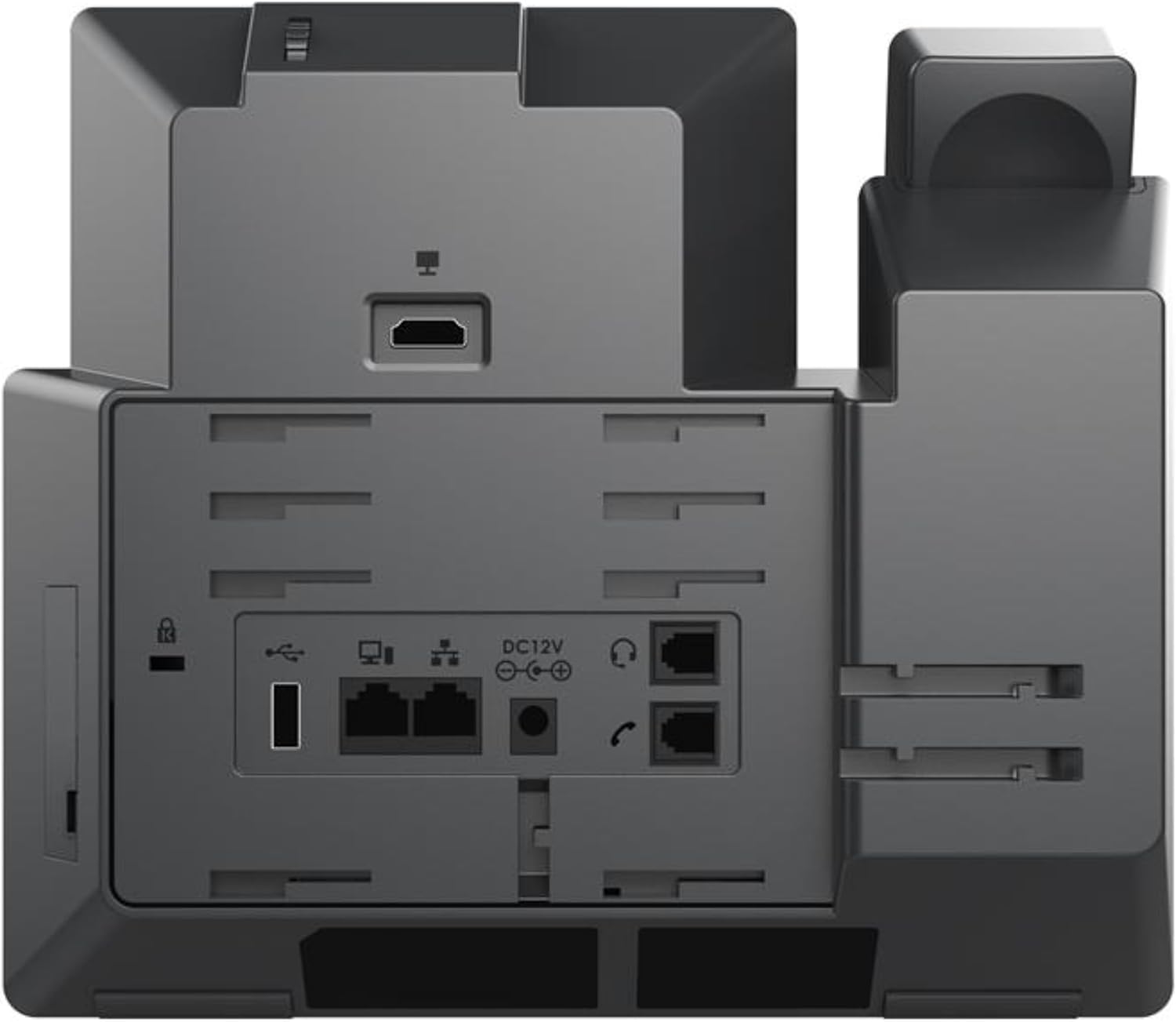
Figure 2.1: Rear view of the Grandstream GXV3450, showing the various ports for power, network, handset, and other peripherals.
2.3 Initial Configuration
Upon first boot-up, the phone will guide you through initial setup steps, including language selection, network settings (DHCP or static IP), and SIP account registration. Consult your network administrator for SIP account details.
3. Operating Instructions
3.1 Basic Call Functions
- Making a Call: Lift the handset or press the speakerphone button. Dial the number using the keypad or select a contact from the directory on the touch screen. Press the Send button or wait for automatic dialing.
- Answering a Call: Lift the handset or press the speakerphone button when the phone rings.
- Ending a Call: Replace the handset or press the End Call button on the screen.
- Hold/Resume: During a call, tap the Hold icon on the touch screen. Tap again to resume.
3.2 Touch Screen Navigation
The 5-inch capacitive touch screen allows for intuitive navigation. Swipe left/right to access different screens, tap icons to open applications or settings, and use pinch-to-zoom gestures where applicable.
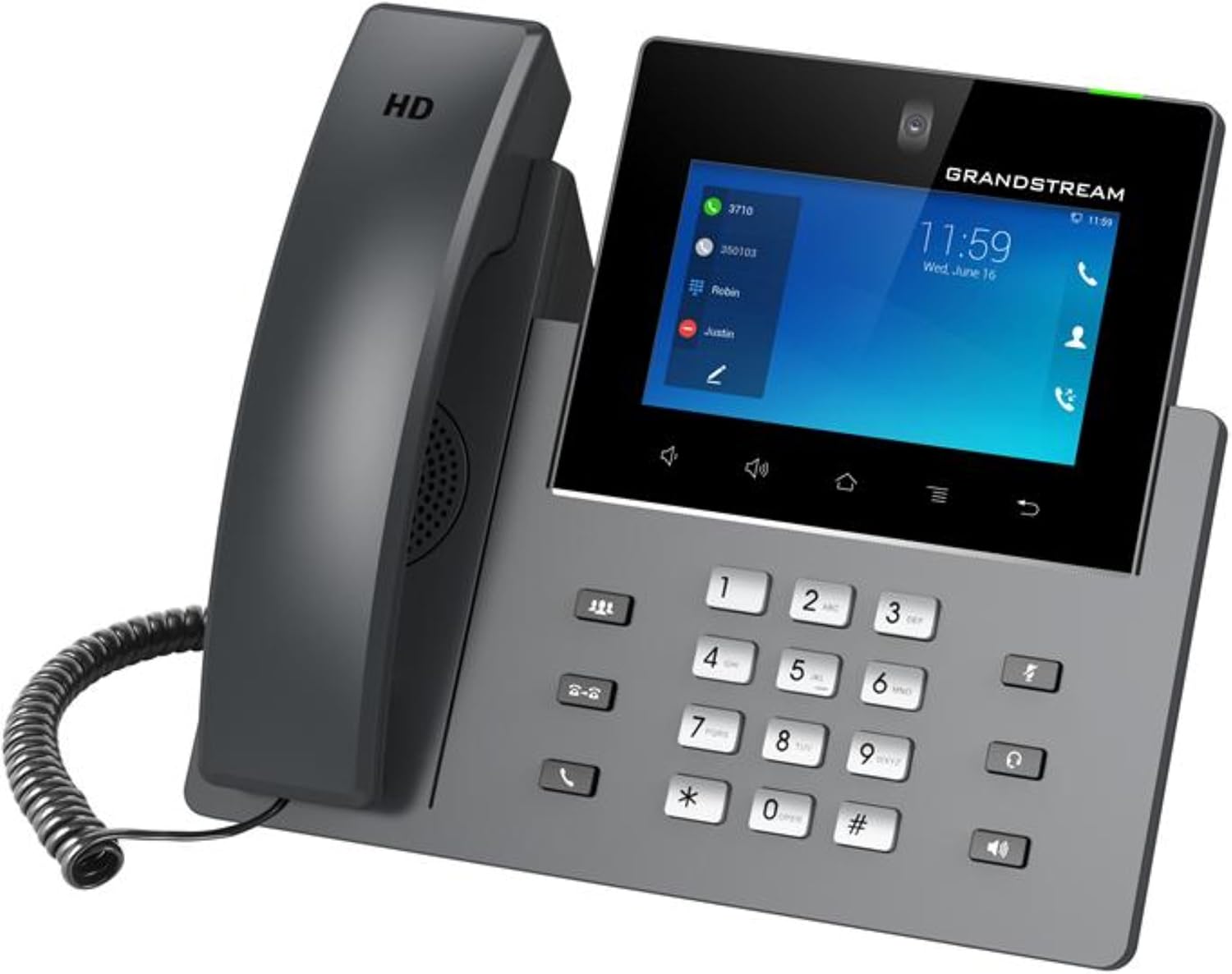
Figure 3.1: Angled view of the Grandstream GXV3450, highlighting the ergonomic design and the interactive touch screen interface.
3.3 Video Calling and Conferencing
The GXV3450 supports 720p HD video calls using its built-in 2 MP CMOS camera. During a call, tap the video icon to initiate a video stream. The phone also supports 3-way 720p 30fps HD video conferencing and 10-way audio conferencing.
- Initiating Video Call: During an active voice call, tap the Video icon on the screen.
- Privacy Shutter: The camera includes a physical privacy shutter for enhanced security. Slide it to cover the lens when not in use.
- Conferencing: To add participants to a call, tap the Conference icon and dial the next participant's number.
3.4 Android OS Functionality
Running Android 11, the GXV3450 allows access to various Android applications. You can download and install apps from the pre-installed app store or other trusted sources. Integrated Wi-Fi 5 and Bluetooth 5.0 enable wireless connectivity for accessories and network access.
4. Maintenance
4.1 Cleaning
To clean the phone, use a soft, dry, lint-free cloth. For stubborn marks, slightly dampen the cloth with water. Avoid using harsh chemicals, abrasive cleaners, or aerosol sprays directly on the device.
4.2 Software Updates
Periodically check for firmware updates to ensure optimal performance and access to the latest features. Updates can typically be managed through the phone's system settings or via a central management system if deployed in an enterprise environment.
5. Troubleshooting
5.1 Common Issues and Solutions
- No Dial Tone:
- Ensure the handset cord is securely connected to both the handset and the phone unit.
- Verify the network cable is properly connected and the phone is receiving power (either via PoE or power adapter).
- Check network connectivity and SIP registration status on the phone's screen.
- Cannot Make/Receive Calls:
- Confirm SIP account registration is successful (indicated by a green icon next to the account on the screen).
- Check network settings and ensure the phone has internet access.
- Verify that the phone's firewall or network router is not blocking VoIP traffic.
- Video Call Issues (No Video/Poor Quality):
- Ensure the camera's privacy shutter is open.
- Check network bandwidth and stability. Video calls require sufficient bandwidth.
- Verify that the other party's device also supports video and has their camera enabled.
- Touch Screen Unresponsive:
- Restart the phone by unplugging and re-plugging the power/network cable.
- Ensure the screen is clean and free of debris.
If issues persist, consult the Grandstream support website or contact your IT administrator.
6. Specifications
| Feature | Detail |
|---|---|
| Model Number | GXV3450 |
| Operating System | Android 11 |
| Display | 5.0" (1280x720) capacitive 5-point touch screen IPS LCD |
| Processor | Quad-core 1.8GHz ARM Cortex A55 |
| Memory | 2GB RAM, 16GB eMMC Flash |
| SIP Accounts | Up to 16 |
| Camera | Built-in 2 MP CMOS with privacy shutter |
| Video Conferencing | 3-way 720p 30fps HD |
| Audio Conferencing | 10-way |
| Ethernet Ports | Dual-switched autosensing 10/100/1000Mbps (Gigabit) with PoE/PoE+ |
| Wi-Fi | Integrated dual-band Wi-Fi 5 (802.11ac) |
| Bluetooth | Built-in Bluetooth 5.0 |
| Dimensions (L x W x H) | 19.69 x 19.69 x 11.02 inches |
| Item Weight | 3.78 pounds |
| Power Source | Corded Electric (PoE/PoE+ or 12V power adapter) |
7. Warranty and Support
7.1 Product Warranty
For detailed warranty information, please refer to the warranty card included with your product or visit the official Grandstream website. Warranty terms and conditions may vary by region and purchase location.
7.2 Technical Support
Should you encounter any issues or require technical assistance, please visit the Grandstream support portal on their official website. You can find FAQs, documentation, and contact information for technical support there.
Note: Always ensure you are visiting the official Grandstream website for support and documentation.


