
Inandon 8T
Inandon Karaoke Machine 8T with 15.6 Inch Touch Screen User Manual
Model: 8T
1. Introduction
Thank you for choosing the Inandon Karaoke Machine 8T. This all-in-one karaoke system features a 15.6-inch touch screen, advanced sound processing, and extensive song library access. This manual provides essential information for setting up, operating, and maintaining your device to ensure an optimal user experience.

Image 1.1: The Inandon Karaoke Machine 8T, showcasing the main unit with its 15.6-inch touch screen, two wireless microphones, and a smartphone demonstrating the mobile app control interface.
2. What's in the Box
Please check the contents of your package. If any items are missing or damaged, contact customer support.
- Inandon Karaoke Machine (15.6-inch touch screen unit)
- Wireless Microphones (2 units)
- 8TB Hard Disk Drive (HDD) - pre-installed
- HDMI HD Cable
- RCA Audio Cable
- RCA to AUX Cable
- Power Adapter
- Built-in WiFi Adapter (USB dongle)
- Microphone Covers (2 units)
- User Manual (this document)

Image 2.1: An overview of the Inandon Karaoke Machine 8T package contents, including the main unit, two microphones, HDMI cable, RCA audio cable, RCA to AUX cable, power adapter, built-in WiFi adapter, and microphone covers.
3. Setup Guide
Follow these steps to set up your Inandon Karaoke Machine.
3.1. Placement
Place the karaoke machine on a stable, flat surface. Ensure adequate ventilation around the unit.
3.2. Connecting to Power
- Connect the power adapter to the DC IN port on the back of the karaoke machine.
- Plug the power adapter into a standard electrical outlet.
3.3. Connecting to a Display (TV/Monitor)
Use the HDMI cable to connect the machine to your TV or monitor for video output.
- Connect one end of the HDMI cable to the HDMI OUT port on the karaoke machine.
- Connect the other end to an available HDMI input on your TV or monitor.
- Select the corresponding HDMI input on your TV/monitor.
3.4. Connecting to an Audio System (Optional)
For enhanced sound, connect the karaoke machine to an external amplifier or sound system.
- RCA Audio Output: Use the RCA Audio Cable to connect the L/R audio output ports on the machine to the audio input ports on your amplifier.
- Digital Optical Output: Use an optical cable (not included) to connect the Digital Optical Output port to a compatible audio receiver.
3.5. Network Connection
The machine supports both wired Ethernet and wireless Wi-Fi connections for accessing online features and song downloads.
- Wi-Fi: The machine has a built-in WiFi adapter. On first boot, navigate to the system settings to connect to your wireless network.
- Ethernet: Connect an Ethernet cable (not included) from your router to the NETWORK port on the back of the machine.

Image 3.1: The rear panel of the Inandon Karaoke Machine 8T, illustrating the various connectivity options including HDMI output, digital optical output, USB interface, RCA audio output, network port, and power switch.
3.6. Microphone Setup
The included wireless microphones are pre-paired with the system.
- Insert batteries (not included) into each microphone.
- Turn on the microphones using their power switches.
- The machine will automatically detect and connect to the microphones.
4. Operating Instructions
4.1. Powering On/Off
Press the POWER button on the back of the machine to turn it on. To power off, press and hold the POWER button until the system shuts down, or use the software shutdown option from the touch screen interface.
4.2. Touch Screen Interface
The 15.6-inch touch screen provides the primary interface for navigating the system, selecting songs, and adjusting settings. The interface is intuitive and designed for ease of use.
4.3. Song Selection Methods
The Inandon Karaoke Machine offers four convenient ways to select songs:
- Touch Screen: Directly browse and select songs using the integrated touch display.
- Mobile App: Download the dedicated Inandon app on your smartphone to control the machine remotely.
- WeChat Scan Code: Use WeChat to scan a QR code displayed on the screen for song ordering.
- Intelligent Voice Assistant: Use voice commands to search for and select songs.

Image 4.1: Visual representation of the four song ordering methods: WeChat scan code, mobile app, intelligent voice assistant, and direct touch screen interaction.
4.4. Adjusting Audio Settings
The machine features a DSP digital reverb microphone system, allowing for detailed audio adjustments.
- Access the 'Sound' or 'Settings' menu on the touch screen.
- Adjust microphone volume, music volume, and various sound effects (e.g., reverb, echo).
- Customize the equalizer settings for music and microphone to suit your preferences.
- The system also allows for adjusting the key (high/low) of songs and switching between original and backing vocals.

Image 4.2: The user interface for adjusting DSP digital reverb microphone settings, including music tone, microphone volume, and various sound effects and equalizer options.
4.5. Cloud Song Library and Downloads
The Inandon Karaoke Machine provides access to a vast cloud-based song library.
- Connect the machine to the internet via Wi-Fi or Ethernet.
- Browse the cloud library for new songs.
- Songs can be downloaded to the internal 8TB HDD for offline playback. The library is updated weekly.
- The system supports multiple languages for song selection and interface.

Image 4.3: The cloud song download interface, displaying the availability of over 500,000 songs across various languages including Chinese, Cantonese, English, Japanese, and Korean.
4.6. Multi-Language Support
The system supports 16 national languages for the user interface, ensuring accessibility for a diverse user base.

Image 4.4: The multi-language selection screen, showing options for 16 different languages to customize the user interface.
4.7. Additional Features
- Real-time Scoring: Get instant feedback on your singing performance.
- Dual Android System: Allows for installation of various apps, including YouTube for online viewing, office applications, and games.
- Background Customization: Change the visual background during karaoke sessions.
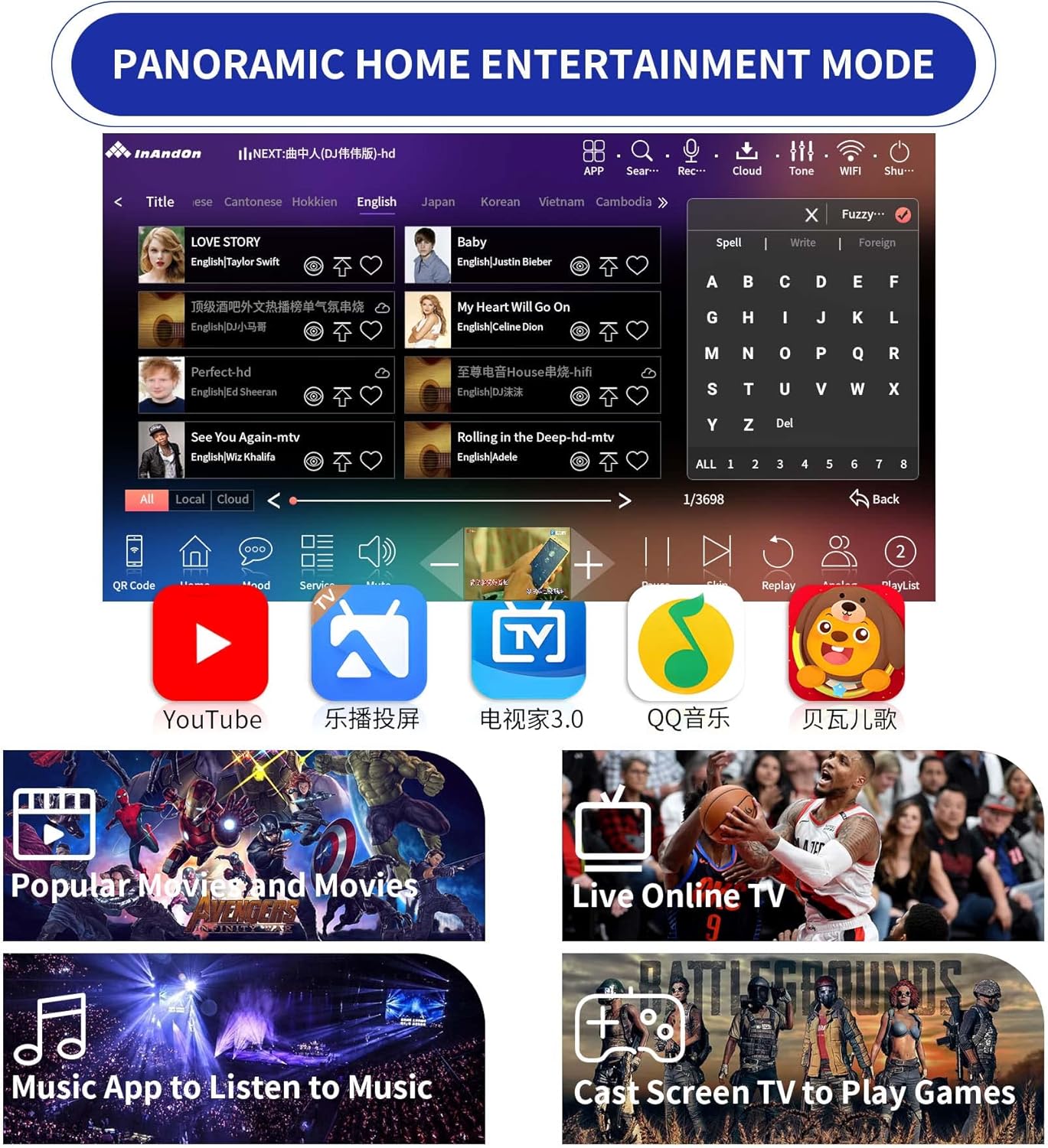
Image 4.5: The panoramic home entertainment mode, displaying various applications such as YouTube, music apps, live online TV, and options for casting games to a TV.
5. Maintenance
5.1. Cleaning
- Ensure the device is powered off and unplugged before cleaning.
- Use a soft, dry cloth to wipe the exterior of the machine and touch screen.
- For stubborn marks on the screen, use a screen-specific cleaning solution applied to a cloth, not directly to the screen.
- Do not use abrasive cleaners or solvents.
5.2. Software Updates
Periodically check for software updates through the system settings to ensure optimal performance and access to the latest features and song library updates.
6. Troubleshooting
If you encounter issues, refer to the following common problems and solutions.
| Problem | Possible Cause | Solution |
|---|---|---|
| No power | Power cable not connected; power outlet faulty. | Check power cable connection; try a different outlet. |
| No display on TV | HDMI cable loose; incorrect TV input selected. | Ensure HDMI cable is securely connected; select correct HDMI input on TV. |
| No sound output | Audio cables loose; volume too low; external audio system off. | Check RCA/optical cable connections; increase volume on machine and external system; ensure external system is on. |
| Microphones not working | Microphones off; low batteries; out of range. | Turn on microphones; replace batteries; ensure microphones are within range of the machine. |
| Cannot connect to internet | Incorrect Wi-Fi password; router issue; Ethernet cable loose. | Verify Wi-Fi password; restart router; check Ethernet cable connection. |
| System slow or unresponsive | Too many apps running; temporary software glitch. | Close unnecessary applications; restart the machine. |
7. Specifications
| Feature | Detail |
|---|---|
| Model | 8T |
| Display | 15.6 Inch Touch Screen |
| Storage | 8TB HDD (approx. 170,000 songs capacity) |
| Song Library | 500,000+ cloud songs (free download, weekly updates) |
| Operating System | Dual Android System |
| Processor | 8-Core Chip |
| Memory | 8GB |
| Connectivity | Wi-Fi, Ethernet |
| Input/Output Ports | HDMI, USB, RCA Audio, 3.5mm Jack, Digital Optical Output, MIC Input |
| Control Methods | Touch Screen, Mobile App, WeChat, Voice Assistant |
| Special Features | DSP Digital Reverb Microphone, Real-time Scoring, Multi-language Support (16 languages) |
| Item Weight | 11 pounds |
| Product Dimensions | 9.5 x 9.6 x 6.6 inches |
| Power Source | Battery Powered (for microphones), AC Adapter (for main unit) |
| Compatible Devices | Smartphone |
8. Warranty and Support
For warranty information and technical support, please refer to the documentation provided with your purchase or contact Inandon customer service directly. Keep your purchase receipt as proof of purchase.
Related documents8T


Ask a question about this manual
Ask about setup, troubleshooting, compatibility, parts, safety, or missing instructions. Manuals+ will review the question and use this page’s manual context to help answer it.