
Divoom Ditoo-Mic
Divoom Ditoo-Mic Bluetooth Speaker with Karaoke Microphone - User Manual
Model: Ditoo-Mic
Introduction
This manual provides detailed instructions for the setup, operation, and maintenance of your Divoom Ditoo-Mic Bluetooth Speaker with Karaoke Microphone. Please read this manual thoroughly before use to ensure proper functionality and to maximize your product experience. This device combines a high-quality Bluetooth speaker with a customizable pixel art display and a portable karaoke microphone, designed for versatile entertainment and utility.
Package Contents
Verify that all items are present in your package:
- Divoom Ditoo-Mic Bluetooth Speaker
- Mini Karaoke Microphone
- USB Charging Cable
- User Manual (this document)
- Sticker Set (may vary by package)

Image: Divoom Ditoo-Mic speaker and microphone, along with a USB cable and stickers, presented in its gift packaging.
Product Overview
The Divoom Ditoo-Mic combines a Bluetooth speaker with a pixel art display and a karaoke microphone, offering versatile entertainment and utility features.
Main Unit (Ditoo-Mic Speaker)
- Pixel Display: Customizable LED screen for pixel art, notifications, clock, and animations.
- Mechanical Keyboard: RGB backlit keys for interaction and control.
- Speaker Grille: Located at the top for audio output.
- Control Lever/Buttons: For navigation and function selection.
Mini Karaoke Microphone
- Microphone Head: For vocal input.
- Control Buttons: Power, volume, and sound effect controls.
- Charging Port: For recharging the microphone.
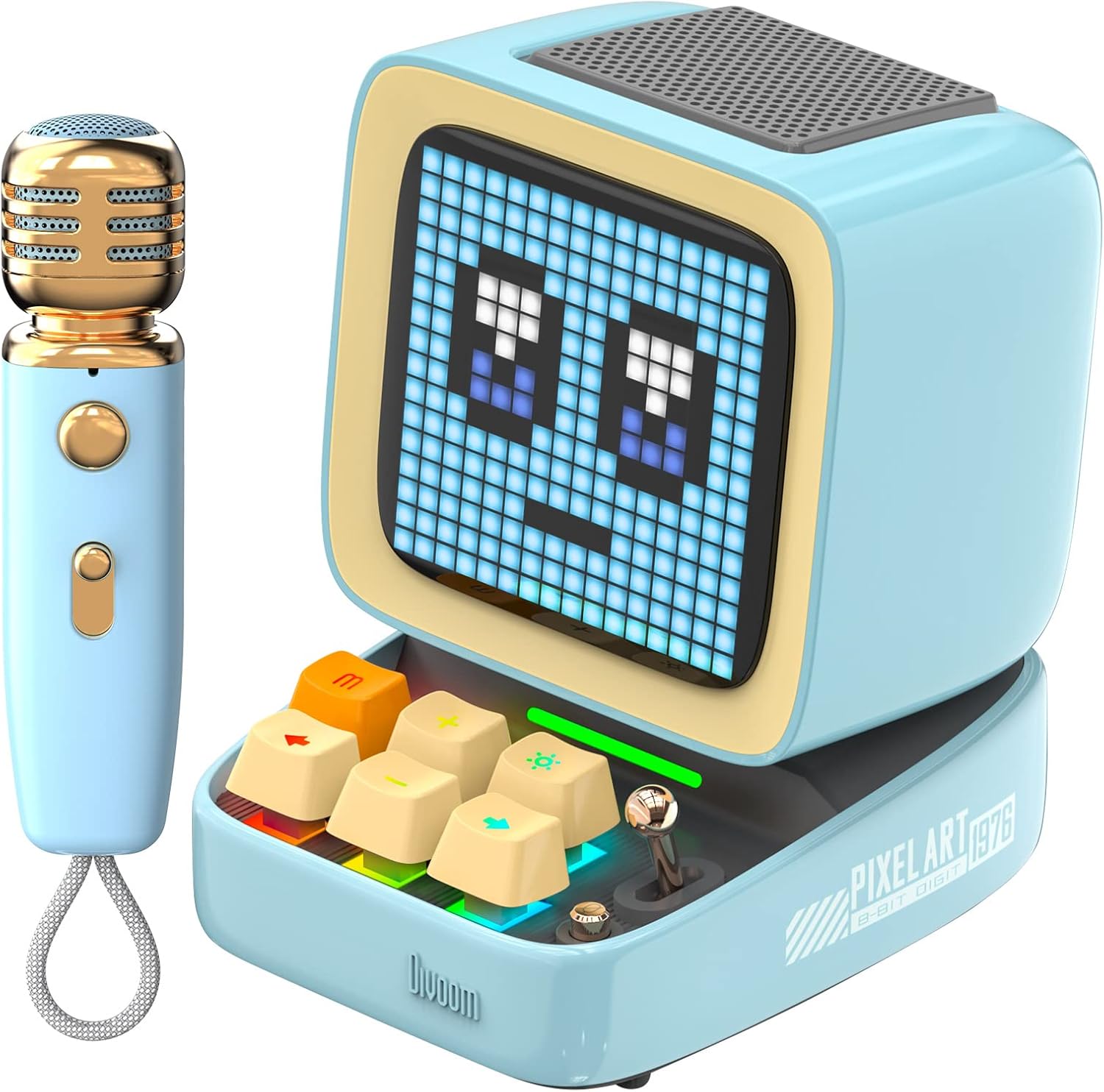
Image: The Divoom Ditoo-Mic Bluetooth speaker with its pixel display showing a face, alongside the matching mini karaoke microphone.
Setup
1. Charging the Device
Before first use, fully charge both the Ditoo-Mic speaker and the mini microphone.
- Connect the USB charging cable to the charging port on the Ditoo-Mic speaker and to a USB power adapter (not included).
- Connect the USB charging cable to the charging port on the mini microphone and to a USB power adapter.
- The charging indicator will show charging status. A full charge typically takes approximately 4 hours for 8 hours of playtime.
2. Powering On/Off
- Speaker: Press and hold the power button (often integrated into one of the keyboard keys or a dedicated button) for a few seconds until the pixel display lights up. Repeat to power off.
- Microphone: Press and hold the power button on the microphone until the indicator light turns on. Repeat to power off.
3. Bluetooth Pairing
To use the Ditoo-Mic as a speaker or for karaoke, pair it with your mobile device.
- Ensure the Ditoo-Mic speaker is powered on and in Bluetooth pairing mode (usually indicated by a flashing Bluetooth icon on the pixel display).
- On your mobile device, go to Bluetooth settings and search for available devices.
- Select "Divoom Ditoo-Mic" from the list to connect. A confirmation sound or message will indicate successful pairing.
- To use the microphone for karaoke, ensure it is also powered on. It should automatically connect to the Ditoo-Mic speaker when both are on and within range.
Operating Instructions
Speaker Functions
- Music Playback: Once paired, play audio from your mobile device. Use the Ditoo-Mic's keyboard keys or your device to control volume, play/pause, and skip tracks.
- Pixel Art Display:
- Pre-set Animations: Use the Ditoo-Mic's controls to cycle through built-in pixel art animations.
- Custom Pixel Art: Download the Divoom app to create and upload your own pixel art designs to the display.

Image: The Divoom Ditoo-Mic speaker showcasing a vibrant pixel art animation on its display.

Image: The Divoom Ditoo-Mic speaker floating with musical notes, representing its premium sound quality.
Karaoke Microphone Functions
- Singing: With the microphone powered on and connected to the Ditoo-Mic speaker, speak or sing into the microphone. Your voice will be amplified through the speaker.
- Volume Control: Use the dedicated buttons on the microphone to adjust your vocal volume.
- Sound Modes/Effects: The microphone may feature different sound modes (e.g., echo, reverb). Refer to the microphone's specific controls for activation.

Image: A person holding and singing into the Divoom Ditoo-Mic karaoke microphone, with the speaker visible in the background.
Divoom Mobile Application
The Divoom app enhances the functionality of your Ditoo-Mic. It allows for:
- Creating and sharing custom pixel art.
- Accessing a large pixel art community.
- Setting alarms and planners.
- Receiving social media notifications on the display.
- Adjusting equalizer settings for audio.
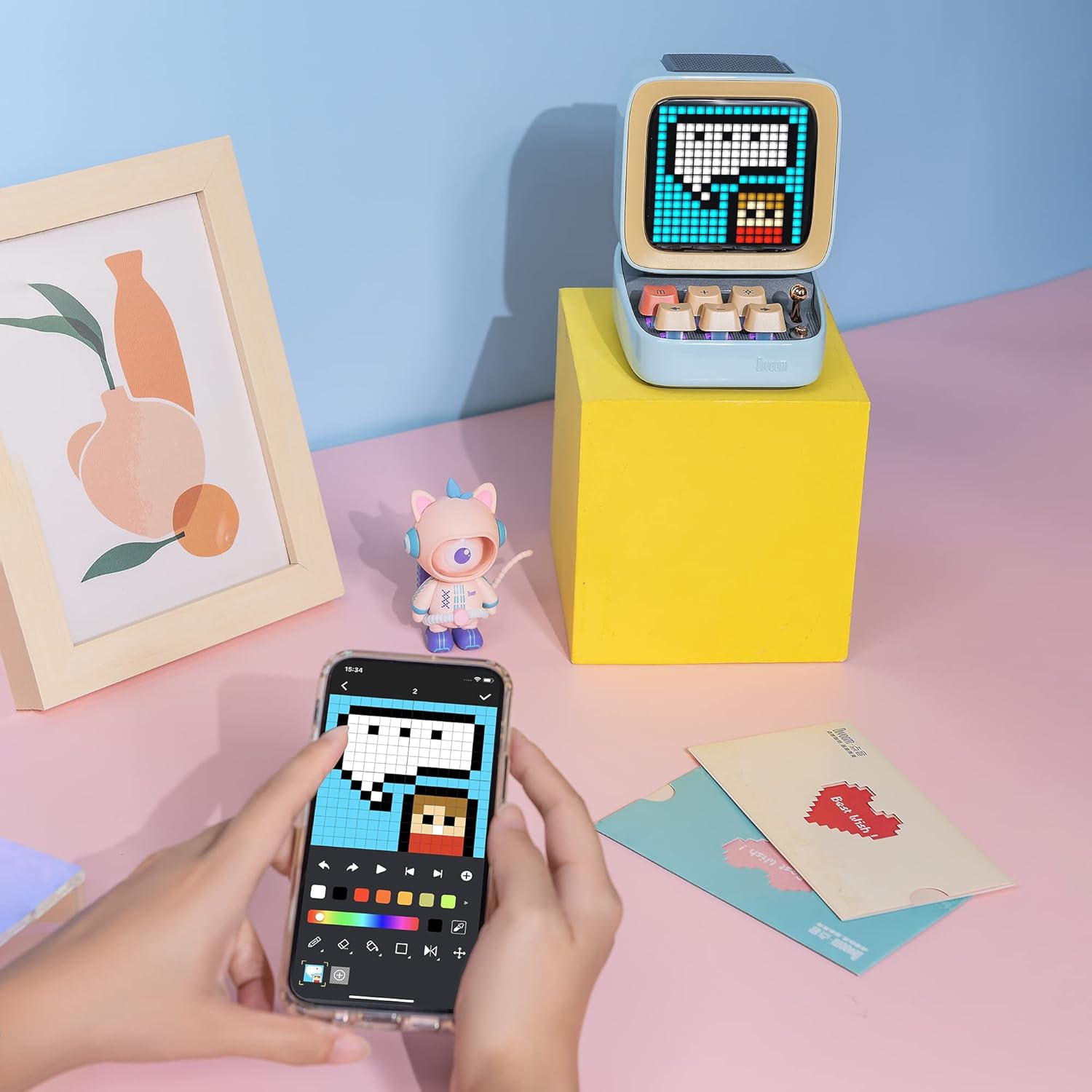
Image: A smartphone displaying the Divoom application interface, used for creating and customizing pixel art.

Image: A visual representation of the Divoom pixel art community across the globe, accessible via the Divoom app on a smartphone.

Image: The Divoom Ditoo-Mic speaker displaying icons for social media notifications from platforms like Facebook, Instagram, Twitter, and WhatsApp.

Image: The Divoom Ditoo-Mic speaker displaying a digital clock, illustrating its smart alarm and planner functionalities.
Maintenance
- Cleaning: Use a soft, dry cloth to clean the exterior of the speaker and microphone. Do not use liquid cleaners, solvents, or abrasive materials, as these can damage the finish or internal components.
- Storage: Store the device in a cool, dry place away from direct sunlight, high humidity, and extreme temperatures. When storing for extended periods, ensure the battery is partially charged (around 50%) to preserve its lifespan.
- Battery Care: To prolong battery life, avoid fully discharging the battery frequently. Charge the device regularly, even if not in use for extended periods, to prevent deep discharge.
- Handling: Handle the device with care. Avoid dropping it or subjecting it to strong impacts, which can damage the internal electronics or the pixel display.
Troubleshooting
| Problem | Possible Cause | Solution |
|---|---|---|
| Device does not power on. | Low battery. | Charge the device fully using the provided USB cable. |
| No sound from speaker. | Volume too low; Not paired via Bluetooth; Device muted. | Increase volume on both the speaker and your connected device; Re-pair Bluetooth; Check device mute settings. |
| Microphone not working. | Microphone not powered on; Not connected to speaker; Low battery. | Power on microphone; Ensure speaker is on and paired; Charge microphone. |
| Bluetooth connection unstable or disconnects. | Too far from paired device; Obstacles causing interference; Other Bluetooth devices interfering. | Move devices closer (within 10 meters); Ensure no large obstacles (walls, metal objects) are between devices; Turn off other unnecessary Bluetooth devices. |
| Pixel display not responding or frozen. | Software glitch; Device frozen. | Restart the Ditoo-Mic speaker by holding the power button until it turns off, then power it back on. |
Specifications
- Model: Ditoo-Mic
- Product Dimensions: 7.5 x 7.5 x 10.2 inches
- Item Weight: 1.18 pounds
- Connectivity: Bluetooth
- Battery: 1 Lithium Polymer battery (included)
- Special Feature: Built-In Microphone (for karaoke system)
- Included Components: Mini Microphone
- Manufacturer: Divoom
- Date First Available: December 30, 2022
Warranty and Support
For detailed warranty information, technical support, and customer service, please refer to the official Divoom website or contact Divoom customer service directly. It is recommended to keep your purchase receipt as proof of purchase for any warranty claims.
Divoom Official Store: Visit the Divoom Store on Amazon
Related documentsDitoo-Mic


Ask a question about this manual
Ask about setup, troubleshooting, compatibility, parts, safety, or missing instructions. Manuals+ will review the question and use this page’s manual context to help answer it.