
TIBURN IT55G34
TIBURN Flip Board 55" S2 Smart Board User Manual
Model: IT55G34
1. Introduction
The TIBURN Flip Board 55" S2 Smart Board is an advanced interactive display designed for various environments, including business, education, and home use. It features a 4K UHD touchscreen, an optimized Android 13.0 operating system, and a unique rotatable design that adapts to both landscape and portrait orientations. This manual provides essential information for setting up, operating, and maintaining your TIBURN Flip Board S2.
1.1 Key Features
- 55-inch 4K UHD Touchscreen: High-resolution display for clear visuals and responsive interaction.
- Rotatable Design: Built-in gravity sensor automatically adjusts display orientation between landscape and portrait.
- TIBURN HQ Eyes S2 Camera: Features 4K Sony CMOS sensor, auto-framing, auto-tracking, and AI noise-cancelling microphones.
- Android 13.0 Operating System: Enhanced performance and user experience.
- Real-time Collaboration & Screen Sharing: Supports up to 9 simultaneous users for casting from Mac/Windows/iOS/Android devices via HDMI, Type-C, or wireless connection.
- Open Application Ecosystem: Compatibility with popular video conferencing applications like Zoom, Google Meet, Microsoft Teams, and Webex.
1.2 Package Contents
Verify that all items are present in the package:
- TIBURN FLIP HUB 55" Smart Board
- TIBURN HQ Eyes S2 Camera
- Movable Stand
- Power Cable
- HDMI Cable
2. Safety Information
Please read and understand all safety instructions before using the TIBURN Flip Board S2. Failure to follow these instructions may result in electric shock, fire, or damage to the device.
- Electrical Safety: Connect the device to a grounded power outlet. Do not overload power strips. Avoid using damaged power cords.
- Placement: Ensure the movable stand is placed on a stable, level surface to prevent tipping. Keep the device away from water, excessive heat, and direct sunlight.
- Handling: The smart board is heavy. Exercise caution and seek assistance when moving or assembling to prevent injury.
- Ventilation: Do not block ventilation openings. Ensure adequate airflow around the device.
- Cleaning: Disconnect power before cleaning. Use a soft, dry cloth. Avoid liquid cleaners directly on the screen.
- Servicing: Do not attempt to service the device yourself. Refer all servicing to qualified personnel.
3. Setup Guide
3.1 Assembling the Movable Stand
Follow the instructions provided with the movable stand to assemble it. Ensure all screws are tightened securely and the wheels are properly attached. The stand is designed for stability and ease of movement.
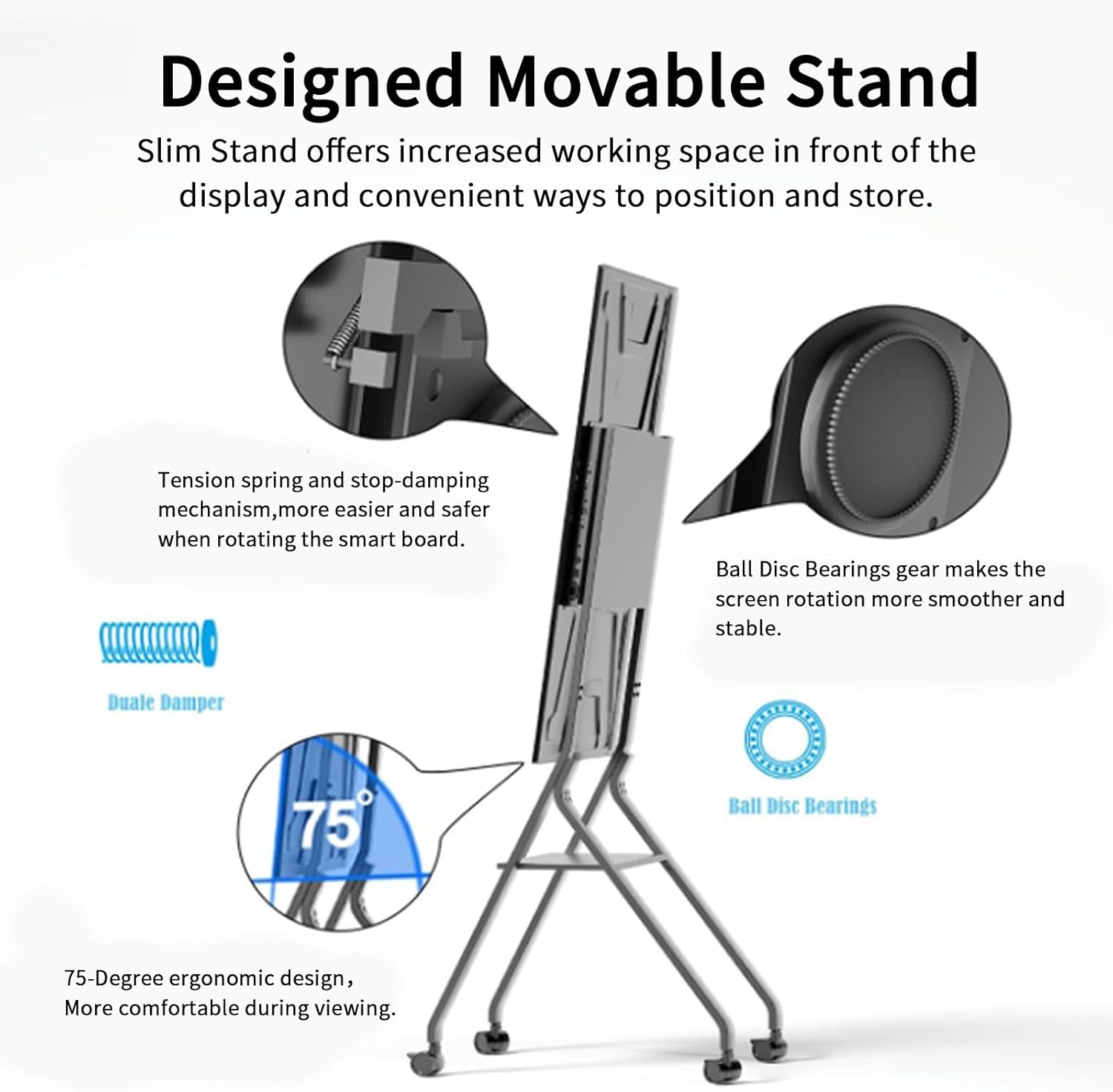
Figure 3.1: Detailed view of the movable stand's rotation mechanism, showing the tension spring, stop-damping mechanism, ball disc bearings, and a 75-degree ergonomic tilt.
3.2 Mounting the Smart Board
Carefully attach the TIBURN Flip Board to the assembled movable stand. Ensure the mounting brackets are correctly aligned and secured according to the stand's instructions. It is recommended to have at least two people for this step due to the board's size and weight.

Figure 3.2: The TIBURN Flip Board 55" S2 Smart Board displayed in both portrait and landscape orientations on its movable stand.
3.3 Connecting the Camera
The TIBURN HQ Eyes S2 Camera is designed for plug-and-play installation. Simply connect the camera to the designated port on the top of the smart board.

Figure 3.3: The TIBURN HQ Eyes S2 camera being connected to the smart board, illustrating its simple 'Plug and Play' installation.
3.4 Power Connection
Connect the provided power cable to the smart board and then to a grounded electrical outlet.
3.5 Initial Power-On and Network Setup
- Press the power button located on the smart board.
- Follow the on-screen prompts to complete the initial setup, including language selection and network configuration (Wi-Fi or Ethernet).
4. Operating Instructions
4.1 Basic Navigation
The TIBURN Flip Board operates like a large Android tablet. Use touch gestures (tap, swipe, pinch-to-zoom) to navigate the interface, open applications, and interact with content.
4.2 Screen Rotation
The smart board features a built-in gravity sensor that automatically detects the orientation of the display. Simply rotate the board on its stand, and the screen content will adapt to either landscape or portrait mode. This allows for versatile use in various scenarios, from presentations to vertical content viewing.

Figure 4.1: The TIBURN Flip Board 55" S2 with camera, highlighting its rotatable and movable design and automatic orientation adaptation.
4.3 Camera Features (TIBURN HQ Eyes S2)
The integrated TIBURN HQ Eyes S2 camera enhances your video conferencing and presentation experience.
- Auto Framing: The camera automatically adjusts its view to keep all participants within the frame, eliminating the need for manual adjustments during meetings.
- Auto Tracking: Built-in face detection algorithms allow the camera to automatically track and frame active speakers, ensuring they remain central to the video feed.
- AI Noise-Cancelling Mics: Captures clear voice from up to 16 feet away while minimizing background noise using advanced 3D noise reduction technology.

Figure 4.2: Camera features including auto-framing for single and multiple presenters, 8X digital zoom, exposure control, mute, and privacy settings.

Figure 4.3: A meeting in progress, showcasing the AI Noise-Cancelling Microphones in action during a video conference.
4.4 Connectivity and Screen Sharing
The TIBURN Flip Board supports multiple methods for connecting external devices and sharing screens.
- USB Type-C: A single Type-C cable can provide screen mirroring, touch control, and charging for compatible laptops.
- HDMI: Connect devices via HDMI for video and audio input.
- Wireless Casting: Wirelessly cast content from Mac, Windows, iOS, and Android devices. The board supports up to 9 users casting simultaneously.
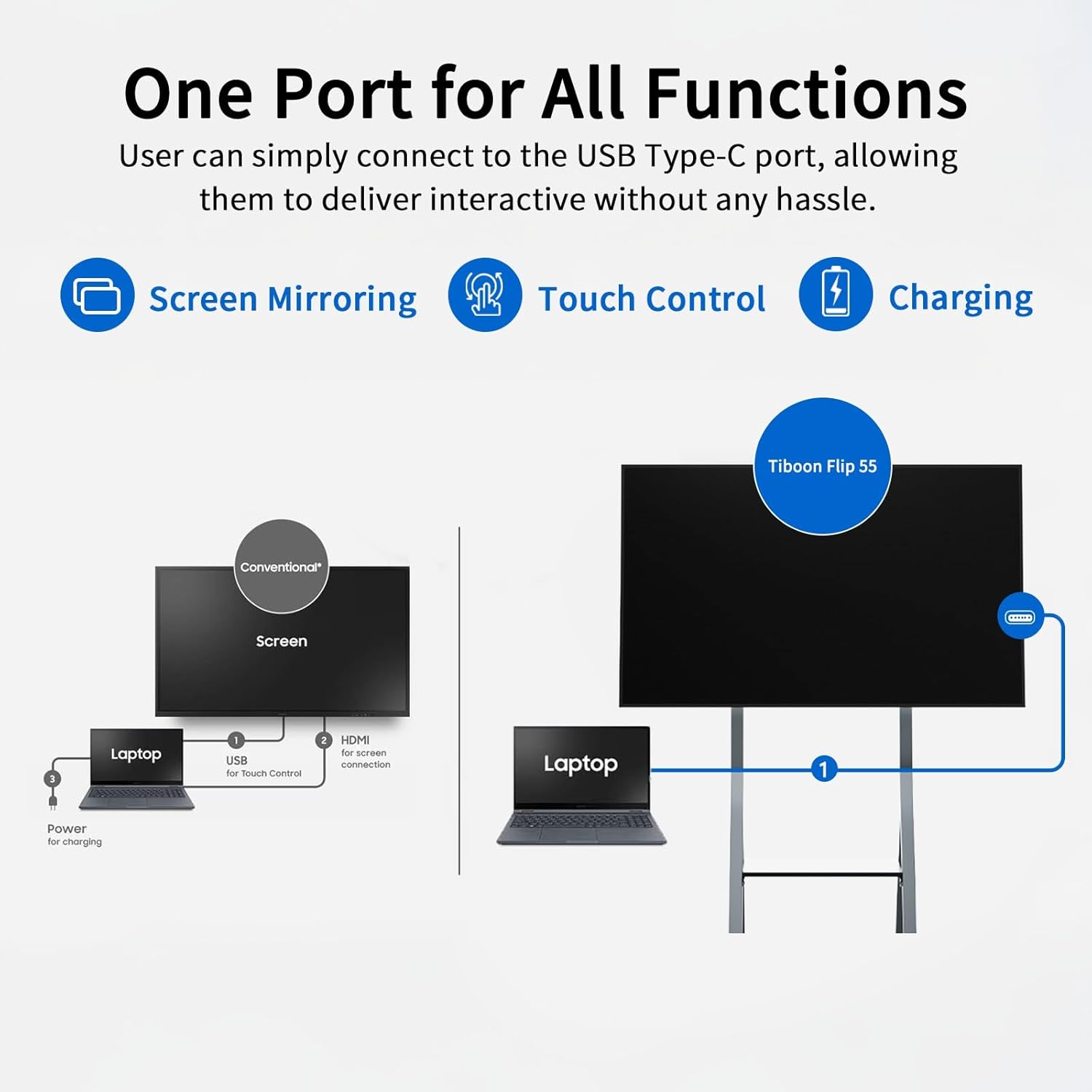
Figure 4.4: Comparison of traditional multi-cable connectivity versus the simplified single USB Type-C connection for the TIBURN Flip Board.

Figure 4.5: A business meeting demonstrating collaboration and screen sharing features of the TIBURN Flip Board during a video conference.
4.5 Using Applications
The TIBURN Flip Board runs on Android 13.0, allowing you to install and use various applications. It is compatible with popular video conferencing platforms such as Zoom, Google Meet, Microsoft Teams, and Webex. Access the app store or pre-installed applications from the home screen.

Figure 4.6: The TIBURN Flip Board being used in a classroom setting for interactive learning, showcasing its versatility for educational applications.
5. Maintenance
5.1 Cleaning the Screen
To clean the touchscreen, first power off the device and unplug it. Use a soft, lint-free cloth lightly dampened with water or a screen-specific cleaning solution. Do not spray liquids directly onto the screen.
5.2 Software Updates
Periodically check for software updates in the system settings to ensure optimal performance, security, and access to new features. Follow the on-screen instructions for any available updates.
6. Troubleshooting
This section addresses common issues you might encounter with your TIBURN Flip Board S2.
| Problem | Possible Cause | Solution |
|---|---|---|
| No power | Power cable disconnected; Power outlet issue | Ensure power cable is securely connected. Test the outlet with another device. |
| No display | Device not powered on; Input source incorrect | Press the power button. Check the selected input source if using external devices. |
| Touchscreen unresponsive | Temporary software glitch; Screen dirty | Restart the device. Clean the screen thoroughly. |
| Camera not working | Camera not connected; Application permissions | Ensure the camera is securely plugged in. Check camera permissions in app settings. |
| Network connectivity issues | Wi-Fi signal weak; Incorrect password | Check Wi-Fi signal strength. Re-enter Wi-Fi password. Restart router if necessary. |
7. Specifications
The following are the technical specifications for the TIBURN Flip Board 55" S2 Smart Board (Model: IT55G34).
| Feature | Specification |
|---|---|
| Model Number | IT55G34 |
| Screen Size | 55 inches |
| Display Resolution | 4K UHD (3840x2160) |
| Operating System | Android 13.0 |
| Memory (RAM) | 8GB |
| Storage (ROM) | 128GB |
| Touchpoints | 20 |
| Response Time | 3ms |
| Camera | TIBURN HQ Eyes S2, 4K Sony CMOS Sensor, Auto Framing, Auto Tracking, AI Noise-Cancelling Mics |
| Connectivity | HDMI (x2), USB 2.0, USB 3.0, Type-C, Wi-Fi, Ethernet |
| Product Dimensions | 27.95 x 48.82 x 68.9 inches (with stand) |
| Item Weight | 100 pounds |
| Material | Alloy Steel |

Figure 7.1: Overview of key specifications and recent upgrades for the TIBURN Flip Board S2.

Figure 7.2: Illustration of the multiple interfaces available on the TIBURN Flip Board for various connectivity needs.
8. Warranty Information
Specific warranty terms and conditions for the TIBURN Flip Board 55" S2 Smart Board may vary by region and retailer. Please refer to the warranty card included with your product or contact your point of purchase for detailed warranty information.
9. Support
For technical assistance, troubleshooting not covered in this manual, or further inquiries, please contact TIBURN customer support or your authorized retailer. Contact information can typically be found on the manufacturer's website or your purchase documentation.
Ask a question about this manual
Ask about setup, troubleshooting, compatibility, parts, safety, or missing instructions. Manuals+ will review the question and use this page’s manual context to help answer it.