
Introduction
This manual provides instructions for the Earto Wireless Keyboard Case designed for the iPad 10th Generation. It covers product features, setup, operation, and maintenance to ensure optimal performance and user experience.
Product Overview
The Earto Keyboard Case integrates a wireless keyboard with a multi-touch trackpad into a protective case for your iPad. Key features include a detachable magnetic keyboard, adjustable viewing angles, 7-color backlighting with 3 brightness levels, and multi-device Bluetooth connectivity.
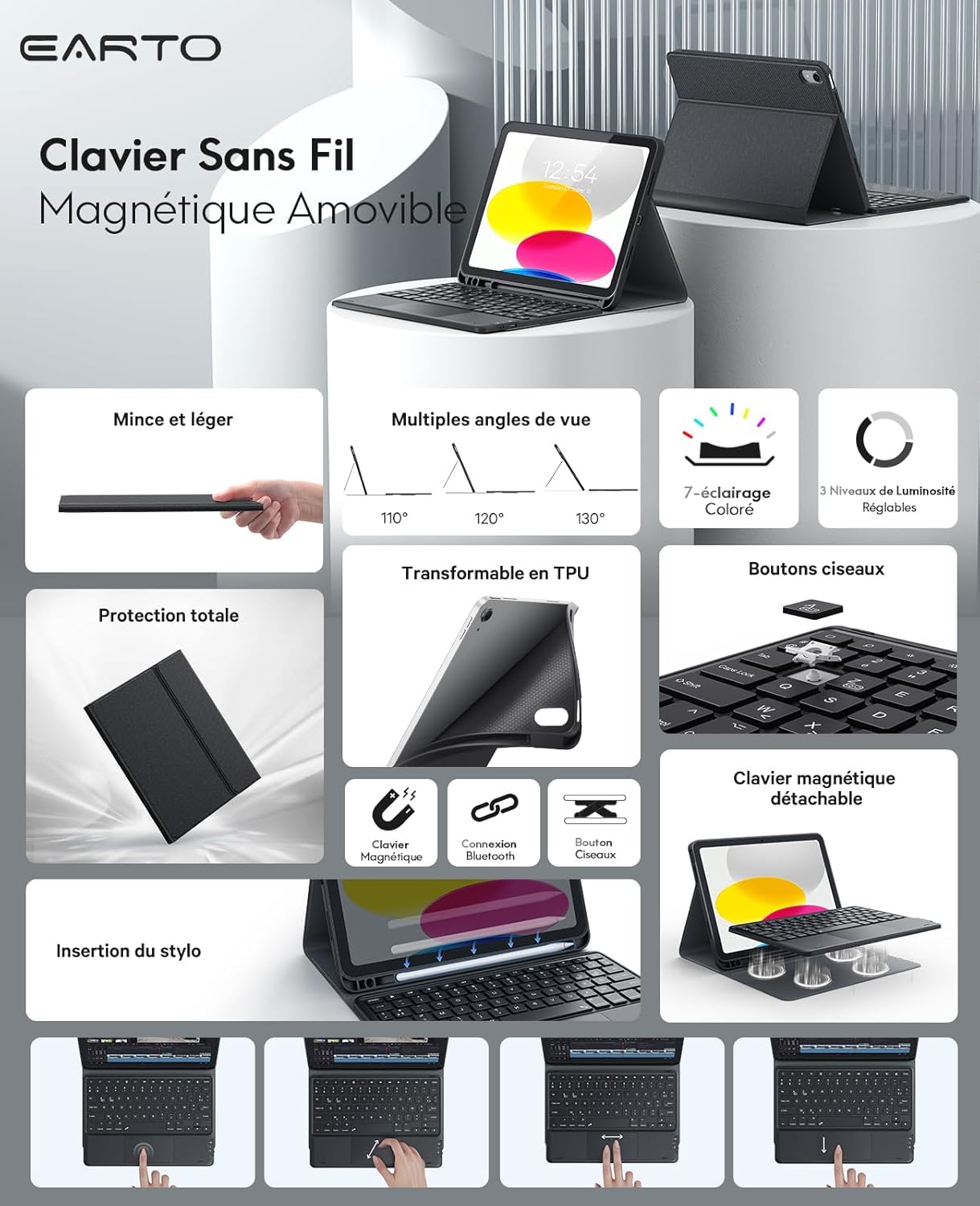
Image: Overview of the Earto Wireless Keyboard Case highlighting its features such as slim design, multiple viewing angles, 7-color lighting, full protection, detachable keyboard, Bluetooth connection, and pen slot.
Compatibility
This keyboard case is compatible with specific iPad models. Please verify your iPad's model number before use.
- iPad 10th Generation 10.9 inch 2022: Model Numbers A2696, A2757, A2777
- iPad A16 11th Generation 11 inch 2025: Model Numbers A3354, A3355, A3356
Note: This product does not contain an Apple Pencil.

Image: A visual guide detailing compatible iPad models (iPad 10th Gen 10.9 inch 2022, iPad A16 11th Gen 11 inch 2025) and incompatible models (iPad Air 11 inch, iPad Air 5 10.9 inch, iPad Air 4 10.9 inch).
Setup and Connection
Initial Connection Steps:
- Charge the Keyboard: Fully charge the keyboard for approximately 3-4 hours using the provided USB charging cable.
- Power On: Turn on the keyboard. The Bluetooth indicator light will flash for 3 seconds, then turn off.
- Activate Bluetooth Pairing: Press the "FN" key simultaneously with the "C" key to activate Bluetooth matching mode. The Bluetooth indicator will start flashing.
- Connect on iPad: Open the Bluetooth settings on your iPad. Locate and select "Bluetooth Keyboard 3.0" from the list of available devices to connect.
- Connection Confirmation: Once connected, the Bluetooth signal light on the keyboard will turn off. The connection is now successful.
Multi-Device Connection:
The keyboard supports connecting up to two devices simultaneously. You can easily switch between them with a single click.

Image: The Earto keyboard connected to both an iPad and a smartphone, demonstrating its multi-device switching capability.
Operating Instructions
Keyboard Backlighting:
The keyboard features 7-color backlighting and 3 adjustable brightness levels for comfortable typing in various lighting conditions.

Image: Several Earto keyboards displayed with different backlight colors, illustrating the 7-color lighting options and adjustable brightness levels.
Multi-Touch Trackpad:
The integrated multi-touch trackpad supports various gestures, enhancing navigation and interaction with your iPad. Refer to your iPad's settings for specific gesture configurations.

Image: A close-up of the Earto keyboard's touchpad with illustrations of various multi-touch gestures, such as scrolling, zooming, and swiping.
Adjustable Viewing Angles:
The case allows for three adjustable viewing angles (110°, 120°, 130°) to suit your preference for typing, viewing, or drawing.

Image: The Earto keyboard case shown at three different adjustable angles: 130°, 120°, and 110°, demonstrating its versatility.
Detachable Keyboard:
The keyboard is magnetically detachable from the case, offering flexibility. You can remove the keyboard when not needed, making the iPad lighter and easier to carry.
Maintenance
- Cleaning: Use a soft, dry cloth to clean the keyboard and case. For stubborn marks, a slightly damp cloth can be used, ensuring no moisture enters the keyboard's internal components.
- Storage: When not in use for extended periods, store the keyboard case in a cool, dry place. Ensure the keyboard is turned off to conserve battery life.
- Battery Care: To prolong battery life, avoid fully discharging the keyboard frequently. Charge it regularly, especially if it will be stored for a long time.
- Protection: The case provides full protection against bumps, scratches, and splashes. However, avoid exposing the device to extreme temperatures or direct water immersion.
Troubleshooting
- Keyboard Not Connecting:
- Ensure the keyboard is charged and powered on.
- Verify Bluetooth is enabled on your iPad.
- Press FN+C to re-enter pairing mode.
- Forget "Bluetooth Keyboard 3.0" from your iPad's Bluetooth settings and attempt to pair again.
- Restart both your iPad and the keyboard.
- Trackpad Not Responding:
- Ensure the keyboard is properly connected via Bluetooth.
- Check iPad settings to ensure trackpad support is enabled.
- Clean the trackpad surface for any obstructions.
- Backlight Not Working:
- Ensure the keyboard has sufficient battery charge.
- Refer to the keyboard's function keys for backlight control (usually a dedicated key or FN combination).
- Short Battery Life:
- Ensure the keyboard is fully charged before use.
- Disable backlighting when not needed to conserve power.
- The keyboard enters sleep mode after periods of inactivity; ensure it wakes up correctly.
Specifications
| Brand | Earto |
| Model Number | A2696 |
| Compatible Devices | iPad 10th Generation (10.9 inch, 2022), iPad 11th Generation (11 inch, 2025) |
| Connectivity Technology | Bluetooth |
| Keyboard Description | Membrane |
| Special Features | Rechargeable, Multi-Touch Trackpad, Detachable Keyboard, Backlit (7 colors, 3 brightness levels), Multi-device pairing |
| Color | Black |
| Product Dimensions | 28L x 22.5W x 3H centimeters |
| Item Weight | 920 grams |


