
1. Introduction
This manual provides detailed instructions for the proper use, setup, and maintenance of your Alacrity 2D Industrial Wireless Barcode Scanner. Please read this manual thoroughly before operating the device to ensure optimal performance and longevity.
2. Safety Information
- Do not expose the scanner to extreme temperatures, humidity, or corrosive substances.
- Avoid direct eye exposure to the scanning light.
- Keep the device away from strong magnetic fields.
- Do not attempt to disassemble or repair the scanner yourself. Refer to qualified personnel for service.
3. Package Contents
Please verify that all items are present in your package:
- Alacrity 2D Industrial Wireless Barcode Scanner
- Charging Stand
- USB Cable
- Wireless Receiver (433Mhz)
- User Manual (this document)
4. Product Overview
The Alacrity 2D Industrial Wireless Barcode Scanner is designed for robust performance in various environments, offering advanced decoding capabilities and long-range wireless transmission.
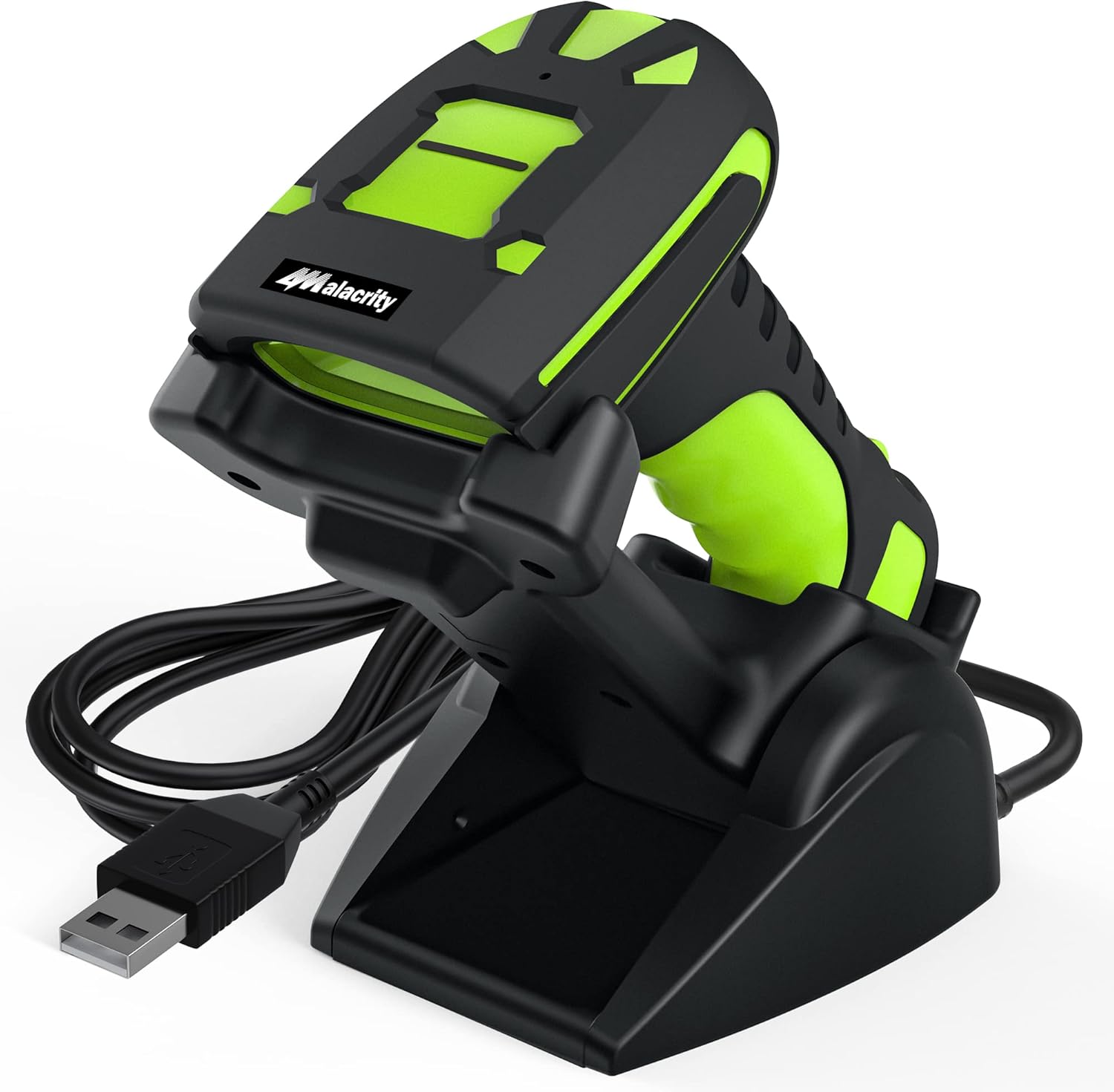
Figure 4.1: Alacrity 2D Industrial Wireless Barcode Scanner with Charging Stand. The scanner features a black and green ergonomic design, resting securely on its dedicated charging and display stand, connected via a USB cable.

Figure 4.2: Extreme Drop Resistance. The scanner's robust construction, featuring thick ABS material and triple consolidation, allows it to withstand repeated drops from 8 feet (2.5 meters) onto concrete surfaces.
5. Setup
5.1 Charging the Scanner
Before first use, fully charge the scanner. Place the scanner onto the charging stand. Connect the USB cable from the charging stand to a power source (e.g., computer USB port, USB wall adapter).

Figure 5.1: Charging the Scanner. The scanner can be charged by placing it on the charging stand, which connects via USB. The 433Mhz wireless receiver is also shown, enabling long-distance data transmission.

Figure 5.2: Battery Performance. The scanner is equipped with an 1800mAh rechargeable battery, providing up to 30 hours of continuous scanning and 720 hours of standby time. A full charge takes approximately 4 hours.
5.2 Connecting to a Device
The scanner supports both 433Mhz wireless and Bluetooth connectivity.
5.2.1 433Mhz Wireless Connection
- Plug the 433Mhz wireless receiver into a USB port on your computer or host device.
- The scanner will automatically pair with the receiver. A successful connection is indicated by a specific sound or LED indicator on the scanner.
5.2.2 Bluetooth Connection
- Ensure Bluetooth is enabled on your host device (e.g., smartphone, tablet, PC).
- Put the scanner into Bluetooth pairing mode (refer to the quick start guide for specific pairing barcode).
- On your host device, search for available Bluetooth devices and select the Alacrity scanner.
- Confirm the pairing.
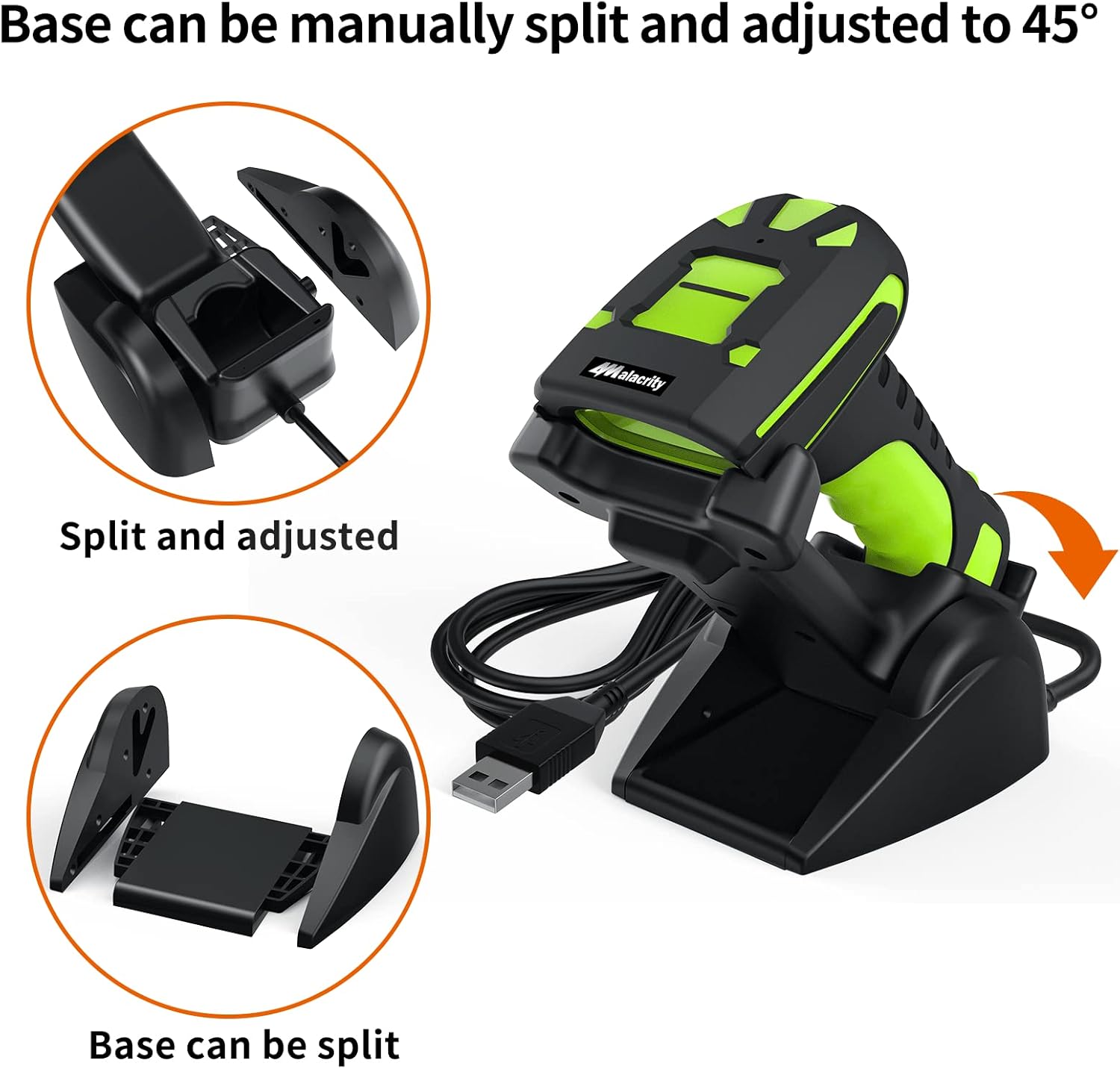
Figure 5.3: Transmission Distance. The scanner offers extended range with 433Mhz wireless (up to 1968ft/600m barrier-free) and standard Bluetooth range (up to 49ft/15m barrier-free).
5.3 Adjusting the Charging Stand
The charging stand's base can be adjusted for optimal positioning.

Figure 5.4: Adjustable Charging Stand. The base of the charging stand can be manually split and adjusted to an angle of up to 45 degrees for user convenience.
6. Operating the Scanner
6.1 Scanning Modes
The scanner supports three primary scanning modes:
- Key Trigger Mode: Press the trigger button to initiate a scan.
- Continuous Scanning Mode: The scanner continuously emits a scan line, reading barcodes as they pass through the field of view without needing to press the trigger for each scan.
- Automatic Sensing Mode: The scanner automatically detects changes in ambient brightness. When a barcode is presented, the scanner will activate and read it without manual trigger input.

Figure 6.1: Three Scanning Modes. Visual representation of Key Trigger, Continuous Scanning, and Automatic Sensing modes.
6.2 Decoding Capabilities
The Alacrity scanner is capable of decoding a wide range of 1D and 2D barcodes, even if they are damaged, blurred, or incomplete.
- 1D Codes: UPC-A, UPC-E, EAN-8, EAN-13, ISBN, ISSN, Code 128, GS1-128(UCC/EAN 128), Code 39, Code 39 Full ASCII, Code 32, Code 93, Code 11, Codabar (NW-7), Interleaved 2 of 5, Matrix 2 of 5, Industrial 2 of 5, MSI Plessey, GS1 DataBar 14(RSS-14), GS1 DataBar Limited (RSS-Limited), GS1 DataBar Expanded (RSS-Expanded).
- 2D Codes: QR Code, Micro QR Code, Data Matrix, PDF 417, Micro PDF 417, Aztec, MaxiCode.

Figure 6.2: Super Decoding Ability. The scanner can read various barcode conditions, including frayed, folded, profiled, and color barcodes, as well as standard 1D and 2D codes.

Figure 6.3: Decoding Damaged/Blurred Codes. The scanner's advanced technology allows it to decode even blurring, incomplete, damaged, or blurred 1D and 2D codes, with a scanning angle up to 80 degrees.
7. Maintenance
7.1 Cleaning
To maintain optimal performance, regularly clean the scanner's scanning window and exterior. Use a soft, lint-free cloth slightly dampened with water or a mild, non-abrasive cleaning solution. Do not use harsh chemicals or abrasive materials.
7.2 Battery Care
To prolong battery life:
- Avoid fully discharging the battery frequently.
- Store the scanner in a cool, dry place when not in use for extended periods.
- Charge the battery regularly, even if the scanner is not in active use.
8. Troubleshooting
| Problem | Possible Cause | Solution |
|---|---|---|
| Scanner not turning on | Low battery; Power button not pressed correctly | Charge the scanner; Press and hold the power button for a few seconds |
| Cannot scan barcodes | Barcode damaged/unreadable; Incorrect scanning mode; Scanner out of range | Try scanning a different barcode; Check scanning mode settings; Move closer to the receiver/host device |
| No data transmission to host device | Not paired; Receiver unplugged; Driver issue | Re-pair the scanner; Ensure receiver is securely plugged in; Install/update drivers if necessary |
| Short transmission distance | Obstacles; Interference | Reduce obstacles between scanner and receiver; Move away from sources of interference (e.g., Wi-Fi routers, microwaves) |
9. Specifications
| Feature | Detail |
|---|---|
| Model | B0BRC5HZL5 |
| Product Dimensions | 7.5 x 3.4 x 4.2 inches |
| Item Weight | 1.68 pounds |
| Batteries | 1 Lithium Polymer battery (included) |
| Connectivity Technology | Bluetooth, 433Mhz Wireless |
| Power Source | Battery Powered |
| Manufacturer | alacrity |
| Decode Capability (1D) | UPC-A, UPC-E, EAN-8, EAN-13, ISBN, ISSN, Code 128, GS1-128, Code 39, Code 93, Code 11, Codabar, Interleaved 2 of 5, Matrix 2 of 5, Industrial 2 of 5, MSI Plessey, GS1 DataBar |
| Decode Capability (2D) | QR Code, Micro QR Code, Data Matrix, PDF 417, Micro PDF 417, Aztec, MaxiCode |
| Transmission Distance (433Mhz) | Up to 1968ft (600m) in barrier-free environment |
| Transmission Distance (Bluetooth) | Up to 49ft (15m) in barrier-free environment |
| Drop Resistance | Withstands repeated 8ft (2.5m) drops to concrete |
10. Warranty and Support
Alacrity products are designed for durability and performance. For warranty information and technical support, please refer to the contact details provided with your product packaging or visit the official Alacrity website. Keep your purchase receipt as proof of purchase for warranty claims.
For further assistance, you may contact Alacrity customer support through their official channels.