
Introduction
Welcome to your new RCA iRB22H3C 22-inch TV. This manual provides essential information for setting up, operating, and maintaining your television. Please read it thoroughly before use to ensure safe and efficient operation.
Important Safety Information
- Ensure proper ventilation around the TV. Do not block any ventilation openings.
- Do not expose the TV to rain or moisture. Avoid placing objects filled with liquids, such as vases, on the TV.
- Avoid placing the TV near heat sources such as radiators, heat registers, stoves, or other apparatus (including amplifiers) that produce heat.
- Use only the specified power adapters (230V for standard home use and 12V for car/caravan use).
- Refer all servicing to qualified service personnel. Servicing is required when the apparatus has been damaged in any way, such as power-supply cord or plug is damaged, liquid has been spilled or objects have fallen into the apparatus, the apparatus has been exposed to rain or moisture, does not operate normally, or has been dropped.
Package Contents
Your RCA iRB22H3C TV package should include the following items:
- RCA iRB22H3C 22-Inch TV Unit
- Remote Control
- TV Stand (with screws for assembly)
- 12V Car Adapter
- 2 x AAA Batteries (for remote control)
Setup Guide
1. Attaching the Stand
Carefully place the TV face down on a soft, clean surface to prevent screen damage. Attach the included stand to the base of the TV using the provided screws. Ensure it is securely fastened before placing the TV upright.
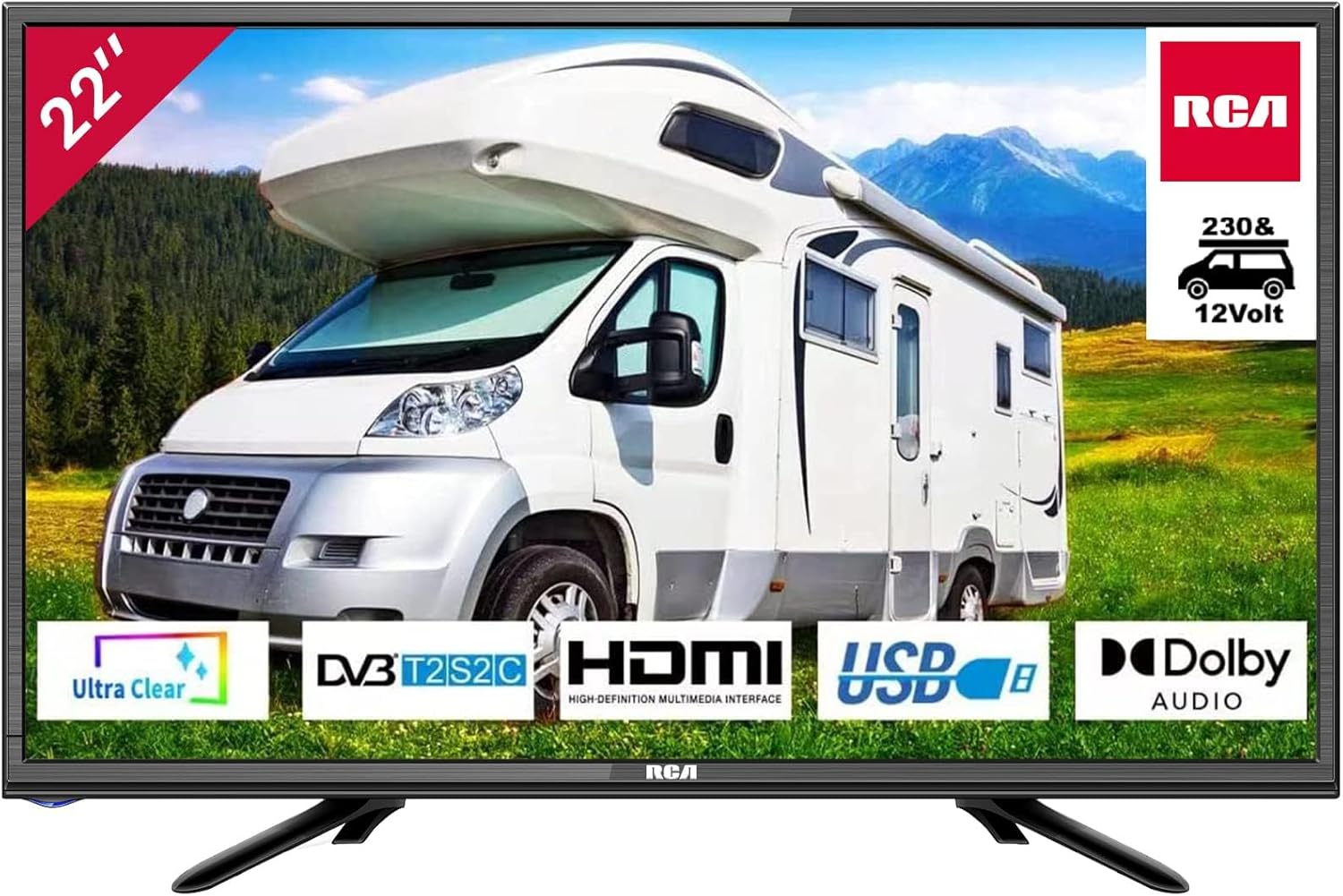
Image: The RCA iRB22H3C 22-inch TV with its attached stand, ready for placement.
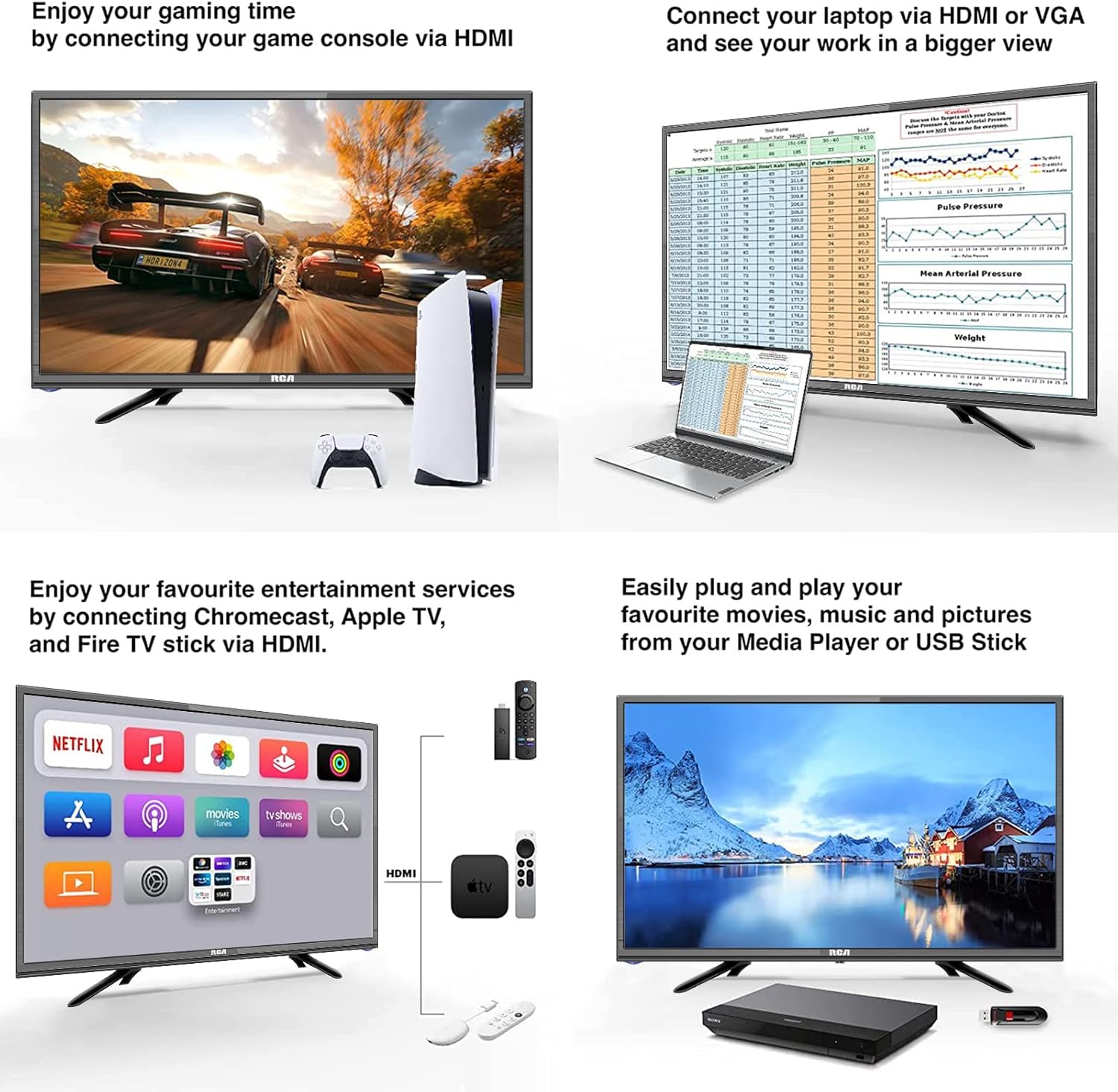
Image: A diagram illustrating the TV's dimensions and the mounting points for both the stand and a VESA-compatible wall mount (100x100mm).
2. Power Connection
Connect the appropriate power adapter (230V for standard home use or the 12V car adapter for caravan/mobile use) to the TV's power input. Plug the adapter into a suitable power outlet.
3. Connecting External Devices
The iRB22H3C TV provides a variety of connectors to integrate with your entertainment system:
- HDMI: For high-definition devices such as game consoles, Blu-ray players, or streaming sticks.
- USB: For playing media files (photos, music, videos) directly from a USB flash drive.
- AV (Composite): For older devices with composite video and stereo audio outputs.
- VGA: For connecting to a computer or laptop.
- SCART: For legacy European audio/video devices.
- Headphone Jack: For private listening with headphones.
- Coaxial Digital Audio Output: For connecting to external audio systems or soundbars.
- CI+: For inserting a Conditional Access Module (CAM) to access encrypted digital TV services.
- DVB-T2/S2/C: Integrated tuners for receiving digital terrestrial, satellite, and cable television broadcasts.
Refer to the image below for common connection points and examples of device connections.

Image: A visual guide demonstrating how to connect various devices such as game consoles, laptops, streaming sticks, and USB drives to the TV's HDMI, VGA, and USB ports.
Operating Your TV
1. Power On/Off
Press the Power button on the remote control or on the TV's control panel to turn the TV on or off.
2. Channel Selection
Use the CH+/- buttons on the remote to navigate through channels. You can also enter specific channel numbers directly using the numeric keypad on the remote control.
3. Input Source Selection
Press the SOURCE or INPUT button on the remote to cycle through the available input sources (e.g., HDMI1, HDMI2, AV, USB, VGA, DVB-T2/S2/C).
4. Menu Navigation
Press the MENU button to access the TV's settings and options. Use the arrow keys (Up/Down/Left/Right) to navigate through the menu items and the OK/Enter button to confirm your selections.
5. Hotel Mode
This TV includes a Hotel Mode feature, which allows for specific settings configurations suitable for hospitality environments. This mode can restrict certain functions or set default volumes. Consult the advanced settings menu for details on activating and configuring Hotel Mode.
Key Features
Ultra Clear Vision & Motion Compensation Technology
The iRB22H3C TV incorporates advanced image processing technologies. Triple noise reduction and MACE Advanced Color Engine work together to effectively remove background noise from video signals, smooth jagged edges, and restore true color reproduction. Additionally, UMCT motion compensation technology eliminates the blurred edges of fast-moving objects, ensuring a clearer and more fluid viewing experience.

Image: A visual comparison demonstrating the effect of Ultra Clear Vision, showing a clearer image on the right with reduced noise compared to the left.
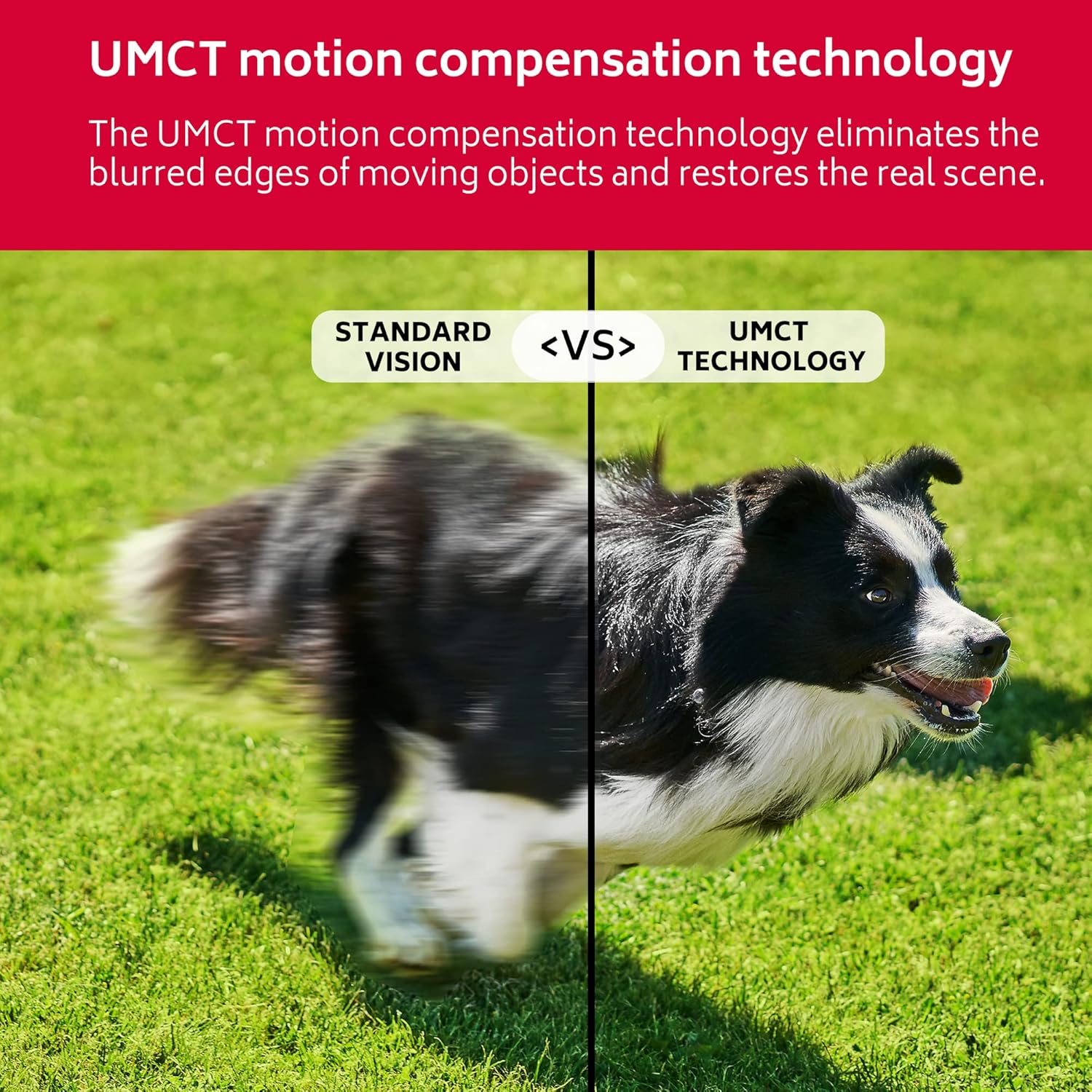
Image: A split image comparing standard vision with UMCT motion compensation technology, highlighting how UMCT reduces motion blur in fast-moving scenes.
Full HD 1080p Resolution
Experience superior picture clarity with Full HD 1080p resolution. This provides a significantly more detailed and vibrant image compared to standard HD (720p), making your content come alive with sharper details and richer colors.
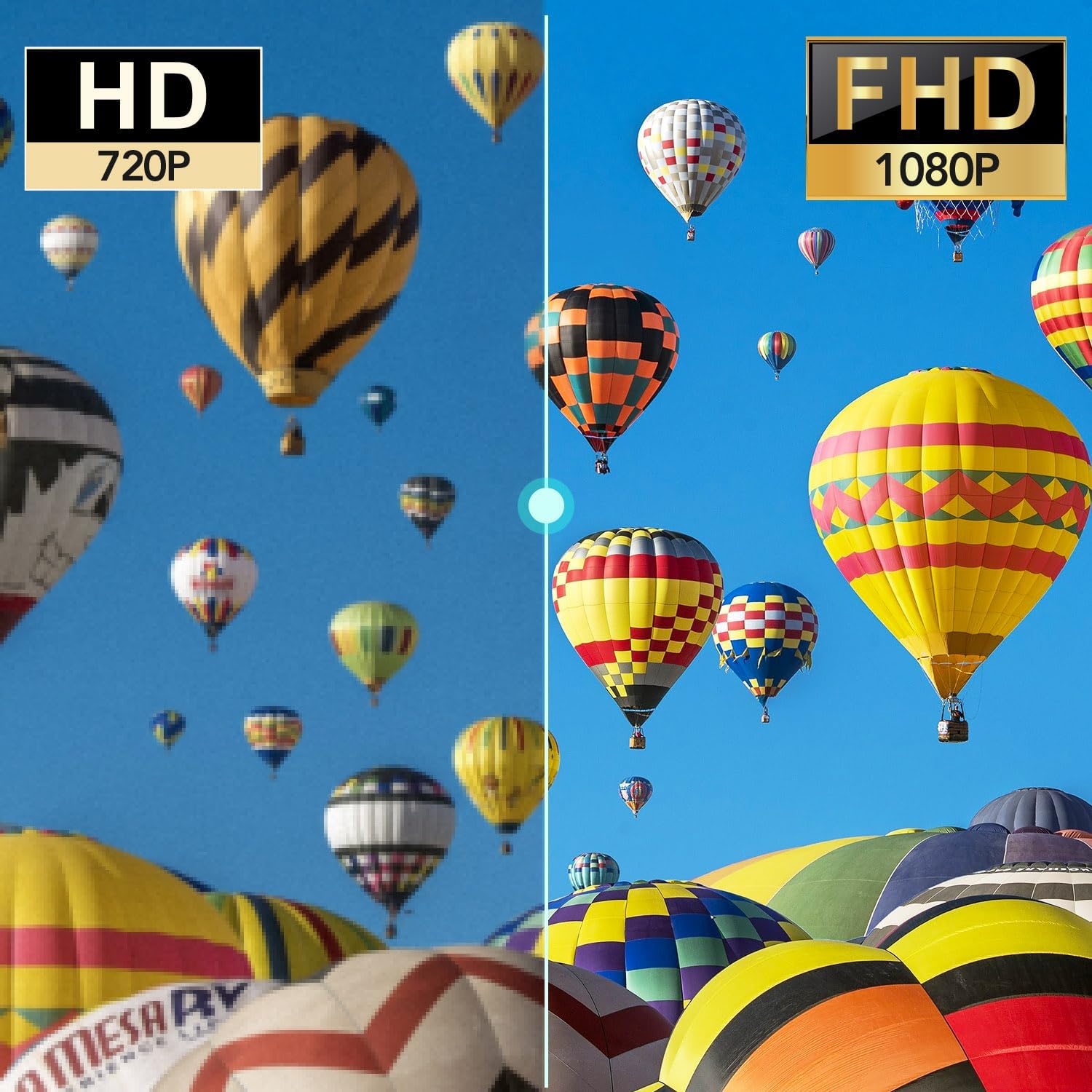
Image: A side-by-side comparison illustrating the difference in detail and clarity between HD (720p) and Full HD (1080p) resolutions.
Direct LED Backlight
The Direct LED backlight technology in this TV ensures that light is evenly distributed across the entire screen. This results in crystal clear images, improved contrast, and more realistic colors, all while consuming less energy, making it an efficient and economical choice.

Image: A diagram showing how Direct LED Backlight technology works, with LEDs positioned directly behind the entire screen for uniform illumination.
Dolby Audio
Equipped with built-in Dolby Audio, the iRB22H3C delivers rich, clear, and immersive sound quality. This audio enhancement ensures a superior listening experience for all your content, from movies and music to everyday television programs.
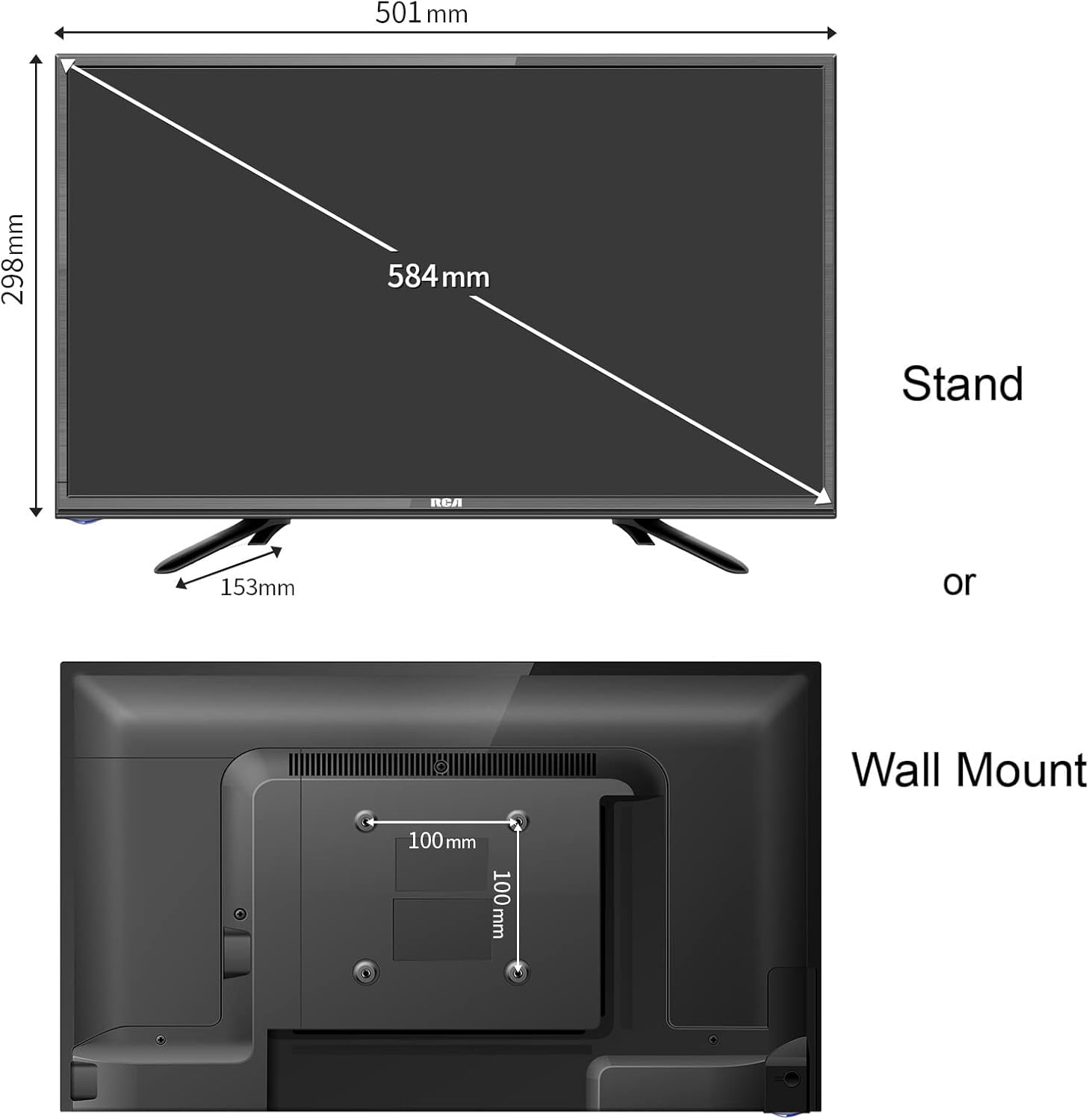
Image: A television screen displaying the Dolby Audio logo, with visual representations of sound waves emanating from the TV, indicating enhanced audio quality.
Maintenance and Care
Proper care and maintenance will extend the life of your TV and ensure optimal performance.
- Cleaning: Always unplug the TV from the power outlet before cleaning. Use a soft, dry cloth to gently wipe the screen and cabinet. Do not use liquid cleaners, aerosol sprays, or abrasive cleaning agents directly on the TV, as they may damage the finish or screen.
- Ventilation: Ensure that the ventilation openings on the back and sides of the TV are not blocked by curtains, furniture, or other objects. Adequate airflow is crucial to prevent overheating.
- Power Cord: Handle the power cord carefully. Do not place heavy objects on it, bend it excessively, or expose it to sharp edges. If the power cord is damaged, it must be replaced by qualified service personnel.
- Storage: If storing the TV for an extended period, disconnect it from power and store it in a cool, dry place, preferably in its original packaging to protect it from dust and physical damage.
Troubleshooting
This section provides solutions to common issues you might encounter with your TV. If the problem persists after trying these solutions, please contact customer support.
| Problem | Possible Cause | Solution |
|---|---|---|
| No Power | Power cord not connected securely; No power from the electrical outlet. | Check that the power cord is firmly plugged into both the TV and the wall outlet. Test the outlet with another device to ensure it has power. |
| No Picture, But Sound | Incorrect input source selected; Loose or damaged video cable connection. | Press the SOURCE/INPUT button on the remote to select the correct input source. Check all video cable connections (HDMI, AV, VGA) to ensure they are secure. |
| No Sound, But Picture | Volume is too low or muted; External audio system issue. | Increase the volume using the VOL+ button. Press the MUTE button to deactivate mute. If using an external audio system, ensure it is powered on and correctly connected. |
| Remote Control Not Working | Batteries are depleted or inserted incorrectly; Obstruction between remote and TV's IR sensor. | Replace the batteries in the remote control with new ones, ensuring correct polarity. Remove any obstructions between the remote and the TV's front panel. |
| Poor Picture Quality (e.g., blurry, grainy) | Weak or unstable signal; Incorrect display settings. | Check your antenna or cable connection for secure fit. If using an antenna, try repositioning it. Adjust picture settings (e.g., brightness, contrast, sharpness) in the TV menu. |
Technical Specifications
Detailed specifications for the RCA iRB22H3C 22-inch TV:
| Feature | Detail |
|---|---|
| Screen Size | 22 Inches (56 cm) |
| Resolution | 1080p (Full HD) |
| Display Technology | LED (Direct LED Backlight) |
| Refresh Rate | 60 Hz |
| Audio Technology | Dolby Audio |
| Connectivity | 1x HDMI, 1x USB, 1x AV, 1x VGA, 1x SCART, 1x Headphone Jack, 1x Coaxial Digital Audio Out, 1x CI+, DVB-T2/S2/C Tuners |
| Power Supply | 230V AC & 12V DC Car Adapter |
| Product Dimensions (W x D x H) | 50 cm x 16 cm x 33.5 cm |
| Weight | 3.06 kg |
| Model Number | irb22h3c |
| Manufacturer | HKC |
| Energy Efficiency Class | F |
| On-mode Power Consumption | 18.00 watts |
| Included Components | 12v car adapter, remote control, stand, 2 x AAA batteries |
Warranty and Support
Your RCA iRB22H3C TV comes with a standard manufacturer's warranty. Please refer to the warranty card or documentation included in your product package for specific terms, conditions, and duration of the warranty. It is recommended to retain your proof of purchase for warranty claims.
For technical support, troubleshooting assistance, or service inquiries that are not covered in this manual, please contact RCA customer service. Contact information can typically be found on the manufacturer's website or in the warranty documentation.
Please note that extended warranty and accidental damage protection plans may be available for purchase separately from third-party providers, offering additional coverage beyond the standard manufacturer's warranty.


