
1. Introduction
Thank you for choosing the cimetech Bluetooth Mouse. This portable, slim wireless mouse is designed for comfort and efficiency, featuring silent clicks and a metal scroll wheel. It is compatible with a wide range of Bluetooth-enabled devices, including laptops, PCs, Chromebooks, Linux systems, MacBooks, iPads, and phones. This manual provides detailed instructions to help you set up, operate, and maintain your new mouse.
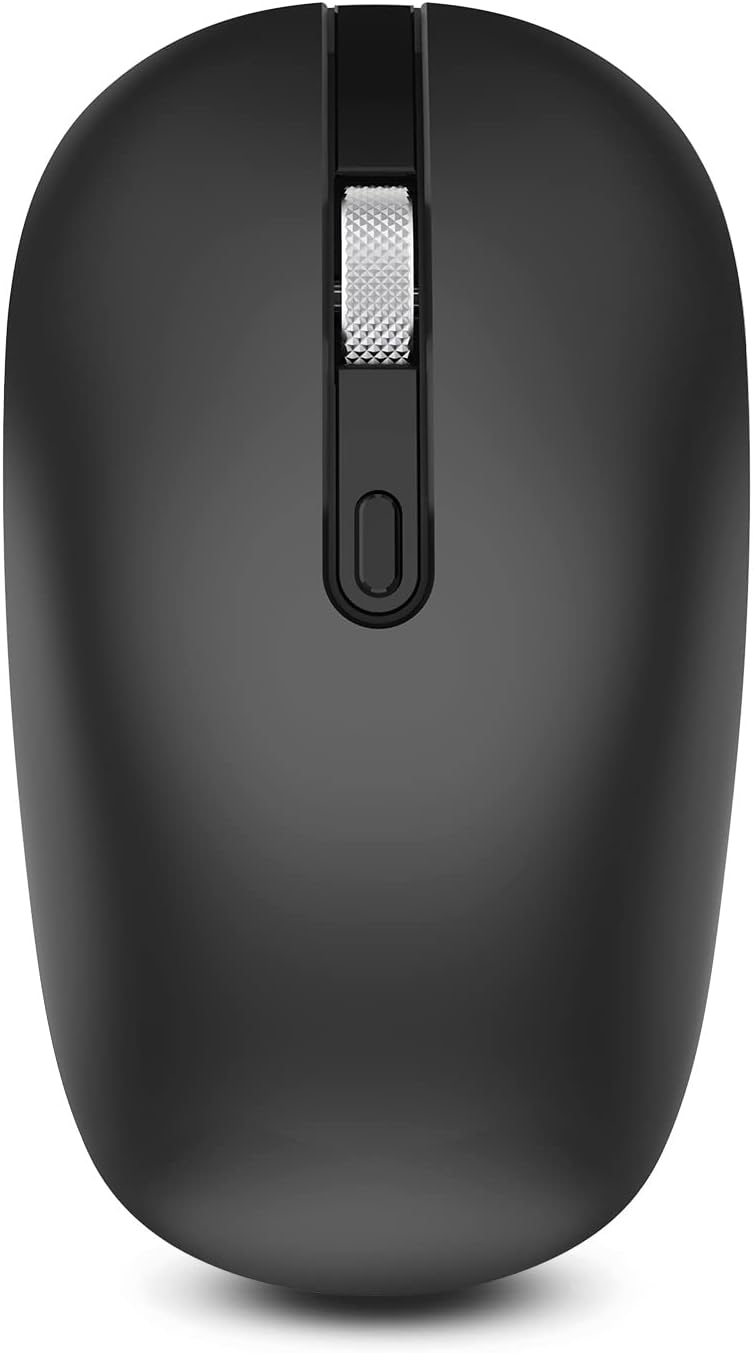
Figure 1.1: Top view of the cimetech Bluetooth Mouse.
2. Setup
2.1. Powering the Mouse
The cimetech Bluetooth Mouse is powered by one AA battery (not included). To install the battery:
- Locate the battery compartment on the underside of the mouse.
- Open the battery compartment cover.
- Insert one AA battery, ensuring the polarity (+/-) matches the diagram inside the compartment.
- Close the battery compartment cover securely.

Figure 2.1: Battery compartment and DPI switch on the mouse underside.
2.2. Bluetooth Connection
The mouse utilizes Bluetooth 5.1 technology for a stable and fast connection. Follow these steps to pair your mouse with your device:
- Turn on the mouse: Locate the ON/OFF switch on the underside of the mouse and slide it to the 'ON' position.
- Activate pairing mode: Press and hold the Bluetooth connection button (usually located near the ON/OFF switch) for approximately 3 seconds until the indicator light on the mouse begins to flash, indicating it is in pairing mode.
- Open Bluetooth settings on your device: Navigate to the Bluetooth settings on your laptop, PC, tablet, or phone.
- Search for devices: Your device will scan for available Bluetooth devices. Look for "BT5.1 Mouse" or a similar name in the list of discovered devices.
- Connect: Select "BT5.1 Mouse" to initiate the connection. Once connected, the indicator light on the mouse will stop flashing and remain solid or turn off, depending on the model.

Figure 2.2: Steps for Bluetooth connection.
3. Operating the Mouse
3.1. Silent Click Feature
The cimetech Bluetooth Mouse is designed with silent click technology, reducing 99% of the noise associated with traditional mouse clicks. This feature is ideal for quiet environments such as libraries, offices, or late-night work sessions, ensuring minimal disturbance.

Figure 3.1: Silent click design for quiet operation.
3.2. Adjustable DPI Levels
The mouse offers three adjustable DPI (Dots Per Inch) levels to customize cursor sensitivity and precision. You can switch between 800, 1200, and 1600 DPI to suit different tasks, from precise graphic design work to fast-paced browsing.
To change the DPI setting, press the DPI button located on the underside of the mouse (often integrated with the power switch or a separate small button). Each press will cycle through the available DPI levels.
Figure 3.2: DPI adjustment button location.
3.3. Ergonomic Design and Portability
The slim and ergonomic design of the cimetech mouse provides maximum comfort and support for extended use, reducing muscle strain. Its sweat-resistant and skin-friendly finish ensures a pleasant tactile experience. The sturdy anti-slip metal scroll wheel offers precise control.
With its portable and pocket-sized dimensions, the mouse is perfect for travel and on-the-go use, easily fitting into laptop bags or pockets.

Figure 3.3: Ergonomic design for comfortable use.

Figure 3.4: Ultra-portable design.
4. Maintenance
4.1. Battery Replacement
The mouse is powered by one AA battery. When the mouse's performance degrades or it stops responding, it is likely time to replace the battery. Refer to Section 2.1 for battery installation instructions.
The mouse features an auto-sleep mode, entering sleep after 10 minutes of non-operation to conserve battery life. Press any button to reactivate it.
4.2. Cleaning
To clean your cimetech Bluetooth Mouse, use a soft, dry cloth. For stubborn dirt, slightly dampen the cloth with water or a mild, non-abrasive cleaner. Avoid using harsh chemicals or excessive moisture, as this can damage the internal components.
5. Troubleshooting
- Mouse not connecting:
- Ensure the mouse is turned ON.
- Check if the battery is properly installed and has sufficient charge. Replace if necessary.
- Make sure Bluetooth is enabled on your device.
- Try re-pairing the mouse by following the steps in Section 2.2.
- Ensure the mouse is within the effective range (up to 10 meters) of your device.
- Cursor erratic or unresponsive:
- Clean the optical sensor on the underside of the mouse with a soft, dry cloth.
- Ensure you are using the mouse on a suitable surface. Highly reflective or uneven surfaces may affect tracking.
- Adjust the DPI setting to see if it improves responsiveness (refer to Section 3.2).
- Replace the battery.
- Buttons not responding:
- Check the battery level and replace if low.
- Ensure no debris is lodged under the buttons.
6. Specifications
| Feature | Detail |
|---|---|
| Brand | cimetech |
| Model Number | TM013 |
| Connectivity Technology | Bluetooth 5.1 |
| Movement Detection Technology | Optical |
| DPI Levels | 800, 1200, 1600 |
| Power Source | 1 AA Battery (not included) |
| Special Features | Wireless, Portable, Bluetooth, Lightweight, Silent Click |
| Item Weight | 2.39 ounces |
| Package Dimensions | 4.65 x 2.68 x 1.42 inches |
7. Warranty and Support
7.1. Warranty Information
For detailed warranty information regarding your cimetech Bluetooth Mouse, please refer to the warranty card included with your product packaging or visit the official cimetech website. Warranty terms and conditions may vary by region and retailer.
7.2. Customer Support
If you encounter any issues or have questions not covered in this manual, please contact cimetech customer support. You can find contact information on the official cimetech website or through the retailer where you purchased the product.
Visit the cimetech Store on Amazon for more information.