
Introduction
Thank you for choosing the AODSK AA-05 Digital Guitar Amplifier. This compact and portable 5W amplifier is designed for electric guitar practice and features Bluetooth connectivity for audio playback. This manual provides essential information for safe and effective use of your amplifier.
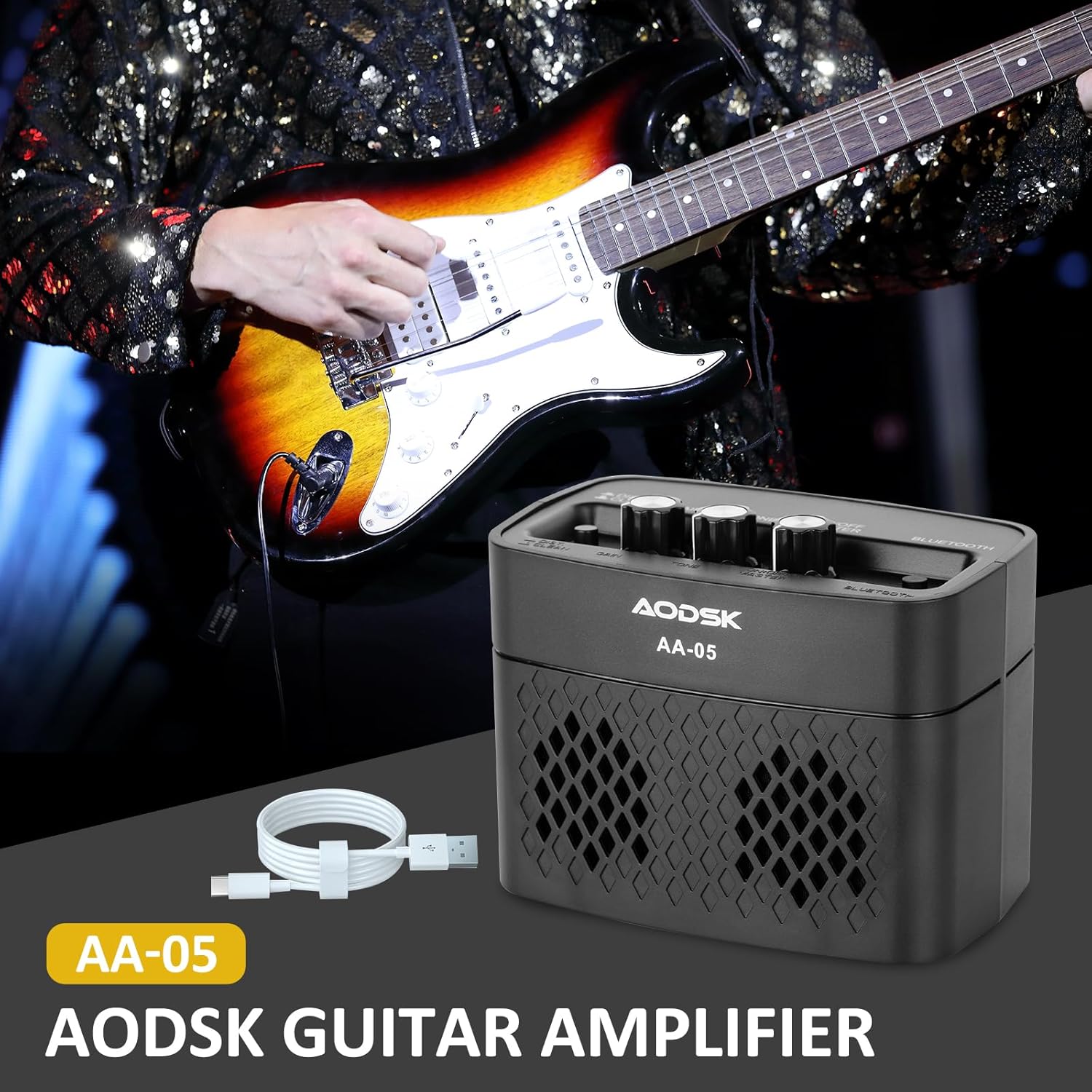
Image: The AODSK AA-05 Digital Guitar Amplifier, a compact black unit, shown with a Type-C charging cable. A guitar player is visible in the background, demonstrating its use.
Safety Information
- Do not expose the amplifier to water or excessive moisture.
- Avoid placing the amplifier near heat sources or in direct sunlight.
- Use only the provided charging cable or a certified Type-C cable for charging.
- Do not attempt to disassemble or modify the amplifier. This will void the warranty and may cause damage.
- Keep out of reach of children.
Package Contents
Verify that all items are present in the package:
- AODSK AA-05 Digital Guitar Amplifier
- Type-C USB Charging Cable
- User Manual
Product Overview
Familiarize yourself with the controls and ports of your AA-05 amplifier:

Image: A detailed diagram showing the top and rear panels of the AODSK AA-05 amplifier, labeling each button, knob, and port with corresponding numbers and descriptions.
- Effect Switch: Toggles between Clean and Distortion channels.
- Gain Knob: Adjusts the input signal level, affecting the amount of overdrive/distortion.
- Tone Knob: Controls the tonal characteristics, from darker to brighter sounds.
- Power/Volume Knob: Turns the amplifier on/off and adjusts the overall output volume.
- Power Indicator: Lights up when the amplifier is on.
- Bluetooth Button: Activates Bluetooth pairing mode.
- Earphone Output Jack: For connecting headphones for silent practice.
- Guitar Input Jack: Connect your electric guitar here.
- Charge Indicator: Shows charging status.
- Charge Jack: Type-C port for charging the amplifier.
Setup
1. Charging the Amplifier
Before first use, fully charge the amplifier. Connect the supplied Type-C USB cable to the amplifier's Charge Jack (10) and the other end to a USB power adapter (not included) or a computer USB port. The Charge Indicator (9) will show the charging status.

Image: An illustration of the AODSK AA-05 amplifier highlighting its battery life, indicating up to 8 hours of use on a full charge.
2. Initial Connection
- Ensure the amplifier is charged.
- Turn the Power/Volume knob (4) clockwise to power on the amplifier. The Power Indicator (5) will light up.
- Connect your electric guitar to the Guitar Input Jack (8) using a standard 1/4-inch instrument cable.
Operating Instructions
1. Adjusting Guitar Sound
- Volume: Use the Power/Volume knob (4) to adjust the overall output volume.
- Channels: Press the Effect Switch (1) to toggle between Clean and Distortion channels.
- Gain: In Distortion mode, rotate the Gain knob (2) to control the amount of distortion.
- Tone: Adjust the Tone knob (3) to shape the frequency response of your guitar sound.

Image: The AODSK AA-05 amplifier with visual cues indicating its two channels: Clean and Distortion, which can be switched with a single button. The image also mentions using all-analog audio processing.
2. Using Bluetooth Function
The AA-05 amplifier features integrated Bluetooth 5.0 for playing music from external devices.
- Turn on the amplifier using the Power/Volume knob (4).
- Press the Bluetooth Button (6). The Bluetooth indicator will flash, indicating it's in pairing mode.
- On your Bluetooth-enabled device (phone, tablet, PC), search for "AODSK AA-05" in the Bluetooth settings.
- Select "AODSK AA-05" to pair. Once connected, the Bluetooth indicator will stop flashing and remain solid.
- You can now play music through the amplifier. The amplifier can play both music and electric guitar sounds simultaneously.
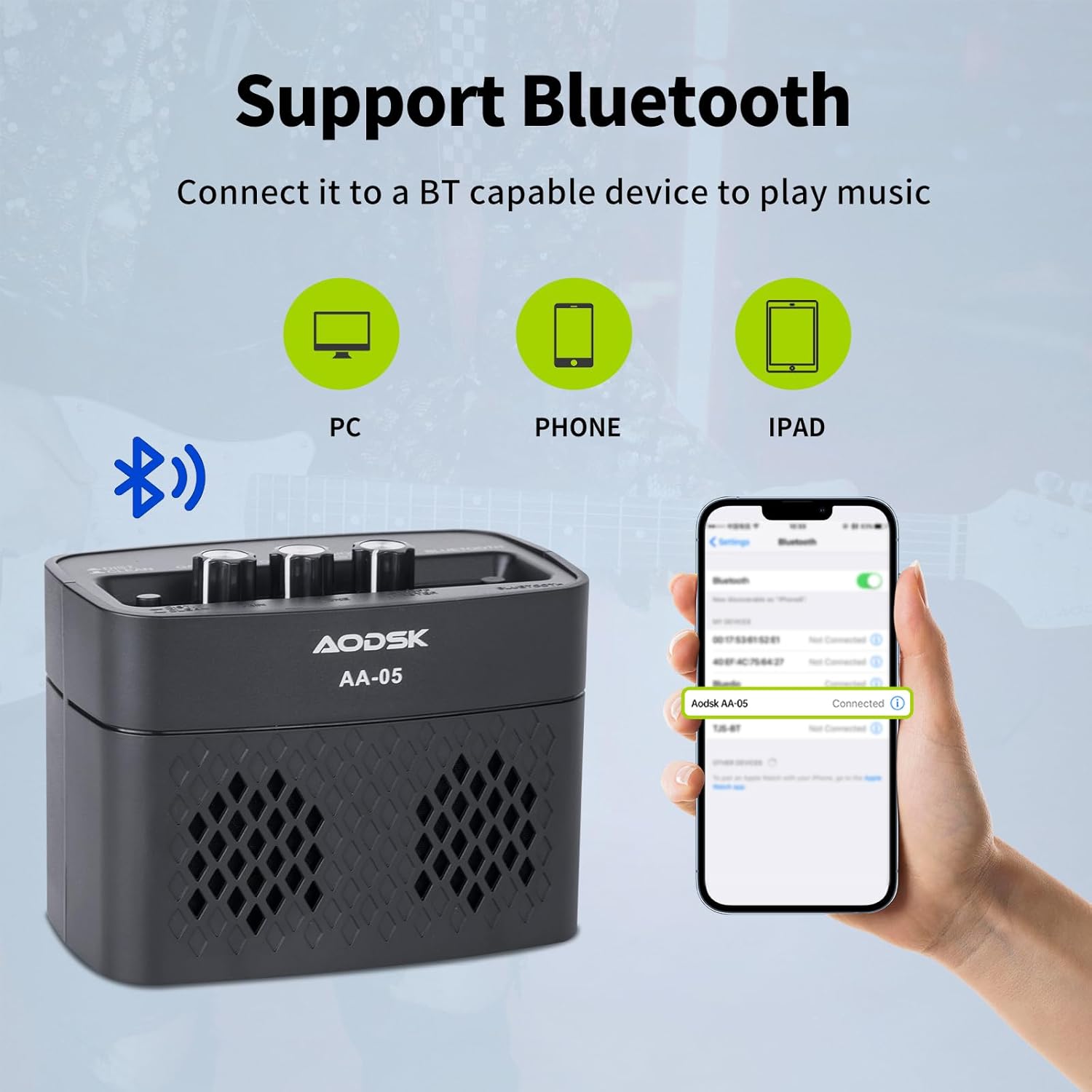
Image: An illustration demonstrating the AODSK AA-05 amplifier's Bluetooth connectivity, showing it can connect to PCs, phones, and iPads to play music.
3. Headphone Use
For private practice, connect standard 3.5mm headphones to the Earphone Output Jack (7). This will mute the main speaker output.
Maintenance
- Cleaning: Wipe the amplifier with a soft, dry cloth. Do not use liquid cleaners or abrasive materials.
- Storage: Store the amplifier in a cool, dry place away from direct sunlight and extreme temperatures.
- Battery Care: For optimal battery life, avoid fully discharging the battery frequently. Charge the amplifier regularly, even if not in use for extended periods.
Troubleshooting
| Problem | Possible Cause | Solution |
|---|---|---|
| No sound from guitar | Amplifier not powered on; Volume too low; Guitar cable faulty; Guitar volume off. | Turn on amplifier and increase volume; Check guitar cable and guitar volume. |
| No sound from Bluetooth | Bluetooth not paired; Device volume too low; Amplifier volume too low. | Ensure Bluetooth is paired (solid indicator); Increase volume on both device and amplifier. |
| Distorted sound (unexpected) | Gain too high; Effect switch in Distortion mode; Faulty cable. | Reduce Gain; Switch to Clean channel; Try a different guitar cable. |
| Amplifier not charging | Charging cable faulty; Power adapter faulty; Charge port damaged. | Try a different Type-C cable and power adapter. If issue persists, contact support. |
Specifications
| Feature | Detail |
|---|---|
| Model Name | AA-05 |
| Brand | AODSK |
| Power Output | 5 Watts |
| Output Channels | 2 (Clean, Distortion) |
| Power Source | Battery Powered (Rechargeable Lithium Battery) |
| Battery Life | Up to 8 hours (on full charge) |
| Bluetooth Version | 5.0 |
| Compatible Devices | Guitar, Bluetooth-enabled audio devices |
| Material | Plastic, Metal, Battery |
| Color | Black |
| Product Dimensions | 20.32 x 10.16 x 11.94 cm (8 x 4 x 4.7 inches) |
| Item Weight | 567 grams (1.25 lbs) |
Warranty and Support
AODSK is committed to customer satisfaction. We offer an unconditional refund for quality issues. You can purchase our products with confidence.
For any questions, concerns, or support needs, please refer to your purchase platform or contact AODSK customer service directly. Please have your model number (AA-05) and purchase details ready when contacting support.