
Introduction
This manual provides essential information for the safe and efficient operation of your APIO Resolution 1080p Auto Focus Pocket Projector. Please read this manual thoroughly before using the device and retain it for future reference.
Package Contents
Verify that all items listed below are included in your package:
- APIO Resolution 1080p Auto Focus Pocket Projector
- HDMI Cable
- USB Video/Charging Cable
- Micro HDMI Adapter
- USB-C AC Adapter/Charger
- User Manual
The projector features a 20,000-hour LED lamp life.
Product Overview
The APIO Resolution 1080p Auto Focus Pocket Projector is a compact and versatile device designed for various projection needs. It offers a clear 1280 x 720 HD resolution with automatic focus and keystone correction for optimal image quality.

Image: The APIO Resolution 1080p Auto Focus Pocket Projector, showcasing its sleek black design and front-facing lens.
Key Features:
- High-Definition Projection: Delivers 1280 x 720 HD resolution for clear visuals.
- Automatic Adjustments: Features autofocus and auto keystone functions for quick and easy setup.
- Integrated Audio: Built-in speaker provides audio output. A 3.5mm audio jack is available for external speakers or headphones.
- Portable Design: Compact size and a built-in 6600mAh rechargeable battery allow for up to 2 hours of continuous use, making it ideal for on-the-go projection.
- Versatile Connectivity: Compatible with a wide range of devices including laptops, DVD players, tablets, phones, TV boxes, and game consoles via USB Type-C or HDMI.

Image: Visual representation of the projector's dimensions: 0.91 x 4.14 x 6.7 inches.
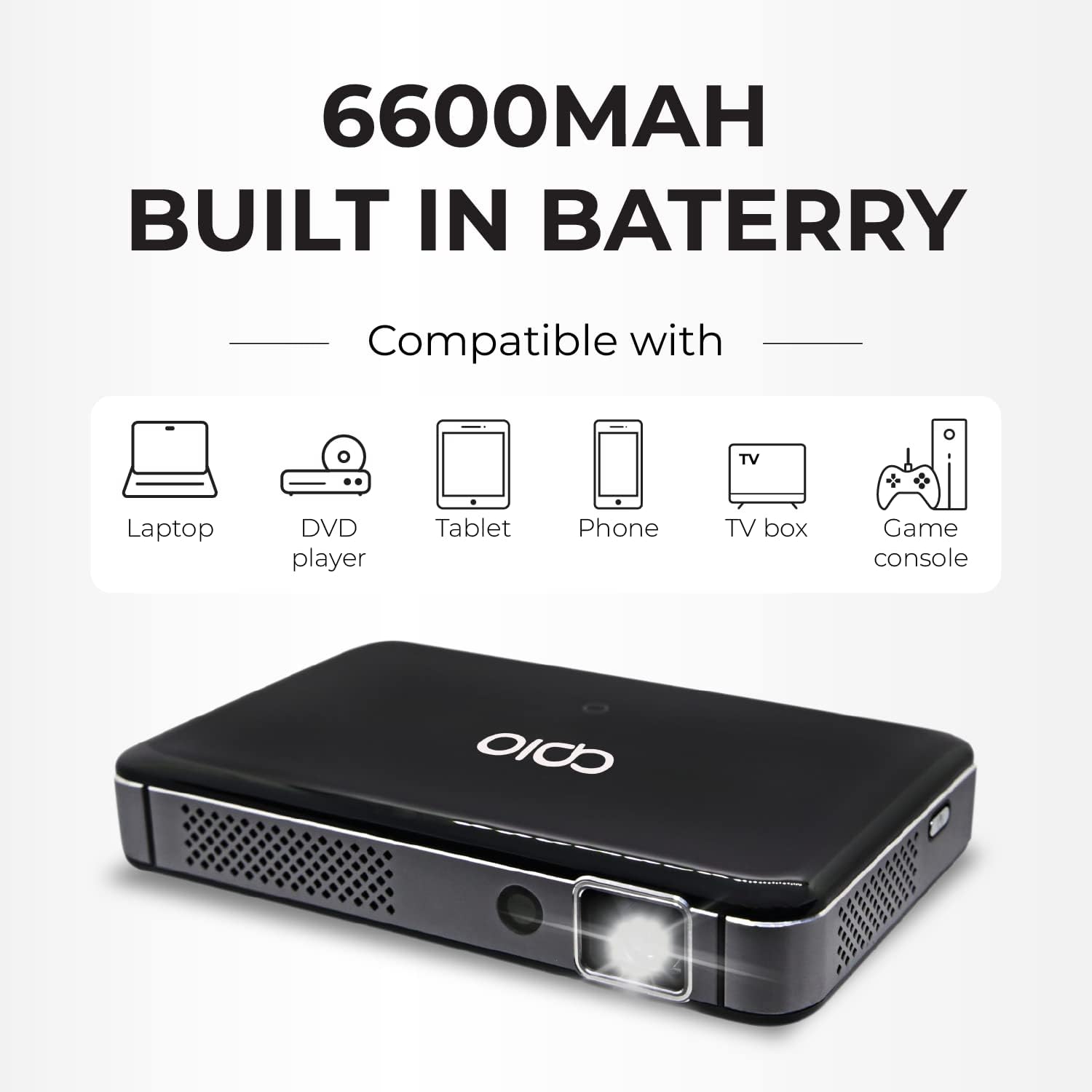
Image: Icons illustrating compatibility with various devices such as laptops, DVD players, tablets, phones, TV boxes, and game consoles.
Setup
1. Powering On/Off
- To power on, press and hold the power button located on the device until the indicator light illuminates.
- To power off, press and hold the power button again until the indicator light turns off.
2. Charging the Battery
- Connect the USB-C AC Adapter/Charger to the projector's USB-C charging port.
- Plug the adapter into a power outlet. The charging indicator will show the charging status.
- The projector can be used while charging.
3. Connecting Devices
The projector offers multiple connectivity options:

Image: Close-up view of the projector's ports, including Audio Out, USB-C Video, HDMI, USB, and USB-C Charge.
- HDMI: Connect an HDMI cable from your source device (e.g., laptop, game console) to the projector's HDMI port for both audio and video transmission.
- USB Type-C: Use a USB Type-C cable to connect compatible devices for audio and video projection.
- USB: Insert a USB drive into the USB port to play media files directly.
- Wireless Connectivity: The projector supports wireless screen mirroring from compatible devices. Refer to the on-screen menu for specific instructions on connecting via Wi-Fi or screen sharing protocols.
4. Adjusting Focus and Keystone
- The projector features autofocus and auto keystone correction to automatically adjust the image for clarity and a rectangular shape.
- If manual adjustment is needed, use the focus wheel (if present) or on-screen menu options to fine-tune the image.
Operating Instructions
1. Navigating the Menu
- Use the included remote control or the touch controls on the projector to navigate through the on-screen menu.
- Select input sources, adjust settings, and access media files.
2. Adjusting Projection Size and Distance
The projection size varies with the distance between the projector and the projection surface. Position the projector to achieve your desired screen size. The autofocus and auto keystone features will help maintain image quality.

Image: Illustration showing different projection screen sizes (60", 70", 80") achievable by adjusting the projector's distance from the wall.
3. Audio Output
- The built-in speaker provides convenient audio.
- For enhanced audio, connect external speakers or headphones using a 3.5mm stereo audio cable to the audio output port.
Maintenance
1. Cleaning the Lens
- Gently wipe the projector lens with a soft, lint-free cloth.
- Avoid using abrasive cleaners or solvents that could damage the lens.
2. Battery Care
- To prolong battery life, avoid fully discharging the battery frequently.
- Store the projector in a cool, dry place when not in use for extended periods.
3. General Cleaning
- Wipe the exterior of the projector with a soft, dry cloth.
- Ensure ventilation vents are clear of dust and debris to prevent overheating.
Troubleshooting
If you encounter issues with your projector, refer to the following common solutions:
| Problem | Possible Solution |
|---|---|
| No image projected | Ensure the projector is powered on and the input source is correctly selected. Check all cable connections. |
| Image is blurry | Allow autofocus to complete. Manually adjust the focus wheel if necessary. Ensure the lens is clean. |
| No sound | Check the projector's volume settings and ensure it's not muted. Verify external speakers/headphones are properly connected and powered on. |
| Cannot connect wirelessly | Ensure Wi-Fi is enabled on both the projector and your device. Check network settings and password. Restart both devices. |
| Projector overheats | Ensure ventilation vents are not blocked. Operate in a well-ventilated area. |
For further assistance, please contact customer support.
Specifications
| Feature | Detail |
|---|---|
| Brand | APIO |
| Model Number | AP225 |
| Display Resolution | 1280 x 720 HD |
| Brightness | 400 ANSI Lumens |
| Connectivity Technology | HDMI, USB, USB Type-C, Wireless |
| Special Features | HDMI Connectivity, Portable, USB Connectivity, Auto Focus, Auto Keystone |
| Built-in Battery | 6600mAh (up to 2 hours continuous use) |
| Item Weight | 2.07 pounds |
| Product Dimensions | 0.91 x 4.14 x 6.7 inches |
| Color | Black |
Support
For product support, warranty information, or technical assistance, please refer to the contact details provided on the official APIO website or your purchase documentation.