
MUNBYN 941B (MU-ITPP941BU-PK-US)
MUNBYN Bluetooth Thermal Label Printer 941B User Manual
Model: 941B (MU-ITPP941BU-PK-US)
1. Introduction
The MUNBYN 941B Bluetooth Thermal Label Printer is designed for efficient and high-quality label printing for various applications, including shipping, small business, and personal use. This printer utilizes direct thermal technology, eliminating the need for ink or toner, and offers versatile connectivity options including Bluetooth for mobile devices and USB for computers.
With a 300 DPI resolution, it ensures crisp, clear prints for barcodes, text, and graphics. Its compact design and broad compatibility make it an ideal solution for streamlining your labeling process.

The MUNBYN 941B Thermal Label Printer in pink, actively printing a label.
2. What's in the Box
Upon unboxing your MUNBYN 941B printer, please ensure all the following components are present:
- Printer
- Power Adapter
- Type-C Cable
- User Manual
3. Setup Guide
3.1 Power Connection
Connect the power adapter to the printer and then plug it into a power outlet. The printer's indicator light will illuminate, indicating it is ready for use.
3.2 Loading Labels
Open the printer cover and place your thermal labels into the label compartment. Ensure the labels are facing up and aligned correctly with the guides. The printer supports label widths from 1.57" to 4.3" (40-104mm).

Properly loading labels into the printer, ensuring correct alignment and supported width.
3.3 Connectivity Options
The MUNBYN 941B offers both Bluetooth and USB connectivity.
- Bluetooth Connection (iOS & Android): Download the "Munbyn Print" app from your device's app store. Open the app and follow the on-screen instructions to pair your printer via Bluetooth.
- USB Connection (macOS & Windows): Connect the printer to your computer using the provided Type-C cable. The printer will be recognized as a standard printer, and you may need to install drivers if not automatically detected.

The printer supports both Bluetooth and USB connections for various devices.
3.4 Automatic Label Detection
After loading labels, the printer will automatically detect the label size. If you need to manually feed a single label or re-calibrate, press the feed button on the printer. This action will advance one label and help the printer recognize the label dimensions.
4. Operating Instructions
4.1 Printing Labels
Once connected and labels are loaded, you can initiate printing from your chosen device. The printer delivers clear, professional labels at speeds of 180 mm/s, capable of printing over 5000 labels per day without jams.
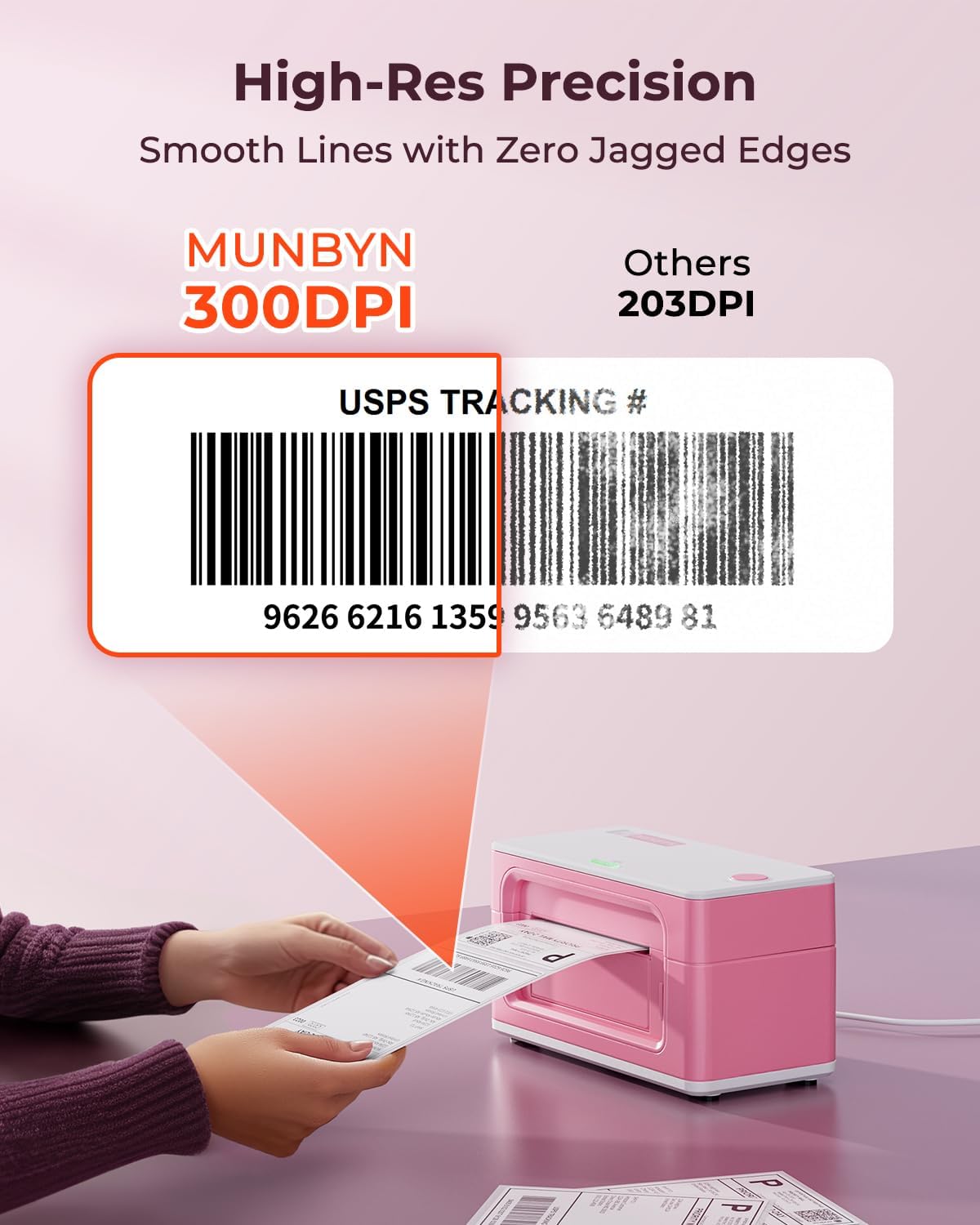
The 300 DPI resolution ensures high-quality, clear prints.
4.2 Using the Munbyn Print App
The "Munbyn Print" app provides a user-friendly interface for designing and printing labels directly from your smartphone or tablet. It includes over 1000 free templates, 3500+ icons, and 80+ fonts to customize your labels.

The Munbyn Print app offers extensive customization options for your labels.
You can also scan the QR code below to download the "Munbyn Print" app:

Scan to download the Munbyn Print app.
4.3 Platform Compatibility
The MUNBYN 941B printer is fully compatible with all major shipping platforms, allowing for seamless integration into your existing workflow. This includes platforms such as Etsy, eBay, Amazon, Shopify, USPS, UPS, FedEx, and many more.

The printer is compatible with a wide range of logistics platforms.
5. Maintenance
The MUNBYN 941B is a direct thermal printer, meaning it does not require ink or toner cartridges. This significantly reduces ongoing maintenance and supply costs. Simply ensure you use compatible thermal labels.
The automatic label rewinding feature helps maintain proper label positioning and reduces waste. Keep the printer clean by gently wiping the exterior with a soft, dry cloth. Avoid using harsh chemicals or abrasive materials.

Thermal printing eliminates the need for ink, contributing to environmental protection.
6. Troubleshooting
For common issues and solutions, please refer to the comprehensive Troubleshooting Guide (PDF) provided by MUNBYN. This guide covers topics such as connectivity problems, print quality issues, and label feeding errors.
If you encounter problems not covered in the guide, or require further assistance, please contact MUNBYN customer support.
7. Specifications
| Feature | Detail |
|---|---|
| Brand | MUNBYN |
| Model Name | MU-ITPP941BU-PK-US |
| Printing Technology | Thermal |
| Connectivity Technology | Bluetooth |
| Hardware Interface | USB |
| Controller Type | Android, iOS |
| Maximum Black and White Print Resolution | 300dpi Dots Per Inch |
| Max Printspeed Monochrome | 180 ppm |
| Maximum Media Size | 4.1 x 9.5 inch |
| Sheet Size | 4x6 Inches |
| Max Input Sheet Capacity | 500 |
| Item Weight | 3.08 pounds (1.4 Kilograms) |
| Product Dimensions | 3.8 x 7.8 x 4.3 inches |
| Color | Pink |
| Manufacturer | MUNBYN |
| Date First Available | February 21, 2023 |
8. Warranty & Support
The MUNBYN 941B printer comes with a manufacturer's warranty. The warranty period is two years from the date of purchase. Please retain your proof of purchase for warranty claims.
For any questions, technical support, or warranty inquiries, you can contact MUNBYN Customer Care Center:
- Phone: +1 628 229 3612
- Operating Hours: Monday through Friday (EST 9:00-24:00)
- WhatsApp: Scan the QR code below to quickly reach us on WhatsApp.
When contacting support, please be prepared to provide your order number.

Scan to connect with MUNBYN support via WhatsApp.
Additional support and resources can be found in the full User Manual (PDF).
Related documents941B (MU-ITPP941BU-PK-US)


Ask a question about this manual
Ask about setup, troubleshooting, compatibility, parts, safety, or missing instructions. Manuals+ will review the question and use this page’s manual context to help answer it.