
OLORES VN96
OLORES VN96 96-Key 3-Mode Wireless Mechanical Keyboard Kit User Manual
Model: VN96 | Brand: OLORES
Introduction
Thank you for choosing the OLORES VN96 96-Key 3-Mode Wireless Mechanical Keyboard Kit. This manual provides detailed instructions for setting up, operating, and maintaining your keyboard. The VN96 offers versatile connectivity options including Bluetooth, 2.4G wireless, and wired (USB Type-C) modes, along with hot-swappable switch support and RGB lighting effects.
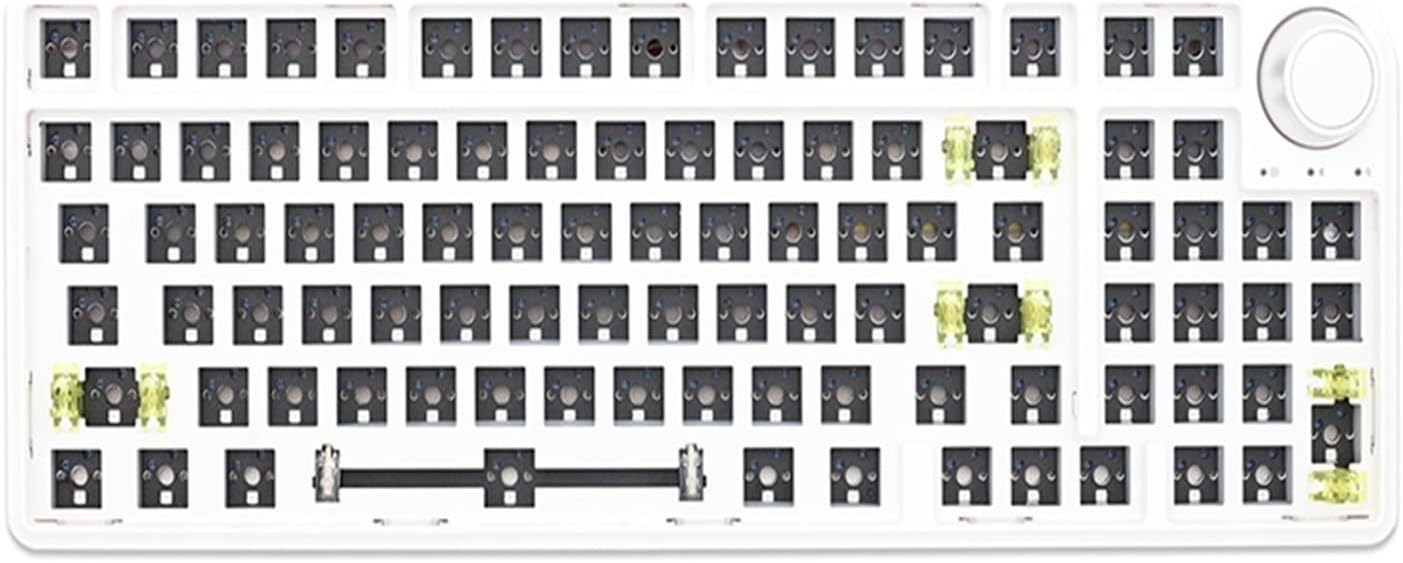
Figure 1: The OLORES VN96 96-Key Barebone Mechanical Keyboard Kit, showcasing its layout without keycaps or switches.
Package Contents
The Barebone Edition of the OLORES VN96 keyboard kit includes the following components:
- VN96 Barebone Keyboard Chassis (White Kit x1)
- USB Type-C Cable
- User Manual (this document)
Note: Keycaps and switches are not included in the Barebone Edition and must be purchased separately. If you purchased the Gateron Switch Edition, it includes 100 Gateron switches.
Setup
1. Installing Switches and Keycaps
- Ensure the keyboard is powered off or in wired mode.
- Carefully align each mechanical switch with the hot-swap socket on the PCB. Press firmly until the switch clicks into place.
- Once all switches are installed, attach the desired keycaps to each switch stem.
2. Initial Charging
Before first use, it is recommended to fully charge the keyboard. Connect the provided USB Type-C cable to the keyboard's port and the other end to a USB power source (e.g., computer USB port, wall adapter).

Figure 2: Close-up view of the USB Type-C port and the power/mode switch located on the side of the keyboard.
Operating Instructions
Connectivity Modes
The VN96 keyboard supports three connectivity modes: Bluetooth, 2.4G Wireless, and Wired.
1. Bluetooth Pairing
The keyboard can connect to up to three different devices via Bluetooth.
- Press FN + 1, FN + 2, or FN + 3 to select a Bluetooth channel.
- Press and hold the selected key combination (FN + 1, FN + 2, or FN + 3) for 3 seconds until the indicator light on the right side of the keyboard starts blinking slowly. This indicates the keyboard is in Bluetooth pairing mode.
- On your device (computer, smartphone, tablet), enable Bluetooth and search for "VN96" or a similar device name.
- Select the keyboard to complete the pairing process. The indicator light will stop blinking once successfully paired.
2. 2.4G Wireless Pairing
This mode requires the included 2.4G USB receiver.
- Press FN + 4 to enter 2.4G wireless mode. The indicator light on the right side will blink slowly.
- Insert the 2.4G USB receiver into an available USB port on your computer.
- Press and hold FN + 4 for 3 seconds. The indicator light will blink rapidly.
- The keyboard will automatically pair with the receiver. The indicator light will stop blinking when pairing is successful.
3. Wired Mode
For a direct and stable connection, use the wired mode.
- Connect the keyboard to your computer using the provided USB Type-C cable.
- Press FN + 5 to switch to wired mode. The keyboard will be ready for use.
Special Functions
Battery Status Check
In Bluetooth mode, you can check the battery level:
- Press FN + B. The backlight will turn off, and the number keys will display the battery information:
- Red: Battery below 30%
- Yellow: Battery below 50%
- Green: Battery 50% or above
Rotary Knob Functionality
The rotary knob on the top right of the keyboard typically controls volume by default. Pressing the knob usually mutes/unmutes audio. Specific functions may be customizable via software.

Figure 3: Detail of the multi-function rotary knob and adjacent indicator lights, providing quick access to controls.
Software
For advanced customization of key assignments, macros, and RGB lighting effects, please download the official Dukharo software from the following link:
Dukharo Software Download Link
Follow the instructions provided with the software for installation and usage.
Maintenance
- Cleaning: Use a soft, dry cloth to wipe the keyboard surface. For deeper cleaning, remove keycaps and use compressed air to clear dust and debris from between switches.
- Storage: Store the keyboard in a cool, dry place away from direct sunlight and extreme temperatures.
- Battery Care: To prolong battery life, avoid fully discharging the keyboard frequently. Charge it regularly.
Troubleshooting
| Problem | Possible Cause | Solution |
|---|---|---|
| Keyboard not responding in wireless mode. | Low battery, out of range, incorrect mode, pairing issue. | Charge the keyboard. Ensure it's within range. Verify correct mode (Bluetooth/2.4G). Re-pair the keyboard with your device. |
| Bluetooth pairing fails. | Keyboard not in pairing mode, device Bluetooth off, interference. | Ensure keyboard indicator is blinking slowly (FN+1/2/3 held for 3s). Check device Bluetooth settings. Try pairing in a different environment. |
| 2.4G connection unstable. | Interference, receiver too far, low battery. | Move receiver closer to keyboard. Avoid obstacles. Charge keyboard. Re-pair 2.4G (FN+4 held for 3s). |
| Keys not registering. | Loose switch, software issue, keyboard locked. | Check if switches are fully seated. Restart keyboard/computer. Check software settings. |
Specifications
| Feature | Detail |
|---|---|
| Model | VN96 |
| Layout | 96-Key (98% layout) |
| Connectivity | 3-Mode (Bluetooth, 2.4G Wireless, USB Type-C Wired) |
| Switch Compatibility | Hot-swappable |
| Lighting | RGB Backlight |
| Rotary Knob | Yes, multi-function |
| Color (Kit) | White Kit x1 (Barebone Edition) |
| Weight | Approx. 1 gram (product weight from spec, likely package weight or placeholder) |
| Compatible Devices | Smartphones, PCs (via Bluetooth, 2.4G, Wired) |
Warranty and Support
This product comes with a standard manufacturer's warranty. For warranty claims, technical support, or any questions regarding your OLORES VN96 keyboard, please contact the seller or manufacturer directly. You can typically find contact information on your purchase receipt or the seller's storefront.
The seller has indicated they will respond to inquiries via email within 24 hours.
Ask a question about this manual
Ask about setup, troubleshooting, compatibility, parts, safety, or missing instructions. Manuals+ will review the question and use this page’s manual context to help answer it.