
Pointman N30
Pointman Nuvia N30 ID Card Printer User Manual
Introduction
This manual provides instructions for the installation, operation, and maintenance of the Pointman Nuvia N30 ID Card Printer. The Nuvia N30 is designed for producing ID badges, membership cards, and bank cards with options for single or dual-sided printing, magnetic stripe encoding, and smart card encoding.
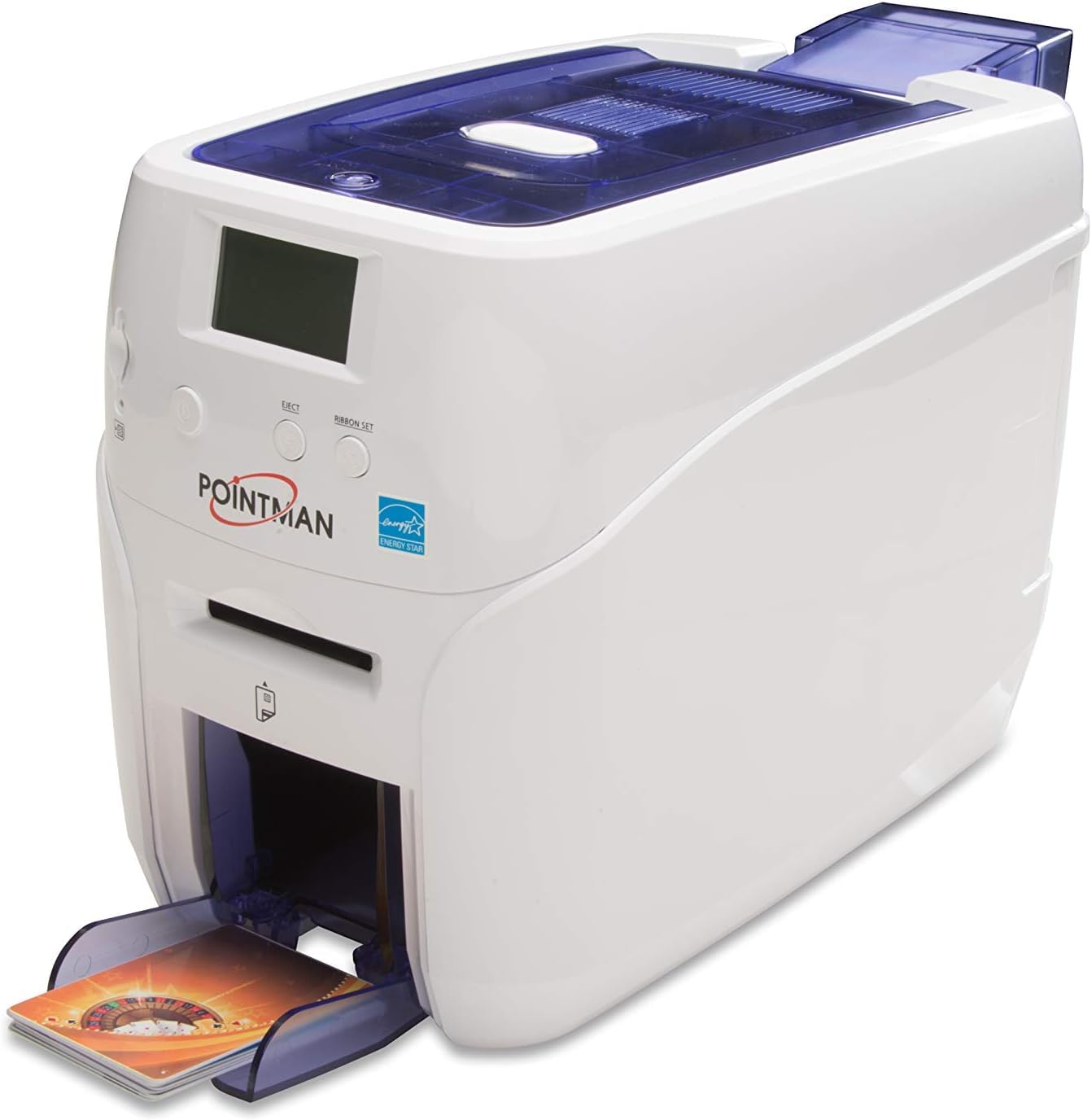
Image: Front view of the Pointman Nuvia N30 ID Card Printer, showing the display screen, power, eject, and ribbon set buttons, card input slot, and output hopper.
1. Setup
1.1 Unpacking and Contents
Carefully remove the printer and all accessories from the packaging. Verify that all components are present:
- Pointman Nuvia N30 Printer
- Power Adapter and Cable
- USB Cable
- Printer Ribbon (starter kit)
- Cleaning Kit
- Software CD (Card Designer 2.0)
- Quick Start Guide
1.2 Connecting the Printer
Power Connection: Connect the power adapter to the printer's power input port and then plug the power cable into an electrical outlet.
USB Connection: Connect the USB cable from the printer to an available USB port on your computer.
1.3 Software Installation
Insert the provided software CD into your computer's CD-ROM drive. Follow the on-screen instructions to install the printer drivers and the Card Designer 2.0 software. Ensure the printer is connected and powered on during installation.
1.4 Loading Cards
Open the input hopper cover. Place a stack of blank cards into the input hopper. The printer supports 100-card input (up to 200 with optional hopper). For manual single card feeding, use the designated manual feed slot.
1.5 Loading Ribbon
Open the printer cover. Follow the instructions provided with the ribbon cartridge to correctly install it into the designated slot. Close the cover securely.
2. Operating Instructions
2.1 Powering On/Off
Press the power button on the front panel to turn the printer on or off. The display screen will show the printer status.
2.2 Using Card Designer 2.0
Launch the Card Designer 2.0 software on your computer. This software allows you to design card layouts, manage databases, and send print jobs to the Nuvia N30 printer.
2.3 Printing Cards
Design your card in Card Designer 2.0.
Select the desired print settings (single/dual-sided, color/monochrome).
Initiate the print job from the software. The printer will automatically feed cards from the input hopper and eject them into the output hopper.
2.4 Magnetic Stripe Encoding
For models equipped with the ISO Magnetic Stripe Encoder (Part# N21-1001-00), ensure your card design includes magnetic stripe data. The printer will automatically encode the magnetic stripe during the printing process.
2.5 Front Panel Buttons
Power Button: Turns the printer on or off.
Eject Button: Manually ejects a card from the print path.
Ribbon Set Button: Used for ribbon calibration or resetting after ribbon replacement.
3. Maintenance
Regular maintenance ensures optimal print quality and extends the life of your printer.
3.1 Cleaning the Printer
Use the provided cleaning kit to clean the print head and card path periodically. Refer to the cleaning kit instructions for detailed steps. Always power off and unplug the printer before cleaning.
3.2 Ribbon Replacement
When the ribbon is depleted, the printer display will indicate a ribbon error. Replace the ribbon cartridge as described in section 1.5. Press the "Ribbon Set" button after replacement if prompted.
4. Troubleshooting
This section addresses common issues you may encounter.
4.1 Printer Not Responding
Check power connection and ensure the printer is turned on.
Verify USB cable connection to both printer and computer.
Restart the printer and computer.
4.2 Poor Print Quality
Ensure the ribbon is correctly installed and not depleted.
Clean the print head and card path.
Check card quality; use recommended cards.
Adjust print settings in Card Designer 2.0.
4.3 Card Jam
Press the "Eject" button to attempt to clear the jam.
If unsuccessful, power off the printer, open the cover, and carefully remove the jammed card.
Ensure cards are loaded correctly and are not bent or damaged.
5. Specifications
| Feature | Detail |
|---|---|
| Model | Nuvia N30 |
| Print Technology | Direct-to-card Dye-sublimation / Resin thermal transfer |
| Print Capabilities | Single-sided printing (optional dual-sided), Full-color and monochrome, Alphanumeric text, logos, digitized signatures |
| Print Resolution | 300 dpi (11.8 DPM), 16.7 Million Color |
| Print Speed (YMCKO Single Side) | 180 ~ 200 cards/hour |
| Print Speed (YMCKOK Dual Side) | 140 cards/hour |
| Print Speed (YMCKO Dual Side) | 95 cards/hour |
| Card Input Capacity | 100 cards (0.76mm), up to 200 with optional hopper |
| Card Output Capacity | 50-60 cards (0.76mm) |
| Manual Feed | 1 card input |
| Encoding Options | ISO Magnetic Stripe Encoder (N21-1001-00), Contact & Contactless Smart Card Encoding (model dependent) |
| Connectivity | USB |
| Power Supply | Input: 100-240V ~ 50/60Hz 1.7A / Output: DC24V 2.5A |
| Dimensions (L x W x H) | 36.6 x 18.4 x 22.8 cm (14.4 x 7.2 x 9.0 inches) |
| Weight | 4.5 kg (9.9 lbs) |
| Included Software | Card Designer 2.0 |
6. Warranty Information
Specific warranty details for the Pointman Nuvia N30 ID Card Printer are typically provided with the product documentation at the time of purchase. Please refer to the warranty card or contact your vendor for information regarding warranty coverage, terms, and conditions.
7. Customer Support
For technical assistance, troubleshooting beyond this manual, or to order replacement parts and consumables, please contact your authorized Pointman dealer or visit the official Pointman website for support resources.
Ask a question about this manual
Ask about setup, troubleshooting, compatibility, parts, safety, or missing instructions. Manuals+ will review the question and use this page’s manual context to help answer it.