
Dardoo Flight Sim Stand
Dardoo Flight Racing Game Simulator Stand Instruction Manual
Model: Flight Sim Stand
1. Introduction
This manual provides comprehensive instructions for the assembly, operation, maintenance, and troubleshooting of your Dardoo Flight Racing Game Simulator Stand. This professional-grade stand is designed for enhanced stability and adjustability, compatible with a wide range of flight and racing simulation controllers, including Logitech G25, G29, G920, X52, X56, and Thrustmaster T16000, Airbus stick, and throttle A10C rocker.

Figure 1: The Dardoo Flight Racing Game Simulator Stand, designed for stability and compatibility.
2. Safety Information
Please read and understand all safety warnings before assembly and use. Failure to do so may result in injury or damage to the product.
- Ensure all components are securely fastened before use. Loose connections can lead to instability.
- Do not exceed the maximum weight capacity of the stand (refer to specifications).
- Keep small parts and tools away from children to prevent choking hazards.
- Assemble the stand on a flat, stable surface.
- Avoid placing the stand in high-traffic areas where it could be a tripping hazard.
- Do not attempt to modify the stand's structure, as this may compromise its integrity and void the warranty.
3. Package Contents
Verify that all parts are present before beginning assembly. If any parts are missing or damaged, please contact customer support.
| Component | Quantity |
|---|---|
| Main Frame Base | 1 |
| Pedal Plate | 1 |
| Main Vertical Support | 1 |
| Side Supports (Left & Right) | 2 |
| Top Mounting Plates (Wheel, Joystick, Throttle) | 3 |
| Hardware (Bolts, Washers, Nuts, Knobs, Wrenches) | Assorted |
| Additional Mount Plate | 1 |
4. Setup and Assembly
Follow these steps carefully to assemble your simulator stand. It is recommended to have ample space and lay out all components before starting.
- Attach the Pedal Plate: Secure the pedal plate to the main frame base using the provided bolts and nuts. Ensure it is firmly attached.
- Install the Main Vertical Support: Insert the main vertical support into its designated slot on the main frame base. Secure it with the appropriate bolts and tighten.
- Attach Side Supports: Connect the left and right side supports to the main frame base. Use the provided knobs to secure them, allowing for future width adjustments.
- Mount Top Plates: Attach the three top mounting plates to their respective vertical supports. The central plate is typically for the steering wheel, while the side plates are for joysticks or throttles. Use bolts and tighten with the provided wrench.
- Finalize Connections: Double-check all bolts, nuts, and adjustment knobs to ensure they are securely tightened. This is crucial for the stability and safety of the stand.
For a visual guide, please refer to the assembly video below:
Video 1: Detailed assembly instructions for the Dardoo Flight Racing Game Simulator Stand.
5. Operating Instructions
The Dardoo Simulator Stand is designed for versatility and compatibility with various gaming peripherals. Follow these guidelines for optimal use:
- Mounting Controllers: The stand features multiple pre-drilled holes on all mounting plates to accommodate popular controllers such as Logitech G25, G29, G920, X52, X56, Thrustmaster T16000, Airbus stick, and throttle A10C rocker. Align your device with the appropriate holes and secure it using your controller's mounting hardware or additional screws if needed.
- Seat Compatibility: The stand includes a seat slot designed to adapt to most gaming and office chairs on the market, enhancing stability and safety during intense gaming sessions.
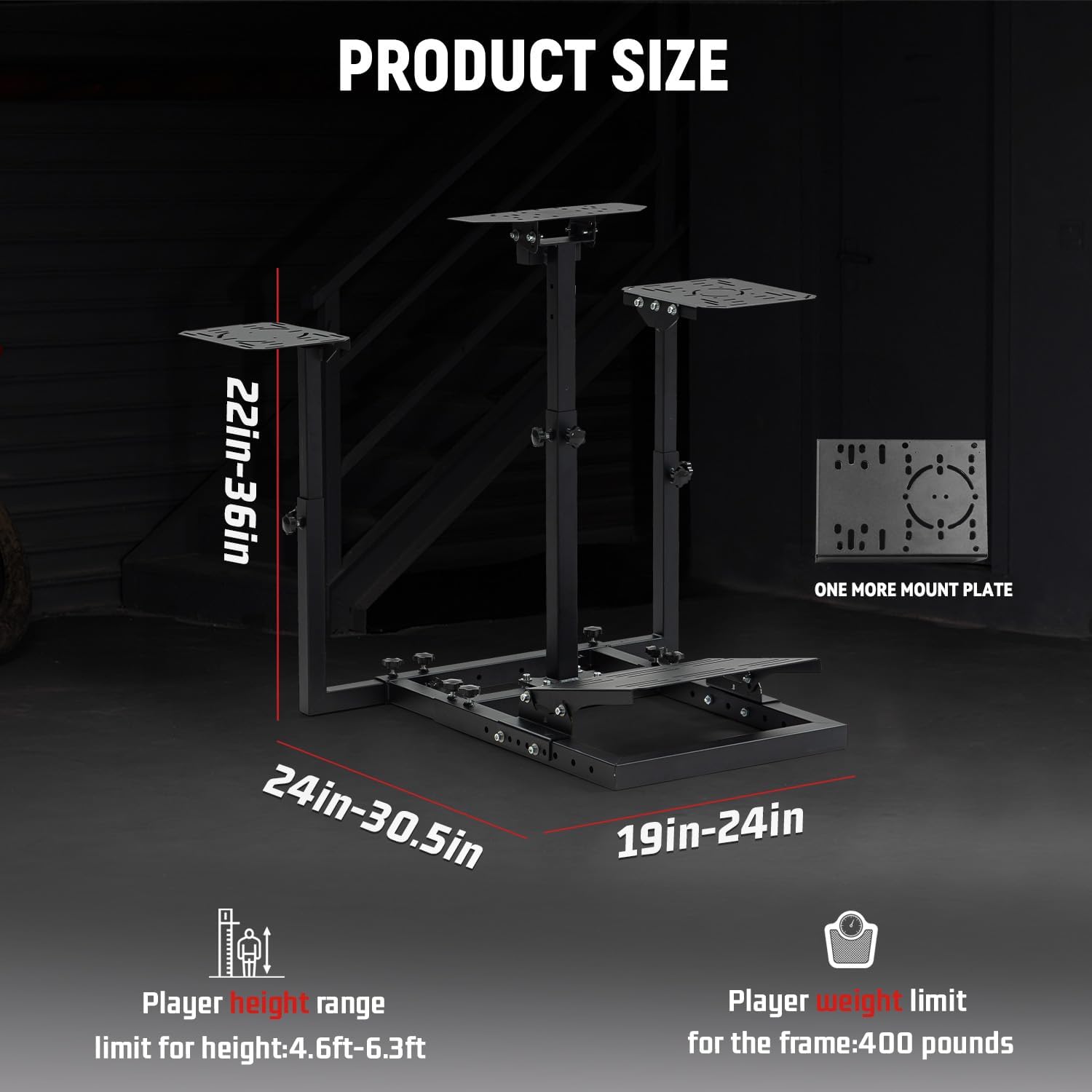
Figure 2: The stand is compatible with a wide range of popular racing wheels and flight simulators.
6. Adjustments
Customize your gaming experience with the stand's extensive adjustment options:
- Height Adjustment: The height of the main vertical support can be adjusted from 22.83 inches to 36.22 inches (58cm - 92cm) to suit different user heights and seating arrangements. Loosen the adjustment knobs, slide the support to the desired height, and re-tighten securely.
- Width Adjustment: The width of the side supports can be adjusted from 23.6 inches to 30.7 inches (60cm - 78cm), allowing for comfortable placement of side-mounted peripherals. Loosen the knobs, adjust the width, and re-tighten.
- Pedal Angle Adjustment: The pedal plate angle can be adjusted from 0° to 15° for ergonomic foot positioning.
- Steering Wheel Angle Adjustment: The steering wheel mounting plate offers angle adjustments from 0° to 30° for optimal steering comfort and control.

Figure 3: The stand offers multiple adjustment points for personalized setup.
7. Maintenance
Regular maintenance will ensure the longevity and optimal performance of your simulator stand:
- Cleaning: Wipe down the metal surfaces with a soft, damp cloth. Avoid using abrasive cleaners or solvents, as they may damage the finish.
- Fastener Check: Periodically inspect all bolts, nuts, and adjustment knobs. Re-tighten any that have become loose due to vibrations or frequent adjustments.
- Storage: If storing the stand, ensure it is clean and dry. Store in a cool, dry place away from direct sunlight or extreme temperatures.
8. Troubleshooting
If you encounter any issues with your Dardoo Simulator Stand, refer to the following common problems and solutions:
- Stand Instability:
- Ensure all assembly bolts and adjustment knobs are fully tightened.
- Verify the stand is placed on a flat, level surface.
- Check that your gaming chair is properly secured within the seat slot (if applicable).
- Difficulty Mounting Peripherals:
- Confirm your peripheral (wheel, pedal, joystick, throttle) is listed as compatible in the specifications.
- Ensure you are using the correct mounting hardware for your specific device. The stand provides various holes for broad compatibility.
- Adjustments Not Holding:
- Ensure the adjustment knobs are tightened sufficiently. Some adjustments may require firm tightening to prevent slippage during use.
Note: Wheels, pedals, throttle, and joystick are not included with the stand.
9. Specifications
| Feature | Detail |
|---|---|
| Brand | Dardoo |
| Model Name | Flight Sim Stand (flight mount) |
| Item Weight | 37.5 pounds |
| Product Dimensions (L x W x H) | 34.6 x 41.3 x 27.9 inches |
| Material | 40*40mm large square tube (steel) |
| Height Adjustment Range | 22.83" - 36.22" (58cm - 92cm) |
| Width Adjustment Range | 23.6" - 30.7" (60cm - 78cm) |
| Pedal Angle Adjustment | 0° - 15° |
| Steering Wheel Angle Adjustment | 0° - 30° |
| Compatible Devices | Logitech G25/G29/G920, Thrustmaster T16000/Airbus stick/A10C rocker, X52/X52PRO/X56, Fanatec, Honeycomb Alpha/Bravo (and others) |
| Connectivity Technology | Manual (for stand assembly) |

Figure 4: Key dimensions and player height/weight limits for the stand.
10. Warranty and Support
Dardoo stands behind the quality of its products. For warranty information, technical support, or to inquire about replacement parts, please refer to the contact information provided with your purchase or visit the official Dardoo website. Please retain your proof of purchase for warranty claims.
For additional resources, you may also refer to the official product page on Amazon: Dardoo Flight Racing Game Simulator Stand
Related documentsFlight Sim Stand


Ask a question about this manual
Ask about setup, troubleshooting, compatibility, parts, safety, or missing instructions. Manuals+ will review the question and use this page’s manual context to help answer it.