
Introduction
Thank you for choosing the Vivaniir 60H Digital Voice Recorder. This compact and lightweight device is designed for high-quality audio recording in various settings, including meetings, lectures, and personal notes. With its 64GB internal memory and long-lasting battery, it provides reliable performance for extended recording sessions. This manual will guide you through the setup, operation, and maintenance of your new device.

The Vivaniir 60H Digital Voice Recorder, shown alongside a hand for scale, highlighting its compact design.

Weighing only 22g (0.8oz), the Vivaniir 60H is exceptionally lightweight and portable, easily fitting into a wallet or pocket.

The Vivaniir 60H is suitable for various recording environments, including meetings, lectures, casual conversations, and classroom settings.
Package Contents
Please check the package to ensure all items are present:
- 1 x Vivaniir 64GB Digital Voice Recorder
- 1 x Earphones
- 1 x USB Cable (Type-C)
- 1 x Control Cable
- 1 x OTG Adapter
- 1 x User Manual

Illustration of the Vivaniir 60H Digital Voice Recorder and its included accessories: the recorder unit, control cable, earphones, USB cable, and user manual.
Product Overview
Familiarize yourself with the components of your Vivaniir 60H recorder.

Detailed view of the Vivaniir 60H recorder, highlighting its USB Type-C port, record button, lanyard hole, reset button, and physical dimensions (7.3cm/2.8in length, 2.6cm/1in width, 0.6cm/0.2in thickness). Key features like Aluminum Alloy build, PCM Noise Reduction, Voice Activation, and Low Power Auto Save are also indicated.
- USB Type-C Port: For charging and data transfer.
- Record Button: Slide switch for one-touch recording.
- Lanyard Hole: For attaching a strap.
- Reset Button: Small pinhole for resetting the device.
- Built-in Microphone: For capturing audio.
- Earphone Jack: For listening to recordings.
Setup
Charging the Device
Before first use, fully charge the device.
- Ensure the recorder is turned OFF.
- Connect the USB Type-C cable to the recorder and a power source (e.g., computer USB port, USB wall adapter).
- The red light will illuminate during charging.
- Charging takes approximately 2.5 hours. Once fully charged, the blue light will illuminate.
The device features a 400mAh high-capacity rechargeable battery, providing up to 60 hours of continuous recording at WAV/192kbps after a full charge.

The Vivaniir 60H offers up to 60 hours of recording time thanks to its 400mAh battery.
Operating Instructions
Power On/Off and One-Touch Recording
The Vivaniir 60H features a simple sliding switch for quick operation.
- To turn ON the device and start recording: Slide the record button to the ON position. The device will automatically begin recording.
- To turn OFF the device and save the recording: Slide the record button to the OFF position. The current recording will be saved, and the device will power off.

The device features a sliding one-key record/save switch. Recordings can be listened to via the included earphones, as the device does not have a self-contained speaker.
Voice Activated Recording (VOR)
Voice Activated Recording (VOR) helps reduce silent gaps and save memory by pausing recording when no sound is detected and resuming when sound is present.
- By default, VOR is disabled.
- To enable VOR: Connect the device to a computer. Locate the configuration file (usually a text file). Change the VOR value from 0 to 1 or 2. Higher values are not recommended.
- Once enabled, turn on the voice recorder, and it will record in voice activation mode.
- Note: VOR may miss subtle sounds, so it is not recommended for critical recording situations where every sound must be captured.

The VOR (Voice Activation) feature helps reduce silent recordings by pausing when no sound is detected.
Listening to Recordings
The Vivaniir 60H does not have a built-in speaker. You can listen to recordings using the included earphones or by connecting the device to a computer or Android phone.
- Using Earphones: Connect the included earphones and control cable to the device. Use the control cable buttons to play, pause, fast forward, or rewind recordings (e.g., long press next/previous song button for fast forward/rewind).
- Connecting to Computer/Android Phone:
- Ensure the recorder is turned OFF before connecting.
- Connect the device to your computer using the USB cable, or to your Android phone using the USB cable and OTG adapter.
- The device will appear as a removable disk. Navigate to the recording folder to access your files.
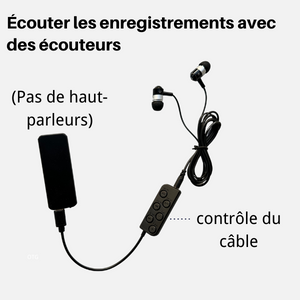
Recordings can be played back using the included earphones and their inline control cable, as the device lacks a built-in speaker.

Recording files can be viewed and managed on your computer or Android phone. Note: Not compatible with iPhone.
File Management and Naming Convention
Recordings are saved in WAV format. Files are automatically named with the date and time of recording.

Example of recording file names, showing the date (Year-Month-Day) and time (Hour:Minute:Second) embedded in the filename.
The 64GB internal memory can store up to 750 hours of audio recordings.

The device features a large 64GB memory, capable of storing up to 750 hours of recordings.
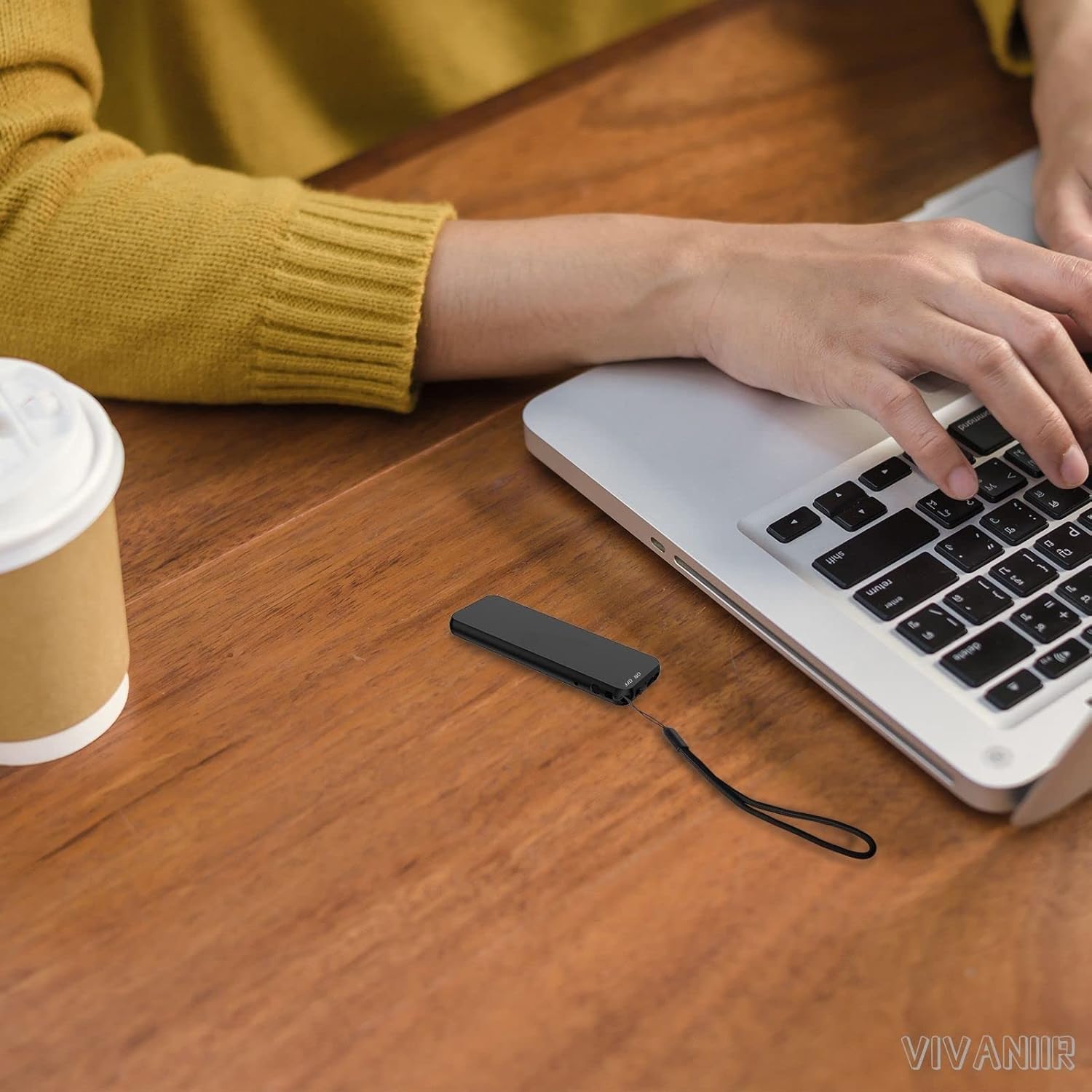
The compact design of the Vivaniir 60H allows for discreet placement during use, such as next to a laptop.
Recording Tips
- For clear recordings, place the recorder stably and avoid rubbing it against objects like hands or clothing.
- Record in a quiet environment.
- Keep the recorder away from noise sources such as air conditioning, typing, scratching, rubbing, or subtle noises generated by operating computers.

The device utilizes PCM Intelligent Noise Reduction technology to enhance recording clarity.
Maintenance
Formatting the Device
The device's memory only supports the FAT32 format.
- Important: Do not format the device to exFAT/NTFS/APFS on your computer. Formatting to these formats will cause compatibility issues, leading to malfunctions, charging problems, or the device not being recognized by your computer.
- If formatting is necessary, ensure it is done to FAT32.
Recording While Charging
To record while charging, follow these steps:
- First, turn ON the device.
- Then, connect the USB charger to begin charging. The device will charge while recording.
- Warning: If you turn off the recorder first, then charge it, and then turn it on, the recording will fail.
The device also features automatic recording save when the battery is low.

The device automatically saves recordings when the battery level is low.
Troubleshooting
Recording Pauses Unexpectedly
- Any other device (earphones, phone, computer, etc.) connected during recording will interrupt the recording. Ensure no other devices are connected while recording.
- If Voice Activation (VOR) is enabled, recording may pause when the sound is too quiet. This is normal VOR behavior. For continuous recording, disable VOR.
PC/Android Phone Connection Failure
- Ensure the audio recorder is turned OFF before connecting it to your computer or phone. Once connected, do not press any buttons.
- For Android Phones: Ensure the OTG function is enabled. Go to [Settings] and search for "OTG" or "USB" to activate it. (The exact method may vary by phone model; consult your phone's manual or manufacturer).
- For MAC Users: Try changing the USB-C adapter. Also, try connecting to a different computer or a different USB port.
Memory Display Discrepancy
You may notice that your computer displays approximately 59GB of memory instead of 64GB. This is due to the difference in how memory is calculated:
- Memory manufacturers calculate based on 1000 MB = 1 GB.
- Computers recognize memory based on 1024 MB = 1 GB.
- This difference in calculation leads to the apparent discrepancy. This is normal and does not indicate a defect.
Cannot Play WAV Files on Windows Media Player
Windows Media Player or some other default players on Windows may not support playing audio files in WAV format directly.
- Use alternative media players that support WAV format, or convert the files to a compatible format if necessary.
Specifications
| Feature | Description |
|---|---|
| Brand | Vivaniir |
| Model Number | V53 |
| Color | Black |
| Memory Capacity | 64 GB |
| Battery Composition | Lithium Polymer |
| Battery Life (Recording) | Up to 60 hours |
| Charging Time | Approx. 2.5 hours |
| Recording Format | WAV |
| Microphone Form Factor | Built-in |
| Headphone Jack | 3.5 mm |
| Interface | USB Type-C |
| Weight | 22 Grams |
| Dimensions | 75 x 28 x 6 mm (approx. 2.95 x 1.1 x 0.24 inches) |
| Compatible Devices | Personal Computer, Android Phones (via OTG) |
Warranty and Support
Vivaniir provides comprehensive after-sales support to ensure customer satisfaction.
- Warranty: Your Vivaniir 60H Digital Voice Recorder comes with a 1-year warranty from the date of purchase.
- Customer Support: Lifetime online/email support is available 24 hours a day. For any inquiries or assistance, please contact Vivaniir customer service.