
Introduction
Welcome to the Bietrun UHF Dual Wireless Microphone System WXM31-2. This manual provides detailed instructions for setting up, operating, maintaining, and troubleshooting your new wireless microphone system. Please read this manual thoroughly before use to ensure optimal performance and longevity of your device.
Package Contents
- 2 x Bietrun WXM31-2 Wireless Microphones
- 1 x Rechargeable Receiver (1/4'' Plug)
- 1 x 6.35mm to 3.5mm Adapter
- 1 x USB Charging Cable (for both microphones and receiver)
- 2 x Anti-roll Rings (color may vary)
- 1 x User Manual

Setup Instructions
1. Powering the Microphones
Each microphone requires 2 AA batteries (not included).
- Unscrew the bottom part of the microphone.
- Insert 2 AA batteries, ensuring correct polarity.
- Screw the bottom part back on.

2. Charging the Receiver
The receiver has a built-in 1200mAh rechargeable lithium-ion battery.
- Connect the USB charging cable to the receiver's DC 5V input port.
- Connect the other end of the USB cable to a power source (e.g., USB adapter, computer USB port).
- The charging indicator light will illuminate. A full charge takes approximately 3-4 hours and provides up to 7+ hours of working time.
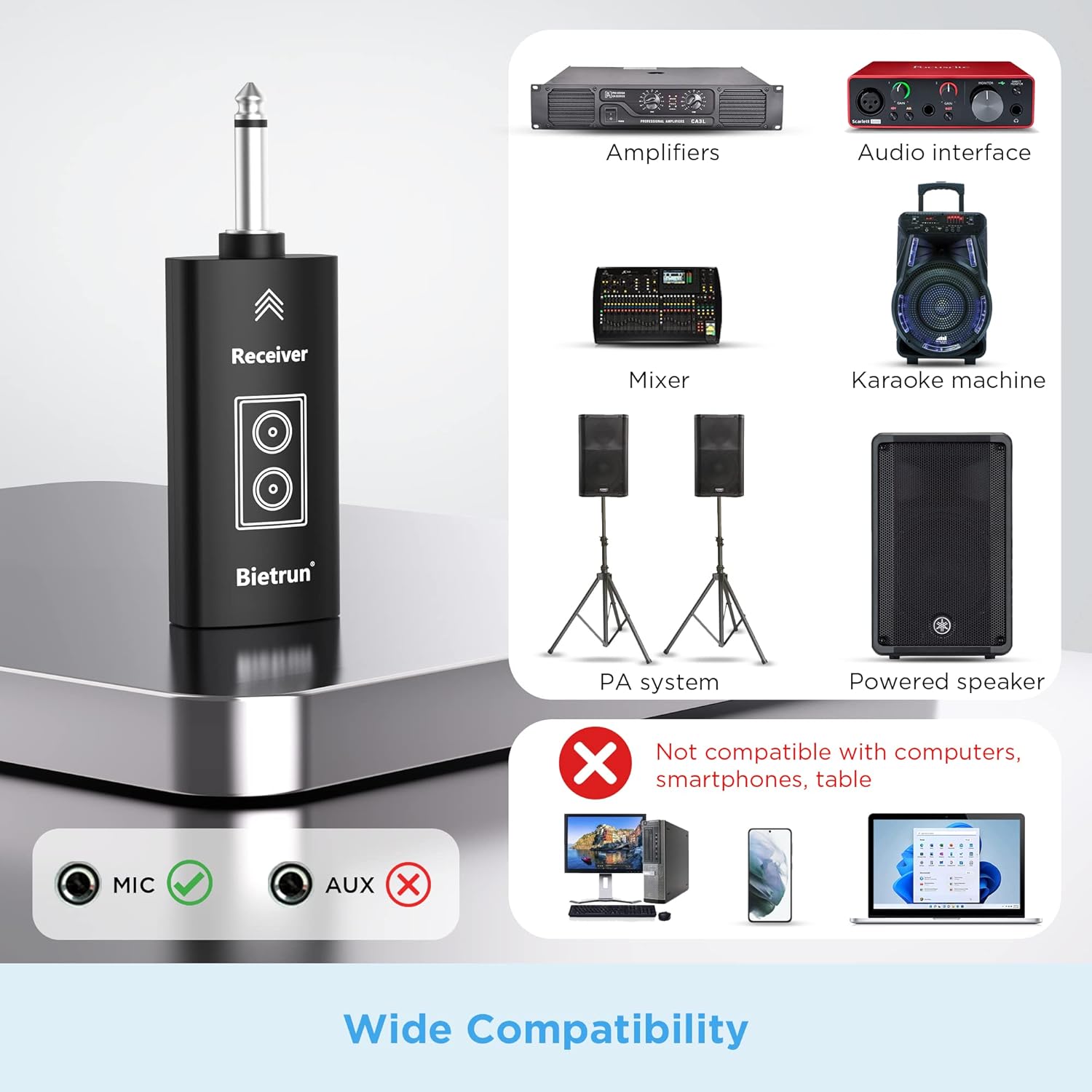
3. Connecting the Receiver to an Audio Device
The receiver features a 1/4'' (6.35mm) plug.
- Insert the receiver directly into the 1/4'' MIC input jack of your audio device (e.g., speaker, singing machine, audio amplifier, PA system, mixer, audio interface).
- If your audio device has a 3.5mm MIC input, use the included 6.35mm to 3.5mm adapter.
Note: Ensure the receiver is plugged into a MIC input, not an AUX input. Not compatible with computers, smartphones, or tablets directly without an appropriate audio interface.

Operating Instructions
1. Powering On/Off
To power on each microphone, long-press the power button located on the microphone body. The display will light up.
To power off, long-press the power button again.
To power on the receiver, press the power button on the receiver. The indicator lights for channels A and B will illuminate.
2. Automatic Connection
The microphone and receiver are designed to connect automatically upon powering on. The receiver will display which microphone (A or B) is active.

3. Adjusting Channels
Each microphone has 15 adjustable frequency channels. If you experience interference or are using multiple microphone sets, you can change the channel.
- Short-press the "CH" (Channel switch) button on the microphone body to cycle through available channels (CH01-CH15).
- Ensure each microphone in use is set to a different channel to avoid interference.

4. Adjusting Volume
Short-press the power/volume button on the microphone to adjust the volume level.
5. Optimal Microphone Usage
For the best sound quality and to ensure your voice is loud and clear, speak with your mouth close to the top of the microphone.

Maintenance
- Keep the microphones and receiver dry and clean.
- Avoid exposing the devices to extreme temperatures or direct sunlight.
- When not in use for extended periods, remove AA batteries from the microphones to prevent leakage.
- Recharge the receiver regularly to maintain battery health.
- Use a soft, dry cloth to clean the exterior of the microphones and receiver.
Troubleshooting
| Problem | Possible Cause | Solution |
|---|---|---|
| No Sound | Microphone/Receiver not powered on. | Ensure both microphones and receiver are powered on. |
| No Sound | Low microphone batteries. | Replace AA batteries in microphones. |
| No Sound | Low receiver battery. | Recharge the receiver. |
| No Sound | Receiver not plugged into MIC input. | Plug receiver into the correct 1/4'' or 3.5mm MIC input. |
| Interference/Poor Sound Quality | Microphones on the same channel or external interference. | Change the channel on the microphone by short-pressing the "CH" button. Ensure each microphone uses a unique channel. |
| Interference/Poor Sound Quality | Distance too far from receiver. | Reduce the distance between the microphone and receiver (max 98 ft in open areas). Ensure line of sight. |
| Interference/Poor Sound Quality | Obstructions between microphone and receiver. | Remove any large obstructions between the microphone and receiver. |

Specifications
- Model: WXM31-2
- Brand: Bietrun
- Connectivity Technology: UHF
- Wireless Range: Up to 98 feet (open place)
- Microphone Type: Dynamic
- Polar Pattern: Unidirectional
- Audio Sensitivity: 95 dB
- Frequency Response: 50Hz - 16KHz
- Impedance: 600 ohms
- Adjustable Channels: 15 per microphone
- Microphone Power: 2 x AA batteries (not included)
- Receiver Battery: Built-in 1200mAh rechargeable lithium-ion battery
- Receiver Working Time: Up to 7+ hours
- Receiver Charging Time: 3-4 hours
- Connector Type: 1/4'' (6.35mm) plug, includes 3.5mm adapter
- Compatible Devices: Speakers, Singing machines, Audio amplifiers, PA systems, Voice amplifiers, Mixers, Audio Interfaces, etc. (with MIC input)
- Material: Metal (microphones)
- Item Dimensions: 1.35 x 1.2 x 9.4 inches (microphone)
Warranty and Support
This Bietrun WXM31-2 Wireless Microphone System comes with a 1-year warranty from the date of purchase.
For technical support, warranty claims, or any questions regarding your product, please contact Bietrun customer service through the retailer's platform or visit the official Bietrun website. Please have your model number (WXM31-2) and proof of purchase ready.
Additional Information
The display on each microphone shows battery power and signal strength in real-time, preventing unexpected power loss during use.
The all-metal design of the handheld microphones ensures durability and a comfortable grip.


