
1. Introduction
This instruction manual provides detailed information on the installation, operation, and maintenance of the CELLSTAR CS-72FH Front and Rear Camera Drive Recorder and the CELLSTAR GDO-11 Radar Detector Connection Cord. Please read this manual thoroughly before using the product to ensure correct operation and to prevent damage.
2. Product Overview
2.1 CELLSTAR CS-72FH Drive Recorder
The CS-72FH is a high-performance drive recorder equipped with front and rear cameras, designed to capture clear video evidence while driving and during parking. Key features include:
- Dual Camera System: Records simultaneously from front and rear cameras.
- Full HD Recording: Both cameras record in 2-megapixel Full HD resolution.
- STARVIS Technology: Enhances low-light recording performance.
- 2.4-inch Touch Panel LCD: For easy operation and video playback.
- GPS Function: Provides location data and offers warnings for dangerous areas.
- Parking Surveillance Mode: Records events when the engine is off (requires optional power cord GDO-10 or GDO-41).
- HDR (High Dynamic Range): Improves video quality in high-contrast lighting conditions.
- microSD Card Maintenance-Free: CELLSTAR's proprietary file system reduces fragmentation, eliminating the need for regular formatting.
- Included: 32GB microSD card.
2.2 CELLSTAR GDO-11 Radar Detector Connection Cord
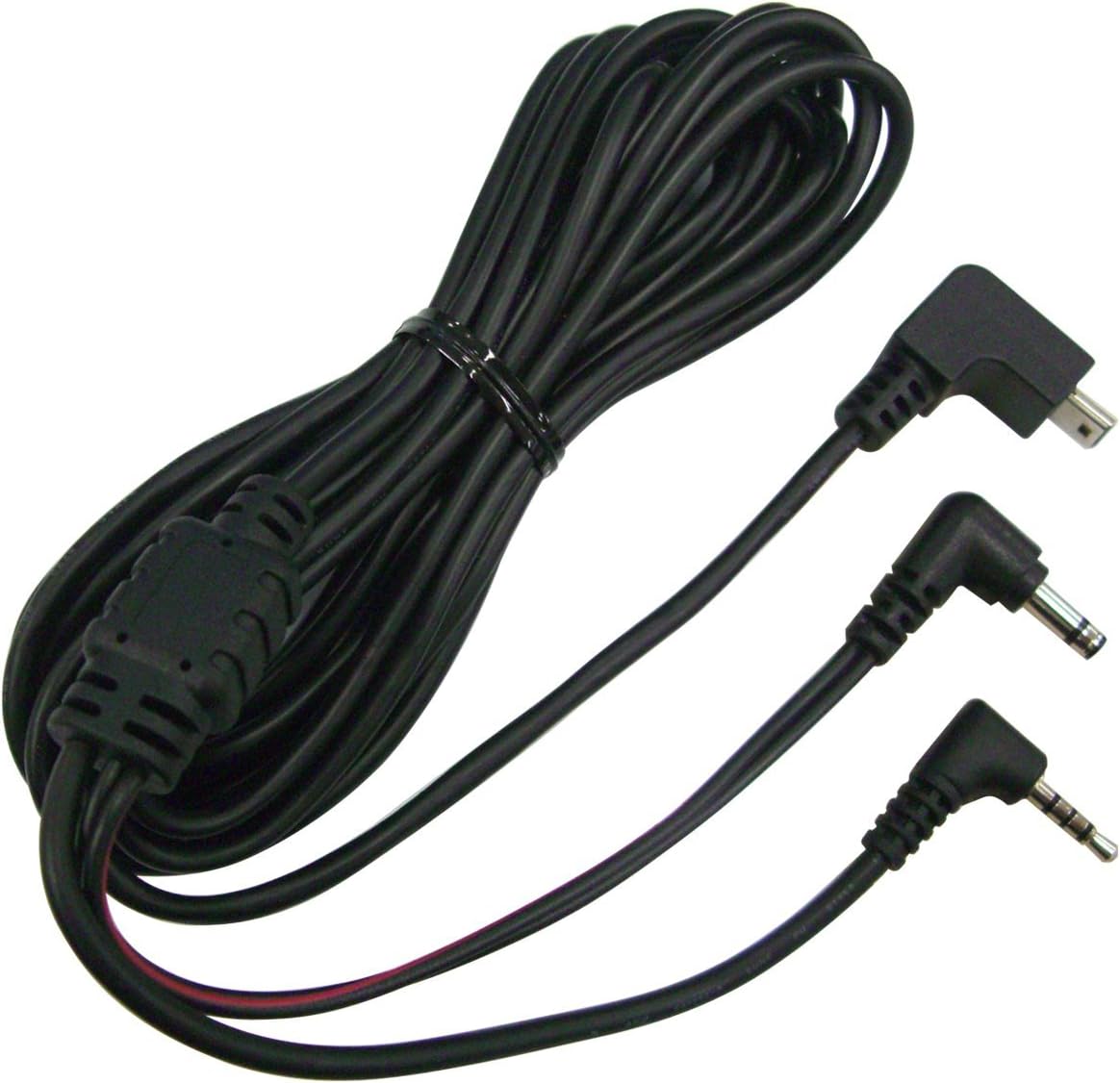
The GDO-11 is an optional connection cord designed to integrate compatible CELLSTAR drive recorders with CELLSTAR radar detectors. This cord allows for:
- Direct Connection: Connects a drive recorder (with 3-pole DC input) directly to a camera warning-compatible CELLSTAR radar detector.
- Integrated Power: Power is supplied from the radar detector to the drive recorder.
- Video Output: Enables live display and playback of drive recorder video on the radar detector's screen (if compatible).
3. Package Contents
Please verify that all items are present in the package:
- CELLSTAR CS-72FH Drive Recorder (Main Unit)
- Rear Camera
- Rear Camera Connection Cable
- Direct Wiring Power Cord
- Mounting Bracket
- 32GB microSD Card
- Instruction Manual (this document)
- CELLSTAR GDO-11 Radar Detector Connection Cord

4. Setup and Installation
4.1 CS-72FH Drive Recorder Installation
- Choose Mounting Location: Select a location on the front windshield that does not obstruct the driver's view and allows the camera to capture a clear view of the road ahead. The rear camera should be mounted on the rear window.
- Clean Surface: Thoroughly clean and dry the mounting surface on the windshield.
- Attach Mounting Bracket: Secure the main unit's mounting bracket to the windshield using the adhesive pad. Ensure it is firmly attached.
- Mount Main Unit: Slide the CS-72FH main unit onto the mounting bracket.
- Install Rear Camera: Mount the rear camera on the rear window, ensuring a clear view.
- Connect Rear Camera: Route the rear camera connection cable from the rear camera to the main unit and plug it into the designated port.
- Connect Power: Connect the direct wiring power cord to the drive recorder and route it to the vehicle's power source (e.g., fuse box). Ensure proper grounding.

4.2 GDO-11 Radar Detector Connection Cord Installation
The GDO-11 cord allows for integrated power and video display when connecting the CS-72FH to a compatible CELLSTAR radar detector.
- Connect to Drive Recorder: Insert the video output plug and power input plug of the GDO-11 cord into the corresponding ports on the CS-72FH drive recorder. The video output plug is typically labeled 'V-OUT' and the power input plug 'DC IN'.
- Connect to Radar Detector: Insert the external input connector of the GDO-11 cord into the external input socket of your CELLSTAR radar detector.
- Configure Radar Detector: Refer to your radar detector's instruction manual to change the external input settings. This may involve enabling camera warning display (Live View) or setting the drive recorder as a monitor.

5. Operating Instructions
5.1 Power On/Off
The drive recorder automatically powers on and begins recording when the vehicle's ignition (ACC) is turned on. It powers off automatically when the ignition is turned off.
5.2 Touch Panel Operation
The 2.4-inch LCD screen is a touch panel. Tap icons or swipe to navigate menus, adjust settings, and review recorded footage.
5.3 Recording Modes
The CS-72FH offers three primary recording modes:
- Continuous Recording Mode: Records continuously while the vehicle is in operation. Older files are overwritten automatically when the microSD card is full.
- Event Recording Mode (Automatic): When an impact is detected by the G-sensor, the drive recorder automatically saves the footage before and after the event as a protected file, preventing it from being overwritten.
- Quick Recording Function (Manual): Allows the user to manually initiate a protected recording by pressing a button on the device. This is useful for capturing specific incidents on demand.
6. Parking Surveillance Mode
The parking surveillance mode allows the drive recorder to monitor your vehicle and record events even when the engine is off. To use this feature, an optional power cord (GDO-10 or GDO-41) is required.
- When the engine is turned off (ACC OFF), the drive recorder automatically switches to parking surveillance mode.
- It can record for up to 12 hours, detecting impacts or motion and saving the footage.
- Refer to the manual for the optional power cord for detailed installation and settings for parking surveillance.
7. GPS Function
The built-in GPS module provides accurate location and speed data, which is recorded along with the video footage. Additionally, the GPS function includes an alert system:
- Dangerous Area Notifications: Based on internal GPS data, the device will provide audio warnings and on-screen displays to alert you to potentially dangerous areas while driving.
8. microSD Card Management
The CELLSTAR CS-72FH utilizes a proprietary file system that minimizes file fragmentation. This unique feature means:
- Maintenance-Free: Regular formatting of the microSD card is not required, reducing the risk of errors and extending the card's lifespan.
- Error Rate Reduction: The optimized file system helps to reduce the occurrence of recording errors.
A 32GB microSD card is included with the product. Ensure the card is properly inserted before use.
9. Specifications
9.1 CELLSTAR CS-72FH Drive Recorder
| Feature | Specification |
|---|---|
| Video Capture Resolution | 1080p (Full HD) |
| Camera Pixels (Front/Rear) | 2 Million Pixels / 2 Million Pixels |
| Display Type | LCD |
| Screen Size | 2.4 inches |
| Control Method | Touch Panel |
| Mounting Type | Adhesive |
| Color | Black |
| Power Voltage | DC 12V/24V Compatible |
| Special Features | Built-in GPS, Parking Surveillance, HDR, STARVIS, LED Signal Compatible, Terrestrial Digital Radio Wave Interference Countermeasures (VCCI Class A) |
9.2 CELLSTAR GDO-11 Radar Detector Connection Cord
| Feature | Specification |
|---|---|
| Weight | 61g |
| Input Voltage | DC 12V |
| Cord Length | 3.6m |
| Connector Type | 3-pole DC plug |
10. Troubleshooting
If you encounter issues with your CELLSTAR CS-72FH or GDO-11, please refer to the following common solutions:
- Device not powering on: Check the power connection. Ensure the direct wiring cord is correctly installed and receiving power from the vehicle's fuse box. If using GDO-11, ensure the radar detector is powered on and compatible.
- No recording: Verify that a microSD card is inserted and not full. Check recording settings in the menu.
- Poor video quality: Ensure camera lenses are clean and free from obstructions. Check HDR settings.
- GPS not acquiring signal: Ensure the device has a clear view of the sky. Avoid mounting near metallic objects that may interfere with the signal.
- Radar detector not displaying video: Confirm that the GDO-11 is correctly connected to both devices. Check the external input settings on your radar detector and ensure it is a compatible model.
If problems persist, please contact CELLSTAR customer support.
11. Warranty and Support
The CELLSTAR CS-72FH Drive Recorder comes with a 3-year warranty from the date of purchase. Please retain your proof of purchase for warranty claims.
For technical support, service, or warranty inquiries, please refer to the official CELLSTAR website or contact their customer service department. Contact information can typically be found on the product packaging or the official website.