
Introduction
This manual provides detailed instructions for the installation, operation, maintenance, and troubleshooting of your Podofo 2G+64G Wireless Apple CarPlay Double Din Car Stereo. This unit features a 9-inch Android 13 touchscreen, supporting both wireless and wired Apple CarPlay and Android Auto. It includes Bluetooth 4.0, GPS navigation, Wi-Fi connectivity, FM/AM radio, Mirror Link functionality, and supports an HD backup camera. Please read this manual thoroughly before use to ensure proper operation and to maximize your experience.

Image: The Podofo car stereo seamlessly integrated into a vehicle's dashboard, displaying its user interface with various application icons.
Setup
What's in the Box
Before beginning installation, verify that all components are present:
- Podofo 9-inch Android Car Stereo Unit
- HD Backup Camera
- Power Cable/GPS Antenna
- Rear Camera Input Cable/RCA Cable
- USB Cables (2)
- Mounting Brackets/Screws
- Instruction Manual

Image: A visual representation of the car stereo unit and its complete set of accessories, including various cables, the backup camera, and mounting components.
Wiring Instructions
Refer to the detailed wiring diagram for correct connections. Ensure all cables are securely connected to their respective ports to prevent malfunctions.
- Power Cord: Connect to the vehicle's power supply (ACC, B+, GND).
- RCA Input/Output: For external audio/video devices, amplifiers, and subwoofers.
- GPS Antenna: Connect and position in a location with clear sky view for optimal signal reception.
- Camera Input: Connect the HD backup camera cable.
- USB Ports: For USB drives, phone charging, and wired CarPlay/Android Auto connections.
- MIC: External microphone input for improved call quality.
- AMP CONT: Amplifier control wire.

Image: A comprehensive diagram illustrating the various wiring connections for the car stereo, including labeled ports for microphone, video, audio, and power.

Image: A visual guide detailing the wiring process for the car stereo, highlighting the purpose of each cable and connector.
Operating Instructions
Wireless/Wired Apple CarPlay & Android Auto
Connect your iOS or Android smartphone to the car stereo to access navigation, music, calls, and other apps directly on the unit's screen. Voice commands are supported for hands-free operation.
- Wireless Connection: Enable Bluetooth and Wi-Fi on your phone. Connect to the stereo's Bluetooth, then open the Zlink App on the stereo to complete the CarPlay/Android Auto connection.
- Wired Connection: Connect your phone to the stereo via a USB cable. Open the Zlink App and select the corresponding program icon.
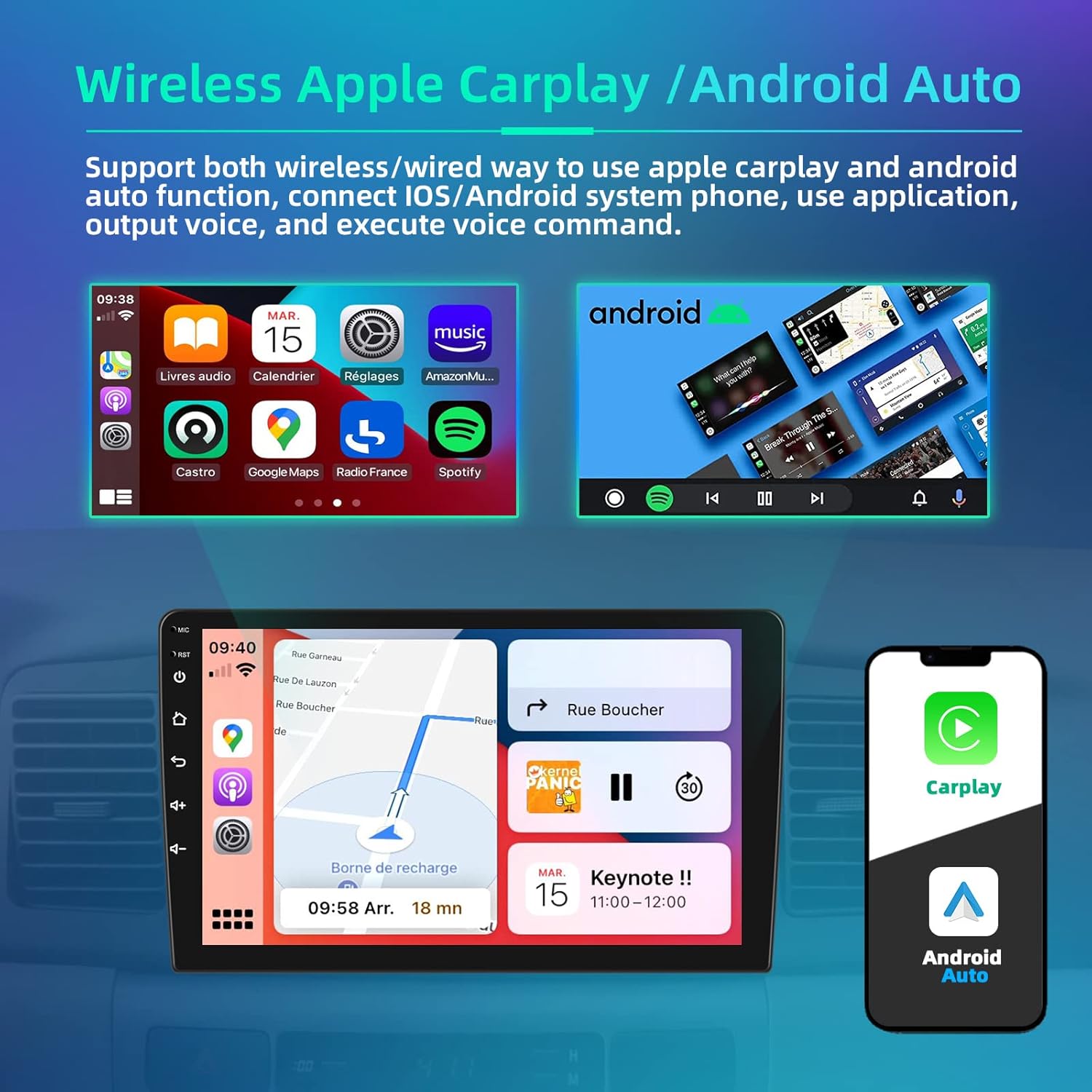
Image: The car stereo displaying both Apple CarPlay and Android Auto interfaces, along with a smartphone showing the CarPlay logo, illustrating seamless integration.
Video: An official product video demonstrating the features and functionality of the Podofo Wireless Apple CarPlay Double Din Car Stereo, including its user interface and connectivity options.
FM/RDS Radio
Access your favorite radio stations with high-quality sound. The RDS (Radio Data System) feature displays station names, program types, and other relevant information.
- Tuning: Use the touchscreen controls to scan for stations or manually tune to a specific frequency.
- Presets: Save up to 18 of your preferred stations for quick access.

Image: The car stereo's display showing the FM/RDS radio interface, with frequency selection and station information visible.
Bluetooth Connectivity
Connect your smartphone via Bluetooth 4.0 for hands-free calling and wireless audio streaming.
- Pairing: Enable Bluetooth on your phone and search for the car stereo. Select the stereo from the list and confirm the pairing code.
- Hands-Free Calls: Make and receive calls directly through the stereo. Your phone book can be synced automatically.
- Music Streaming: Play audio from your phone through the car's speakers.

Image: A multi-panel display showing the car stereo's Bluetooth call screen, Wi-Fi connection options, GPS navigation map, and FM/RDS radio interface.
GPS Navigation
The built-in GPS system supports both online and offline navigation. Pre-installed maps allow for navigation without an internet connection, while Wi-Fi connectivity enables real-time traffic updates and online map services.
- Online Navigation: Connect to a mobile hotspot via Wi-Fi to use online mapping applications.
- Offline Navigation: Utilize pre-loaded maps for navigation in areas without network coverage.

Image: The car stereo displaying a GPS navigation map with route guidance, along with icons for popular navigation applications.
Mirror Link Function
Mirror your iOS or Android phone screen directly onto the car stereo display via a USB connection. This allows you to view your phone's content on the larger screen.

Image: The Mirror Link function in action, displaying a smartphone's screen content mirrored onto the car stereo's larger display.
Steering Wheel Control (SWC) Function
Utilize your vehicle's original steering wheel controls to manage the stereo. This includes answering calls, switching songs, adjusting volume, and more, enhancing driving safety and convenience.

Image: A close-up of a car's steering wheel with integrated controls for managing audio, calls, and other stereo functions.
Backup Camera
The stereo supports an HD reversing camera with night vision. When the vehicle is put into reverse, the rearview image is automatically displayed on the screen, providing a 170-degree wide-angle view for safer parking and maneuvering.

Image: The car stereo screen displaying the live feed from a backup camera, complete with parking guidelines for assistance.
UI Desktop Themes
Customize your stereo's appearance with 26 built-in UI desktop themes. These themes can be switched easily without requiring internet downloads, allowing you to personalize the interface to your preference.

Image: A collage of different user interface themes available on the car stereo, showcasing various layouts and color schemes.
Audio Equalizer (EQ) Settings
Enhance your audio experience with 16 car EQ sound adjustments and subwoofer output support. Fine-tune the sound to match your preferences and vehicle acoustics.

Image: A four-panel image illustrating the Mirror Link function, backup camera display, steering wheel control interface, and the audio equalizer settings of the car stereo.
Maintenance
- Cleaning: Use a soft, dry cloth to clean the touchscreen and unit exterior. Avoid abrasive cleaners or solvents.
- Software Updates: Periodically check for software updates to ensure optimal performance and access to new features. Updates can typically be found on the manufacturer's website or through the device's settings if connected to Wi-Fi.
- Environmental Conditions: Avoid exposing the unit to extreme temperatures, direct sunlight for prolonged periods, or excessive moisture.
Troubleshooting
Common Issues and Solutions
- Unit is slow or freezes:
- Restart the unit by turning off the vehicle's ignition and restarting.
- Close unnecessary background applications.
- Clear cache from apps in the settings menu.
- Ensure sufficient storage space is available.
- Activation code not working:
- Verify the code is entered correctly, paying attention to case sensitivity and special characters.
- Ensure the unit has a stable internet connection if activation requires online verification.
- Contact customer support for assistance with activation issues.
- Poor sound quality:
- Check speaker connections for proper wiring.
- Adjust the EQ settings to optimize audio output.
- Ensure audio source quality is high.
- Verify that the volume levels are appropriately set on both the stereo and connected devices.
- Screen brightness issues:
- Adjust brightness settings in the display menu.
- Check for any physical obstructions or damage to the screen.
- If the issue persists, a factory reset might be necessary (note: this will erase all user data).
- GPS signal loss:
- Ensure the GPS antenna is securely connected and placed in an unobstructed location (e.g., on the dashboard with a clear view of the sky).
- Move the vehicle to an open area away from tall buildings or dense foliage.
- Check GPS settings within the unit to ensure it is enabled.
Specifications
| Feature | Detail |
|---|---|
| Brand | Podofo |
| Operating System | Android 13 |
| Processor | 4-core |
| RAM | 2GB |
| ROM | 32GB |
| Display | 9-inch Touchscreen |
| Connectivity | Bluetooth 4.0, RCA, USB, Wi-Fi |
| Special Features | RDS, Touchscreen, GPS Navigation, Mirror Link, SWC, HD Backup Camera Support |
| Audio Output Mode | APE/FLAC/WAV/MP3/WMA etc. |
| Video Encoding | MKV/RMVB/AVI/MP4/MDV etc. |
| Output Power | 45 watts (per channel) |
| Number of Channels | 4 |
| Supported Internet Services | DAB, Maps |
| Control Method | App, Touch |

Image: An illustration highlighting the core specifications of the car stereo, including its Android 13 operating system, 4-core CPU, 2GB RAM, 64GB ROM, and HiFi audio capabilities.
Warranty
Podofo is committed to providing quality products. While specific warranty periods may vary by region, we offer friendly and professional customer service and technical support for our products. Please retain your proof of purchase for any warranty claims.
Support
For technical assistance, troubleshooting, or any questions regarding your Podofo car stereo, please contact our customer support team. Our professional technical team aims to respond to inquiries within 24 hours.
- Online Support: Visit the official Podofo website for FAQs, support resources, and contact information.
- Email Support: Refer to your product packaging or the official website for the dedicated support email address.


