
OBZ navy blue 2D Scanner with Stand
OBZ 1D 2D Barcode Scanner with Stand User Manual
Model: navy blue 2D Scanner with Stand
Brand: OBZ
1. Product Overview
The OBZ 1D 2D Barcode Scanner with Stand is a versatile and durable scanning solution designed for various environments such as retail stores, supermarkets, libraries, hospitals, and warehouses. It features a high-accuracy decoding chip, supports both 1D and 2D/QR codes, and offers multiple scanning modes for enhanced efficiency.

Image: The OBZ 1D 2D Barcode Scanner with its adjustable stand, ready for use.
Video: An overview of the OBZ 1D 2D QR Barcode Scanner, demonstrating its features and plug-and-play functionality.
2. Setup and Connectivity
2.1 USB Wired Plug & Play
The OBZ Barcode Scanner is designed for simple plug-and-play operation. No driver installation is needed. Simply connect the scanner to your device via the USB cable.

Image: The scanner connected to a laptop, illustrating compatibility with Windows, Android, Linux, and Mac operating systems.
2.2 System Compatibility
This barcode reader is highly compatible with a wide range of systems and devices:
- Operating Systems: Windows, Mac OS, Android, Linux.
- Devices: Desktop Computers, Laptops, Point-of-Sale (POS) systems.
It works seamlessly with common software applications such as Quickbook, Word, Excel, and Novell.

Image: A demonstration of connecting the USB cable to the scanner and then to a laptop's USB port.
3. Operating Instructions
3.1 Scanning Modes
The scanner offers three distinct scanning modes to suit various operational needs:
- Key Trigger Mode: Scan by pressing the trigger button.
- Continuous Scan Mode: The scanner continuously emits a scan line, ideal for high-volume scanning.
- Automatic Induction Scanning: The scanner automatically detects a barcode within its field of view and scans it without needing a trigger press.
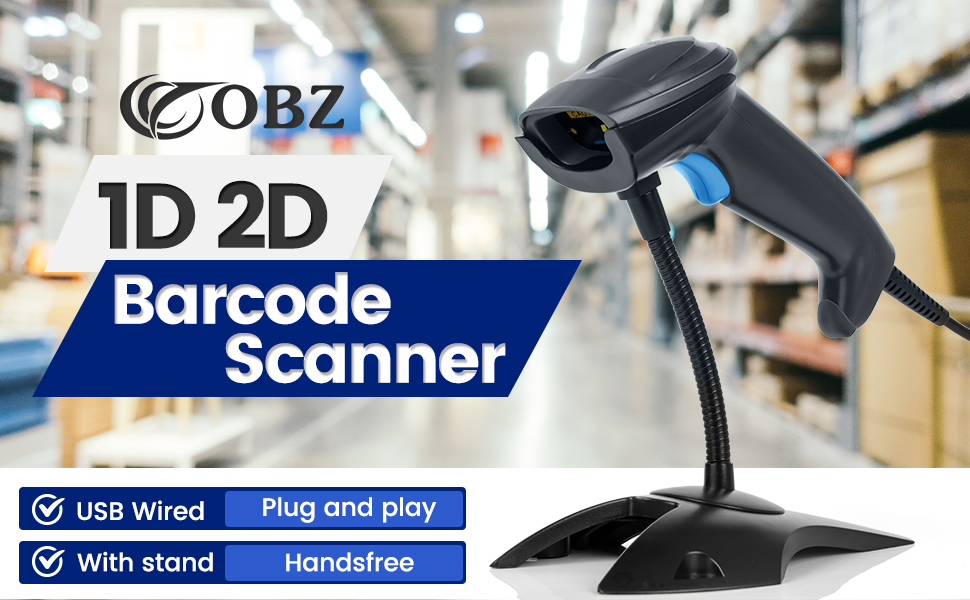
Image: Visual representation of the three scanning modes: Key Trigger, Continuous Scan, and Auto-induction.
3.2 Supported Barcode Types
The OBZ scanner is equipped with an upgraded decoding chip that allows it to accurately interpret a wide range of 1D and 2D barcodes, including those on paper labels and electronic screens.
- 2D Barcodes: QR Code, Micro QR Code, Data Matrix, PDF417, MicroPDF417, Aztec Code, Maxicode, DM Code, Gs1, Gs1 QR Code.
- 1D Barcodes: Code 128, EAN-13, ISBN, ISSN, EAN-8, UPC/EAN 128, UPC-A, UPC-E, UCC, Code 11, Code 32, Code 93, Code 39, Code 39 Full ASCII, Codabar, Interleaved 2 of 5, Industrial 2 of 5, Standard 2 of 5, IATA 2 of 5, Matrix 2 of 5, MSI-Plessey, ITF-14.
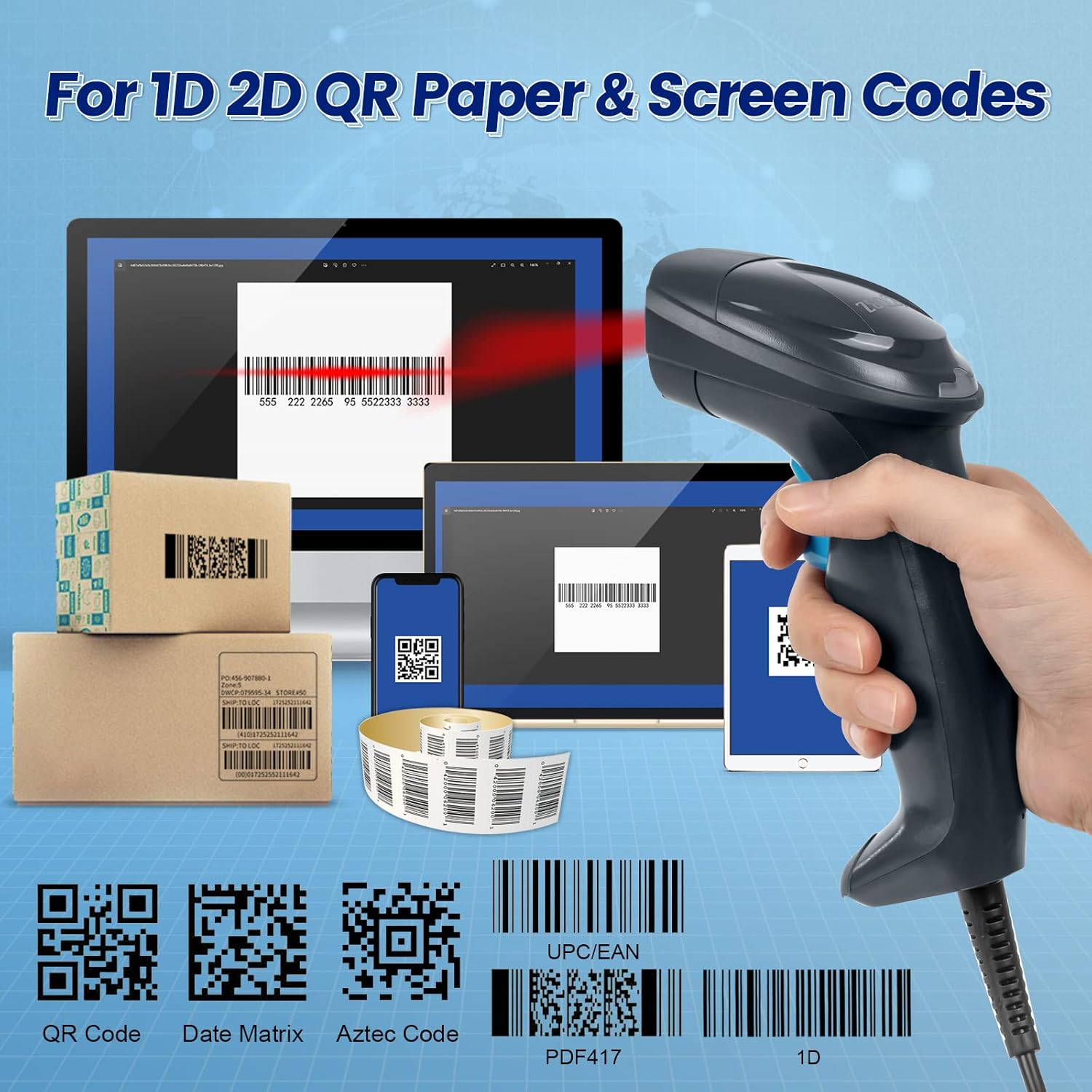
Image: The scanner demonstrating its ability to read various 1D and 2D/QR codes from both paper and digital screens.

Image: Illustration showing the scanner's capability to read barcodes from both physical paper and digital screens.
3.3 Advanced Scanning Features
The scanner is designed to handle challenging barcode conditions, ensuring reliable data capture:
- Supports scanning of damaged, scratched, blurred, reflective, and colorful barcodes.
- Capable of reading reverse barcodes (light bars on a dark background).
- Function settings for adding 2 or 5 extra codes.
- Specifically supports ISBN and ISSN barcodes for library applications.

Image: Examples of special codes the scanner can read, including damaged, scratched, blurred, reflective, and colorful barcodes.

Image: Illustrations of additional function settings, such as reading reverse barcodes and barcodes with extra codes.

Image: The scanner's support for ISBN and ISSN barcodes, useful for library applications.
3.4 Audio Feedback
The scanner provides audible feedback via a buzzer, which can be customized to your preference:
- Volume Settings: High, Low.
- Buzzer Control: ON, OFF.

Image: Icons representing the customizable volume settings for the scanner's buzzer: High, Low, ON, and OFF.
4. Physical Features and Durability
The OBZ Barcode Scanner is built for comfort and resilience in demanding environments.
4.1 Ergonomic Design
The scanner features a specially designed curved handle for a comfortable grip during prolonged use. The buttons are wrapped in silicone for a pleasant tactile feel and extended durability, with a button life exceeding 5 million presses.

Image: Close-up view of the scanner's ergonomically designed handle, highlighting the silicone-wrapped buttons and curved shape for comfort.
4.2 Shock Resistance
The scanner's shell is wrapped in TPU soft rubber, providing excellent drop resistance. Its rugged structure and sealed design allow it to withstand repeated drops from up to 3 meters onto a concrete floor.

Image: An illustration demonstrating the scanner's anti-shock capabilities, showing it withstanding a 3-meter drop.
4.3 Durable Stand
The scanner comes with a durable and strong stand made from aluminum alloy and ABS material, providing stability and allowing for hands-free automatic scanning. The stand is adjustable to any angle.
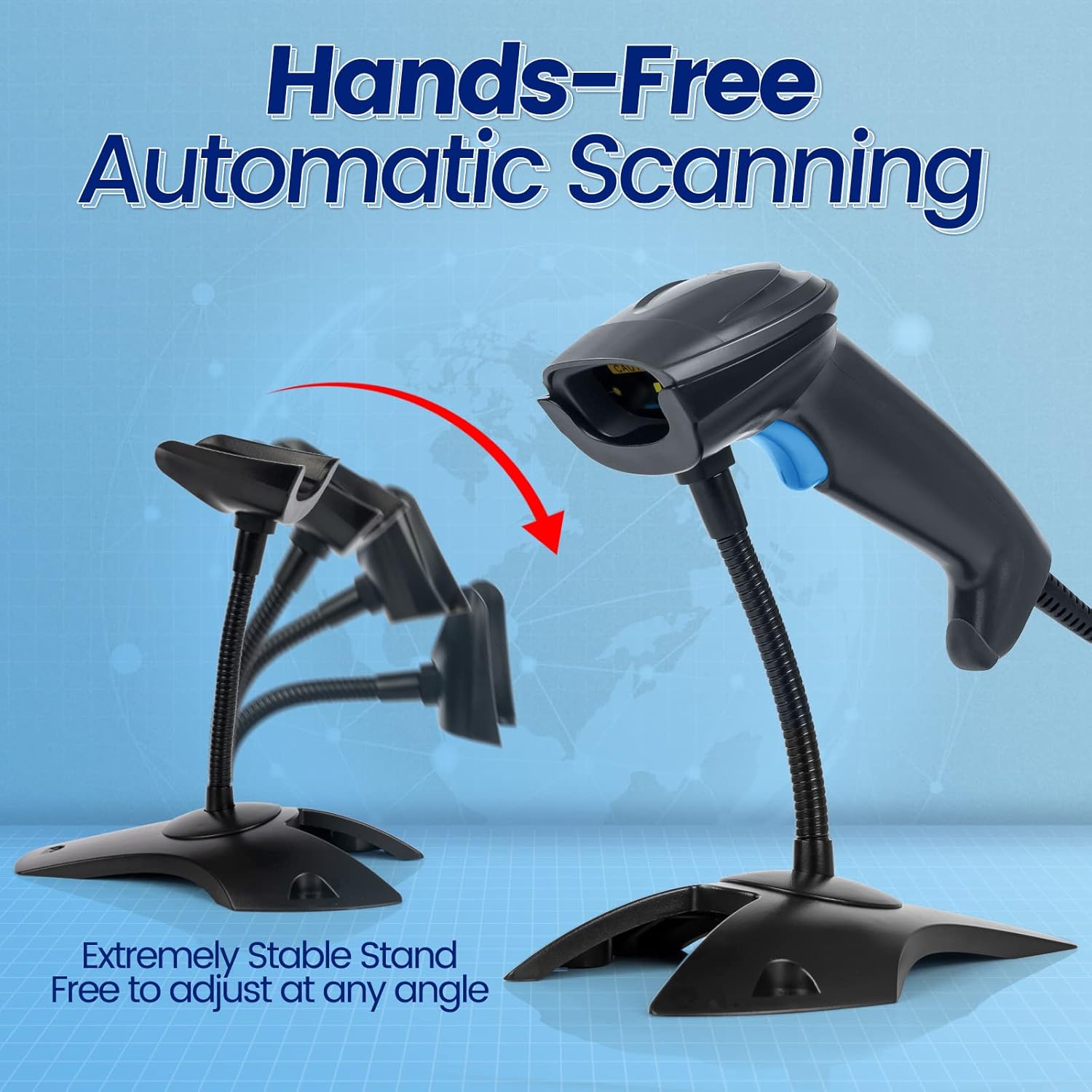
Image: The scanner positioned on its stand, illustrating its hands-free automatic scanning capability and adjustable angle.

Image: A comparison highlighting the stability and durability of the OBZ scanner's aluminum alloy and ABS stand versus a typical ABS stand from other brands.
5. Technical Specifications
| Feature | Specification |
|---|---|
| Package Dimensions | 9.25 x 5 x 3.54 inches |
| Item Weight | 14.4 ounces |
| Manufacturer | OBZ |
| Compatible Devices | Laptop, Desktop, Smartphone |
| Power Source | Corded Electric |
| Connectivity Technology | USB Cable |
| Real Angle of View | 130 Degrees |
6. Troubleshooting
If you encounter issues with your OBZ Barcode Scanner, please review the following common troubleshooting steps:
- No Power/No Scan Light: Ensure the USB cable is securely connected to both the scanner and the computer/POS system. Try a different USB port.
- Scanner Not Recognized: Verify that your operating system (Windows, Mac OS, Linux, Android) is compatible. The scanner is plug-and-play and typically does not require drivers. Restart your computer and try reconnecting.
- Inaccurate/No Scan: Ensure the barcode is clean and not severely damaged. Adjust the distance and angle of the scanner to the barcode. Check if the barcode type is supported by the scanner.
- No Data Output: Confirm that the application you are using (e.g., Word, Excel, POS software) is active and ready to receive input. The scanner acts as a keyboard input device.
- Buzzer Not Working: Check the customizable volume settings (refer to Section 3.4) to ensure the buzzer is turned ON and the volume is set appropriately.
7. Warranty and Support
OBZ is committed to providing high-quality products and customer satisfaction. For any questions, technical assistance, or support regarding your OBZ Barcode Scanner, please contact us through the Amazon platform where you purchased the product. Our professional support team will be happy to assist you.
Related documentsnavy blue 2D Scanner with Stand

Ask a question about this manual
Ask about setup, troubleshooting, compatibility, parts, safety, or missing instructions. Manuals+ will review the question and use this page’s manual context to help answer it.