
OBZ F3
OBZ Hands-Free 1D 2D QR Barcode Scanner F3 User Manual
Model: F3
1. Introduction
Thank you for choosing the OBZ Hands-Free 1D 2D QR Barcode Scanner, Model F3. This device is designed for efficient and accurate scanning of various barcode types, enhancing productivity in retail, inventory management, and other business environments. Please read this manual carefully before use to ensure proper operation and to maximize the scanner's performance.
2. Product Overview
The OBZ F3 is a stationary, omnidirectional barcode scanner featuring automatic sensor detection and CMOS image technology. It supports a wide range of 1D, 2D, and QR codes, including those displayed on electronic screens.

Figure 1: OBZ F3 Hands-Free Barcode Scanner (Front View)
Key Features:
- Hands-Free Operation: Stationary design for convenient and continuous scanning.
- High-Speed & Accurate Scanning: Utilizes CMOS image technology for rapid and precise decoding of 1D, 2D, and QR codes.
- Automatic Sensor: Automatically detects and scans barcodes when presented.
- Wide Compatibility: Supports Windows, Mac OS, Linux, and Android operating systems.
- Plug & Play: No driver installation required; simply connect via USB.
- Versatile Application: Ideal for retail stores, supermarkets, libraries, and various POS systems.
3. Specifications
| Feature | Description |
|---|---|
| Model | F3 |
| Brand | OBZ |
| Connectivity | USB Cable |
| Compatible OS | Windows XP/7/8/10/11, Mac OS, Linux, Android |
| Compatible Devices | POS systems, Desktop PCs, Notebook PCs |
| Scan Technology | CMOS Image Sensor, Automatic Sensor Scan |
| Supported Barcodes | QR Code, Code 128, Code 39, EAN-8, EAN-13, UPC-A, UPC-E0, UPC-E1, ITF, Rakuten Pay, PayPay, LINE Pay, WeChat Pay, Alipay |
| Scan Angle | Pitch ±45°, Rotation ±360°, Skew ±45° |
| Scan Depth (EAN13 13mil 90%) | 0mm-90mm |
| Scan Depth (Code128_19) | 20mm-125mm |
| Scan Depth (WeChat Pay Code) | 0mm-320mm |
| Scan Depth (Alipay Code) | 0mm-36.5mm |
| Dimensions (L x W x H) | 12.7 x 8.9 x 8.5 cm |
| Weight | 280 g (Product package), 160 g (Scanner unit) |
| Cable Length | 1.2 meters |
| Color | Beige |
| Material | ABS+PC |

Figure 2: Product dimensions and material specifications.
4. Setup
- Unpack the Scanner: Carefully remove the scanner from its packaging.
- Remove Protective Film: A protective film may be present on the scan window. For optimal performance, gently peel off this film before use.
- Connect to Host Device: Insert the USB cable into the designated port on the scanner and then into an available USB port on your computer (POS system, desktop, or laptop).

Figure 3: Plug & Play setup with USB cable connection and OS compatibility.
- System Recognition: The scanner is plug-and-play. Your operating system (Windows, Mac OS, Linux, Android) should automatically detect and configure the device without requiring additional driver installation.
- Placement: Position the scanner on a stable, flat surface where barcodes can be easily presented to its scanning window.
5. Operating Instructions
The OBZ F3 scanner operates in an automatic sensor mode, simplifying the scanning process.
- Power On: Once connected via USB, the scanner is powered on and ready for use.
- Present Barcode: Hold the barcode (1D, 2D, or QR) in front of the scanner's window. The scanner will automatically detect the barcode.
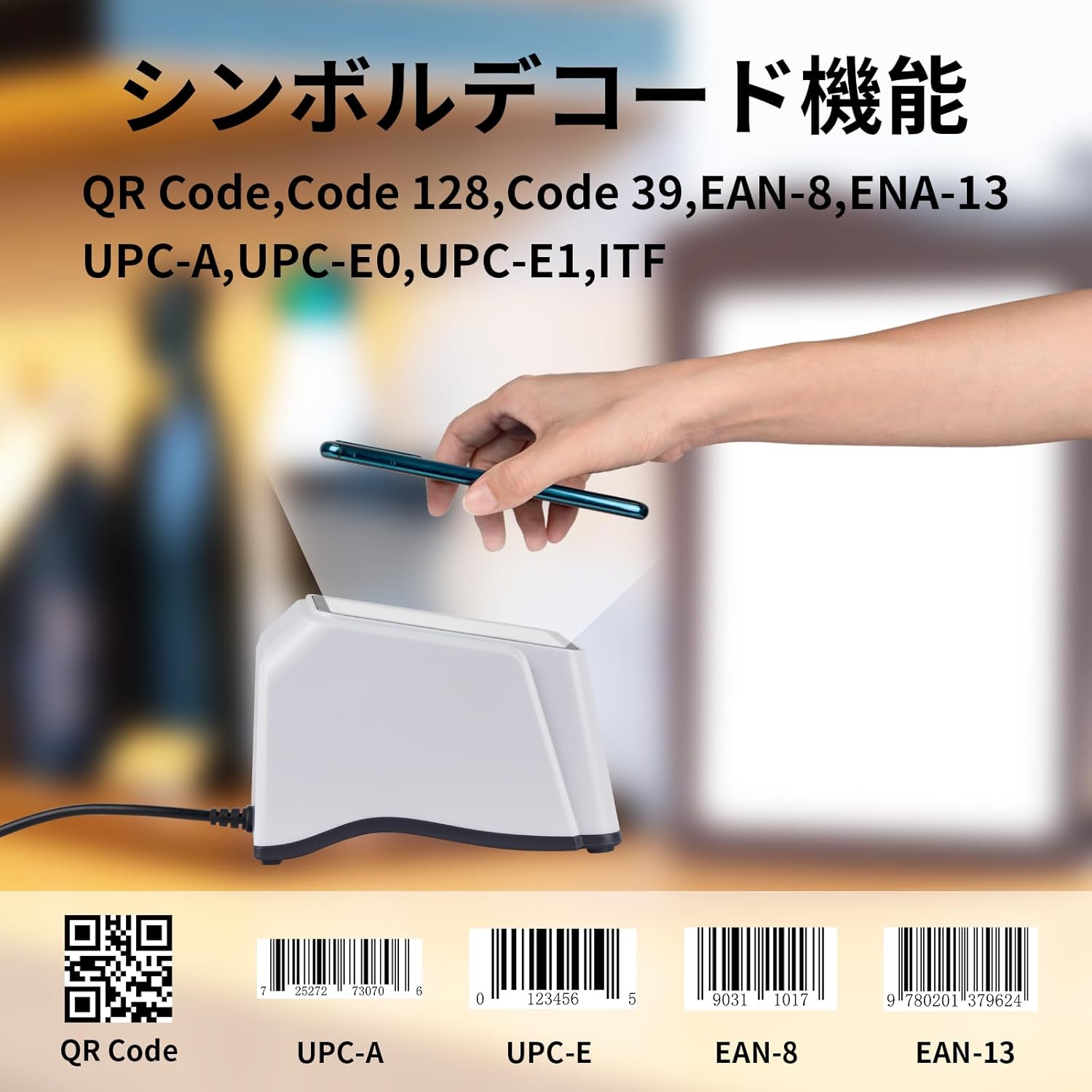
Figure 4: Scanning a QR code from a smartphone screen.
- Successful Scan: Upon a successful scan, the scanner will emit an audible beep, and the data will be transmitted to your connected device as keyboard input.
- Scanning from Screens: The CMOS image technology allows for efficient scanning of barcodes from digital displays such as smartphones and tablets.
Supported Barcode Types:
- 1D Barcodes: Code 128, Code 39, EAN-8, EAN-13, UPC-A, UPC-E0, UPC-E1, ITF.
- 2D Barcodes: QR Code.
- Payment Codes: Rakuten Pay, PayPay, LINE Pay, WeChat Pay, Alipay.
6. Maintenance
- Cleaning the Scan Window: Regularly clean the scan window with a soft, lint-free cloth. For stubborn smudges, a small amount of mild glass cleaner can be applied to the cloth (not directly to the scanner). Ensure the scanner is disconnected from power before cleaning.
- General Cleaning: Wipe the exterior of the scanner with a soft, damp cloth. Avoid using abrasive cleaners or solvents.
- Cable Care: Do not bend or twist the USB cable excessively. Avoid placing heavy objects on the cable.
- Storage: When not in use, store the scanner in a clean, dry environment away from direct sunlight and extreme temperatures.
7. Troubleshooting
| Problem | Possible Cause | Solution |
|---|---|---|
| Scanner does not power on. | USB cable not properly connected or faulty USB port. | Ensure the USB cable is securely connected to both the scanner and the host device. Try a different USB port or a different USB cable if available. |
| Scanner does not read barcodes. |
|
|
| Scanned data is incorrect or garbled (e.g., ':' becomes '+'). | Host device keyboard language setting mismatch. The scanner's default output is English keyboard layout. | Change the keyboard input language on your host device to English. This resolves issues where certain characters (like ':', '=', '@') are incorrectly mapped. |
| No sound after successful scan. | Beeper volume might be set to silent or very low. | Consult the advanced configuration guide (if available) for instructions on adjusting beeper volume. |
8. Warranty and Support
OBZ provides a three-year warranty for this barcode scanner. If you encounter any issues or have questions regarding the product, please contact OBZ customer support. For bulk orders or custom services, please reach out to our sales team.
For further assistance, please visit the OBZ Brand Store.
Ask a question about this manual
Ask about setup, troubleshooting, compatibility, parts, safety, or missing instructions. Manuals+ will review the question and use this page’s manual context to help answer it.