Introduction
This manual provides instructions for the GreenLaw Keyboard Case, designed for iPad 11th Generation (A16, 2025) and iPad 10th Generation (2022). It features a stain-resistant cover, 7-color backlit keyboard, detachable design, touchpad, and pencil holder, aiming to enhance your iPad experience.

Image: The GreenLaw Keyboard Case in blue, shown with an iPad inserted and the keyboard detached, ready for use.
Compatibility
This keyboard case is engineered for the following iPad models:
- iPad 11th Generation (A16) 2025
- iPad 10th Generation 2022 (Model: A2696/A2777/A2757)
Please verify your iPad's model number on the back of the device to ensure compatibility before use.

Image: Visual representation of compatible iPad models, highlighting the 11th and 10th generation iPads.
What's in the Box
Upon opening the package, you should find the following items:
- Keyboard Case
- USB Cable
- User Manual (this document)
Note: The iPad itself is not included in the package.
Product Features
The GreenLaw Keyboard Case offers several features designed to enhance your iPad experience:
- Customizable Backlit Keyboard: Features 7 vibrant backlight colors and 3 adjustable brightness levels for optimal typing in various lighting conditions.
- Effortless Maintenance with Stain-Resistant Case: Constructed with SKIN/semiSi-tech material, the case resists common stains and is easy to clean.
- Dual-Device Connection for Multitasking: Allows seamless switching between your iPad and another Bluetooth-enabled device (e.g., smartphone) using dual Bluetooth channels.
- Precision Touchpad: Integrated smart touchpad supports multi-gesture controls for efficient navigation.
- Convenient Top-Mounted Pencil Holder: Positioned at the top for easy access and storage of your Apple Pencil. A rear opening facilitates easy retrieval.
- Versatile Detachable Design: The keyboard can be magnetically attached or detached, offering flexibility. Adjustable viewing angles (110°, 120°, 130°) provide ergonomic screen positioning.

Image: A visual summary of the keyboard case's key features, including slim design, multiple viewing angles, 7-color backlight, full protection, scissor keys, magnetic detachable keyboard, multi-touch trackpad, upper pen slot, dirt-proof PU leather, scratch-proof, fingerprint-proof, and Type-C charging port.
Setup
1. Charging the Keyboard
Before initial use, ensure the keyboard is fully charged. Connect the provided USB cable to the keyboard's Type-C charging port and a power source.

Image: A close-up of the keyboard's side, showing the Type-C charging port with a charging cable connected.
2. Pairing the Keyboard via Bluetooth
- Turn on the keyboard using the power switch located on the side.
- Press the Fn + C keys simultaneously to enter Bluetooth pairing mode. The Bluetooth indicator light will flash.
- On your iPad, go to Settings > Bluetooth and turn Bluetooth on.
- Select "GreenLaw Keyboard" (or similar name) from the list of available devices.
- Once connected, the Bluetooth indicator light on the keyboard will stop flashing.
For dual-device connection, repeat steps 2-4 for the second device, using Fn + 1 for the first device and Fn + 2 for the second device to switch between them.

Image: A close-up of the keyboard keys, highlighting the 'W' and 'Q' keys which may correspond to BT1 and BT2 for dual-device pairing.
3. Attaching and Detaching the iPad and Keyboard
The keyboard case features magnetic attachments for easy assembly and disassembly. Simply align the iPad with the case and the keyboard with its magnetic strip to secure them.

Image: The keyboard case with an iPad, demonstrating the detachable keyboard and various viewing angles.
Operating Instructions
1. Using the Backlit Keyboard
To control the keyboard backlight:
- Press the Light Bulb key to turn the backlight on/off and cycle through 7 different colors.
- Press the Sun key (often combined with Fn) to adjust the brightness level (3 levels available).

Image: The keyboard case with the backlight illuminated, showcasing the 7-color options and brightness adjustments.
2. Utilizing the Precision Touchpad
The integrated touchpad supports multi-gesture controls for enhanced navigation. Refer to your iPad's settings for specific gesture configurations.

Image: A hand demonstrating multi-touch gestures on the keyboard's touchpad, illustrating its precision control.
3. Switching Between Dual Devices
If you have paired two devices, use the dedicated function keys to switch between them:
- Press Fn + 1 to connect to the first paired device.
- Press Fn + 2 to connect to the second paired device.

Image: An iPad in the keyboard case connected to one device (link 1) and a smartphone connected to another (link 2), illustrating the dual-device connection capability.
4. Adjusting Viewing Angles
The case allows for adjustable viewing angles at 110°, 120°, and 130° to suit your preference for typing or media consumption.

Image: A sequence showing the iPad case being adjusted to different viewing angles.
5. Using the Pencil Holder
The top-mounted pencil holder provides convenient storage for your Apple Pencil. The rear opening allows for easy retrieval.
Note: The iPad 2025 11th Generation (A16) / 2022 10th Generation does not support Apple Pencil magnetic charging through the case.

Image: A close-up of the top edge of the iPad case, showing the integrated slot for an Apple Pencil and how it can be easily accessed.
Maintenance
Cleaning the Stain-Resistant Case
The SKIN/semiSi-tech material of the case is designed to resist stains. For spills like soy sauce, ink, or coffee, simply wipe the surface with a damp cloth. Avoid harsh chemicals or abrasive cleaners.
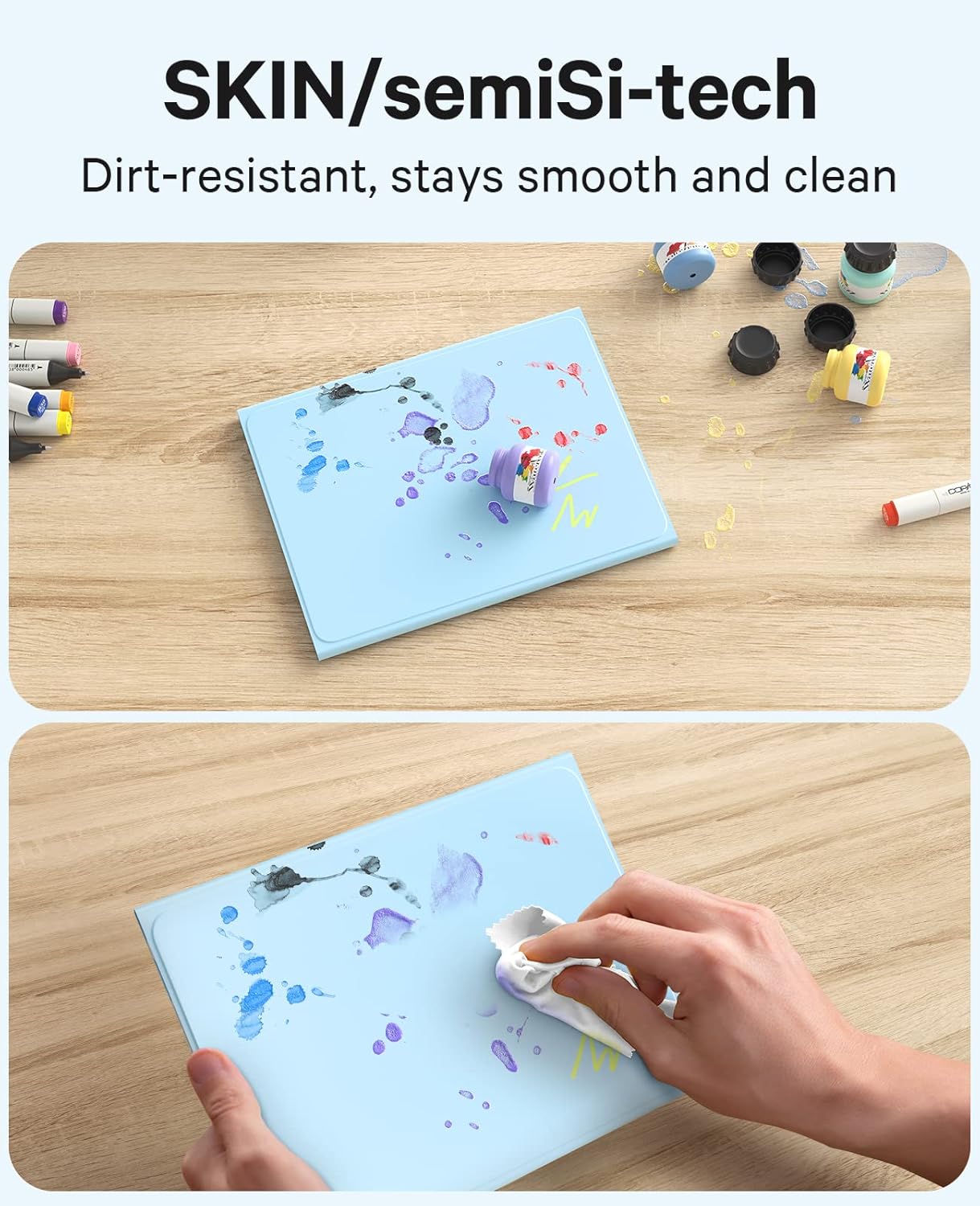
Image: Demonstrates the stain-resistant property of the case, showing a spill being easily wiped away from the blue surface.
General Care
- Keep the keyboard and case away from extreme temperatures and direct sunlight.
- Avoid placing heavy objects on the keyboard to prevent damage.
- When not in use for extended periods, turn off the keyboard to conserve battery life.
Troubleshooting
| Problem | Possible Solution |
|---|---|
| Keyboard not connecting via Bluetooth. |
|
| Backlight not working or changing colors. |
|
| Touchpad not responding. |
|
| Keys are not responding. |
|
Specifications
| Feature | Detail |
|---|---|
| Product Dimensions | 9.84 x 7.09 x 0.79 inches |
| Item Weight | 1.51 pounds |
| Manufacturer | GreenLaw |
| Model Number | Y168 |
| Batteries | 1 Lithium Polymer battery (included) |
| Compatible Devices | iPad 2022 (10th Generation) A2696/A2777/A2757, iPad 2025 (A16) (11th Generation) |
| Connectivity Technology | Bluetooth |
| Keyboard Description | Wireless |
| Special Features | Backlit, Trackpad |
| Keyboard Backlighting | 7 Colors, 3 Brightness Levels |
| Case Material | SKIN/semiSi-tech (Stain-Resistant) |
| Adjustable Viewing Angles | 110°, 120°, 130° |
Warranty and Support
For warranty information or technical support, please contact GreenLaw customer service through their official website or the platform where the product was purchased. Keep your purchase receipt as proof of purchase.
You can visit the GreenLaw Store for more information: GreenLaw Store on Amazon


