
1. Introduction
This manual provides detailed instructions for setting up, operating, maintaining, and troubleshooting your Lefitus Smart Watch. Please read this manual thoroughly before using the device to ensure proper function and longevity.

Image: The Lefitus Smart Watch, showcasing its sleek design with both white silicone and silver mesh band options.
2. What's in the Box
Upon opening the package, verify that all the following items are included:
- 1 x Lefitus Smart Watch (Silver steel strap)
- 1 x Silicone Strap (White)
- 1 x Charging Cable
- 1 x User Manual
- 1 x Bluetooth Call Connection Instruction Card

Image: A visual representation of all items included in the Smart Watch package, such as the watch, straps, charging cable, and manuals.
3. Setup
3.1 Charging the Smart Watch
Before initial use, fully charge your Smart Watch. Connect the magnetic charging cable to the charging points on the back of the watch and plug the USB end into a compatible power adapter (not included) or a computer USB port. A full charge typically takes 2 hours.
3.2 App Installation and Bluetooth Connection
To unlock the full functionality of your Smart Watch, download and connect to the 'FitCloudPro' application.
- Turn on Bluetooth: Enable the Bluetooth function on your mobile phone.
- Download App: Open Google Play Store (for Android) or App Store (for iOS) and search for 'FitCloudPro'. Alternatively, scan the QR code provided in the manual or on the connection card.
- Install and Open: Download and install the 'FitCloudPro' App. Open the application once installed.
- Bind Device: In the App, navigate to 'Device' and select 'Find Device' or 'Add Device'. Choose 'I50' or the corresponding device name to bind your watch.

Image: A visual guide demonstrating the steps to connect the Smart Watch to your smartphone via Bluetooth and the FitCloudPro app. For more information, visit http://fitcloud.hetangsmart.com/qrcode/.
3.3 Enabling Bluetooth Call Function
To enable making and receiving calls directly from your watch, follow these additional steps:
- Activate Call Function on Watch: On your watch, swipe down to access the quick settings menu and tap the 'Call' icon to light it up, indicating it's active.
- Enable Phone Bluetooth: Go to your phone's 'Settings' and ensure Bluetooth is turned on.
- Connect 'Watch Call': In your phone's Bluetooth settings, locate and connect to 'Watch Call'.
- Confirm Connection: Once connected, you can use your watch to answer or make calls anytime.
3.4 Customizing Your Watch Face
Personalize your watch by choosing from a variety of watch faces or setting your own photo.
- The watch includes 4 default dials.
- The FitCloudPro App offers over 200 free dials.
- You can upload your favorite picture or photo through the App to create a custom watch face.

Image: The watch display showing a customized watch face with a personal photo, demonstrating the personalization options available through the app.
4. Operating Instructions
4.1 Basic Navigation
The watch features a 1.3-inch round screen. Swipe gestures and button presses are used for navigation.
4.2 Call and Message Management
With its Bluetooth chipset, the watch allows you to make and receive phone calls directly. You can also receive alerts from SMS and various social media applications.
- Making/Receiving Calls: Once the 'Watch Call' Bluetooth is connected, use the watch's dial pad or contact list to make calls, or answer incoming calls directly on your wrist.
- Notifications: Receive real-time alerts for SMS, Facebook, Twitter, WhatsApp, Skype, Instagram, and other applications. Ensure notification permissions are enabled in the FitCloudPro App.

Image: A smartphone displaying push notification settings alongside the Smart Watch showing an incoming message, illustrating the call and message reminder capabilities.
4.3 Music Control
Control music playback on your connected smartphone directly from your watch.

Image: A visual representation of the music control interface on the Smart Watch, allowing users to play, pause, and skip tracks.
4.4 Camera Control
Use your watch as a remote shutter for your smartphone's camera.

Image: A camera icon overlaid on an image of two people, indicating the watch's ability to remotely control a smartphone camera.
4.5 Sports Modes and Fitness Tracking
The watch supports 20 sports modes and accurately records all-day activities.
- Activity Tracking: Records steps, distance, and calories burned.
- Sports Modes: Includes walking, running, yoga, cycling, basketball, climbing, soccer, and more.
- Data Synchronization: All fitness data can be synchronized to the FitCloudPro App for detailed analysis and goal tracking.

Image: A woman exercising, with the Smart Watch and a smartphone displaying fitness data and various sports mode icons, highlighting the extensive fitness tracking capabilities.
4.6 Health Monitoring
The built-in heart rate sensor and intelligent algorithms provide daily physical health monitoring.
- Heart Rate Monitoring: Continuous heart rate tracking.
- Blood Oxygen Monitoring: Measures blood oxygen levels (SpO2).
- Sleep Quality Monitoring: Tracks sleep patterns and quality.
- Data Review: View all-day measurement records in the FitCloudPro App to understand your physical health trends.

Image: The Smart Watch display showing real-time measurements for heart rate, blood oxygen saturation (SpO2), and blood pressure, indicating its role as a personal health assistant.
4.7 Other Practical Functions
The Smart Watch offers a range of additional features for convenience:
- Find Phone
- Sedentary Reminders
- Alarm Clock
- Stopwatch
- Weather Display
- Flashlight
- Menstrual Cycle Reminders (for women)

Image: The Smart Watch display surrounded by various icons representing its diverse functions, including health tracking, notifications, and utility features.
4.8 AI Voice Assistant
Utilize the integrated AI voice assistant for hands-free control.
- Quickly make calls.
- Play music.
- Ask for weather updates.
- Navigate and other functions by voice command (e.g., "Siri" for iOS).

Image: The Smart Watch and a smartphone illustrating the AI Voice Assistant feature, showing voice commands and responses.
5. Maintenance
5.1 Waterproof Information
The Smart Watch has an IP68 waterproof rating, providing good water resistance for daily life.
- Suitable for hand washing, rain, and brief immersion in shallow water.
- Avoid: Hot water, saunas, diving, or prolonged immersion. The watch is not designed for high-pressure water activities or exposure to steam.
- If the watch gets wet, wipe it dry thoroughly before charging or using buttons.

Image: The Smart Watch with water splashing around it, visually representing its IP68 waterproof capability for daily use.
5.2 Cleaning and Care
- Regularly clean the watch screen and straps with a soft, dry cloth.
- For silicone straps, you can use a damp cloth with mild soap if necessary, then rinse and dry thoroughly.
- Avoid using harsh chemicals or abrasive materials.
5.3 Battery Care
- Charge the watch regularly, even if not in frequent use, to maintain battery health.
- Avoid extreme temperatures, which can affect battery life.
6. Troubleshooting
If you encounter issues with your Smart Watch, refer to the following common solutions:
| Problem | Possible Cause | Solution |
|---|---|---|
| Watch does not turn on or charge. | Low battery; improper charging connection; faulty charger/cable. | Ensure charging cable is securely connected to watch and power source. Try a different USB port or power adapter. Allow watch to charge for at least 30 minutes before attempting to turn on. |
| Bluetooth connection issues. | Bluetooth off on phone/watch; app not running; interference. | Ensure Bluetooth is enabled on both devices. Restart both the watch and phone. Re-open the FitCloudPro App. Forget the device in phone's Bluetooth settings and re-pair. |
| Cannot make/receive calls on watch. | 'Watch Call' Bluetooth not connected; call function not enabled on watch. | Verify 'Watch Call' is connected in your phone's Bluetooth settings. Ensure the 'Call' icon is lit on the watch's quick settings menu. |
| Notifications not appearing. | Notification permissions not granted in app/phone settings. | Check FitCloudPro App notification settings and ensure all desired app notifications are enabled. Verify phone's system notification settings allow the app to send notifications. |
| Inaccurate health data readings. | Watch not worn correctly; excessive movement; sensor obstruction. | Ensure the watch is worn snugly on the wrist, one finger-width above the wrist bone. Keep the sensor clean. Remain still during measurements. Note that these are not medical devices. |
| Watch stopped working after water exposure. | Exposure beyond IP68 rating; prolonged immersion; hot water/steam. | Ensure the watch was not exposed to conditions beyond its IP68 rating. Allow the watch to dry completely. If issues persist, contact customer support. |
7. Specifications
| Feature | Detail |
|---|---|
| Model Number | I50 Silver |
| Product Dimensions | 11 x 0.39 x 1 inches |
| Item Weight | 7.8 ounces |
| Screen Size | 1.32 Inches (390*390 pixel HD TFT screen) |
| Battery Capacity | 270 mAh Lithium Ion |
| Battery Life | Up to 7-10 days (typical use) |
| Charging Time | Approx. 2 hours |
| Connectivity | Bluetooth 5.0 |
| Waterproof Rating | IP68 |
| Operating System Compatibility | Android 4.4 and above, iOS 8.8 and above |
| Special Features | Fitness Tracker, Weather, Sleep Monitor, Messages, Phone, Alarm, Calendar, Pedometer, Camera, Heart Rate Monitor, AI Voice Assistant |
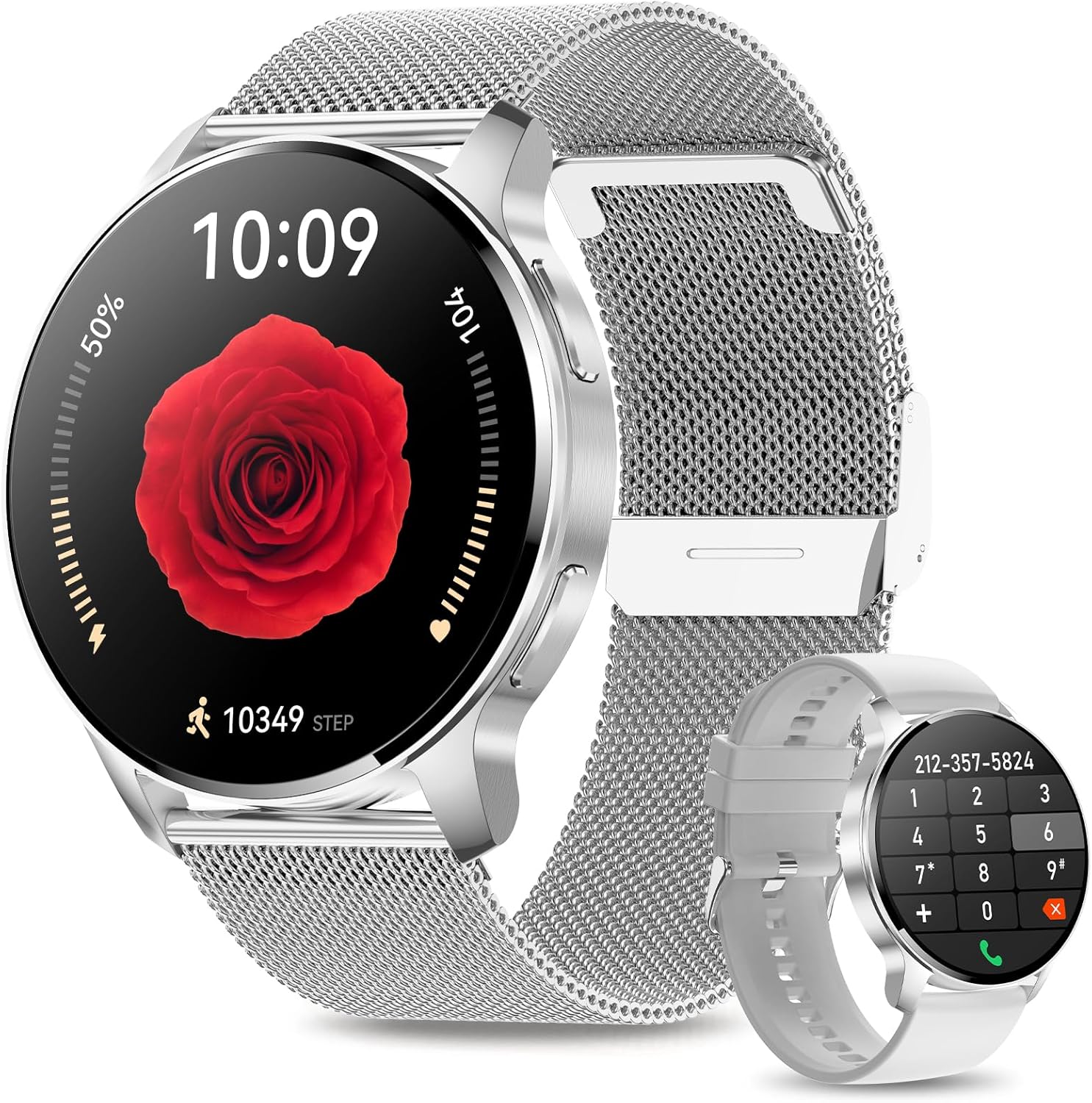
Image: A close-up of the Smart Watch screen highlighting its 1.32-inch TFT display with 390x390 pixel resolution and Always On Display capability.
8. Warranty and Support
Lefitus is committed to providing high-quality products and excellent customer service.
- Warranty: Your Lefitus Smart Watch comes with a 12-month warranty from the date of purchase.
- Customer Service: We offer 24/7 online customer service to assist you with any questions or issues.
- Contact: For support, please refer to the contact information provided in your product packaging or visit the official Lefitus store on Amazon.

Image: An icon representing customer support, accompanied by text indicating commitment to quality, a 12-month warranty, and 24/7 online customer service.
