
1. Introduction
Thank you for purchasing the YunLone Galaxy Aurora LED Night Light Projector. This device combines an aurora and starry sky projection with a Bluetooth speaker, white noise machine, and smart control options to create a relaxing and immersive environment. Please read this manual carefully before use to ensure proper operation and maintenance.
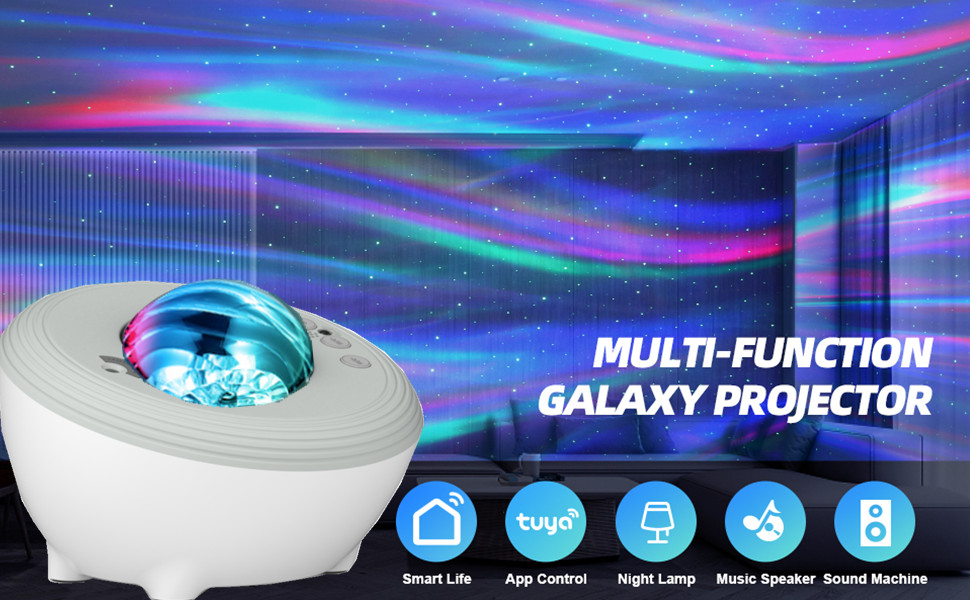
Image 1.1: The YunLone Galaxy Aurora LED Night Light Projector, showcasing its design, remote control, and smartphone application interface.
2. Package Contents
Verify that all items listed below are present in your package:
- 1 x YunLone Galaxy Aurora LED Night Light Projector
- 1 x USB Power Cable
- 1 x Infrared (IR) Remote Control
- 1 x User Manual

Image 2.1: The projector unit and its accompanying infrared remote control.
3. Important Safety Instructions
To prevent damage or injury, please observe the following safety guidelines:
- Do not disassemble or modify the device.
- Keep the device away from water and moisture.
- Avoid direct eye exposure to the laser light.
- Use only the provided USB cable for power.
- Ensure the device is placed on a stable, flat surface.
- Do not cover the ventilation openings during operation.
4. Setup
Follow these steps to set up your projector:
- Placement: Place the projector on a stable surface in your desired room. For optimal projection, ensure there are no obstructions between the projector and the ceiling/walls.
- Power Connection: Connect the USB power cable to the projector and then to a compatible USB power adapter (not included) or a USB port.
- Power On: The projector will power on automatically or can be turned on using the power button on the device or remote control.
- Wi-Fi Connection (Optional): For smart control features, download the companion app (refer to Section 5.3) and follow the in-app instructions to connect the projector to your 2.4GHz Wi-Fi network. 5GHz Wi-Fi is not supported.

Image 4.1: The projector positioned in a room, ready for use.
5. Operating Instructions
5.1. Device Buttons
The projector features several buttons for basic control:
- Power Button: Turns the device on/off.
- Aurora Light Button: Cycles through aurora light modes or turns them off.
- Star Light Button: Turns the star projection on/off.
- Music Button: Controls music playback (play/pause, next track).
- Volume Buttons: Adjusts the volume of the speaker.
5.2. Remote Control
The included IR remote control provides comprehensive control over all functions:
- Power: On/Off.
- Aurora/Star Control: Adjust colors, brightness, and patterns.
- Music Control: Play, pause, skip tracks, adjust volume.
- Timer: Set automatic shut-off (1H, 2H, 4H).
- White Noise: Select from various built-in sounds.

Image 5.2.1: The infrared remote control with various function buttons.
5.3. Smart APP Control
For advanced customization and control, download the "Smart Life" or "Tuya Smart" app from your smartphone's app store. Follow the in-app instructions to pair your projector via Wi-Fi (2.4GHz only). The app allows you to:
- Adjust RGBW colors, saturation, and brightness.
- Control star brightness and flow speed.
- Access 48 pre-set lighting scenes.
- Create custom DIY lighting patterns.
- Set schedules and timers.
- Control music playback and white noise.

Image 5.3.1: Overview of control methods including IR remote, Alexa voice, and the smart app, highlighting scene and DIY options.
5.4. Voice Control (Alexa)
Once connected to the Smart Life/Tuya Smart app and linked with your Amazon Alexa account, you can control the projector using voice commands. Examples include:
- "Alexa, turn on [Device Name]."
- "Alexa, turn off [Device Name]."
- "Alexa, set [Device Name] to blue."
- "Alexa, change [Device Name] to green aurora."

Image 5.4.1: Demonstrating voice control functionality with Amazon Alexa.
5.5. Bluetooth Speaker Function
The projector features a built-in Bluetooth 5.0 speaker. To connect:
- Ensure the projector is powered on.
- Enable Bluetooth on your smartphone or tablet.
- Search for "BT-Speaker" (or similar name) in your device's Bluetooth settings and pair.
- Once connected, you can play audio from your device through the projector's speaker.

Image 5.5.1: The projector's Bluetooth music speaker function, including sound-activated light mode.
5.6. White Noise Machine
The projector includes 8 built-in soothing sounds to aid relaxation and sleep:
- 1 x White Noise
- 4 x Natural Sounds (Thunder, Brook, Water Wave, Summer Night)
- 3 x Lullabies
These sounds can be selected and controlled via the remote control or the smartphone app. Adjust the volume to your preference.

Image 5.6.1: Visual representation of the 8 built-in soothing sounds available on the projector.
6. Light Customization
The projector offers extensive options to customize your lighting experience:
- Brightness Levels: Adjust aurora brightness to 10%, 40%, 70%, or 100%.
- Star Brightness: Control star brightness from 0% to 100%.
- Flow Speed: Set the aurora flow speed to fast, medium, slow, or static.
- Color Options: Choose from monochrome, bicolor, or tricolor RGBW combinations.
- Pre-set Scenes: Select from 48 available lighting scenes via the app.
- DIY Light: Create and save your unique lighting patterns using the app.
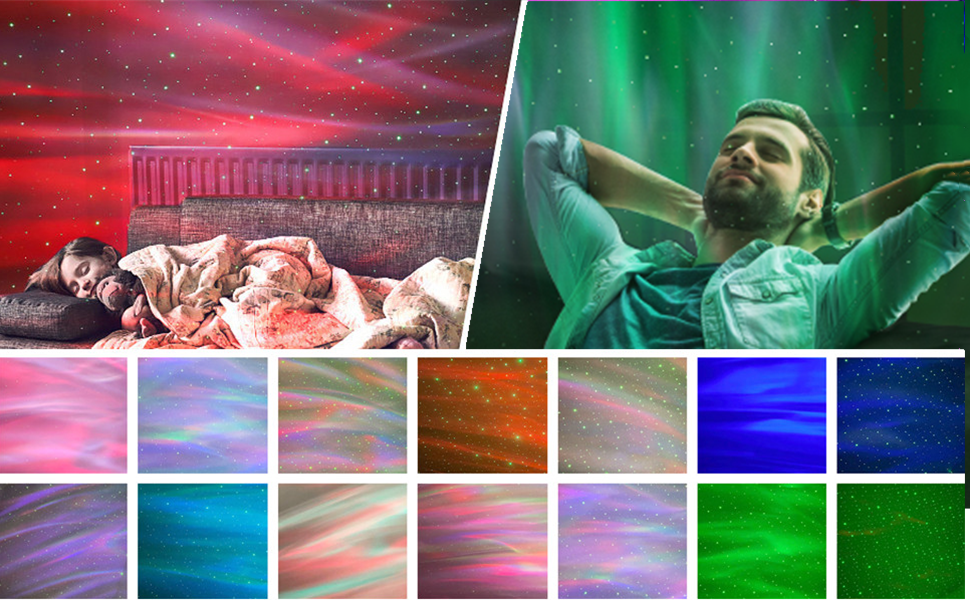
Image 6.1: A selection of multiple color combinations and effects achievable with the projector.
7. Maintenance
To ensure the longevity and optimal performance of your projector:
- Cleaning: Use a soft, dry cloth to wipe the exterior of the projector. Do not use abrasive cleaners or solvents.
- Lens Care: Gently clean the projection lens with a microfiber cloth to avoid scratches and maintain clear projection.
- Storage: When not in use for extended periods, store the projector in a cool, dry place, away from direct sunlight.
8. Troubleshooting
If you encounter issues, refer to the table below for common problems and solutions:
| Problem | Possible Cause | Solution |
|---|---|---|
| Projector does not turn on. | No power or faulty connection. | Check USB cable connection and power source. Ensure the power adapter is functional. |
| Lights are dim or unclear. | Lens is dirty or room is too bright. | Clean the projection lens. Ensure the room is dark for optimal projection. Adjust brightness settings. |
| Bluetooth not connecting. | Bluetooth not enabled on device or projector is not in pairing mode. | Ensure Bluetooth is enabled on your phone/tablet. Restart the projector and try pairing again. Check for "BT-Speaker" in your device list. |
| Wi-Fi connection failed. | Incorrect Wi-Fi band or password. | Ensure you are connecting to a 2.4GHz Wi-Fi network. Double-check your Wi-Fi password. Restart the projector and router. |
| Remote control not working. | Battery depleted or obstruction. | Replace the remote control battery. Ensure there is no obstruction between the remote and the projector's IR receiver. |
9. Specifications
| Feature | Detail |
|---|---|
| Brand | YunLone |
| Model | Galaxy Aurora Projector |
| Dimensions (L x W x H) | 12 x 9 x 8 cm |
| Weight | 510 g |
| Material | Acrylonitrile Butadiene Styrene (ABS) |
| Light Source | 4 LED bulbs |
| Power | 5 Watts |
| Power Source | Electric Cable (USB) |
| Connectivity | Wi-Fi (2.4GHz only), Bluetooth 5.0 |
| Control Methods | Device buttons, IR Remote, Smart APP, Voice Control (Alexa) |
| Special Features | Dimmable, Built-in Bluetooth Speaker, 8 White Noise/Soothing Sounds |
10. Warranty and Support
For warranty information and customer support, please refer to the documentation provided with your purchase or contact the retailer. Keep your proof of purchase for any warranty claims.