
Introduction
This manual provides detailed instructions for the proper setup, operation, and maintenance of your Earto Keyboard Case for iPad Pro 11 and iPad Air 4/5. Please read this manual thoroughly before using the product to ensure optimal performance and longevity.
Product Overview
The Earto Keyboard Case is designed to enhance your iPad experience, offering a magnetic detachable keyboard, a multi-function touchpad, and a backlit keyboard for various working and entertainment needs.
Package Contents:
- Earto Keyboard Case
- USB Type-C Charging Cable
- User Manual (this document)
Compatibility:
This keyboard case is compatible with the following iPad models:
- iPad Pro 11-inch (4th Generation 2022, Models: A2759 / A2435 / A2761 / A2762)
- iPad Pro 11-inch (3rd Generation 2021, Models: A2301 / A2459 / A2460)
- iPad Pro 11-inch (2nd Generation 2020, Models: A2228 / A2068 / A2230 / A2231)
- iPad Pro 11-inch (1st Generation 2018, Models: A1980 / A2013 / A1934)
- iPad Air 10.9-inch (5th Generation 2022, Models: A2588 / A2589 / A2591)
- iPad Air 10.9-inch (4th Generation 2020, Models: A2072 / A2316 / A2324 / A2325)
Please verify your iPad model number before use. The iPad and Apple Pencil are not included with this product.

Image: Earto Keyboard Case with an iPad Pro 11, showcasing the keyboard and stand functionality.
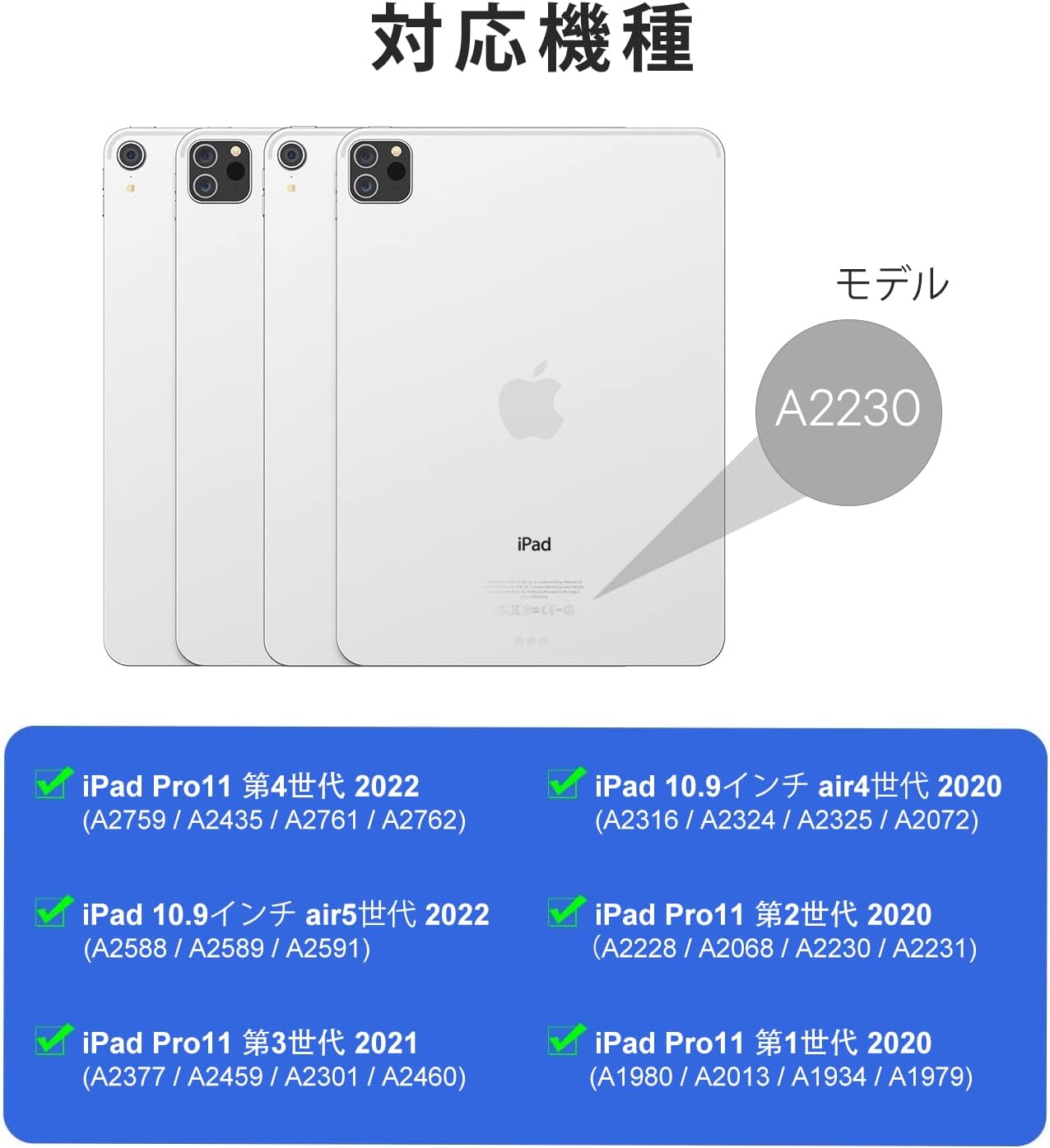
Image: Visual guide illustrating the compatible iPad models and their corresponding model numbers.
Setup
1. Charging the Keyboard
- Locate the Type-C charging port on the side of the keyboard.
- Connect the included USB Type-C cable to the keyboard and a suitable USB power adapter (not included).
- The LED indicator will illuminate during charging. A full charge typically takes approximately 2 hours.
- For optimal battery life, ensure the keyboard is fully charged before its first use.
2. Bluetooth Pairing
- Ensure your iPad's iPadOS is updated to version 13.4 or later for full touchpad functionality.
- Turn on the keyboard using the power switch located near the charging port. The power switch is a small slider.
- On your iPad, go to Settings > Bluetooth and turn Bluetooth on.
- The keyboard will appear as a discoverable device (e.g., "Bluetooth Keyboard"). Tap on it to initiate pairing.
- Once paired, the keyboard's LED indicator will stop flashing, and your iPad will show it as a connected device.

Image: Close-up view of the keyboard's Type-C charging port and power switch.
Operating Instructions
1. Keyboard Functions
The keyboard features a scissor-switch mechanism for a comfortable and responsive typing experience. It includes dedicated iPadOS shortcut keys for quick access to common functions.

Image: A user typing on the Earto Keyboard Case, demonstrating its use for productivity.
2. Touchpad Gestures
The integrated touchpad supports various iPadOS gestures, allowing for precise navigation and control. Refer to your iPad's iPadOS settings for a complete list of supported gestures.

Image: Hands interacting with the multi-function touchpad, highlighting its responsiveness.
3. Backlight Control
The keyboard features a 7-color LED backlight with 3 adjustable brightness levels. Use the dedicated backlight key (often indicated by a light bulb icon) to cycle through colors and adjust brightness to suit your environment.

Image: The keyboard case in a dimly lit setting, showcasing the illuminated keys with a blue backlight.
4. Usage Modes
The magnetic detachable design and adjustable kickstand allow for four versatile usage modes:
- Typing Mode: Use the keyboard and touchpad for productivity tasks.
- Viewing Mode: Detach the keyboard and use the case as a stand for watching videos.
- Drawing Mode: Adjust the stand to a low angle for comfortable drawing or writing with an Apple Pencil.
- Reading Mode: Fold the case back for a comfortable handheld reading experience.

Image: A collage of four images demonstrating the keyboard case in typing, viewing, drawing, and reading modes.
Maintenance
To ensure the longevity and proper functioning of your Earto Keyboard Case, follow these maintenance guidelines:
- Cleaning: Gently wipe the exterior of the case and keyboard with a soft, damp cloth. Avoid abrasive cleaners or solvents.
- Liquid Exposure: This product is not waterproof. Keep it away from water, oil, chemicals, and other organic liquid products to prevent damage.
- Storage: When not in use, store the keyboard case in a dry, cool place, away from direct sunlight and extreme temperatures.
- Battery Care: To maintain battery health, avoid fully discharging the keyboard frequently. Charge it regularly, especially if it will be stored for an extended period.

Image: The keyboard module detached from the iPad case, illustrating its magnetic separation feature.
Troubleshooting
If you encounter issues with your Earto Keyboard Case, refer to the following common solutions:
Keyboard Not Connecting via Bluetooth:
- Check Power: Ensure the keyboard is turned on and has sufficient battery charge.
- Re-pair: On your iPad, forget the keyboard from the Bluetooth device list, then restart both the iPad and the keyboard, and attempt to pair again.
- Proximity: Ensure the keyboard is within close range of your iPad.
- Interference: Move away from other wireless devices that might cause interference.
Keys or Touchpad Not Responding:
- Recharge: The keyboard battery might be low. Charge the keyboard fully.
- Restart: Turn the keyboard off and on again.
- iPadOS Update: Ensure your iPad is running iPadOS 13.4 or later for full touchpad functionality.
Backlight Not Working:
- Check Battery: Ensure the keyboard has enough charge.
- Activate: Press the backlight key to turn it on and cycle through brightness levels/colors.
If these steps do not resolve the issue, please contact Earto customer support for further assistance.
Specifications
| Feature | Specification |
|---|---|
| Brand | Earto |
| Model Number | 370-JP-GY |
| Compatible Devices | iPad Pro 11 (1st-4th Gen), iPad Air 4/5 (10.9-inch) |
| Connectivity Technology | Bluetooth |
| Keyboard Description | Wireless, Scissor-switch |
| Special Features | Rechargeable, Backlit (7 colors, 3 brightness levels), Multi-function Touchpad, Magnetic Detachable, Auto Sleep/Wake |
| Operating System | iOS (iPadOS 13.4 or later recommended) |
| Material | Plastic |
| Included Components | USB Cable |
| Battery Type | 1 Lithium Ion Battery (included) |
| Battery Energy Content | 2.77 Watt Hours |
| Item Weight | 720 g |
| Package Dimensions | 28.3 x 20 x 2.8 cm |
Warranty and Support
For warranty information or technical support, please refer to the documentation included with your purchase or contact Earto customer service directly. Contact details can typically be found on the Earto official website or through your retailer.


