1. Product Overview
The Razer Wolverine V2 Pro is a high-performance wireless gaming controller designed for PlayStation 5 consoles and PC. It is officially licensed by PlayStation and features Razer HyperSpeed Wireless technology for low-latency gaming. This controller incorporates advanced features such as Mecha-Tactile Action Buttons, an 8-Way Microswitch D-Pad, HyperTrigger, 6 remappable buttons, and Chroma RGB lighting, providing a competitive edge and customizable control.

Figure 1.1: Front view of the Razer Wolverine V2 Pro Wireless Gaming Controller, showcasing its design and blue LED lighting.
2. What's in the Box
Upon unboxing your Razer Wolverine V2 Pro, ensure all the following components are present:
- Controller: The main Razer Wolverine V2 Pro unit.
- Interchangeable Thumbstick Caps: Two additional thumbstick caps for customization.
- USB-C Dongle: For HyperSpeed Wireless connection to your console or PC.
- USB Type A to Type C Charging Cable: Used for charging the controller and for wired connection.

Figure 2.1: Included components: the controller, USB-C dongle, and charging cable.
3. Setup Guide
3.1 Initial Connection
- Charge the Controller: Connect the USB Type A to Type C charging cable to the controller and a power source (e.g., console USB port, PC USB port, or a USB wall adapter). Ensure the controller is fully charged before first use for optimal battery life.
- Insert USB-C Dongle: Plug the included USB-C dongle into an available USB Type-A port on your PlayStation 5 console or PC. For best wireless performance, ensure the dongle is placed in a location with minimal interference.
- Power On Controller: Press the PlayStation button on the controller to power it on. The controller should automatically pair with the USB-C dongle. If pairing does not occur automatically, refer to the troubleshooting section.
3.2 Razer Controller App
To customize your controller's settings, including Chroma RGB lighting, button remapping, and deadzone adjustments, download the Razer Controller app for iOS or Android. This application provides a user-friendly interface for advanced configuration.
- Download: Search for "Razer Controller" on the Apple App Store or Google Play Store.
- Connection: Connect your controller to your mobile device via Bluetooth (if supported by the app) or ensure both devices are on the same network for app-based configuration.
4. Operating the Controller
4.1 Key Features
- HyperSpeed Wireless: Utilizes a 2.4GHz wireless connection for ultra-fast, low-latency gaming performance on PS5 and PC.

Figure 4.1: The controller connected wirelessly via the HyperSpeed dongle.
- Mecha-Tactile Action Buttons: Experience quicker button presses and enhanced tactile feedback due to a shorter actuation distance. This design improves speed and consistency in gameplay.
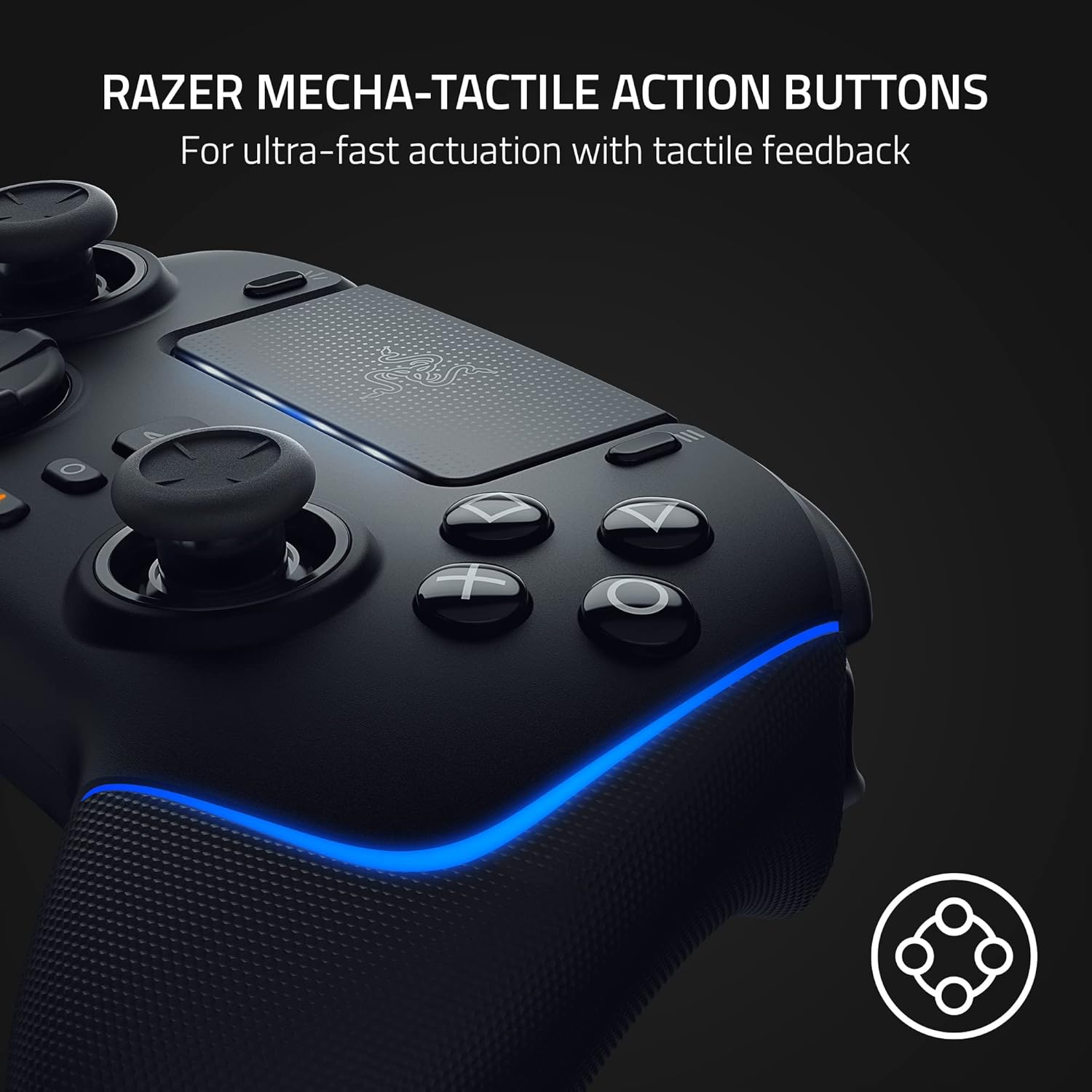
Figure 4.2: Detailed view of the Mecha-Tactile Action Buttons, highlighting their precise design.
- 8-Way Microswitch D-Pad: Each directional press engages a microswitch, providing distinct auditory and tactile feedback. This ensures accurate and intentional movements, particularly beneficial for intricate combos in fighting games.

Figure 4.3: The 8-Way Microswitch D-Pad, designed for precise directional input.
- HyperTrigger: Allows for quick transitions between full-range trigger pulls and lightning-quick clicks, enabling faster execution in games, especially first-person shooters.

Figure 4.4: The HyperTrigger system, showing the adjustable trigger stops.
- 6 Remappable Buttons: Customize your gameplay by mapping 4 additional triggers and 2 custom bumpers to your preferred commands.

Figure 4.5: The underside of the controller, illustrating the placement of the 6 remappable buttons.
- Interchangeable Thumbsticks: Personalize the controller's feel and grip with the included additional thumbstick caps.
- Chroma RGB: Customize the controller's lighting with over 16.8 million colors and various effects via the Razer Controller app.
4.2 Firmware Updates
Regular firmware updates are released to improve controller performance, fine-tune settings, and address potential issues. A significant firmware update has been released to fine-tune default deadzone settings, introduce deadzone customization to the Razer Controller app, and implement improved anti-stick drift calibration. It is recommended to keep your controller's firmware updated for the best experience. Updates are available via rzr.to/WolverineV2ProFirmware.
5. Maintenance
5.1 Cleaning
To maintain the longevity and appearance of your Razer Wolverine V2 Pro controller:
- Use a soft, dry cloth to wipe down the controller regularly.
- For stubborn dirt, slightly dampen the cloth with water or a mild, non-abrasive cleaning solution. Avoid harsh chemicals.
- Do not spray cleaning solutions directly onto the controller.
- Clean around buttons and joysticks carefully to prevent debris buildup.
5.2 Battery Care
The controller is equipped with a Lithium Ion battery. To maximize battery life:
- Avoid fully discharging the battery frequently.
- Store the controller in a cool, dry place when not in use for extended periods.
- If storing for a long time, charge the battery to about 50% before storage.
6. Troubleshooting
This section addresses common issues you might encounter with your Razer Wolverine V2 Pro controller.
| Problem | Possible Cause | Solution |
|---|---|---|
| Controller disconnects frequently or fails to connect wirelessly. | Interference, dongle placement, outdated firmware, or pairing issue. |
|
| Buttons (e.g., D-pad, M5/M6) feel loose or unresponsive. | Physical wear, debris accumulation, or manufacturing defect. |
|
| "Get firmware version failed" error during update. | Connection issue during update, software conflict. |
|
| Stick drift or inaccurate joystick input. | Calibration issue, dust/debris, or wear. |
|
7. Technical Specifications
| Model Number | RZ06-04710100-R3U1 |
| Connectivity | Razer HyperSpeed Wireless (2.4GHz via USB-C Dongle), Wired (USB Type A to Type C) |
| Compatibility | PlayStation 5, PC (Windows) |
| Buttons | Mecha-Tactile Action Buttons, 6 Remappable Buttons (4 triggers, 2 bumpers) |
| D-Pad | 8-Way Microswitch D-Pad |
| Triggers | HyperTrigger (adjustable trigger stops) |
| Thumbsticks | Interchangeable Thumbstick Caps |
| Lighting | Chroma RGB (customizable via Razer Controller app) |
| Battery | 1 Lithium Ion battery (included) |
| Product Dimensions | 6.36 x 4.17 x 2.57 inches |
| Item Weight | 15.2 ounces |
| Release Date | January 31, 2023 |
8. Support and Warranty
8.1 Official User Guides
For detailed instructions and further information, please refer to the official PDF user guides:
8.2 Customer Support
If you encounter issues not covered in this manual or require further assistance, please contact Razer Customer Support. Visit the official Razer website for support contact information, FAQs, and additional resources.
You can also visit the Razer Store on Amazon for product information and related accessories.
8.3 Warranty Information
The Razer Wolverine V2 Pro Wireless Gaming Controller comes with a manufacturer's warranty. Please refer to the warranty card included with your product or visit the official Razer website for detailed warranty terms and conditions, including coverage period and claim procedures. Keep your proof of purchase for warranty claims.
Extended protection plans are also available for purchase:
- 2-Year Protection Plan: $21.99
- 3-Year Protection Plan: $28.99
- Complete Protect (monthly): $16.99/month


