
1. Introduction
This manual provides essential instructions for the safe and efficient operation, maintenance, and troubleshooting of your Cecotec Conga 7490 Immortal Home X-Treme Robot Vacuum Cleaner. Please read this manual thoroughly before using the product and retain it for future reference.
2. Safety Information
Always follow basic safety precautions when using electrical appliances to reduce the risk of fire, electric shock, or injury.
- Do not operate the robot vacuum cleaner in wet environments or near water.
- Ensure the charging base is placed on a flat, stable surface against a wall.
- Keep hair, loose clothing, fingers, and all parts of the body away from openings and moving parts.
- Do not use the robot to pick up large objects, sharp items, or burning/smoking materials.
- Supervise children and pets when the robot is operating.
- Use only the original power adapter and charging base provided by Cecotec.
3. Package Contents
Verify that all components are present in the package:
- Cecotec Conga 7490 Robot Vacuum Cleaner
- Self-emptying Base Station
- Dust Bags for Self-emptying Base (1 pre-installed, 3L capacity)
- Multifunction Brush (main brush)
- Side Brushes (2 units)
- Mop Pads (2 units)
- Power Adapter
- Cleaning Tool

Image: Overview of the Cecotec Conga 7490 robot vacuum cleaner, its self-emptying base, and included accessories such as dust bags, mop pads, and brushes.
4. Product Overview
The Cecotec Conga 7490 Immortal Home X-Treme is a 4-in-1 robot vacuum cleaner designed for sweeping, vacuuming, mopping, and scrubbing. It features advanced laser navigation for efficient mapping and a self-emptying base for convenience.
Robot Components:
- Lidar Sensor: For precise navigation and mapping.
- Control Buttons: Power, Home, and Wi-Fi indicator.
- Dustbin: Located inside the robot for manual emptying or auto-emptying.
- Water Tank: For mopping function.
- Main Brush: Multifunction brush for various floor types.
- Side Brushes: To sweep debris from edges and corners.
- Driving Wheels: For movement across different surfaces.
- Cliff Sensors: To prevent falls.
Self-emptying Base Components:
- Dust Collection Port: Connects to the robot's dustbin for automatic emptying.
- Dust Bag Compartment: Holds the 3L disposable dust bag.
- Charging Contacts: For recharging the robot's battery.
- Power Indicator: Shows the status of the base.
5. Setup
5.1 Unboxing and Initial Preparation
- Remove all packaging materials and protective films from the robot and the self-emptying base.
- Ensure the dust bag is correctly installed in the self-emptying base.
- Attach the side brushes by pressing them onto their respective posts until they click into place.
5.2 Charging Base Placement
Place the self-emptying base against a wall in an open area, ensuring there are no obstacles within 1 meter (3 feet) to the front and 0.5 meters (1.5 feet) to the sides. Plug the power adapter into the base and then into a wall outlet.
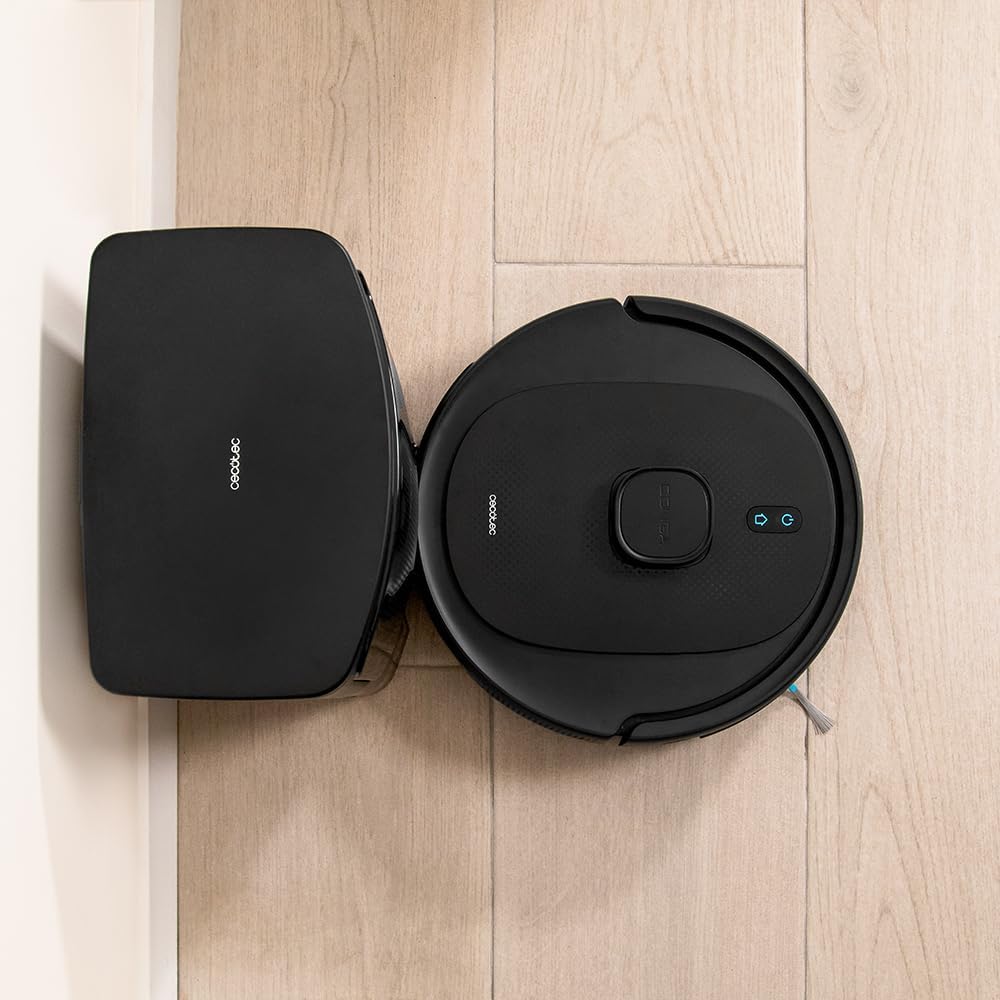
Image: The robot vacuum cleaner is shown docked at its self-emptying base, viewed from above, illustrating proper placement.
5.3 Initial Charging
Place the robot onto the charging base. Ensure the charging contacts on the robot align with those on the base. The robot will automatically begin charging. For first-time use, fully charge the robot for at least 6 hours.
5.4 App Installation and Pairing
- Download the Cecotec App from your smartphone's app store (iOS or Android).
- Register an account and log in.
- Follow the in-app instructions to add your Conga 7490 robot vacuum cleaner. This typically involves connecting the robot to your home Wi-Fi network.
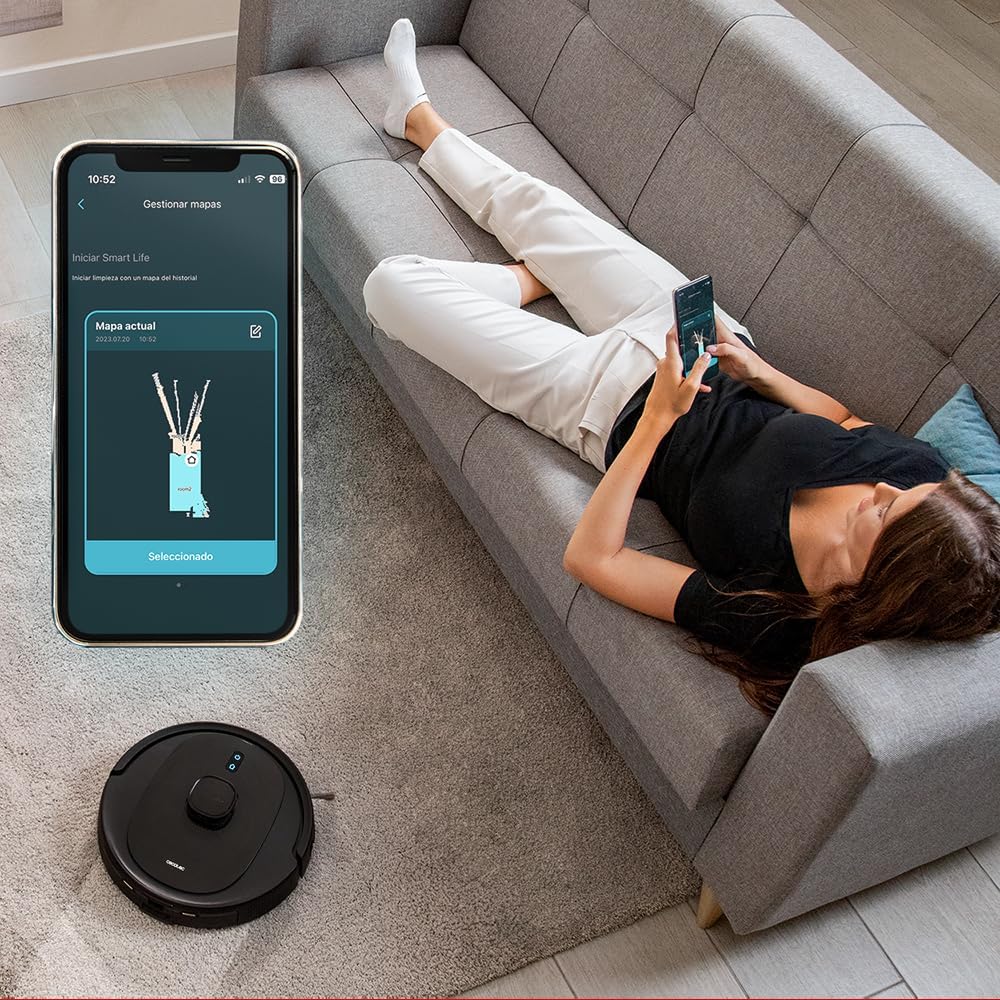
Image: A user interacting with the Cecotec mobile application on a smartphone, displaying the robot's map and control options, with the robot vacuum cleaner visible in the background.
6. Operating Instructions
6.1 Power On/Off
- Power On: Press and hold the Power button on the robot until the indicator lights up.
- Power Off: Press and hold the Power button until the indicator turns off.
6.2 Cleaning Modes
The robot offers 6 cleaning modes, accessible via the app:
- Auto: The robot intelligently cleans the entire area, adapting to different floor types.
- Random: Cleans randomly, suitable for small areas.
- Sweep: Focuses on sweeping along edges.
- Spiral: Cleans a specific spot in a spiral pattern.
- Edges: Cleans along walls and furniture edges.
- Manual: Control the robot's movement manually via the app.

Image: The robot vacuum cleaner is actively cleaning a tiled floor, demonstrating its ability to remove dirt and paw prints.
6.3 Suction and Mopping Levels
Adjust the cleaning intensity through the app:
- Suction Power: Off, Eco, Normal, Turbo (up to 2600 Pa).
- Mopping Level: Off, Low, Medium, High.
6.4 Laser Navigation and Mapping
The robot uses laser technology to create an accurate map of your home, allowing for efficient and systematic cleaning paths. This map is visible in the app.
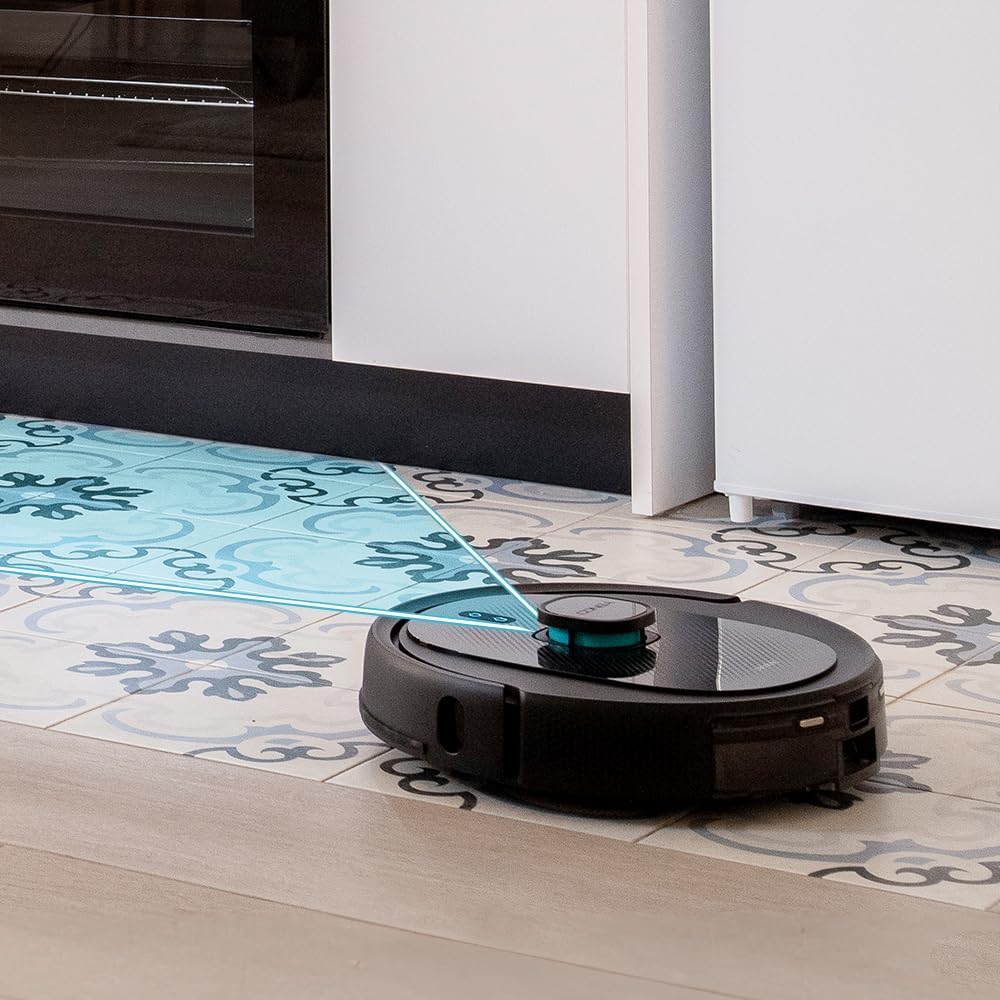
Image: The robot vacuum cleaner is shown on a tiled floor, emitting blue laser lines to map its surroundings and plan its cleaning route.
6.5 Virtual Walls and Restricted Zones
Using the app, you can define virtual walls or restricted zones to prevent the robot from entering specific areas. This is useful for protecting delicate items or areas you don't want cleaned.

Image: The robot vacuum cleaner is shown on a wooden floor, with a red grid indicating a virtual wall or restricted zone, demonstrating its ability to avoid designated areas.
6.6 Scheduling
Set up cleaning schedules through the Cecotec app for automated cleaning at preferred times and days.
6.7 Returning to Charging Base
The robot will automatically return to its charging base when the battery is low or when a cleaning cycle is complete. You can also send it back manually via the app or by pressing the Home button on the robot.
7. Maintenance
Regular maintenance ensures optimal performance and extends the lifespan of your robot vacuum cleaner.
7.1 Emptying the Self-Emptying Base Dust Bag
The 3-liter dust bag in the self-emptying base should be replaced when full. The app will notify you, or you can check the indicator on the base.
- Open the lid of the self-emptying base.
- Carefully remove the full dust bag.
- Dispose of the full bag and insert a new one, ensuring it is properly seated.
- Close the lid securely.

Image: A person is shown opening the lid of the self-emptying base and replacing the disposable dust bag, demonstrating the maintenance process.
7.2 Cleaning the Robot's Dustbin
Even with the self-emptying base, it's recommended to periodically check and clean the robot's internal dustbin and filter.
- Open the robot's top cover and remove the dustbin.
- Empty the contents into a trash bin.
- Clean the filter with the provided cleaning tool or tap it gently to remove dust. Do not wash the HEPA filter with water.
- Rinse the dustbin with water if necessary (ensure it is completely dry before reinserting).
7.3 Cleaning Main Brush
Remove hair and debris tangled around the main brush regularly.
- Flip the robot over and unlatch the main brush cover.
- Remove the main brush and use the cleaning tool to cut and remove tangled hair.
- Reinstall the main brush and cover.
7.4 Cleaning Side Brushes
Remove any tangled hair or debris from the side brushes. If they are worn or damaged, replace them.
7.5 Cleaning Sensors
Wipe the cliff sensors, wall sensors, and charging contacts on both the robot and the base with a clean, dry cloth to ensure proper function.
7.6 Cleaning Water Tank and Mop Pads
After each mopping session:
- Remove the water tank from the robot and empty any remaining water.
- Detach the mop pad and wash it thoroughly. Allow it to air dry completely.
- Clean the water tank and ensure it is dry before storage or refilling.

Image: The robot vacuum cleaner is shown actively mopping a light wooden floor, leaving a visible wet streak behind, indicating its mopping function.
8. Troubleshooting
If you encounter issues with your robot vacuum cleaner, refer to the following common problems and solutions:
| Problem | Possible Cause | Solution |
|---|---|---|
| Robot does not turn on. | Low battery or power issue. | Place the robot on the charging base and ensure it is properly connected. Allow it to charge for several hours. |
| Robot cannot return to charging base. | Base obstructed or too far. | Ensure the charging base is in an open area without obstacles. Clean charging contacts. |
| Poor cleaning performance. | Brushes or filters are dirty/clogged. | Clean the main brush, side brushes, and filters as described in the Maintenance section. |
| Robot gets stuck frequently. | Obstacles or uneven surfaces. | Clear cables, small objects, and thick rugs from the cleaning path. Use virtual walls if needed. |
| App connectivity issues. | Wi-Fi signal weak or incorrect setup. | Ensure the robot is within Wi-Fi range. Re-pair the robot with the app if necessary. Check your router settings. |
9. Specifications
| Feature | Detail |
|---|---|
| Brand | Cecotec |
| Model Name | Conga 7490 |
| Model Number | 08070 |
| Product Dimensions (L x W x H) | 35L x 35W x 10.2H cm (Robot); 44 x 41.5 x 34 cm (Package) |
| Item Weight | 8.6 Kilograms |
| Voltage | 3.65 Volts |
| Battery Type | 1 Lithium-ion (included) |
| Battery Life | Up to 120 minutes |
| Special Feature | Cordless, Laser Navigation, Self-Emptying Base |
| Controller Type | App Control |
| Filter Type | General |
| Surface Recommendation | Carpet, Hard Floors |
| Included Components | Battery, Self-Emptying Base, Dust Bags, Mop Pads, Brushes |
10. Warranty and Support
For warranty information, technical support, or to purchase replacement parts, please refer to the official Cecotec website or contact their customer service directly. Keep your proof of purchase for warranty claims.


