
1. Introduction
The AIYATO Smart Air Tracker Tag is a versatile item finder designed to help you locate your belongings quickly and efficiently. Utilizing both Bluetooth and the Apple Find My network, it offers both nearby and global positioning capabilities. This manual provides detailed instructions on how to set up, operate, and maintain your AIYATO Smart Air Tracker Tags.


2. What's in the Box
Your AIYATO Smart Air Tracker Tag package includes:
- Key Finder (AIYATO Smart Air Tracker Tag)
- User Manual
3. Setup Instructions
Follow these steps to connect your AIYATO Smart Air Tracker Tag with the Apple Find My app:
- Power On: Tear off the protection film from the tag and long press the button on the tag to power it on.
- Open Find My App: On your iOS device, open the Apple Find My application.
- Add New Item: In the Find My app, navigate to the 'Items' tab and tap the '+' icon to add a new item.
- Connect Tag: Select 'Other Supported Items' from the options to connect your AIYATO tag.
- Name Your Tag: Follow the on-screen prompts to name your tag and assign an emoji if desired. Once named, your tag is ready for use.


4. Operating Instructions
4.1. Find Nearby
When your AIYATO tag is within Bluetooth range (approximately 32.8-164 feet), you can use the Apple Find My app to make the tag play a sound. This helps you pinpoint the exact location of your item, even if it's hidden from view.
- Open the Find My app on your iOS device.
- Select the AIYATO tag you wish to locate from the 'Items' tab.
- Tap 'Play Sound' to activate the built-in speaker on your tag.


4.2. Find Far Away (Global Positioning)
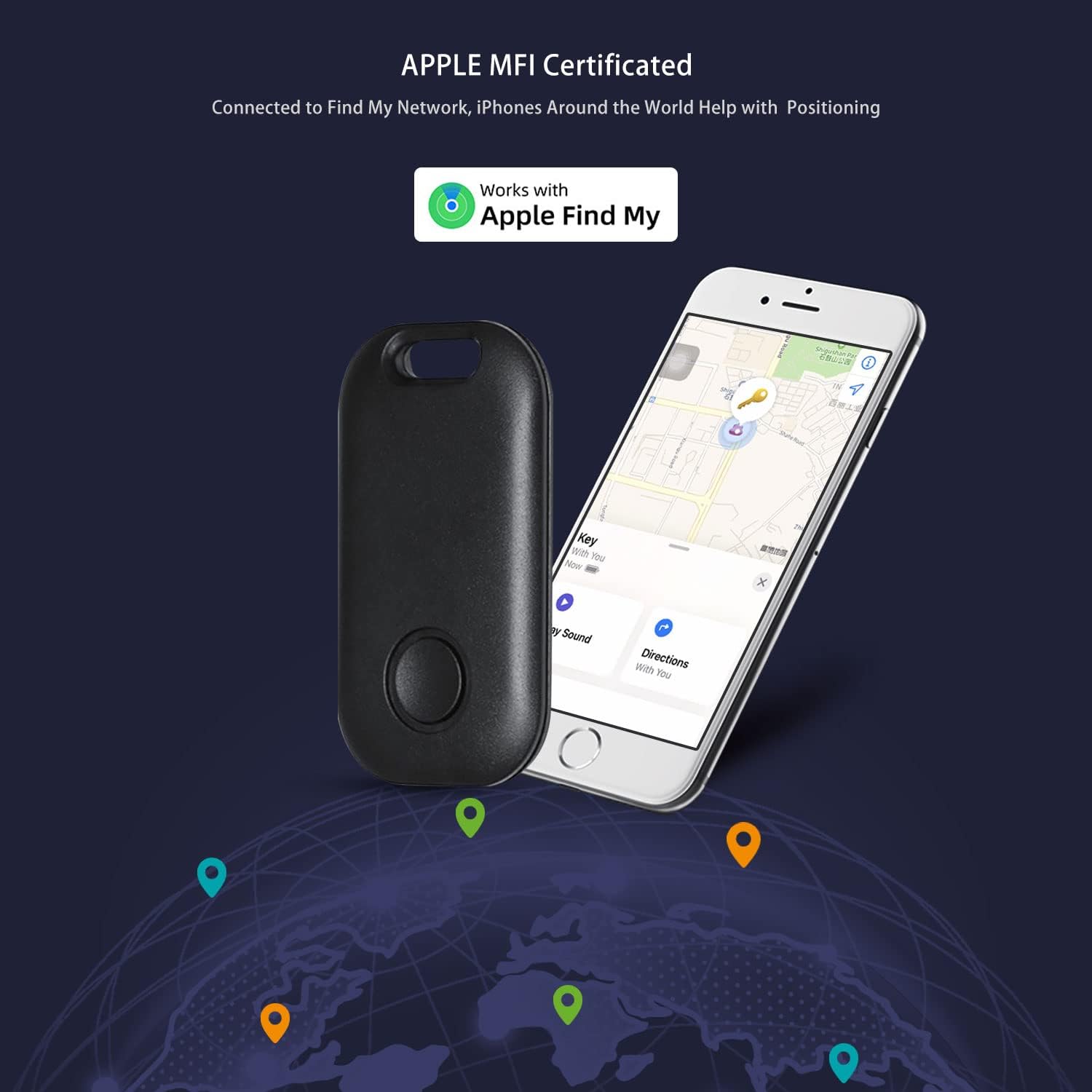
If your item is out of Bluetooth range, the AIYATO tag leverages the vast Apple Find My network. Millions of Apple devices around the world anonymously detect your tag's location and relay it to the Find My app, allowing you to track your item globally.
- Open the Find My app on your iOS device.
- Select the AIYATO tag you are looking for.
- The app will display the last known location of your tag on a map, updated by the Find My network.

4.3. Lost Mode
If your AIYATO tag is lost, you can enable 'Lost Mode' in the Find My app. This feature allows you to display a custom message and contact information to anyone who finds your tag. If someone with an NFC-capable smartphone taps your tag, they will see your contact details and can help return your item.
- In the Find My app, select your lost AIYATO tag.
- Scroll down and enable 'Lost Mode'.
- Enter your contact phone number and a message (e.g., "Please call me if found").
- You will be notified when your tag's location is updated by the Find My network.

4.4. Usage Scenarios
The AIYATO Smart Air Tracker Tag is designed for a wide range of applications, helping you keep track of valuable items:
- Keys: Attach to your house keys, car keys, or office keys.
- Wallets/Purses: Slip into your wallet or attach to your purse/handbag.
- Luggage/Backpacks: Secure to your luggage or backpack for travel or daily commutes.
- Pets: Attach to your pet's collar (ensure it's secure and comfortable for the pet).
- Bicycles: Discreetly attach to your bicycle.
- Other Items: Use for remote controls, cameras, or any other item you frequently misplace.


5. Maintenance
5.1. Battery Replacement
The AIYATO Smart Air Tracker Tag is powered by a replaceable CR2032 cell battery, which offers a life of up to 2 years. When the battery is low, you can easily replace it.
- Locate the battery compartment on the tag.
- Carefully open the compartment (refer to the diagram below for guidance).
- Remove the old CR2032 battery.
- Insert a new CR2032 battery with the positive (+) side facing up.
- Close the battery compartment securely.


6. Troubleshooting
If you encounter issues with your AIYATO Smart Air Tracker Tag, consider the following:
- Compatibility: Ensure your device is an iOS device (iPhone, iPad, iMac) running iOS 14.5 or later. The AIYATO tag is not compatible with Android devices.
- Battery Check: If the tag is unresponsive, check if the battery needs replacement. A low battery can affect performance and connectivity.
- Bluetooth Range: For nearby finding, ensure your iOS device's Bluetooth is enabled and you are within the effective Bluetooth range of the tag.
- Find My Network: For global tracking, ensure your iOS device has an active internet connection to receive location updates from the Find My network.
- Resetting the Tag: If connectivity issues persist, try resetting the tag by removing and reinserting the battery, then attempting to pair it again with the Find My app.
7. Specifications
| Feature | Specification |
|---|---|
| Brand | AIYATO |
| Model | B0BPSNGJ9W |
| Color | Black |
| Material | Acrylonitrile Butadiene Styrene (ABS) |
| Power Source | 1 x CR2032 Battery (included) |
| Average Battery Life | Up to 2 years |
| Item Weight | 3.2 ounces |
| Package Dimensions | 4.53 x 3.35 x 1.93 inches |
| Compatibility | iOS devices (iOS 14.5 or later) - iPhone, iPad, iMac. Not compatible with Android. |
| Positioning | Bluetooth (Nearby), Apple Find My Network (Global) |
8. Warranty and Support
For warranty information and customer support, please refer to the documentation included with your purchase or visit the official AIYATO store on Amazon. You can also access the official User Guide PDF for additional details:
For further assistance, please contact AIYATO customer service through the seller page on Amazon.
