
1. Introduction
This manual provides instructions for the Zunate Flip Phone, Model Zunate9yup64fqng. This 2G unlocked flip phone is designed for ease of use, featuring a large font display, high volume, an SOS button, and an LED flashlight. Please read this manual thoroughly before using your device to ensure proper operation and to maximize its features.
2. Package Contents
Verify that all items are present in the package:
- 1 x Zunate Flip Phone
- 1 x User Manual
- 1 x Charging Cable (Micro USB)
- 1 x PU Leather Case
- 1 x Lithium Polymer Battery (Pre-installed or separate)
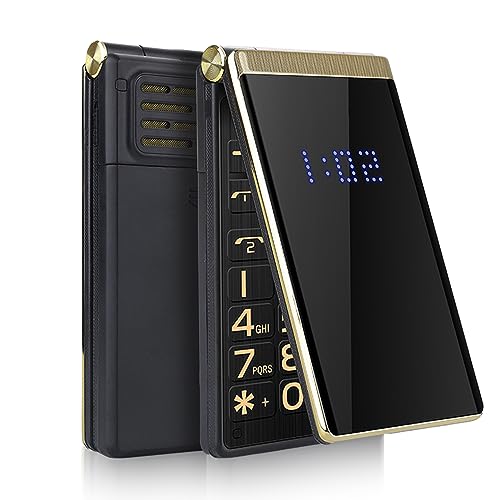
Image: The Zunate Flip Phone, charging cable, and PU leather case.
3. Setup
3.1. Battery Installation and Charging
- Open the back cover of the phone.
- Insert the lithium polymer battery, ensuring the contacts align correctly.
- Replace the back cover.
- Connect the Micro USB charging cable to the phone's charging port and the other end to a power adapter (not included) or a computer USB port.
- Allow the phone to charge fully before first use. The charging indicator will show the battery status.
3.2. SIM Card Installation
This phone supports Dual SIM Dual Standby (Micro SIM cards).
- Power off the phone and remove the back cover and battery.
- Locate the SIM card slots.
- Carefully insert your Micro SIM card(s) into the designated slot(s) with the gold contacts facing down, ensuring they are securely seated.
- Reinsert the battery and back cover.

Image: The phone's back panel showing the dual SIM card slots.
3.3. Powering On/Off
- To power on: Press and hold the Power/End Call button until the screen lights up.
- To power off: Press and hold the Power/End Call button until the power-off options appear, then select 'Power off'.
4. Operating Instructions
4.1. Basic Call Functions
- Making a Call: Enter the phone number using the keypad and press the Call button (green receiver icon).
- Answering a Call: When the phone rings, open the flip cover or press the Call button.
- Ending a Call: Close the flip cover or press the End Call button (red receiver icon).

Image: The phone's dual screen functionality, showing time on the external display and reminders for calls and messages.
4.2. SOS Function
The SOS button allows you to quickly contact pre-set emergency numbers.
- Setting SOS Numbers: Navigate to the SOS settings in the phone menu to add up to 5 emergency contacts.
- Activating SOS: Press and hold the dedicated SOS button on the back of the phone. The phone will automatically dial the emergency contacts in sequence and send an emergency SMS.
4.3. Family Numbers / Speed Dial
Assign frequently called numbers to speed dial keys (2-9) for quick access.
- Setting Speed Dial: Go to 'Contacts' or 'Settings' and find the 'Speed Dial' option. Assign a contact to a number key.
- Using Speed Dial: Press and hold the assigned number key (e.g., '2' for 'Son') to dial the contact directly.

Image: The phone's keypad highlighting the quick dial feature for family numbers.
4.4. LED Flashlight
The phone includes a built-in LED flashlight for convenience.
- Activating Flashlight: Locate the dedicated flashlight switch or button on the side of the phone and slide/press it to turn the flashlight on or off.
4.5. Camera Operation
The phone features a basic camera for capturing photos.
- Accessing Camera: Navigate to the 'Camera' application from the main menu.
- Taking a Photo: Frame your shot and press the central navigation button to capture the image.
4.6. Multimedia Functions
The phone supports MP3, MP4, and FM radio.
- MP3/MP4 Player: Transfer media files to a Micro SD card (up to 32GB, not included) and access them via the 'Multimedia' menu.
- FM Radio: Plug in headphones (not included) to act as an antenna, then access the 'FM Radio' application from the menu.
4.7. Display and Sound Settings
Adjust settings for optimal viewing and listening.
- Large Font: The phone features a large font display by default. You can adjust font size in 'Settings' > 'Display'.
- High Volume: Adjust call and ringtone volume using the side volume buttons or through 'Settings' > 'Profiles' or 'Sound'.
- Voice King: This feature provides voice prompts for menu navigation, call names, and SMS reading. Enable/disable in 'Settings' > 'Voice King'.

Image: The phone's internal screen displaying large characters for improved readability.

Image: The phone illustrating its 'Voice King' function for loud and clear audio feedback.
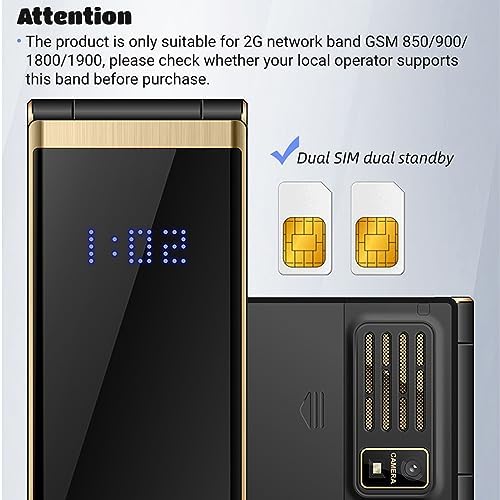
Image: The phone's rear stereo loudspeaker, designed for clear and high-volume audio.
4.8. Other Functions
The phone includes additional utilities:
- Calculator: Basic arithmetic functions.
- Calendar: View dates and set reminders.
- Alarm: Set multiple alarms.
- E-book: Read text files.
- Games: Simple pre-installed games.

Image: An overview of the phone's key features, including flip design, large buttons, and long standby time.
5. Maintenance
- Keep the phone dry. Moisture can damage electronic circuits.
- Do not expose the phone to extreme temperatures.
- Clean the phone with a soft, dry cloth. Avoid using harsh chemicals or cleaning agents.
- Handle the phone with care to prevent drops or impacts.
- Only use approved batteries and charging accessories.
6. Troubleshooting
| Problem | Possible Cause | Solution |
|---|---|---|
| Phone does not power on | Low battery; Battery not installed correctly | Charge the battery; Reinstall the battery correctly. |
| Cannot make/receive calls | No SIM card; SIM card not inserted correctly; Out of network coverage; 2G network not supported by carrier | Insert SIM card; Reinsert SIM card; Move to an area with network coverage; Verify your local operator supports GSM 850/900/1800/1900MHz. |
| Poor call quality | Weak signal; Obstructions | Move to an open area; Avoid using in enclosed spaces. |
| Battery not charging | Faulty charger/cable; Loose connection | Check charger/cable; Ensure secure connection; Try a different charger/cable. |
| SOS function not working | No SOS numbers set; No network signal | Set emergency contacts in SOS settings; Ensure network coverage. |
7. Specifications
- Brand: Zunate
- Model Name: Zunate9yup64fqng
- Item Model Number: Zunate9yup64fqng
- ASIN: B0BPS48TKQ
- Country of Origin: China
- Operating System: KaiOS
- Installed RAM Size: 32 MB
- CPU Model: AMD A4
- Memory Storage Capacity: 32 MB
- Screen Size: 2.8 Inches
- Resolution: 320 x 240
- Max Display Resolution: 320x240
- Display Type: LCD
- Wireless Carrier: Unlocked
- Cellular Technology: 2G (GSM 850/900/1800/1900MHz)
- Wireless Technology: GSM
- Connectivity Technology: USB (Micro USB)
- Color: Gold
- Number of SIM Card Slots: Dual SIM
- Form Factor: Flip
- Human Interface Input: Buttons
- SIM Card Size: Micro
- Water Resistance Level: Not Waterproof
- Headphone Jack: No Headphone Jack
- Product Features: Professional Speaker, SOS Button, Large Font, LED Flashlight
- Rear Camera Sensor Resolution: 2 Megapixels (130W)
- Battery Description: Lithium Polymer
- Battery Capacity: 5900 mAh
- Talk Time: 6 Hours
- Special Product Uses: Elderly Care
8. Warranty & Support
For warranty information and technical support, please refer to the documentation provided at the time of purchase or contact your retailer. Keep your proof of purchase for any warranty claims.