
Logitech M170
Logitech M170 Wireless Mouse User Manual
Model: M170 | Brand: Logitech
1. Introduction
This manual provides comprehensive instructions for setting up, operating, maintaining, and troubleshooting your Logitech M170 Wireless Mouse. Designed for reliability and comfort, this mouse offers seamless connectivity across various operating systems.
2. What's in the Box
- Logitech M170 Wireless Mouse
- USB Receiver
- 1 x AA Battery (pre-installed or included)
- User Documentation (this manual)
3. Setup Instructions
3.1. Battery Installation
The Logitech M170 mouse operates on a single AA battery. The battery is typically pre-installed with a pull tab to prevent discharge during shipping. If not, or for replacement, follow these steps:
- Flip the mouse over.
- Locate the battery compartment cover on the underside of the mouse.
- Slide the cover off to reveal the battery slot.
- Insert one AA battery, ensuring correct polarity (+/-).
- Replace the battery compartment cover.

Figure 1: Underside of the mouse with battery compartment and receiver storage.
3.2. Connecting the USB Receiver
The Logitech M170 uses a plug-and-play USB receiver for wireless connectivity. No software installation is typically required.
- Locate the USB receiver. It is often stored inside the battery compartment of the mouse for convenience during travel.
- Carefully remove the USB receiver from its storage slot.
- Plug the USB receiver into an available USB port on your computer (PC, Mac, Laptop).
- The mouse should automatically connect to your computer within a few seconds.

Figure 2: Logitech M170 mouse in use with its USB receiver.
Video 1: This video demonstrates how to locate and connect the USB receiver for Logitech M170, M185, and M317 mice.
4. Operating Instructions
4.1. Basic Functionality
The M170 mouse features standard left and right-click buttons and a scroll wheel for navigation.
- Left-Click: Primary selection and activation.
- Right-Click: Accesses contextual menus.
- Scroll Wheel: Scrolls vertically through documents and web pages. The scroll wheel also functions as a middle-click button.
4.2. Optical Tracking and Movement
The mouse utilizes optical tracking for smooth and accurate cursor control on most surfaces. Its ambidextrous design ensures comfortable use for both left and right-handed users.
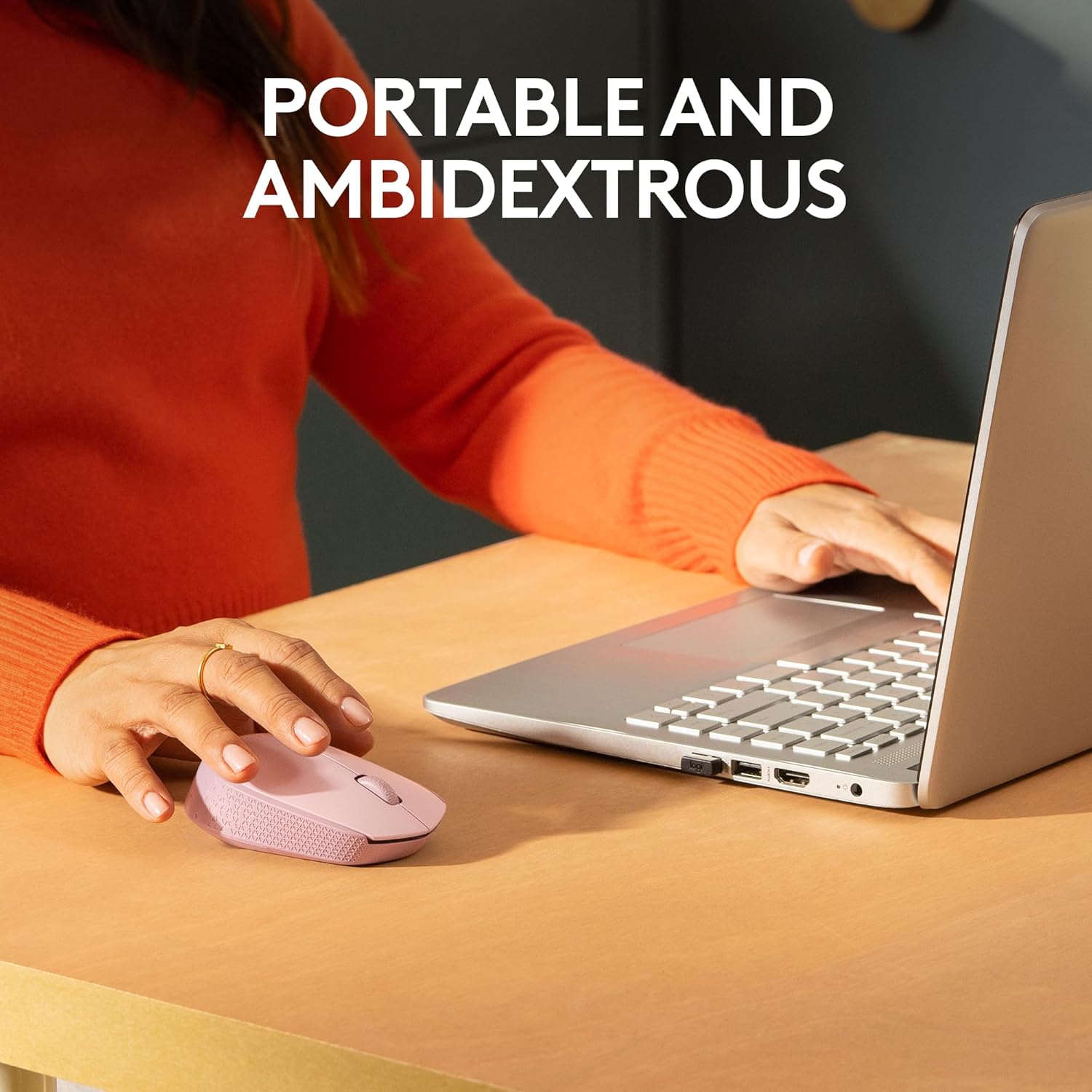
Figure 3: Portable and ambidextrous design for comfortable use.
4.3. Compatibility
The M170 Wireless Mouse is compatible with a wide range of operating systems:
- Windows
- macOS
- Linux
- Chrome OS
- iPadOS
- Android

Figure 4: Multi-platform compatibility of the M170 mouse.
4.4. Wireless Range
The mouse maintains a reliable 2.4 GHz wireless connection up to 10 meters (33 feet) from your computer. Actual wireless range may vary based on use, settings, and environmental conditions.
5. Maintenance
5.1. Battery Replacement
The M170 mouse boasts a 12-month battery life, which may vary based on user and computing conditions. When the mouse stops responding or the cursor becomes erratic, it's likely time to replace the AA battery. Refer to Section 3.1 for battery installation steps.
5.2. Cleaning
To clean your mouse, gently wipe it with a soft, damp cloth. Avoid using harsh chemicals or abrasive materials that could damage the surface or internal components.
6. Troubleshooting
6.1. No Cursor Movement or Response
- Check Battery: Ensure the AA battery is correctly installed and has sufficient charge. Replace if necessary.
- Check USB Receiver: Make sure the USB receiver is securely plugged into a working USB port on your computer. Try a different USB port if available.
- Power Switch: Verify that the mouse's power switch (located on the underside) is in the "ON" position.
- Surface: Ensure you are using the mouse on a suitable surface. Optical mice may not track well on highly reflective or transparent surfaces.
6.2. Intermittent Connectivity
- Distance: Reduce the distance between the mouse and the USB receiver. The optimal range is within 10 meters.
- Interference: Move the mouse and receiver away from other wireless devices or large metal objects that might cause interference.
7. Specifications
| Feature | Detail |
|---|---|
| Brand | Logitech |
| Model Series | M170 |
| Item Model Number | 910-006862 |
| Connectivity Technology | Wireless (2.4 GHz with USB Mini Receiver) |
| Movement Detection Technology | Optical |
| Number of Buttons | 2 (plus scroll wheel) |
| Scroller Type | Scroll Wheel |
| Ergonomic Mouse Fit | Symmetrical (Ambidextrous) |
| Wireless Range | Up to 10 meters (33 feet) |
| Power Source | Battery Powered (1 AA battery) |
| Average Battery Life | 12 months (may vary) |
| Dimensions (LxWxH) | 3.8 x 2.4 x 1.4 inches (97.7 x 61.5 x 35.2 mm) |
| Item Weight | 2.49 ounces (79.5 g with battery) |
| Hardware Platform | Mac, PC |
| Operating System Compatibility | Chrome OS, Linux, Windows, macOS, iPadOS, Android |
| Color | Rose (for this specific variant) |
| Recycled Plastic Content | 38% for Rose and Blue Gray variants |
| Product Carbon Footprint | 4.05 kg CO2e |
8. Warranty and Support
For detailed warranty information, product support, and additional assistance, please visit the official Logitech support page:
Logitech is committed to providing reliable products and customer service. Please refer to the website for the most up-to-date information regarding your M170 Wireless Mouse.
Related documentsM170


Ask a question about this manual
Ask about setup, troubleshooting, compatibility, parts, safety, or missing instructions. Manuals+ will review the question and use this page’s manual context to help answer it.