
AOSHIDA DAC-A26
Gustard A26 Full Balanced DAC User Manual
Model: DAC-A26
Introduction
Thank you for choosing the Gustard A26 Full Balanced DAC. This high-performance Digital-Analog Converter is designed to deliver exceptional audio fidelity, featuring dual AK4499EX DAC chips and advanced streaming capabilities. This manual provides detailed instructions for setting up, operating, and maintaining your A26 DAC to ensure optimal performance and longevity.
Key Features
- High-Quality Chipset: Equipped with two AK4499EX DAC chips and one AK4191 modulator for superior audio conversion.
- Advanced USB Interface: XMOS XU216 supports up to PCM768 (with MQA support) and DSD512. MQA decoding up to 384K.
- Versatile Inputs: Supports USB, Optical, Coaxial, AES, LAN, Clock, and IIS inputs.
- Balanced Outputs: Features both RCA and XLR analog outputs for flexible connectivity.
- Low Noise Design: Utilizes two specific toroidal transformers for isolated digital and analog power supplies, minimizing interference.
- Independent Regulation: Multi-stage independent regulators with bypass capacitors for clean power delivery.
- Parallel Hybrid I/V Converters: Provides accurate and powerful output.
- Streamer/Renderer Functionality: Easy access to high-quality online streams with Roon, UPnP, and HQPlayer NAA support.
- User-Friendly Control: Includes a remote control and touch panel for convenient operation.
Setup Guide
1. Unboxing and Package Contents
Carefully unpack your Gustard A26 DAC and verify all components are present. The package should include:
- 1 x Gustard A26 DAC Unit
- 1 x AC Power Cable
- 1 x USB Cable
- 1 x Remote Control
- 1 x Gustard Card (Warranty/Information)
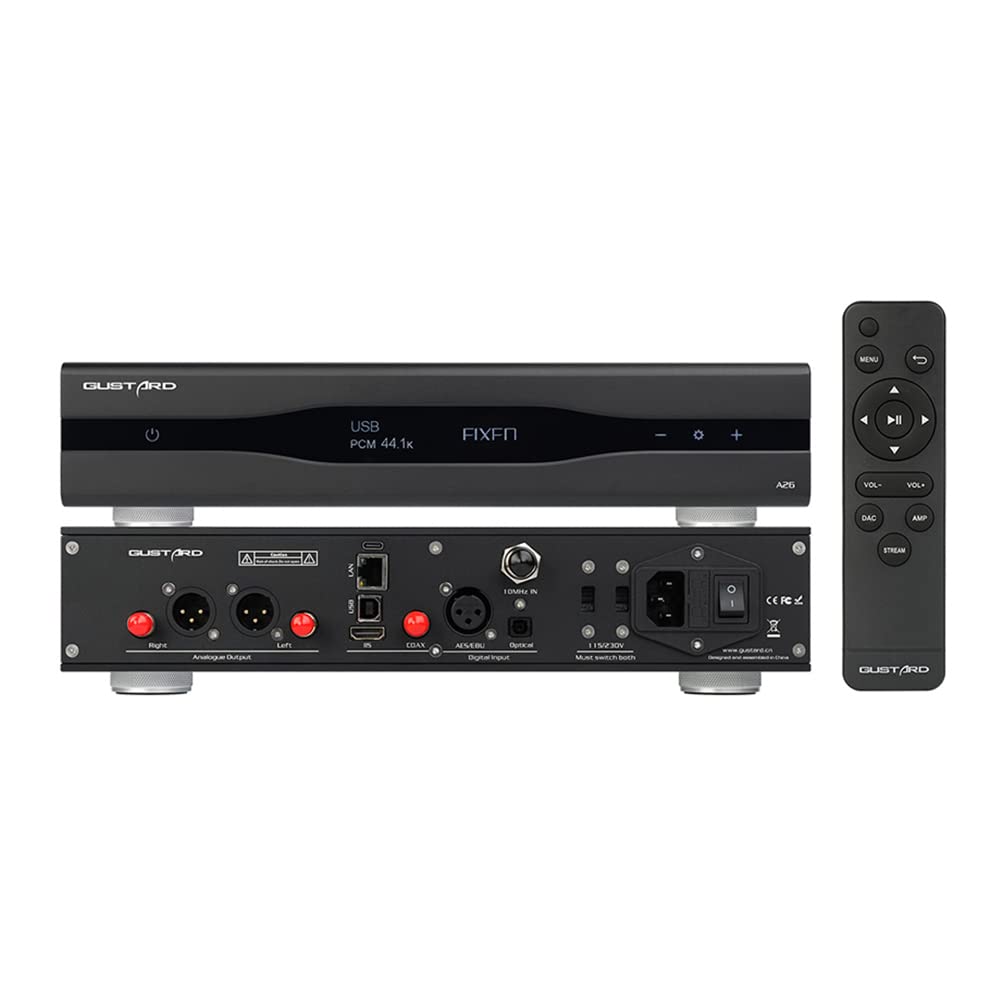
Figure 1: Gustard A26 DAC with included remote control, displaying its front and rear connectivity options.

Figure 2: Angled view of the Gustard A26 DAC, highlighting its sleek design and side ventilation.
2. Connecting Your A26 DAC
The A26 offers a wide range of input and output options. Choose the appropriate connections for your audio system.

Figure 3: Detailed view of the A26's back panel, illustrating all input and output ports including USB, AES, Clock, LAN, IIS, Coaxial, Optical, RCA, and XLR outputs.
Input Connections:
- USB Input: Connect to your computer or digital audio source using the provided USB cable. Supports DSD64-DSD512 and PCM 44.1K-768K, MQA 8X.
- IIS Input (via HDMI): For high-fidelity digital audio transmission. Note: This is not a standard HDMI video port. Do not connect to a video port. Supports DSD64-DSD512 and PCM 44.1K-768K, MQA 8X.
- LAN Input: For network streaming (Roon, UPnP, HQPlayer NAA). Supports DSD64-DSD512 and PCM 44.1K-768K, MQA 8X.
- Coaxial Input: Connect to digital audio sources with a coaxial output. Supports DSD64 (DOP) and PCM 44.1K-192K, MQA 8X.
- AES Input: Connect to professional audio equipment with an AES/EBU output. Supports DSD64 (DOP) and PCM 44.1K-192K, MQA 8X.
- Optical Input: Connect to digital audio sources with an optical (TOSLINK) output. Supports DSD64 (DOP) and PCM 44.1K-192K, MQA 8X.
- 10M Clock Input: For external clock synchronization (50 Ω BNC, 0dBm-20dBm, square wave 0.2-3.3V, sinewave 0.5-3.3V).

Figure 4: IIS (via HDMI) input diagram, detailing pinout and emphasizing it is not for video connection.
Output Connections:
- RCA Output: Standard unbalanced analog output (2.5vrms, 100Ω).
- XLR Output: Balanced analog output (5.0vrms, 100Ω). XLR pinout: 1-Ground, 2-Hot, 3-Cold.
3. Powering On
After connecting all necessary audio cables, connect the supplied AC power cable to the A26 and then to a wall outlet. Use the power switch on the rear panel to turn the unit on. The front display will illuminate.
Operating Instructions
1. Input Selection
Use the input selection buttons on the front panel or the remote control to cycle through the available digital inputs (USB, IIS, LAN, Coaxial, AES, Optical). The selected input will be displayed on the front screen.
2. Volume Control
The A26 provides fixed volume outputs for both RCA (2.5vrms) and XLR (5.0vrms). Volume control should be managed by your connected pre-amplifier or integrated amplifier.
3. MQA and DSD Playback
The A26 supports MQA full decoding and native DSD playback up to DSD512 via USB, IIS, and LAN inputs. For Coaxial, AES, and Optical inputs, DSD64 (DoP) and MQA 8X are supported. Ensure your playback software and source files are configured correctly for optimal performance.
4. Streamer/Renderer Functionality
The LAN input allows the A26 to function as a network streamer/renderer. It supports Roon, UPnP, and HQPlayer NAA protocols. Connect the A26 to your home network via an Ethernet cable. Refer to the specific software documentation (Roon, UPnP client, HQPlayer) for detailed setup instructions to stream audio to your A26.

Figure 5: Internal view showcasing the dual AK4499EX DACs and AK4191 modulator, highlighting the independent power supply and grounding for each channel.

Figure 6: View of the independent regulators and various stages of bypass capacitors, designed to eliminate interference.

Figure 7: Detailed image of the LPF (Low Pass Filter) circuit, specifically designed for the AK4499EX using discrete devices.
Maintenance
To ensure the longevity and optimal performance of your Gustard A26 DAC, follow these maintenance guidelines:
- Cleaning: Use a soft, dry cloth to clean the exterior of the unit. Avoid using liquid cleaners or abrasive materials, as they may damage the finish.
- Ventilation: Ensure the unit has adequate ventilation. Do not block the ventilation slots on the sides or top of the unit.
- Placement: Place the DAC on a stable, level surface away from direct sunlight, heat sources, and excessive moisture.
- Power Cycle: If the unit will not be used for an extended period, it is recommended to unplug it from the power outlet.
Troubleshooting
| Problem | Possible Cause | Solution |
|---|---|---|
| No power | Power cable not connected; Power switch off; Power outlet issue. | Ensure power cable is securely connected. Turn on the rear power switch. Check if the power outlet is functional. |
| No sound output | Incorrect input selected; Cables not connected properly; Connected amplifier/preamp issue. | Verify the correct input is selected on the A26. Check all audio cable connections. Ensure your amplifier/preamp is powered on and set to the correct input. |
| Distorted or noisy audio | Poor cable connection; Ground loop; Source audio quality. | Check all cable connections for looseness. Try isolating the DAC from other components to check for ground loop issues. Ensure the source audio file is not corrupted or low quality. |
| LAN streaming issues (Roon, UPnP) | Network connectivity problem; Software configuration. | Ensure the A26 is properly connected to your network. Verify network settings on your router. Check Roon, UPnP, or HQPlayer NAA software settings for correct device detection and configuration. |
| Remote control not working | Dead batteries; Obstruction between remote and unit. | Replace batteries in the remote control. Ensure there are no obstructions blocking the remote's signal to the A26. |
Specifications
| Feature | Detail |
|---|---|
| DAC Chipset | 2 x AK4499EX, 1 x AK4191 Modulator |
| USB/IIS/LAN Input Support | DSD64-DSD512, PCM 44.1K-768K (16-32bit), MQA 8X |
| COAX/AES/OPT Input Support | DSD64 (DOP), PCM 44.1K-192K (16-24bit), MQA 8X |
| LAN Protocols | Roon, UPnP, HQPlayer NAA |
| 10M Clock Input | 50 Ω BNC, 0dBm-20dBm, square wave 0.2-3.3V, sinewave 0.5-3.3V |
| Frequency Response | 20-20KHZ / ±0.2db |
| Dynamic Range | >127db |
| Signal-to-Noise Ratio | >126db |
| Crosstalk | -139db@1khz |
| THD+N | ≤0.0001%@1kHz |
| MD | ≈0.001%@ -1dbfs |
| RCA Output Level | 2.5vrms (VOLUME FIXED), 100Ω |
| XLR Output Level | 5.0vrms (VOLUME FIXED), 100Ω |
| Power Supply | AC115V 50/60Hz (Voltage switching available) |
| Power Consumption | <30W |
| Dimensions (WxLxH) | 330x260x65mm (protrusion not included) |
| Weight | 7kg (with package) |
| Case Material | Sandblasted aluminum alloy (Black/Silver) |
Warranty and Support
For warranty information and technical support, please refer to the Gustard card included in your package or visit the official AOSHIDA Audio website. You may also contact the seller, Aoshida Audio-US, directly through your Amazon order details for assistance.
For additional resources, you can refer to the official User Guide PDF provided by the manufacturer: Gustard A26 User Guide (PDF).
Related documentsDAC-A26


Ask a question about this manual
Ask about setup, troubleshooting, compatibility, parts, safety, or missing instructions. Manuals+ will review the question and use this page’s manual context to help answer it.