
1. Introduction
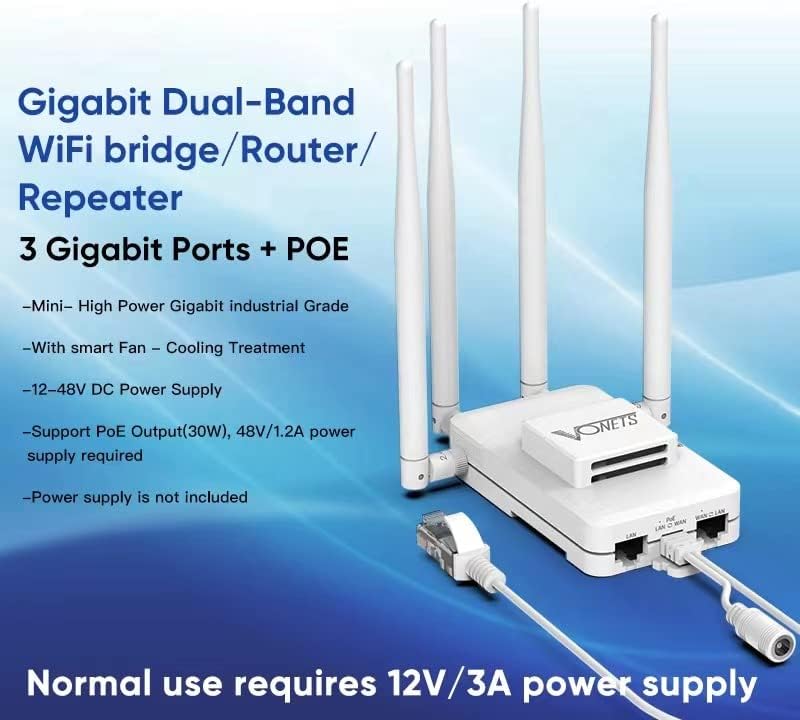
The VONETS VAR1200-H is an industrial-grade Gigabit Dual Band WiFi Bridge/Router designed for robust and versatile network applications. This device supports multiple operating modes including WiFi Bridge, Repeater, and Access Point, offering flexible solutions for extending network coverage and converting wireless to wired connections. It features an intelligent cooling fan, multiple power supply options (DC and PoE), and three Gigabit RJ45 ports, making it suitable for demanding industrial and commercial environments.
2. Product Overview and Features
The VAR1200-H combines high performance with industrial reliability. Key features include:
- Gigabit Dual-band WiFi: Supports 300Mbps (2.4GHz) and 900Mbps (5GHz) for a total of 1200Mbps, ensuring high-speed data transmission.
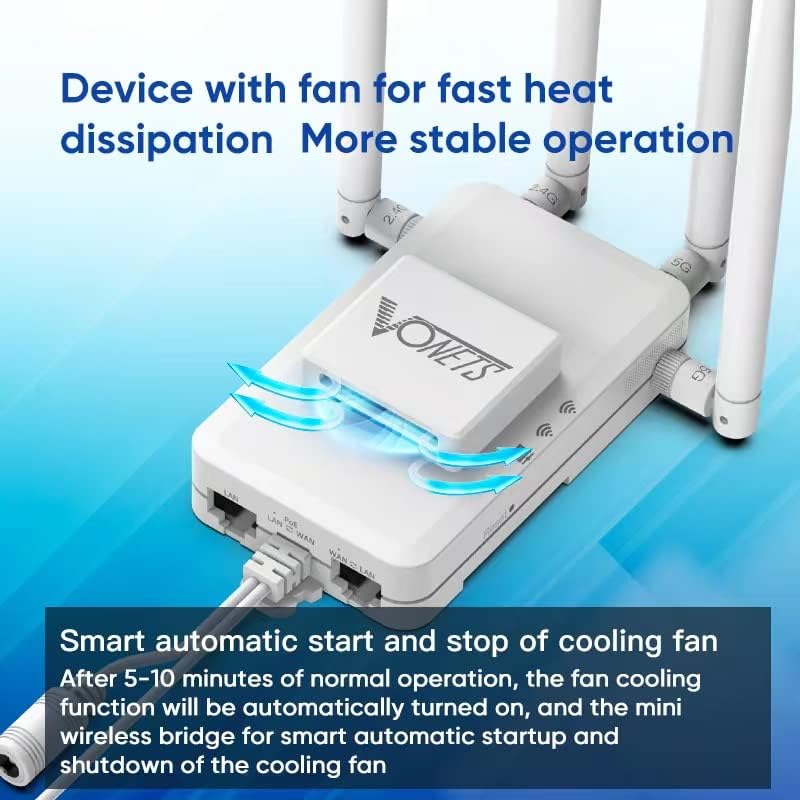
- Intelligent Cooling Fan: Equipped with a smart automatic start/stop cooling fan that activates after 5-10 minutes of normal operation to maintain stable performance and prevent overheating.
- Flexible Power Supply: Supports wide voltage DC12V-48V input and PoE Output (30W), requiring a 48V/1.2A power supply for PoE functionality. A minimum 12V/3A power supply is required for normal operation.
- Multiple Network Ports: Features three Gigabit RJ45 network ports for reliable wired connections.
- Versatile Application Modes: Functions as a WiFi Gigabit Bridge, WiFi Gigabit Repeater, or WiFi Gigabit Access Point.
- Industrial Grade Design: Built for industrial equipment applications, compatible with devices such as monitoring systems, electronic scales, DVRs, IP cameras, medical devices, and industrial PLCs.
3. Accessories
The VAR1200-H comes with standard accessories and supports optional accessories for enhanced functionality.
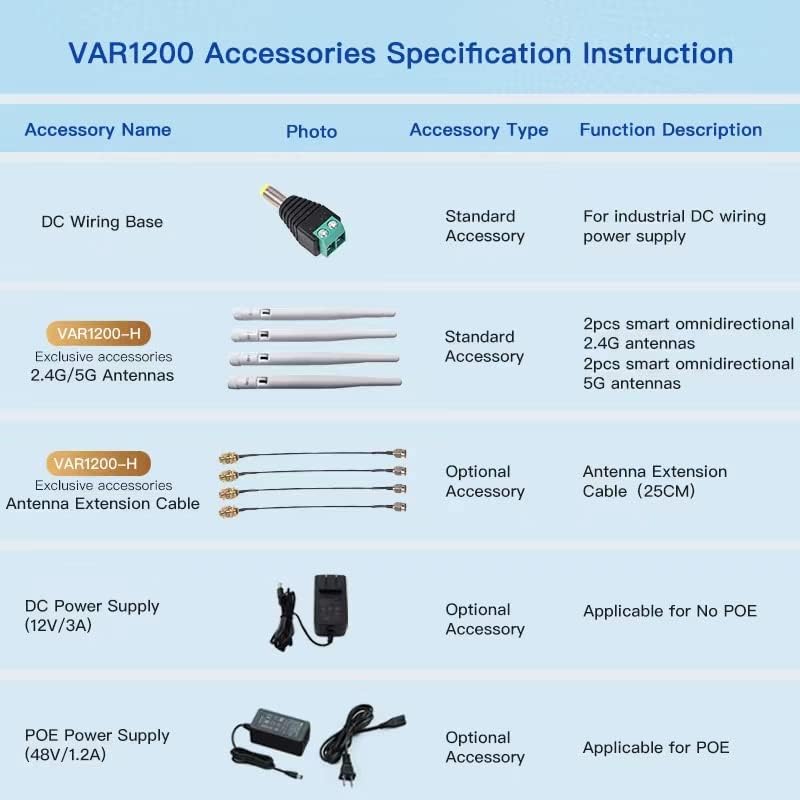
| Accessory Name | Accessory Type | Function Description |
|---|---|---|
| DC Wiring Base | Standard Accessory | For industrial DC wiring power supply |
| 2.4G/5G Antennas | Standard Accessory | 2pcs smart omnidirectional 2.4G antennas, 2pcs smart omnidirectional 5G antennas |
| Antenna Extension Cable (25CM) | Optional Accessory | For extending antenna reach |
| DC Power Supply (12V/3A) | Optional Accessory | Applicable for non-PoE setups |
| POE Power Supply (48V/1.2A) | Optional Accessory | Applicable for PoE setups |
4. Setup
Follow these steps to set up your VAR1200-H device:
- Connect Antennas: Screw the provided 2.4G and 5G antennas onto their respective ports on the device.
- Power Connection:
- DC Power: Connect a DC power supply (12V-48V, minimum 12V/3A) to the DC input port or use the industrial DC wiring base.
- PoE Power: If using PoE, connect a 48V/1.2A PoE power supply to the designated PoE port. This also allows PoE output (30W) to power other devices.
- Network Connection: Connect an Ethernet cable from your existing network (router/switch) to one of the Gigabit RJ45 ports on the VAR1200-H.
- Initial Configuration: Access the device's web-based management interface via a web browser on a computer connected to the VAR1200-H (either wirelessly or via another Ethernet port). Refer to the device's default IP address and login credentials provided in the quick start guide or on the device label.

5. Operating Modes
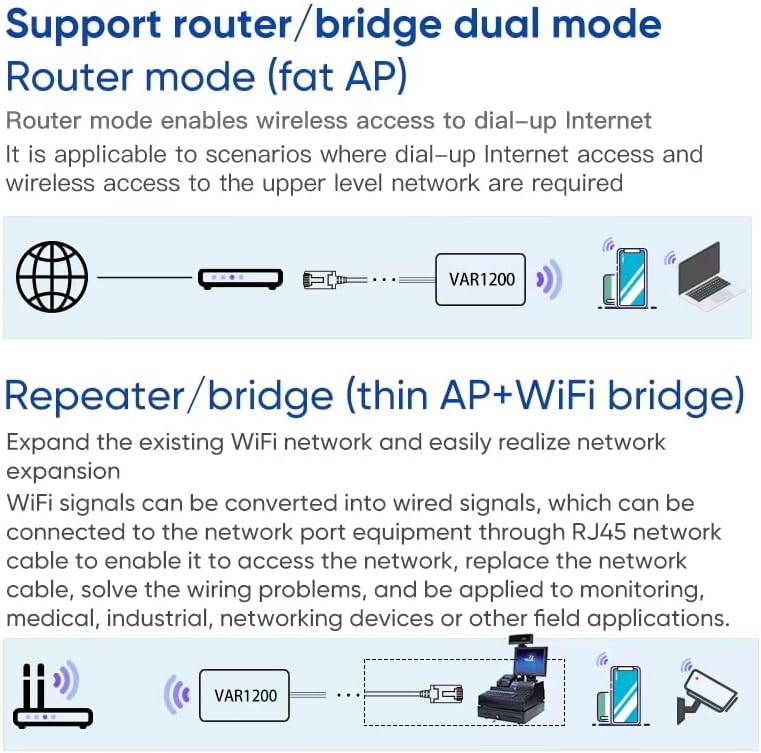
The VAR1200-H supports three primary operating modes, configurable via its web interface:
5.1. WiFi Gigabit Bridge (Client Mode)
In Bridge mode, the device converts a wireless signal into a wired Ethernet connection. This is ideal for connecting wired-only devices (e.g., DVRs, IP cameras, industrial PLCs, printers) to a wireless network without running long Ethernet cables. It acts as a client to an existing WiFi network.
5.2. WiFi Gigabit Repeater (Extender Mode)
As a Repeater, the VAR1200-H extends the range of an existing WiFi network. It receives the wireless signal from your main router and re-broadcasts it, effectively expanding your WiFi coverage to areas with weak or no signal. This mode helps improve signal strength and transmission distance.
5.3. WiFi Gigabit Access Point (AP Mode)
In Access Point mode, the VAR1200-H creates a new wireless network from a wired Ethernet connection. This is useful for providing WiFi connectivity in areas where only a wired network is available, allowing other wireless devices to connect to the internet.


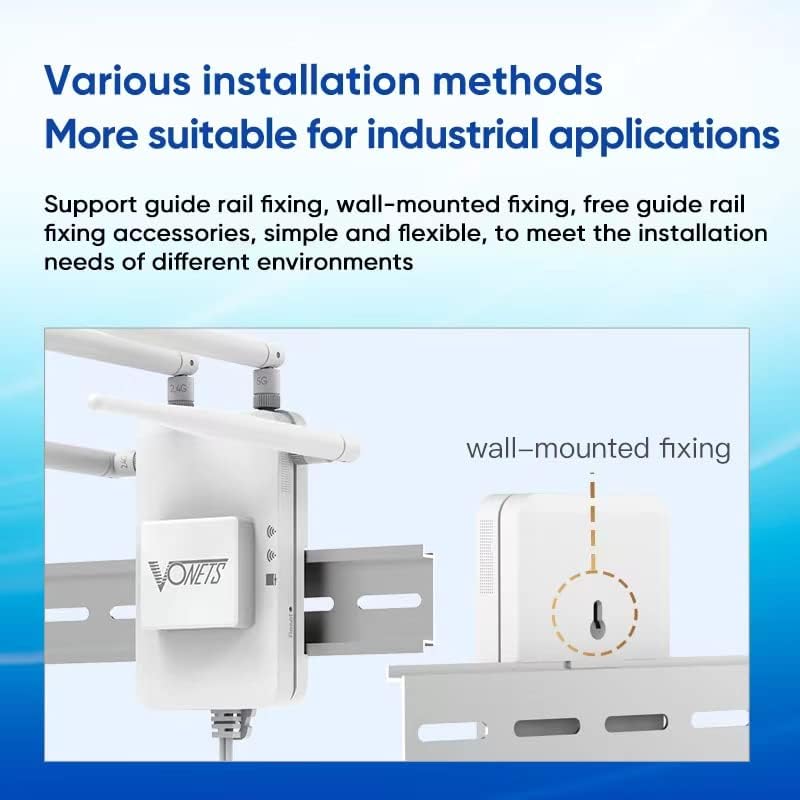
6. Installation Methods
The VAR1200-H offers flexible installation options to suit various environments:
- Guide Rail Fixing: The device supports mounting on standard guide rails, commonly found in industrial control cabinets.
- Wall-Mounted Fixing: Utilize the built-in hook and installation kit for secure wall mounting.
- Free Placement: For temporary setups or specific scenarios, the device can be placed on a flat surface.
Ensure the device is placed in an optimal location for signal reception and heat dissipation. Avoid placing it too close to the main router (can cause signal overlap) or too far (weak signal). A distance of 10-40 feet from the main router is often recommended for repeater mode.
7. Specifications
Detailed technical specifications for the VONETS VAR1200-H:
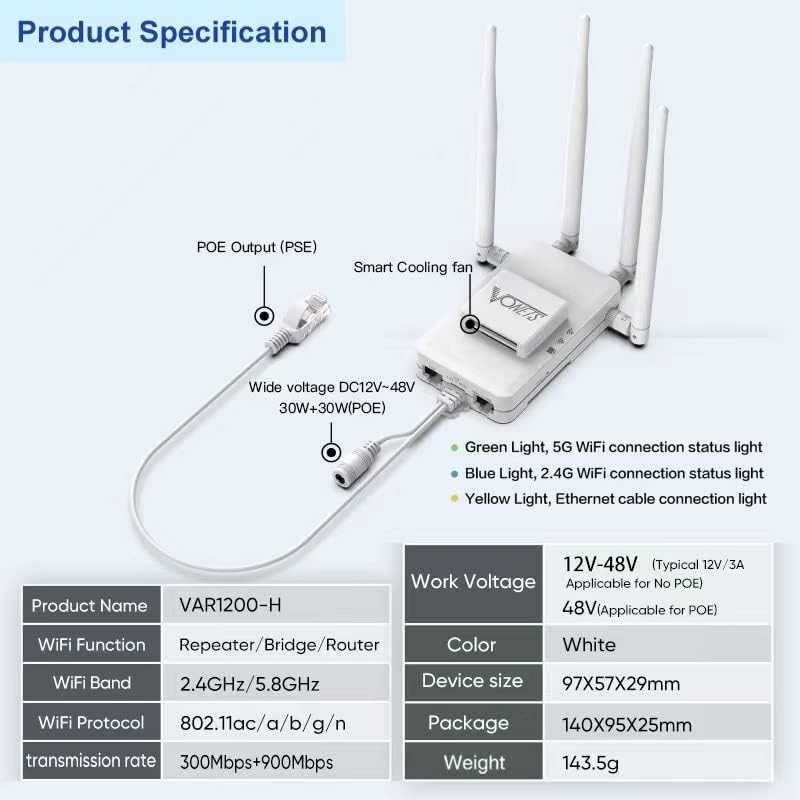
| Feature | Specification |
|---|---|
| Product Name | VAR1200-H |
| WiFi Function | Repeater/Bridge/Router |
| WiFi Band | 2.4GHz/5.8GHz (Dual Band) |
| WiFi Protocol | 802.11ac/a/b/g/n |
| Transmission Rate | 300Mbps (2.4GHz) + 900Mbps (5GHz) |
| Work Voltage | DC 12V-48V (Typical 12V/3A), 48V (Applicable for PoE) |
| PoE Output | 30W (PSE) |
| Color | White |
| Device Size | 97 x 57 x 29 mm (3.82 x 2.24 x 1.14 inches) |
| Item Weight | 200 Grams (7.1 ounces) |
| Hardware Interface | Ethernet |
| Compatible Devices | Printer, Smartphone, DVRs, IP Cameras, Medical Devices, IoT Devices, Industrial PLCs, etc. |
8. Troubleshooting
If you encounter issues with your VAR1200-H, consider the following troubleshooting steps:
- No Power/Device Not Starting:
- Ensure the power supply meets the minimum requirement (12V/3A for DC, 48V/1.2A for PoE).
- Check all power connections for secure fit.
- If using DC wiring, verify correct polarity and secure connections.
- Unable to Access Web Interface:
- Confirm your computer is connected to the VAR1200-H network (either directly via Ethernet or wirelessly).
- Verify the device's default IP address and ensure your computer's IP settings are compatible (e.g., same subnet or DHCP enabled).
- Try a different web browser.
- Reset the device to factory defaults (refer to the quick start guide for reset instructions).
- Poor WiFi Signal/Connectivity:
- Adjust the position of the VAR1200-H and its antennas. Avoid obstructions like thick walls or metal objects.
- Ensure the device is not too close to the main router (can cause interference) or too far (weak signal).
- Check for interference from other electronic devices.
- Verify that the correct WiFi band (2.4GHz or 5GHz) is selected for your needs and that the main router's WiFi is functioning correctly.
- Ethernet Connection Issues:
- Ensure Ethernet cables are securely connected to both the VAR1200-H and the connected device.
- Test with a different Ethernet cable.
- Check the status indicator lights on the VAR1200-H for Ethernet activity.
- Fan Not Operating: The intelligent fan is designed to start automatically after 5-10 minutes of normal operation when internal temperatures rise. If the device is cool or has just started, the fan may not be active. If the device is hot and the fan is still not running, contact support.
9. Maintenance
To ensure optimal performance and longevity of your VAR1200-H:
- Keep Clean: Regularly clean the device, especially the fan vents, to prevent dust buildup which can hinder cooling. Use a soft, dry cloth.
- Firmware Updates: Check the official Vonets website periodically for firmware updates. Keeping the firmware updated can improve performance, add features, and fix bugs.
- Environmental Conditions: Operate the device within its specified temperature and humidity ranges. Avoid exposing it to extreme temperatures, direct sunlight, or moisture.
- Secure Connections: Periodically check all cable connections (power, Ethernet, antennas) to ensure they are secure.
10. Warranty and Support
For information regarding the product warranty, please refer to the warranty card included with your purchase or visit the official Vonets website. For technical support, troubleshooting assistance, or further inquiries, please contact Vonets customer service through their official channels. Contact details are typically available on the manufacturer's website or in the product packaging.


