
1. Introduction
This manual provides comprehensive instructions for the Ejoyous 12 Key Mini Programmable Macro Keyboard. This device is designed to enhance efficiency by allowing users to program custom shortcuts, macros, and media controls to its 12 keys and two rotary knobs. It features a Type-C to USB interface for broad compatibility across various operating systems without requiring additional drivers for basic functionality. Please read this manual thoroughly to ensure proper setup and operation.

Figure 1.1: The Ejoyous 12 Key Mini Programmable Macro Keyboard with its included USB-C to USB-A cable.
2. Setup
Follow these steps to set up your Ejoyous 12 Key Mini Programmable Macro Keyboard:
- Connect the Keyboard: Locate the USB-C port on the side of the keyboard. Connect the provided USB-C to USB-A cable to this port.
- Connect to Computer: Plug the USB-A end of the cable into an available USB port on your computer.
- System Recognition: Your computer should automatically recognize the keyboard as a standard input device. No additional drivers are typically required for basic functionality.
- Software Installation (for Programming): To customize the keys and knobs, you will need to download and install the dedicated programming software. Please refer to the manufacturer's official website for the latest software version and installation instructions.

Figure 2.1: Side view illustrating the USB-C connection port.
3. Operating Instructions
The Ejoyous 12 Key Mini Keyboard offers extensive customization for its keys and knobs. Once programmed, settings are stored directly on the keyboard's internal memory.
3.1 Key Programming
Each of the 12 keys can be assigned a specific function, including single keystrokes, complex key combinations (e.g., Ctrl+C), or custom macro sequences.
- Launch Software: Open the dedicated programming software on your computer.
- Select Key: In the software interface, select the specific key you wish to program.
- Assign Function: Choose the desired function from the available options (e.g., standard key, multimedia key, macro, or key combination).
- Save Settings: Apply and save the settings within the software. These settings will then be written to the keyboard's onboard memory.
3.2 Knob Functionality
The two rotary knobs can be programmed for various functions, commonly used for media control or navigation:
- Volume Control: Adjust system volume up or down.
- Media Playback: Control previous/next song, play/pause functions.
- Zoom: Zoom in or out in applications.
- Custom Functions: Other functions can be assigned via the programming software.

Figure 3.1: The programmable knobs can control media playback, volume, and other functions.
3.3 Memory Function
The keyboard features a memory function, meaning that once keys and knobs are programmed and saved, the settings are stored directly on the device. This allows the keyboard to retain its custom functions even when connected to a different computer or operating system (Windows, macOS, Linux) that supports the USB protocol, without needing the programming software to be installed or running on the new system.

Figure 3.2: The keyboard's memory function retains programmed settings across different systems.
3.4 Applications
This programmable keyboard is versatile and suitable for a wide range of applications:
- Office Work: Streamline repetitive tasks with custom shortcuts.
- Gaming: Assign complex in-game actions to single keys for faster reactions.
- Music & Media Production: Control software functions, volume, and playback.
- Industrial Control & Laboratory: Facilitate specific operations and data input.
- Video Editing & Design: Speed up workflow with custom commands.
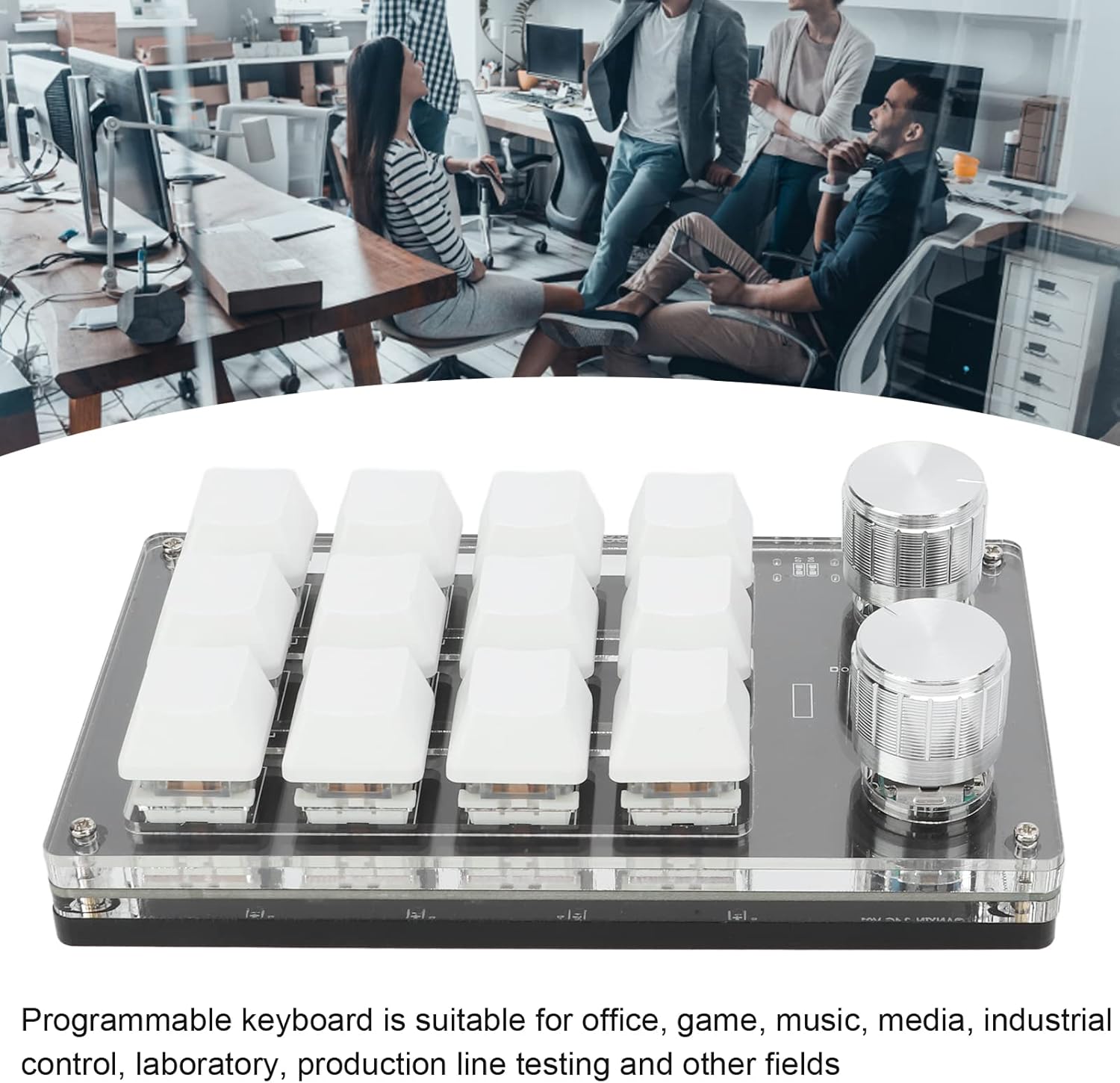
Figure 3.3: The keyboard is suitable for various applications, including office and creative work.
4. Maintenance
Proper maintenance ensures the longevity and optimal performance of your keyboard.
- Cleaning: Use a soft, dry cloth to wipe the surface of the keyboard. For dust and debris under the keycaps, use compressed air. Avoid using liquid cleaners directly on the keyboard or harsh chemicals that may damage the acrylic and PCB components.
- Storage: When not in use, store the keyboard in a cool, dry place away from direct sunlight, extreme temperatures, and excessive humidity.
- Handling: Avoid dropping the keyboard or subjecting it to strong impacts, as this may damage internal components or the acrylic casing.
5. Troubleshooting
If you encounter issues with your Ejoyous 12 Key Mini Programmable Macro Keyboard, refer to the following guide:
| Problem | Possible Cause | Solution |
|---|---|---|
| Keyboard not recognized by computer. | Loose USB connection, faulty USB port, or damaged cable. |
|
| Programmed keys do not work as expected. | Programming error, settings not saved, or software compatibility issues. |
|
| Knob functions are not responding. | Knob not programmed, or conflicting media software. |
|
| Keyboard software fails to launch or crashes. | Outdated software, operating system incompatibility, or corrupted installation. |
|
6. Specifications
The following are the technical specifications for the Ejoyous 12 Key Mini Programmable Macro Keyboard:
- Brand: Ejoyous
- Model Number: Ejoyousna4bihm8t7-11
- Connectivity Technology: USB, USB-C
- Number of Keys: 12
- Switch Type: Mechanical
- Dimensions (L x W x H): 132 x 77 x 38mm (5.2" x 3" x 1.5")
- Material: Acrylic, PCB
- Power Source: USB Power (DC 5V/1A)
- Operating Temperature: -10℃ to 50℃
- Compatible Operating Systems: Windows, VISTA, Linux, macOS (systems supporting USB protocol)
- Special Features: Programmable keys, Memory function, Knob control, Backlit

Figure 6.1: Physical dimensions of the keyboard.
7. What's in the Box
The package for your Ejoyous 12 Key Mini Programmable Macro Keyboard includes the following items:
- 1 x Ejoyous 12 Keys Mini Keyboard
- 1 x USB-C to USB-A Cable
Figure 7.1: The keyboard and USB cable included in the package.
8. Warranty and Support
8.1 Warranty Information
For detailed warranty information regarding your Ejoyous 12 Key Mini Programmable Macro Keyboard, please refer to the retailer's return policy or the manufacturer's official website. Warranty terms may vary based on region and point of purchase.
8.2 Customer Support
For technical assistance, troubleshooting, or further inquiries about your product, please contact Ejoyous customer support. You can typically find contact information on the official Ejoyous website or through the platform where the product was purchased.