
Introduction
This manual provides detailed instructions for the installation, operation, and maintenance of your AINAVI 10.2-inch Android 12 Car Stereo. This unit is designed to upgrade the infotainment system in Chevrolet Silverado and GMC Sierra models from 2014 to 2018, offering advanced features such as Android 12, QLED touch screen, CarPlay, Android Auto, GPS navigation, and more. Please read this manual thoroughly before installation and use to ensure proper function and safety.
Important Reminders Before Installation
Before proceeding with the installation of your AINAVI car stereo, please observe the following critical points:
- Optical Fiber Output: This car stereo does not support vehicles equipped with an optical fiber audio output system.
- Power Cable Interface: Installation is not supported if your car's power cord interface has only two cables. Please verify your vehicle's wiring harness before attempting installation.

Setup
1. Unpacking and Component Check
Carefully unpack all components and verify against the packing list:
- Car Head Unit with Frame (1280*720) for Chevrolet Silverado GMC Sierra 2014-2018
- User Manual
- Power Cable
- AHD 1080P Rear View Camera
- Microphone
- Blue Tool (for trim removal)
- GPS Module
- USB Cables (4Pin & 6Pin)
- RCA Cable
- Reversing Control Cable

2. Physical Installation
Installation typically involves removing the factory radio, connecting the new head unit's wiring harness to the vehicle's existing harness, installing the GPS antenna, microphone, and rear view camera (if applicable), and then securing the new head unit and frame. Professional installation is recommended if you are unfamiliar with car audio wiring.

3. Initial Power-On
After installation, turn on your vehicle's ignition. The stereo should power on automatically. Follow any on-screen prompts for initial setup, such as language selection and time zone.
Operating Instructions
1. User Interface Overview
The unit runs on Android 12, providing a familiar and intuitive interface. Navigate through apps and settings using the QLED touch screen. The 8-core processor ensures smooth operation.

2. Navigation
The stereo supports various satellite services and comes with Google Maps pre-installed. You can use 2D and 3D perspectives, and access real-time traffic information. Voice control is also available for navigation commands.
Video: Demonstrates Google Earth and Google Maps functionality on the car stereo, including searching for locations and viewing different map types.
3. Connectivity (CarPlay & Android Auto)
The unit features wired and wireless CarPlay and Android Auto for seamless smartphone integration. Connect your phone via USB or Bluetooth for automatic connection and access to your phone's apps, navigation, and music directly on the stereo screen.

Video: Shows the connection process for Apple CarPlay and Android Auto, along with setting up shortcut keys for quick access to functions.
4. Audio Features (DSP & EQ)
Utilize the professional DSP (Digital Signal Processor) with 48-EQ to fine-tune your audio experience. Adjust sound points, bass, surround sound, and bass filters to match your preferences. Presets like Normal, Jazz, Pop, Classical, Heavy Metal, Vocal, and Soft are available.

Video: Demonstrates the professional DSP features, including various sound modes (Pop, Classical, Heavy Metal, Vocal) and the ability to adjust sound balance for different seating positions.
5. Video Playback & Apps
The unit supports 1080P video playback. You can download and install various apps from the Google Play Store, including YouTube and TikTok, for entertainment.
Video: Highlights features like color panel light customization, 1080P video playback, support for steering wheel controls, and access to the Google Play Store.
6. Split Screen Functionality
The split-screen feature allows you to run two applications simultaneously, such as navigation and a video player, enhancing multitasking capabilities.
Video: Demonstrates the split-screen functionality, allowing two applications to run side-by-side on the display.
7. Customization
Personalize your stereo with various themes and boot logo options. The 7-color button lights can be changed constantly or set to a specific color.

Video: Highlights features like color panel light customization, 1080P video playback, support for steering wheel controls, and access to the Google Play Store.
8. Steering Wheel Controls (SWC)
The unit supports existing steering wheel controls. You can configure these controls to manage various functions of the stereo, such as volume, track skipping, and answering calls.
Video: Shows the connection process for Apple CarPlay and Android Auto, along with setting up shortcut keys for quick access to functions.
9. Rear View Camera
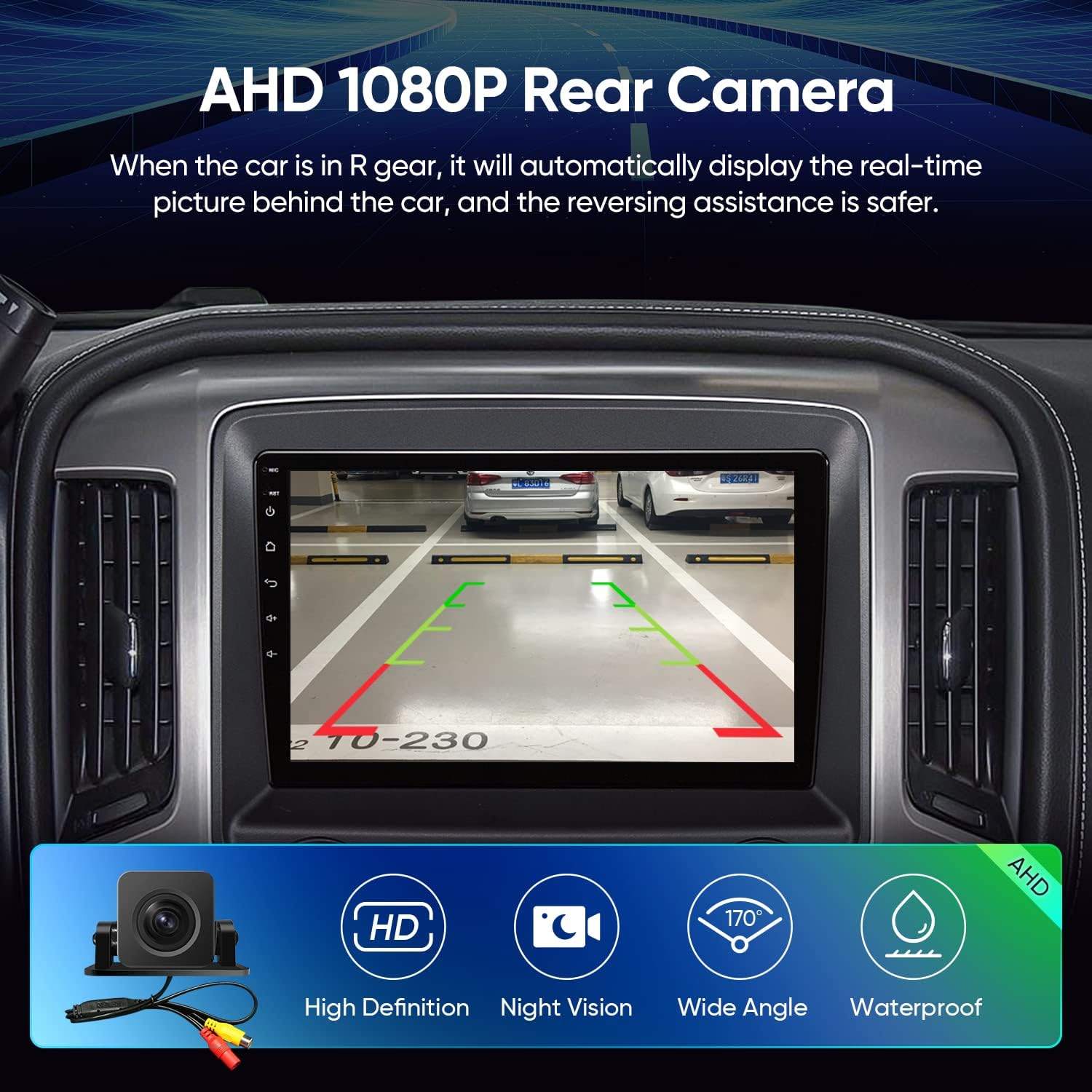
The included AHD 1080P rear view camera provides clear reversing scenes. When the car is in reverse gear, the display automatically shows the real-time picture behind the car, complete with an astern ruler line for parking assistance. If your car supports astern trajectory, it will also be displayed.
10. USB to RCA Output
The USB to RCA output function allows you to connect external headrest monitors, providing independent video playback for backseat passengers. This feature requires a separate headrest monitor (ASIN: B0CCV2GC25).
Maintenance
1. Cleaning the Screen
Use a soft, lint-free cloth to gently wipe the QLED touch screen. For stubborn smudges, lightly dampen the cloth with water or a screen-safe cleaner. Avoid abrasive materials or harsh chemicals.
2. Software Updates
Periodically check for system updates to ensure optimal performance and access to the latest features. Updates can typically be found within the system settings under 'About device' or 'System updates'. Ensure a stable internet connection during updates.
3. General Care
Avoid exposing the unit to extreme temperatures or direct sunlight for prolonged periods. Ensure all cables are securely connected to prevent intermittent issues. If the unit is not functioning correctly, refer to the troubleshooting section before attempting any repairs.
Troubleshooting
If you encounter issues with your AINAVI car stereo, please refer to the following common problems and solutions:
| Problem | Possible Cause | Solution |
|---|---|---|
| Unit does not power on. | Incorrect wiring, blown fuse, power supply issue. | Check all power connections. Verify vehicle fuses. Ensure the power cable interface is compatible (not two-cable only). |
| No sound or distorted audio. | Speaker wiring issues, incorrect audio settings, optical fiber output incompatibility. | Verify speaker connections. Adjust EQ and DSP settings. Confirm your vehicle does not use optical fiber audio output. |
| CarPlay/Android Auto not connecting. | Incorrect USB cable, Bluetooth pairing issue, software glitch. | Use a high-quality USB cable. Ensure Bluetooth is enabled and paired correctly. Restart both the stereo and your phone. |
| GPS not accurate or not working. | GPS antenna not properly installed or obstructed. | Ensure the GPS antenna is securely connected and placed in an unobstructed location (e.g., dashboard). |
| Rear view camera not displaying. | Camera wiring issue, incorrect settings. | Check the camera's power and video signal connections. Verify the reversing control cable is correctly wired. |
| Unit freezes or lags. | Too many apps running, low memory, software issue. | Close unnecessary applications. Clear cache. Perform a system reboot. If persistent, consider a factory reset (backup data first). |
If these solutions do not resolve the issue, please contact AINAVI technical support for further assistance.
Specifications
| Feature | Detail |
|---|---|
| Display Size | 10 Inches |
| Resolution | 1280 x 720 |
| Operating System | Android 12.0 |
| Processor | 8-Core CPU |
| Memory (RAM) | 3GB |
| Storage (ROM) | 32GB |
| Connectivity | Wi-Fi (2.4GHz & 5GHz), Bluetooth 5.0, USB (4Pin & 6Pin), FM+AUX, Wireless/Wired CarPlay & Android Auto, Android Mirroring+Airplay |
| Special Features | 48EQ (Sound Point Control) + Premium DSP, Highest Level QLED Screen, Panel Light and Four Themes, Split Screen Function |
| Navigation | Supports Google Maps, Google Earth, Europe, North America, South America, Worldwide map types |
| Audio Output Mode | Stereo Surround |
| Mounting Type | Dashboard Mount |
| Item Weight | 5.68 pounds |
| Package Dimensions | 15.51 x 13.46 x 5.75 inches |
Warranty
Your AINAVI car stereo comes with a 12-month warranty from the date of purchase. This warranty covers manufacturing defects and malfunctions under normal use. Please retain your proof of purchase for warranty claims.
Technical Support
Our professional technical support team is available to assist you with installation and any technical questions. If you require assistance, please follow these steps:
- Go to the product page on Amazon.
- Click on the seller's name (e.g., "HomeCar").
- Click "Ask a question" to send us your technical or installation queries. Please include pictures or videos if relevant.
We will reply to you as soon as possible.
