
Introduction
This manual provides detailed instructions for the installation, operation, and maintenance of your ANYOYO TBU405ProM1 40Gbps M.2 NVMe SSD Enclosure. This device is designed to provide high-speed external storage for M.2 NVMe SSDs, featuring advanced heat dissipation and broad compatibility with various systems and devices.
Product Specifications
| Feature | Detail |
|---|---|
| Hardware Interface | Thunderbolt |
| Brand | ANYOYO |
| Color | Gray |
| Product Dimensions | 4.64"L x 2.24"W x 0.71"H |
| Material | Metal |
| Memory Storage Capacity | Up to 8 TB (SSD not included) |
| Compatible Devices | Laptop, MacBook Pro/Air, Mac Mini M4, Samsung, and other devices |
| Supported Devices Quantity | 1 |
| Data Transfer Rate | 40 Gigabits Per Second |
| Connectivity Technology | Thunderbolt |
| Enclosure Material | Metal |
| Item Weight | 165 Grams |
| Manufacturer | ANYOYO |
| UPC | 781108280067 |
| Model Number | TBU405PROM1 |
| Included Components | Thunderbolt 4 cable |
Setup and Installation
The ANYOYO TBU405ProM1 NVMe Enclosure features a tool-free design for easy installation of M.2 NVMe SSDs.
Supported SSD Types:
This enclosure supports M.2 NVMe SSDs with M-Key and B&M-Key interfaces, in sizes 2230, 2242, 2260, and 2280.

Image: Supported M.2 NVMe SSD sizes and key types.
Installation Steps:
- Open the bottom plate: Gently slide or open the bottom cover of the enclosure.
- Insert the M.2 NVMe SSD: Align your M.2 NVMe SSD with the slot inside the enclosure and insert it firmly.
- Secure the SSD: Use the provided fixed rubber stopper to secure the SSD in place, preventing it from falling off.
- Close the enclosure: Replace the bottom plate and ensure it is securely closed.
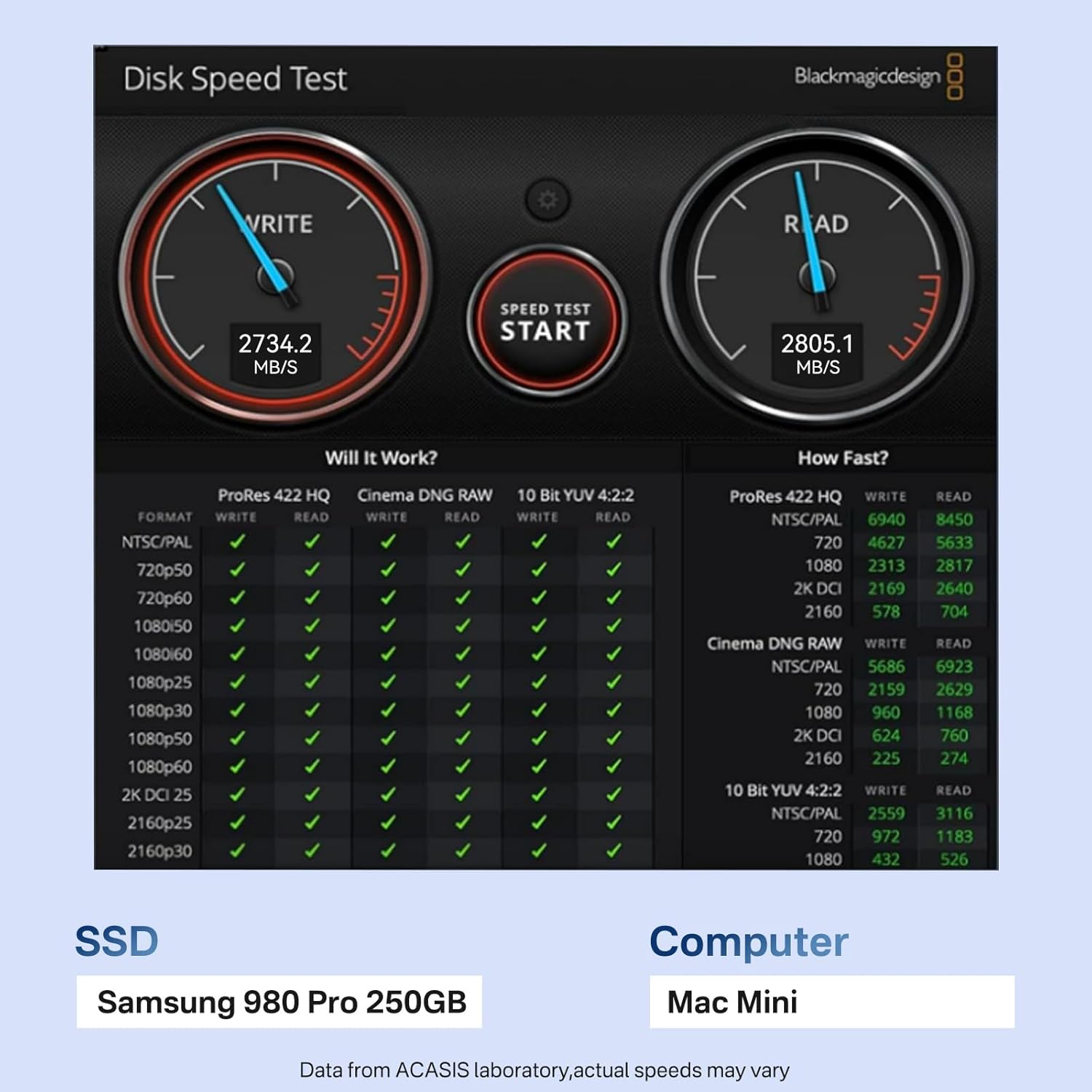
Image: Tool-free installation process for the M.2 NVMe SSD.
The enclosure supports up to 8TB M.2 NVMe SSDs. Ensure the SSD is properly seated before closing the enclosure.

Image: Enclosure supporting an 8TB M.2 NVMe SSD.
Operating Instructions
Connect the ANYOYO TBU405ProM1 SSD Enclosure to your computer using the provided Thunderbolt 4 cable. The enclosure is compatible with Thunderbolt 5/4/3 and USB 4/3.2/3.1/3.0/2.0 protocols, and supports Windows, Mac OS, and Linux systems.
High-Speed Data Transfer:
The enclosure supports data transfer speeds up to 40Gbps. When tested with a Samsung 980 Pro 2TB SSD on a MacBook 4 Pro, read and write speeds reached up to 2800MB/s. This allows for rapid transfer of large files, such as a 3GB file in approximately 1 second.

Image: High-speed data transfer demonstration.
Cooling Fan Operation:
The enclosure is equipped with a high-speed cooling fan to manage heat during operation. An independent switch button allows you to control the cooling fan.

Image: Location of the cooling fan switch button.
Product Overview Video:
Video: Overview of the ANYOYO 40Gbps M.2 Enclosure, showcasing its features and design.
Video: Detailed look at the ANYOYO 40Gbps M.2 NVMe SSD Enclosure with Cooling Fan, demonstrating its functionality.
Video: Demonstration of the M.2 NVMe SSD Enclosure with Cooling Fan, highlighting its ease of use.
Maintenance
The ANYOYO TBU405ProM1 enclosure is designed with a five-layer heat dissipation system to ensure stable performance and longevity of your SSD. This includes an intelligent chip, pure aluminum alloy shell, silicone thermal pad, hollow design, and a high-speed cooling fan.
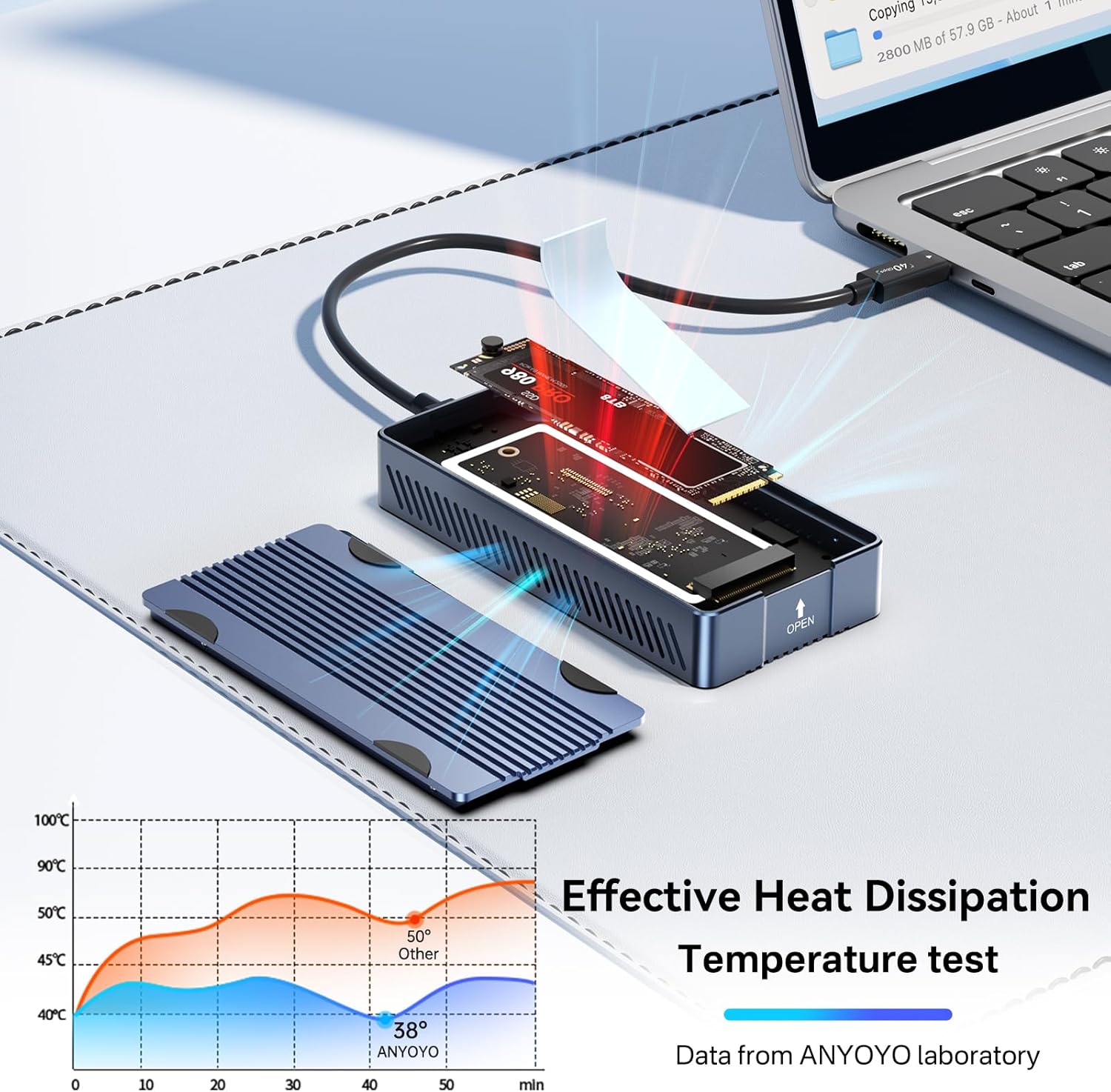
Image: Effective heat dissipation system with temperature test.
Regularly ensure that the cooling fan is free from dust and obstructions to maintain optimal airflow. The aluminum alloy shell and silicone thermal pad work together to conduct and dissipate heat efficiently, protecting the SSD and CPU.
Troubleshooting
1. How to improve transfer rate on Windows when used with Thunderbolt 4/USB4 ports?
- The NVMe and PD versions of the operating system are relatively old. Please try to update the operating system to the latest version.
- For Windows users, please select Better performance and enable write cache: Go to Disk Management > Select Properties > Click Policies > Choose Better performance and enable write caching on the device.
2. Why does the enclosure heat up during using?
The enclosure uses an aluminum alloy shell with a PWM turbo cooling fan to help transfer heat from the hard drive to the outside to prevent the internal temperature from heating up. The maximum operating temperature of the enclosure is below 60°C, which is a safe range.
3. Why does the read and write speed of the enclosure decrease after running for a while?
The maximum transfer rate of the enclosure can reach 40Gbps. High-speed transfer makes the hard disk heat up. If the temperature is too high, the controller of the enclosure and SSD may activate thermal throttling protection, automatically reducing the transfer speed to protect the hardware from damage.
4. The hard drive enclosure will disconnect when in use?
- Unstable power supply: When the hard disk memory capacity is relatively large, it will require more power consumption.
- Hard drive overheating: The normal working temperature limit of the hard drive itself is around 90 degrees. If a higher temperature is detected, it will be disconnected for protection.
- Operating system compatibility: If an operating system is installed, it is necessary to confirm whether the operating system is compatible with the computer device itself, otherwise there may be running failures and disconnections, as well as whether the driver is the latest.
- Hard drive health: If there are bad sectors, the drive may crash. You can check the health status of the hard drive on S.M.A.R.T.
Warranty and Support
The ANYOYO TBU405ProM1 SSD Enclosure comes with a 1 Year Warranty.
For technical support, warranty claims, or further assistance, please contact ANYOYO customer service through the official channels provided at the point of purchase or on the ANYOYO website.