
1. Introduction
The Sharper Image Smartphone TV Screen Magnifier enhances your mobile viewing experience by transforming your smartphone screen into a larger, 12-inch curved display. This device is cordless and rechargeable, featuring dual 5W wireless speakers for an immersive audio experience. It is designed for convenient viewing of movies, videos, and games, and is suitable for travel or presentations.
2. Product Overview
Familiarize yourself with the components of your Smartphone TV Screen Magnifier.

Figure 2.1: The Smartphone TV Screen Magnifier with a phone mounted, showing the magnified display.
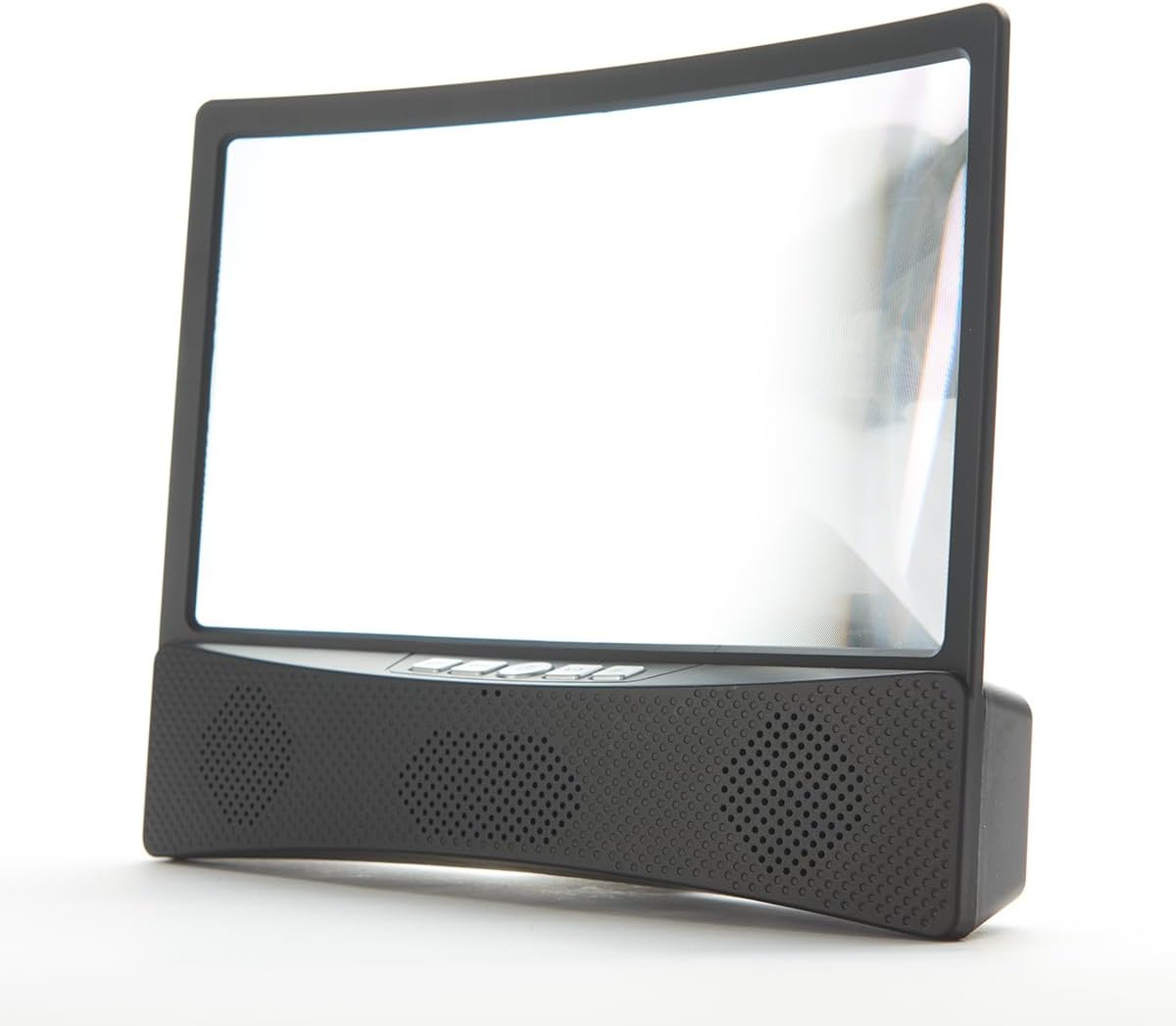
Figure 2.2: Front view of the device, highlighting the curved screen and integrated speaker grilles.

Figure 2.3: Side view illustrating the device's profile and the adjustable phone stand.
Components:
- Curved Magnifier Screen: 12-inch display for enlarged viewing.
- Smartphone Holder: Securely holds your smartphone above the magnifier.
- Integrated Speaker Base: Houses dual 5W wireless speakers and control buttons.
- Control Buttons: Power, volume, and playback controls (refer to device for specific button layout).
- Charging Port: For recharging the internal battery.
3. Setup
3.1 Charging the Device
Before first use, fully charge the Smartphone TV Screen Magnifier. Connect the provided charging cable to the device's charging port and to a suitable USB power source. The charging indicator light will show the charging status.
3.2 Placing Your Smartphone
- Gently pull up the smartphone holder located at the top of the magnifier unit.
- Place your smartphone securely into the holder, ensuring it is stable.
- Adjust the angle of your phone for optimal viewing through the magnifier screen.
3.3 Powering On and Bluetooth Pairing
- Press and hold the Power button on the speaker base until the indicator light illuminates.
- On your smartphone, navigate to your Bluetooth settings.
- Search for available devices and select "Sharper Image Magnifier" (or similar name) to pair.
- Once paired, you will hear a confirmation tone, and audio from your phone will play through the magnifier's speakers.
4. Operation
4.1 Using the Magnifier Screen
Once your smartphone is placed in the holder, content displayed on your phone screen will be magnified and projected onto the 12-inch curved screen. Adjust your viewing distance and the phone's angle for the clearest image.
4.2 Speaker Controls
- Power Button: Press and hold to turn the device on or off.
- Volume Up/Down: Press the '+' or '-' buttons to adjust the speaker volume.
- Play/Pause: Press the Play/Pause button to control media playback on your connected smartphone.
- Skip Track: Use the appropriate buttons (refer to device markings) to skip forward or backward through tracks.
5. Maintenance
5.1 Cleaning
- Screen: Use a soft, lint-free cloth, slightly dampened with water or a screen-safe cleaner, to gently wipe the magnifier screen. Avoid abrasive materials or harsh chemicals.
- Body: Wipe the exterior surfaces with a soft, dry cloth.
5.2 Battery Care
- To prolong battery life, avoid fully discharging the device frequently.
- Recharge the device regularly, even if not in constant use.
- Store the device in a cool, dry place when not in use.
5.3 Storage
When not in use, fold down the smartphone holder and store the device in a clean, dry environment away from direct sunlight and extreme temperatures.
6. Troubleshooting
6.1 No Power
- Ensure the device is fully charged. Connect it to a power source and allow it to charge for at least 30 minutes before attempting to power on again.
- Verify the charging cable and adapter are working correctly.
6.2 No Sound from Speakers / Bluetooth Connection Issues
- Ensure the device is powered on and fully charged.
- Check that Bluetooth is enabled on your smartphone.
- Make sure the device is within the Bluetooth range (typically 10 meters or 33 feet).
- Unpair and re-pair the device from your smartphone's Bluetooth settings.
- Increase the volume on both the magnifier and your smartphone.
6.3 Screen Clarity Issues
- Ensure the magnifier screen is clean and free of dust or smudges.
- Adjust the position and angle of your smartphone in the holder.
- Adjust your viewing distance from the magnifier screen.
7. Specifications
- Screen Size: 12-inch curved display
- Speaker Output: Dual 5W wireless speakers
- Power Source: Rechargeable internal battery
- Connectivity: Wireless (Bluetooth)
- Model Number: B0BP6YDWHM
- Manufacturer: Sharper Image
8. Video Demonstrations
Watch these official videos for visual guidance on using your Sharper Image Smartphone TV Screen Magnifier.
8.1 Product Overview and Features (1:10)
This video provides a general overview of the Smartphone TV Screen Magnifier and its key features, including the magnified display and wireless speakers.
8.2 Setup and Basic Operation (1:28)
Learn how to set up your device, place your smartphone, and perform initial Bluetooth pairing for audio playback.
8.3 Advanced Usage Tips (1:50)
This video demonstrates additional tips for optimizing your viewing and audio experience with the magnifier.
8.4 Full Demonstration (3:10)
A comprehensive demonstration covering all aspects of the product, from unboxing to advanced features.
9. Safety Information
- Do not expose the device to extreme temperatures, direct sunlight, or high humidity.
- Keep the device away from water or other liquids.
- Do not attempt to disassemble or modify the device. This will void any potential warranty.
- Use only the provided charging cable or a certified equivalent.
- Keep out of reach of children.
10. Warranty and Support
For warranty information or technical support, please contact Sharper Image customer service. Refer to the product packaging or the official Sharper Image website for contact details.

