
Introduction
This manual provides essential information for the setup, operation, and maintenance of your HIGOLEPC F10R 10.1 Inch Touchscreen Mini PC. This device is equipped with an Intel Celeron N5095 processor, 8GB RAM, 128GB ROM, and runs on Windows 11 Pro. It features a 10.1-inch HD touchscreen, dual RS232 ports, HDMI output, Bluetooth 5.0, and WiFi 5.0 for versatile connectivity. Please read this manual thoroughly before using the product to ensure proper functionality and longevity.
What's in the Box
Carefully unpack your HIGOLEPC F10R Mini PC and verify that all items listed below are included:
- 1 x HIGOLEPC F10R Mini PC
- 1 x Power Adapter
- 1 x Instruction Manual
Product Overview
The HIGOLEPC F10R is a compact and versatile mini PC designed for various applications, from business and education to smart home systems. It features a fanless design for silent operation and is equipped with a responsive 10.1-inch HD touchscreen.
Key Features:
- Processor: Intel Celeron N5095 (Quad-core, 2.0 GHz base, up to 2.7 GHz burst)
- Graphics: Intel UHD Graphics
- Memory: 8GB LPDDR4 RAM
- Storage: 128GB eMMC (expandable via TF card slot)
- Operating System: Pre-installed Windows 11 Pro
- Display: 10.1-inch IPS HD Touchscreen (1280x800 resolution)
- Connectivity: WiFi 5.0 (dual-band 2.4G/5.0G), Bluetooth 5.0, Gigabit Ethernet
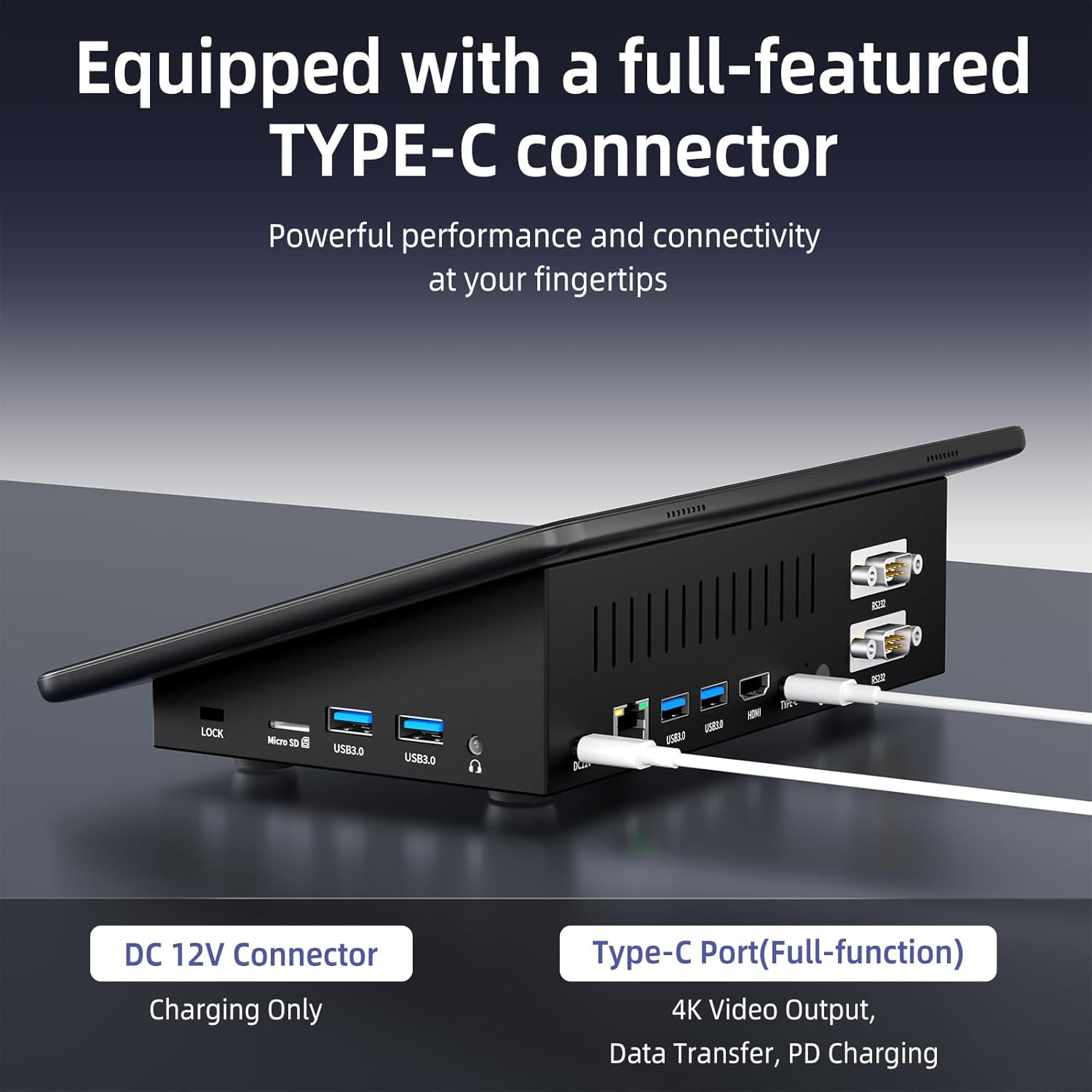
- Ports: 4x USB 3.0, 1x HDMI 2.0, 2x RS232, 1x Ethernet, 1x TF Card Slot, 1x Type-C (full function), 1x Earphone Jack
- Special Features: Fanless design, Auto-Boot support, Wake on LAN, PXE, RTC Wake Settings

Port Layout and Connectivity:
The Mini PC offers a comprehensive array of ports for connecting various peripherals and external displays.


Display Capabilities:
The Mini PC supports dual 4K output via HDMI 2.0 and the full-function Type-C port, allowing for extended desktop or mirrored display configurations.


Product Videos:
Video 1: Overview of the HIGOLEPC F10 Touchscreen Mini Computer. This video demonstrates the physical features and general use of the device.
Video 2: HIGOLEPC Mini PC running Windows 11 Pro. This video showcases the operating system interface and performance.
Setup
Follow these steps to set up your HIGOLEPC F10R Mini PC:
- Connect Power: Plug the power adapter into the DC 12V port on the back of the Mini PC, then connect it to a power outlet.
- Connect Peripherals: Connect your desired USB keyboard and mouse to the available USB 3.0 ports. While the device has a touchscreen, a keyboard and mouse are recommended for initial setup and complex tasks.
- Connect External Display (Optional): If you wish to use an external monitor, connect it via the HDMI 2.0 port or the full-function Type-C port. Ensure the monitor is powered on and set to the correct input source.
- Network Connection: For a wired connection, plug an Ethernet cable into the RJ45 LAN port. For wireless, the device will prompt you to connect to a Wi-Fi network during the initial Windows setup.
- First Boot: Press the power button located on the back of the device. The Mini PC will boot into Windows 11 Pro. Follow the on-screen instructions to complete the initial Windows setup, including language, region, and user account creation.

Operating Instructions
Your HIGOLEPC F10R Mini PC comes with Windows 11 Pro pre-installed, offering a familiar and intuitive operating environment.
Basic Operation:
- Power On/Off: Press the power button to turn the device on. To shut down, use the Windows Start menu (Start > Power > Shut down).
- Touchscreen Usage: The 10.1-inch touchscreen supports multi-touch gestures. Tap to select, swipe to scroll, and pinch to zoom. For optimal responsiveness, ensure the screen is clean and free of debris.
- Connecting to Wi-Fi: Access network settings via the Windows taskbar or Start menu to connect to available Wi-Fi networks.
- Bluetooth Devices: Pair Bluetooth devices (e.g., keyboards, mice, headphones) through Windows Bluetooth settings.
- External Displays: To configure multiple displays, right-click on the desktop, select 'Display settings', and adjust resolution and arrangement as needed.
Touchscreen Driver Installation:
In some cases, or after a fresh operating system installation, touchscreen drivers may need to be reinstalled to ensure full functionality. Refer to the following video for guidance:
Video 3: Instructions for installing touchscreen drivers. This video guides users through the process of ensuring proper touchscreen functionality.
Maintenance
Proper maintenance ensures the longevity and optimal performance of your Mini PC.
Cleaning:
- Screen: Use a soft, lint-free cloth slightly dampened with water or a screen cleaner. Avoid harsh chemicals.
- Casing: Wipe the exterior with a soft, dry cloth. Do not use abrasive cleaners.
- Ports: Keep ports free of dust and debris. Use compressed air if necessary, but do so gently.
Fanless Design:
The HIGOLEPC F10R features a fanless design, which means it operates silently. This design relies on passive cooling through its aluminum alloy housing and internal cooling board. Ensure adequate airflow around the device and avoid placing it in enclosed spaces that could trap heat.

Software Updates:
Regularly check for and install Windows updates to ensure system stability, security, and performance. Go to Start > Settings > Windows Update.
Troubleshooting
If you encounter issues with your Mini PC, refer to the following common troubleshooting steps:
- No Power:
- Ensure the power adapter is securely connected to both the Mini PC and a working power outlet.
- Verify the power outlet is functional by plugging in another device.
- Unresponsive Touchscreen:
- Clean the screen surface.
- Restart the Mini PC.
- Check if touchscreen drivers are properly installed (refer to the 'Operating Instructions' section for driver installation video).
- If the issue persists, connect an external mouse to verify general system responsiveness.
- No Display on External Monitor:
- Ensure the monitor is powered on and set to the correct input source (HDMI/Type-C).
- Check the cable connections.
- Try a different cable or monitor if available.
- Adjust display settings in Windows (right-click desktop > Display settings).
- Slow Performance/Overheating:
- Ensure the Mini PC is placed in a well-ventilated area and not obstructed.
- Close unnecessary applications running in the background.
- Check for and install any pending Windows updates.
- Monitor CPU usage in Task Manager to identify resource-intensive processes.
- Wi-Fi/Bluetooth Connectivity Issues:
- Restart the Mini PC and your router/modem.
- Ensure Wi-Fi and Bluetooth are enabled in Windows settings.
- Update network and Bluetooth drivers via Device Manager.
Specifications
| Feature | Specification |
|---|---|
| Brand | HIGOLE PC |
| Model Name | F10R |
| Screen Size | 10.1 inches |
| Color | Black |
| CPU Model | Celeron N5095 |
| Processor Speed | 2.7 GHz (Max Burst) |
| Processor Count | 4 |
| RAM Memory Installed Size | 8 GB LPDDR4 |
| Hard Disk Size | 128 GB eMMC |
| Operating System | Windows 11 Pro |
| Graphics Coprocessor | Intel UHD Graphics 600 |
| Display Resolution Maximum | 1920x1200 pixels (External), 1280x800 pixels (Native) |
| Supported Monitor Quantity | 2 |
| Touch Screen Type | Capacitive |
| Wireless Technology | Bluetooth 5.0, Wi-Fi 5.0 (2.4G & 5.0G) |
| LAN Port Bandwidth | 1 Gbps |
| USB Ports | 4 x USB 3.0 |
| HDMI Ports | 1 x HDMI 2.0 |
| RS232 Ports | 2 x RS232 |
| Type-C Port | 1 (Full Function: 4K Video Output, Data Transfer, PD Charging) |
| Item Weight | 1.8 pounds |
| Power Device | DC power adapter (12V) |
Warranty and Support
Your HIGOLEPC F10R Mini PC is covered by a 2-year manufacturer's warranty. For any technical assistance or warranty claims, please contact HIGOLEPC customer support.
- Warranty Period: 2 years from the date of purchase.
- Free Replacement: A 3-month free replacement policy is offered for eligible issues.
- Technical Support Email: HIGOLEPC@outlook.com
- Amazon Support: Log in to your Amazon account, find your order number, and click 'Get help' for assistance.

