
MageGee BOX-white-bd
MageGee Portable 60% Mechanical Gaming Keyboard User Manual
Model: BOX-white-bd
Brand: MageGee
Introduction
This manual provides comprehensive instructions for the setup, operation, and maintenance of your MageGee Portable 60% Mechanical Gaming Keyboard. Please read this manual thoroughly before using the product to ensure optimal performance and longevity.
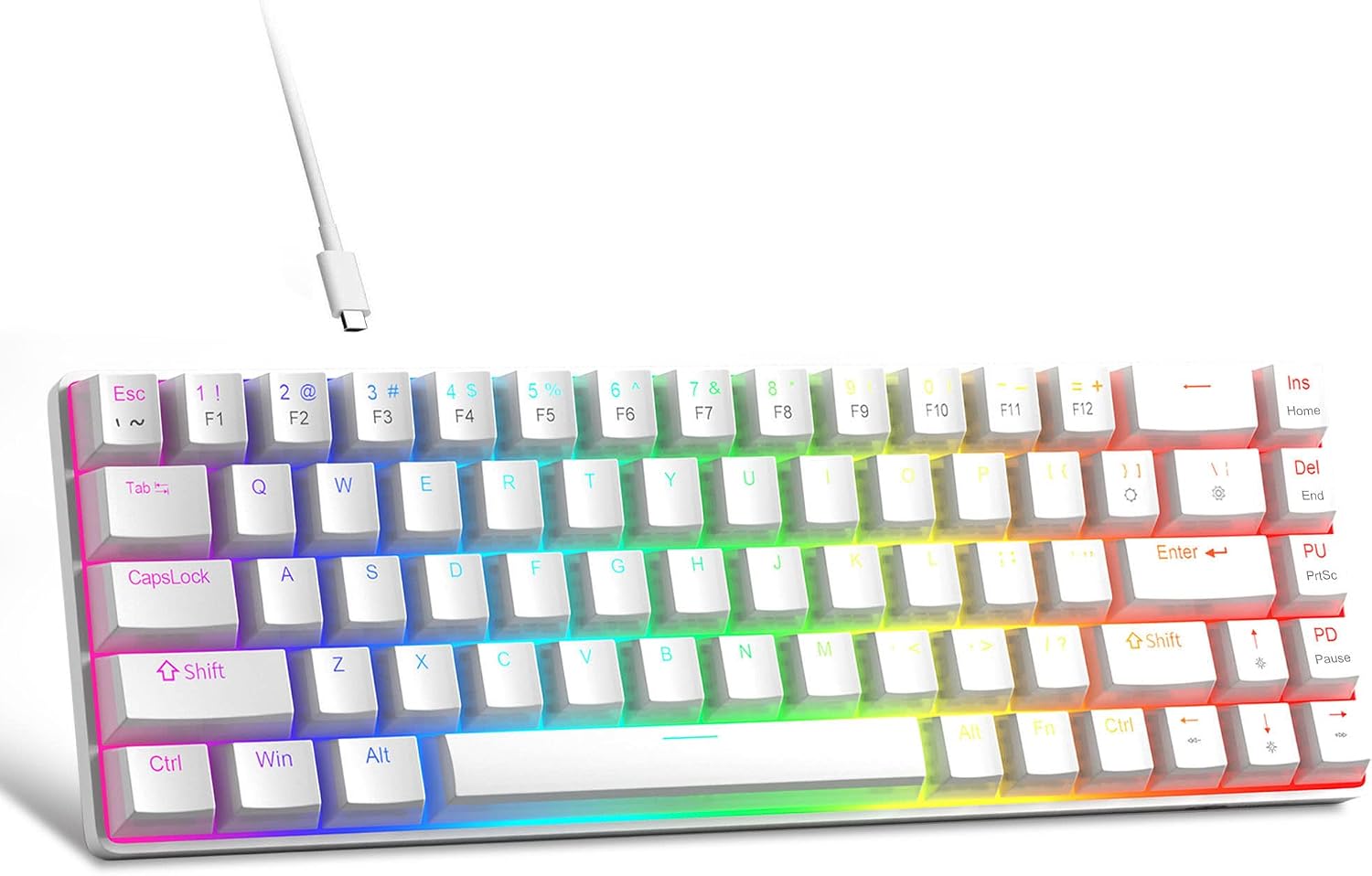
Image: The MageGee Portable 60% Mechanical Gaming Keyboard, featuring its compact design and RGB backlighting.
Key Features
- Mini Portable 60% Compact Layout: The MK-Box is a 68-key full anti-ghosting mechanical keyboard with a small size, retaining separate arrow keys and F1-F12 function keys for gaming or work while saving space.
- Double Shot Injection PBT Pudding Keycaps: High-quality PBT material double-layered translucent pudding keycaps offer high wear resistance, excellent tactile feel, and good light transmission for enhanced illumination.
- Cool True RGB Backlight Keyboard: Features a wide choice of backlight effects and colors.
- Red Switch Mechanical Keyboard: Characterized by linear and smoother key presses with minimal resistance and fast action, providing a quiet typing experience without a tactile bump.
- Extensive Compatibility: Uses a USB 2.0 connector, compatible with Windows (2000, XP, ME, Vista, 7, 8), Linux, and Mac. Plug and play, no drivers or software required.

Image: Diagram illustrating the compact 60% layout of the keyboard, highlighting its 68 keys and space-saving design compared to a full-size keyboard.

Image: Close-up view of the PBT pudding keycaps, showcasing their translucent design and durable material.

Image: The keyboard displaying its vibrant RGB backlight effects, highlighting the customizable lighting options.

Image: A close-up view of the red mechanical switches beneath the keycaps, illustrating their linear design.
Package Contents
Ensure all items are present upon unboxing:
- MageGee Portable 60% Mechanical Gaming Keyboard
- USB Cable
- Keycap Puller
- User Manual (this document)
Setup Guide
- Connect the Keyboard: Insert the USB-C end of the provided USB cable into the port on the back of the keyboard.
- Connect to Computer: Plug the USB-A end of the cable into an available USB port on your computer (Windows PC, Linux, or Mac).
- Automatic Installation: The keyboard is plug-and-play. Your operating system should automatically detect and install the necessary drivers. No additional software is required.
- Initial Test: Once connected, the keyboard backlight should illuminate. Test typing in a text editor to ensure all keys are functioning correctly.
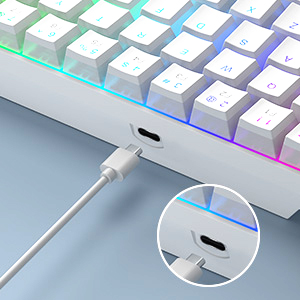
Image: Close-up of the USB-C port on the keyboard, showing where to connect the cable.
Operating Instructions
Function Key Combinations (Fn Key)
Due to its compact 60% layout, many functions are accessed using the Fn key in combination with other keys.
| Combination | Function |
|---|---|
| Fn + | | Toggle between approximately 16 backlight modes (static and dynamic). |
| Fn + ] } | Toggle between 9 backlight colors (including RGB and 8 single colors). |
| Fn + ↑ (Up Arrow) | Increase backlight brightness. |
| Fn + ↓ (Down Arrow) | Decrease backlight brightness. |
| Fn + ← (Left Arrow) | Decrease backlight speed (for dynamic modes). |
| Fn + → (Right Arrow) | Increase backlight speed (for dynamic modes). |
| Fn + 1-0, -, = | Access F1-F12 function keys (e.g., Fn+1 for F1, Fn+= for F12). |
| Fn + Esc | Access the grave accent (`) or tilde (~) symbol. |

Image: Visual guide to common function key combinations for backlight control.
Typing Experience
The keyboard features Red Switches, known for their linear and smooth keystrokes. This provides a consistent feel without a tactile bump, making them suitable for both fast typing and gaming.
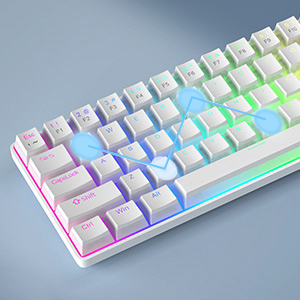
Image: An illustration demonstrating the anti-ghosting capability of the keyboard, allowing multiple simultaneous key presses to be registered accurately.
Maintenance
To ensure the longevity and optimal performance of your keyboard, follow these maintenance guidelines:
- Cleaning: Regularly clean the keycaps and the area between them using a soft brush or compressed air to remove dust and debris. For stubborn dirt, gently wipe keycaps with a damp cloth (ensure the keyboard is disconnected).
- Keycap Removal: Use the provided keycap puller to safely remove keycaps for deeper cleaning or replacement. Insert the puller onto the keycap and pull straight up.
- Avoid Liquids: Do not expose the keyboard to liquids. In case of spills, immediately disconnect the keyboard and allow it to dry completely before reconnecting.
- Storage: When not in use, store the keyboard in a dry, cool place away from direct sunlight.
Troubleshooting
If you encounter issues with your keyboard, refer to the following common problems and solutions:
- Keyboard not responding:
- - Ensure the USB cable is securely connected to both the keyboard and the computer.
- - Try plugging the keyboard into a different USB port on your computer.
- - Test the keyboard on another computer to rule out a computer-specific issue.
- - Restart your computer.
- Backlight not working or incorrect:
- - Use Fn + ↑ / ↓ to adjust brightness.
- - Use Fn + | to cycle through different backlight modes.
- - Use Fn + ] } to change backlight colors.
- Certain keys not working:
- - Check if there is any debris or obstruction under the keycap. Carefully remove the keycap using the keycap puller and clean the switch area.
- - Ensure the keyboard is not in a special mode that disables certain keys (refer to operating instructions).
- Input lag or ghosting:
- - Ensure the keyboard is connected directly to a USB port on your computer, not through a USB hub or KVM switch, which can sometimes introduce lag.
- - The keyboard features anti-ghosting, but extreme scenarios or system issues could still cause problems. Try restarting your computer.
Specifications
| Feature | Detail |
|---|---|
| Model Number | BOX-white-bd |
| Layout | 60% Compact, 68 Keys |
| Switch Type | Red Mechanical Switches |
| Keycaps | Double Shot Injection PBT Pudding Keycaps |
| Backlight | True RGB Backlit (16 modes, 9 colors) |
| Connectivity | Wired USB 2.0 |
| Compatibility | Windows (2000, XP, ME, Vista, 7, 8), Linux, Mac |
| Product Dimensions | 12.13 x 3.98 x 1.54 inches (30.8 x 10.1 x 3.9 cm) |
| Item Weight | 1.46 pounds (662 grams) |
| Color | Ivory White /Red Switch |

Image: Diagram showing the physical dimensions of the keyboard in centimeters and inches.
Warranty and Support
MageGee products are designed for reliability and performance. For information regarding warranty coverage, technical support, or service inquiries, please refer to the official MageGee website or contact their customer service directly.
Please retain your proof of purchase for warranty claims.
Ask a question about this manual
Ask about setup, troubleshooting, compatibility, parts, safety, or missing instructions. Manuals+ will review the question and use this page’s manual context to help answer it.